
A directory listing describing a cancellation-letter and mailing-address service. The configured public GitHub repository returned 404 during source verification.
Repository stats unavailable
Developer Tools
A plain MCP server that gives an agent screenshot, mouse, keyboard, clipboard and application-launch tools to control a Windows desktop.
omni-computer-use: a Windows computer-use MCP server is cataloged as an MCP server attributed to jason26214. A plain MCP server that gives an agent screenshot, mouse, keyboard, clipboard and application-launch tools to control a Windows desktop. It is categorized under developer tools. See the capability inspector for recorded interfaces and their independent review status; consult upstream documentation for the current interface.
Installation configuration is not reviewed. No executable setup is offered for this entry; inspect the source repository before proceeding.
Catalog license label: MIT. Check the source repository's current license and terms before using, modifying or distributing this software.
Capability definitions are not reviewed. Unreviewed imports are not exposed as trusted interfaces.
No reviewed records to display. This does not establish that upstream lacks this capability.
No reviewed records to display. This does not establish that upstream lacks this capability.
No reviewed records to display. This does not establish that upstream lacks this capability.
Email delivery is not connected. This page does not collect email addresses or create subscriptions.
Browse the registry for current listings instead.
Reviews for omni-computer-use: a Windows computer-use MCP server are not available yet
Review publishing and storage are not connected. This page does not collect or publish ratings or comments, including after sign-in.
No. It runs entirely on the machine, imports no networking libraries and has no telemetry or third-party sharing; the only disk write is a local rotating log.
Synthetic keystrokes go to the OS-focused window, so if the controlling window is frontmost the text could land in the agent's own conversation or run as a shell command.
No. Windows UIPI blocks input from a non-elevated process, the same limitation the desktop tool has.
README.md · 16e4b7acc416 · Fetched 2026-11-13 11:23:15 UTC
Original upstream text, without AI rewriting. Scripts, forms and unsafe links are filtered for safety.
Showing the last retrieved documentation snapshot; check the source for current changes.
I got tired of the permission limits in the computer use of Claude Code and Codex, so I built my own. Especially for us Windows users: there is no computer use at all in the Claude Code CLI here. I really resent that. Why are we Windows users always second class citizens in vibe coding?
I have been using omni myself since June 2026. Whenever I find something that annoys me, I update it.
I use both Claude Code and Codex, and omni runs perfectly on Claude Desktop Code, the Claude Code CLI and Codex. The GIFs below show it: both Claude and GPT open VS Code and type into it. I tested it in Warp too, works there. I also recommended it to a friend who uses Cursor, he tested it and it works for him.
It works everywhere because it does not integrate with any of them. It is a plain MCP server. When it starts it walks up its own process ancestry, and the first ancestor that owns a window is the window it serves. So whether you run it from a terminal, from Claude Desktop or from Codex, it works that out by itself, and you configure nothing.
If you are building a desktop app of your own, try omni. The agent can see your UI and debug it by itself, which is very handy. Same idea as using Playwright when you build web apps.
One line to install it:
claude mcp add omni-computer-use -s user -- uvx omni-computer-use-mcp
Here are the two GIFs:
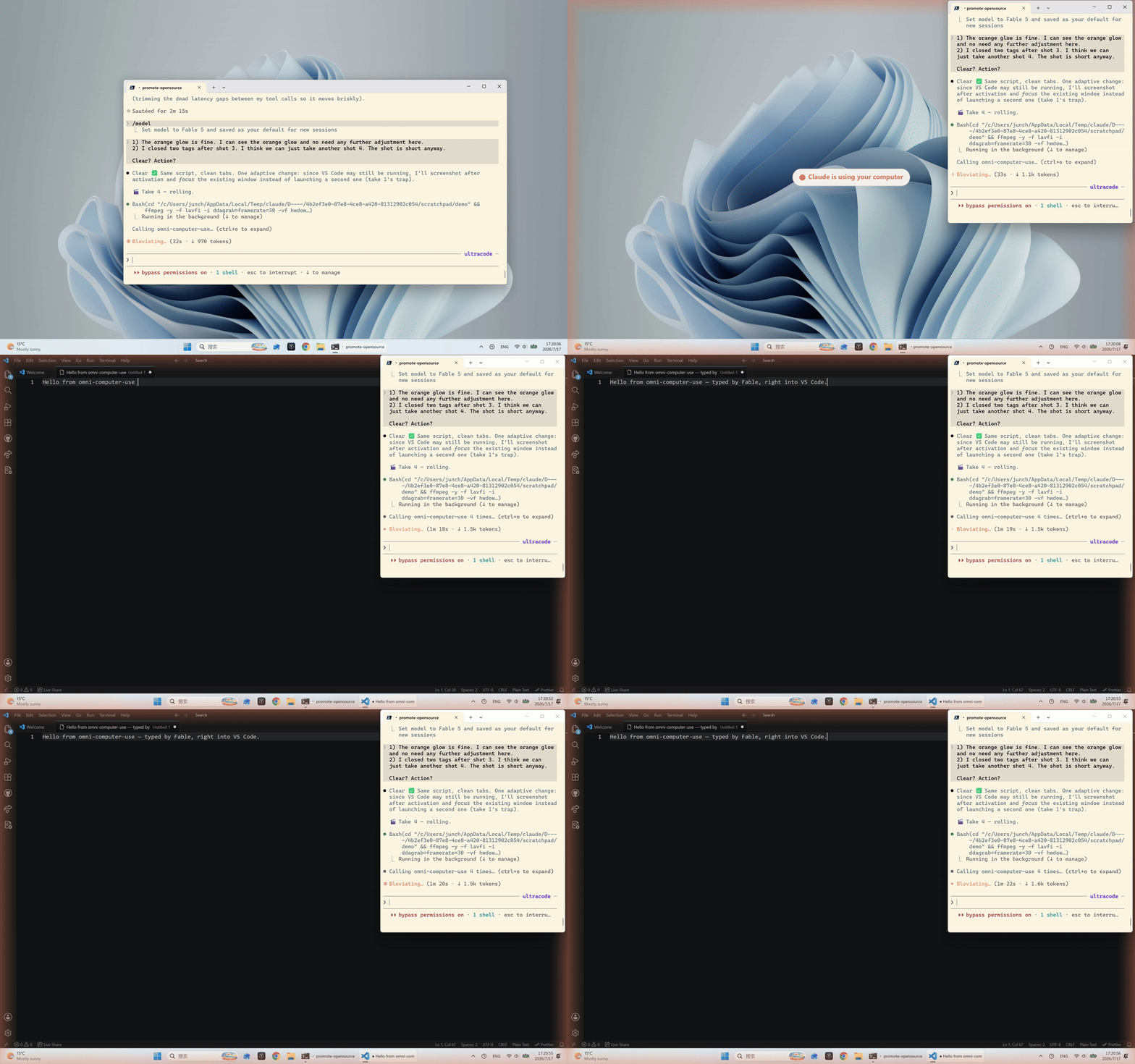
Claude Code CLI, one take.
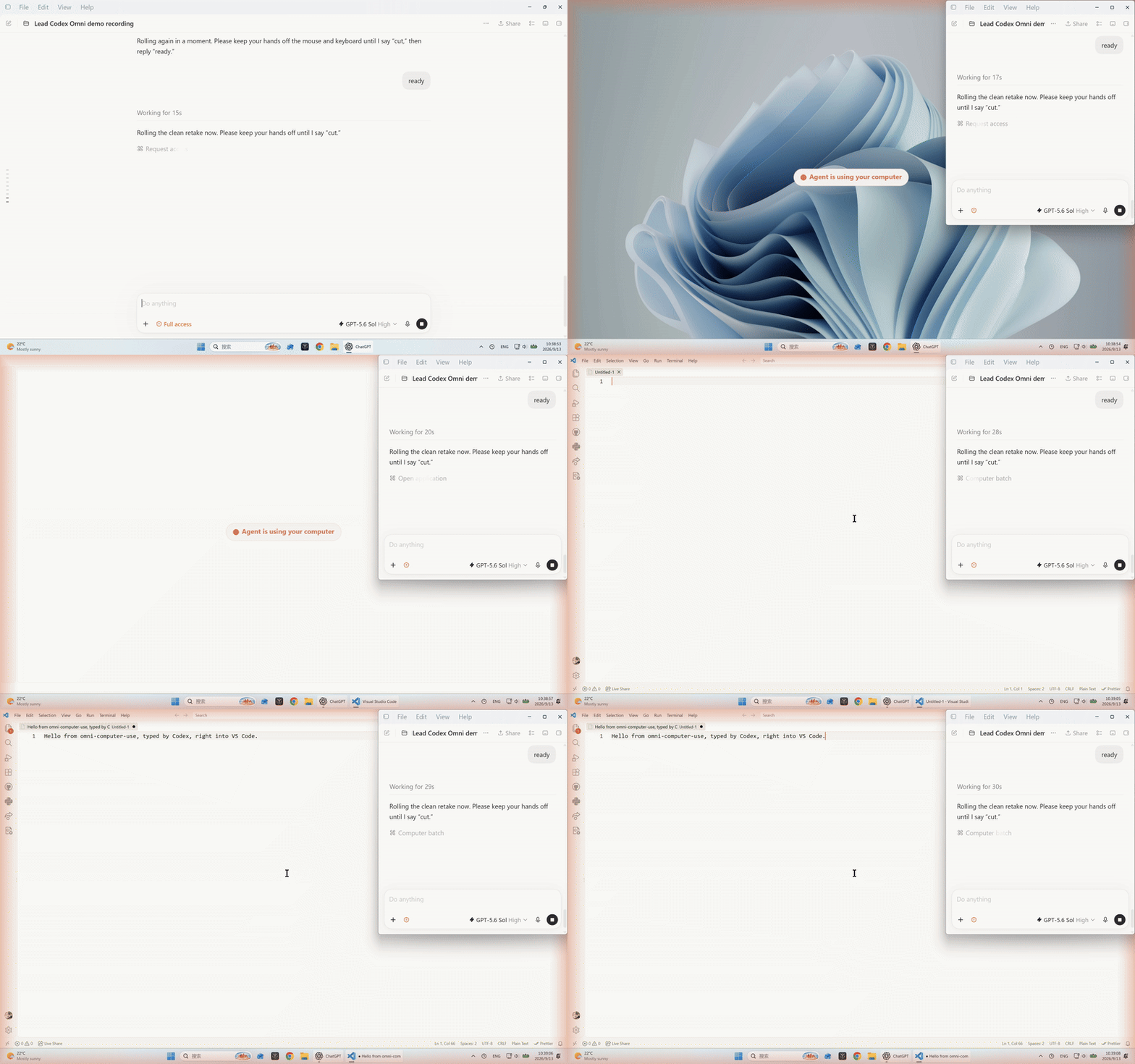
Codex, one take. Codex recorded and cut this one itself.
Everything below is written for AI. Skip it if you want. Good luck 👍
Requires Windows and Python 3.11+ (uv / uvx fetch Python for you). The PyPI package name carries an -mcp suffix; everything else — the command, the server key, this repo — is plain omni-computer-use.
Recommended — install into Claude Code. Claude Desktop reads Claude Code's MCP servers in addition to its own, so this one command makes the server available in both the Claude Code CLI and the Claude Desktop app:
claude mcp add omni-computer-use -s user -- uvx omni-computer-use-mcp
claude mcp list   # expect: omni-computer-use … ✓ Connected
The other directions are narrower. In Claude Desktop's claude_desktop_config.json — visible to Claude Desktop only, the CLI won't see it:
{
  "mcpServers": {
    "omni-computer-use": { "command": "uvx", "args": ["omni-computer-use-mcp"] }
  }
}
A desktop-extension bundle (.mcpb, one-click install) is attached to each GitHub release — same scope caveat: Claude Desktop only.
Run standalone (any MCP client, or just to poke at it):
uvx omni-computer-use-mcp
Windows spawn tip:
uv/uvxare native executables and need no wrapper. If your MCP client launches servers through a.cmdshim (likenpx), that one needs acmd /cprefix — this server doesn't.
On a multi-monitor rig every screenshot self-describes — it names the monitor it captured and what else is attached, so the agent never loses track of which screen it is looking at:
This screenshot was taken on monitor "\\.\DISPLAY2" (2560x1600, primary).
Other attached monitors: "\\.\DISPLAY1" (2560x1440). Use switch_display to
capture a different monitor.
open_application reports what actually happened instead of fire-and-forget:
Opened "Calculator".                                  # a real window appeared
launched "…" but its process exited within ~2s        # crashed on startup — reported, not faked
  without showing a window …
deactivate and display_overview; a dev reload tool makes 30 when COMPUTER_USE_DEV=on.tests/ (scen_*.json), each run through a fresh MCP process.Matching Anthropic's computer-use (27): request_access, list_granted_applications, request_teach_access, screenshot, zoom, switch_display, cursor_position, mouse_move, left_click, right_click, middle_click, double_click, triple_click, left_click_drag, left_mouse_down, left_mouse_up, scroll, key, hold_key, type, wait, open_application, read_clipboard, write_clipboard, computer_batch, teach_step, teach_batch.
omni-specific (2):
deactivate — end the session without killing the process (glow off, controlling window restored, grants revoked); the counterpart to request_access.display_overview — one composite, labeled image of all monitors laid out per the virtual-desktop arrangement (an orientation aid for "which screen is that window on?"; not a click surface).All click / move / scroll / drag / zoom coordinates are in the image-pixel space of the most recent screenshot; the server maps them back to physical pixels.
Faithful desktop visuals. While a session is active the server reproduces Claude Desktop's on-screen affordances, pixel-calibrated from reference captures: a static orange edge glow, a centered "Agent is using your computer" pill that flies to the corner, and the controlling window (the Windows Terminal running the CLI, or the Claude Desktop window itself) shrunk flush to the top-right and parked off-screen during each capture so screenshots show the true desktop with no black box. Click-through is kind-aware: a non-layered terminal drops to the bottom of the z-order for each synthetic click; the layered Claude Desktop window gets WS_EX_TRANSPARENT (the desktop tool's own approach) so clicks pass through to whatever is beneath — the window itself never moves, so the user's real mouse is unaffected.
Keyboard self-harm guard. Synthetic keystrokes go to whatever holds OS focus. If the controlling window (the Claude window, or the hosting terminal) is frontmost, type / key are blocked — otherwise the text would land in the agent's own conversation, or run as a shell command with a trailing Return. The guard is unconditional and identifies the control surface by window identity and owning process, while still leaving a second, unrelated terminal window a legitimate target. Mouse actions are exempt (a click carries its own coordinate).
Multi-monitor. Screenshots carry an event-driven note naming the captured monitor and flagging when it changed; open_application warns when a window opened on a different monitor than captures currently target — precisely, by monitor name, when it has the window handle; display_overview returns the all-screens map. The glow and shrink land on the controlling window's own monitor, leaving other displays untouched.
Honest launching & self-heal. open_application polls for a real window and distinguishes opened / running-no-window-yet / crashed-on-startup / nothing-launched instead of always reporting success. A force-killed session's shrunk terminal is restored on the next start from a small state file (guarded against window-handle reuse).
Hot-reload (dev). Set COMPUTER_USE_DEV=on to add a reload tool that importlib.reloads the logic modules in-process, so edited code takes effect without restarting the session — handy while developing automation against the server. It is off by default (the clean 29-tool surface).
See SPEC.md for the authoritative, tool-by-tool contract and the module architecture.
The built-in computer use grants apps from the list of installed applications and applies a tiered model: browsers are visible but read-only, terminals and IDEs are click-only — no keystrokes, by architecture. Sensible defaults for general desktop use, and they close off the workflow this server was built for: letting the agent launch the app you are currently building — a loose .exe no install list knows about — click through it, type into it, verify behavior, then go back to the IDE and edit code.
omni grants every approved app at tier:"full" — IDEs, terminals, and dev builds included (open_application accepts a full .exe path). Full power, your responsibility.
A CLI has no permission GUI, so request_access auto-grants resolvable apps at tier:"full" and returns the same JSON shape; foreground gating is permissive by default (it only errors on an empty allowlist). Masking of non-allowlisted windows defaults off (the rect-based masker over-masks). Teach mode is a stub — it executes the step's actions and returns a screenshot, but there is no fullscreen tooltip overlay (a desktop-app feature). Each of these is controlled by the env vars below.
| Variable | Default | Meaning |
|---|---|---|
COMPUTER_USE_MAX_PIXELS | 1200000 | Max pixels in a downscaled screenshot (≈ 1.2 MP). |
COMPUTER_USE_MASKING | off | Mask non-allowlisted app windows in screenshots. |
COMPUTER_USE_ENFORCE_FOREGROUND | off | Block input when the frontmost app isn't allowlisted. |
COMPUTER_USE_AUTOGRANT | on | Auto-grant resolvable apps on request_access. |
COMPUTER_USE_DEV | off | Register the developer reload hot-reload tool (on → 30 tools). |
COMPUTER_USE_LOG_DIR | %LOCALAPPDATA%\omni-computer-use\logs | Directory for the rotating mcp.log (tool calls + tracebacks). |
COMPUTER_USE_GLOW | on | Static orange edge glow while a session is active. |
COMPUTER_USE_SHRINK_TERMINAL | on | Shrink the controlling window to the top-right corner. |
COMPUTER_USE_HIDE_CONTROLLING | on | Park the controlling window off-screen during captures. |
COMPUTER_USE_PILL | on | Centered "Agent is using your computer" pill. |
COMPUTER_USE_GLOW_COLOR | 217,119,87 | Glow / pill color (#D97757). |
COMPUTER_USE_GLOW_ALPHA | 0.4 | Peak glow opacity at the very edge. |
COMPUTER_USE_GLOW_BAND | 0.05 | Glow band width as a fraction of the smaller screen dimension. |
COMPUTER_USE_GLOW_EXCLUDE | on | Exclude the glow / pill from captures. |
key / hold_key, not type. type injects Unicode directly and bypasses the input method (CJK and emoji work in any layout). key / hold_key send virtual-key codes that pass through the active IME — so with a Chinese IME active, sending the letter a opens a pinyin candidate list instead of typing a. Use type for text; switch the IME to English for letter shortcuts.computer_batch. Actions inside one batch run milliseconds apart; separate tool calls are a model round-trip apart (seconds). Anything that only exists mid-flight — a Stop/Cancel button, a menu that closes on blur — is unreachable one call at a time. Put the whole sequence in one batch and tune the moment with wait.type / key while the controlling window holds focus. Start the batch with a click on the target window: the click moves focus, and the keyboard actions that follow in the same batch go where you meant.WM_CLOSE closes it fine. Verify with a screenshot rather than trusting the returned Clicked., and suspect the app (not the coordinate) when hover works but the action doesn't.tests/ holds a 16-scenario end-to-end suite (scen_*.json) plus the driver that launches a fresh server and runs a scenario's JSON list of tool calls, interleaving the returned images:
uv run python tests/drive.py tests/scen_calc.json # compute 7×8 by clicks, screenshot, verify
tests/dev/ holds the one-off Win32 probes written during development (glow/pill sampling, z-order and capture-affinity experiments).
Python ≥ 3.11, packaged with uv, src layout, hatchling. mcp Python SDK (FastMCP) over stdio; mss for capture; pillow for imaging; pywin32 + ctypes for DPI awareness, window / clipboard / foreground access, and raw Win32 SendInput mouse/keyboard injection.
omni-computer-use runs entirely on your machine and has no server side.
mcp.log, tool calls and tracebacks) under %LOCALAPPDATA%\omni-computer-use\logs — configurable via COMPUTER_USE_LOG_DIR, deletable at any time.Note that whatever MCP client you attach (e.g. Claude Desktop, the Claude Code CLI) receives the screenshots and text this server captures, and is governed by its own privacy policy.
MIT © Jason26214
Claim this server with your GitHub account to request manual ownership verification.
Link to the catalog listing for omni-computer-use: a Windows computer-use MCP server from your README. This badge does not certify ownership, compatibility or security.
[](https://awesome-mcp.com/servers/computer-use-omni)Public repository statistics could not be verified. Check the configured source address; unavailable counts are not zero.
Separate sources, scopes and periods. Never combined or treated as installations, active users or security reviews.
No reviewed package or image identity; download statistics are not listed yet.
Alternative and complementary servers in the same category
A directory listing describing a cancellation-letter and mailing-address service. The configured public GitHub repository returned 404 during source verification.

A hosted MCP service for browsing and searching through Singapore mobile-network proxies.

A directory listing describing a Markdown-to-PDF service. The configured public GitHub repository returned 404 during source verification.