
A Model Context Protocol (MCP) server for controlling Chrome with debugging capabilities, userscript injection, and extension support.
Repository stats unavailable
Browser & Scraping
A Playwright-based MCP server that runs multiple concurrent browser instances with instance management and automation tools.
Concurrent Browser MCP is cataloged as an MCP server attributed to sailaoda. A Playwright-based MCP server that runs multiple concurrent browser instances with instance management and automation tools. It is categorized under browser automation. See the capability inspector for recorded interfaces and their independent review status; consult upstream documentation for the current interface.
Installation configuration is not reviewed. No executable setup is offered for this entry; inspect the source repository before proceeding.
Catalog license label: Not specified. Check the source repository's current license and terms before using, modifying or distributing this software.
Capability definitions are not reviewed. Unreviewed imports are not exposed as trusted interfaces.
No reviewed records to display. This does not establish that upstream lacks this capability.
No reviewed records to display. This does not establish that upstream lacks this capability.
No reviewed records to display. This does not establish that upstream lacks this capability.
Email delivery is not connected. This page does not collect email addresses or create subscriptions.
Browse the registry for current listings instead.
Reviews for Concurrent Browser MCP are not available yet
Review publishing and storage are not connected. This page does not collect or publish ratings or comments, including after sign-in.
It supports Chromium, Firefox, and WebKit.
Timed-out instances are automatically cleaned up to prevent resource leaks.
README.md · 288956796fe6 · Fetched 2026-11-13 11:36:38 UTC
Original upstream text, without AI rewriting. Scripts, forms and unsafe links are filtered for safety.
Showing the last retrieved documentation snapshot; check the source for current changes.
A multi-concurrent browser MCP (Model Context Protocol) server built with Playwright.
中文 | English
# Global installation
npm install -g concurrent-browser-mcp

# Or use npx directly (no installation required)
npx concurrent-browser-mcp
# Clone repository
git clone https://github.com/sailaoda/concurrent-browser-mcp.git
cd concurrent-browser-mcp

# Install dependencies
npm install

# Build project
npm run build

# Optional: Global link (for local development)
npm link
git clone https://github.com/sailaoda/concurrent-browser-mcp.git
cd concurrent-browser-mcp
./install.sh
# Start server (default configuration)
npx concurrent-browser-mcp

# Custom configuration
npx concurrent-browser-mcp --max-instances 25 --browser firefox --headless false
Choose the appropriate configuration based on your installation method:
{
  "mcpServers": {
    "concurrent-browser": {
      "command": "npx",
      "args": ["concurrent-browser-mcp", "--max-instances", "20"]
    }
  }
}
{
  "mcpServers": {
    "concurrent-browser": {
      "command": "concurrent-browser-mcp",
      "args": ["--max-instances", "20"]
    }
  }
}
If you built from source, you can reference the local build version directly:
{
  "mcpServers": {
    "concurrent-browser": {
      "command": "node",
      "args": ["/path/to/concurrent-browser-mcp/dist/index.js", "--max-instances", "20"],
      "cwd": "/path/to/concurrent-browser-mcp"
    }
  }
}
Or use relative path (if config file and project are in the same directory level):
{
  "mcpServers": {
    "concurrent-browser": {
      "command": "node",
      "args": ["./concurrent-browser-mcp/dist/index.js", "--max-instances", "20"]
    }
  }
}
If you used npm link:
{
  "mcpServers": {
    "concurrent-browser": {
      "command": "concurrent-browser-mcp",
      "args": ["--max-instances", "20"]
    }
  }
}
| Option | Description | Default |
|---|---|---|
-m, --max-instances <number> | Maximum number of instances | 20 |
-t, --instance-timeout <number> | Instance timeout in minutes | 30 |
-c, --cleanup-interval <number> | Cleanup interval in minutes | 5 |
--browser <browser> | Default browser type (chromium/firefox/webkit) | chromium |
--headless | Default headless mode | true |
--width <number> | Default viewport width | 1280 |
--height <number> | Default viewport height | 720 |
--user-agent <string> | Default user agent | - |
--proxy <string> | Proxy server address (e.g., http://127.0.0.1:7890) | - |
--no-proxy-auto-detect | Disable automatic proxy detection | false |
--ignore-https-errors | Ignore HTTPS errors | false |
--bypass-csp | Bypass CSP | false |
concurrent-browser-mcp supports flexible proxy configuration to help you use browser automation features in network environments that require proxies.
# Use specified proxy server
npx concurrent-browser-mcp --proxy http://127.0.0.1:7890
The system automatically detects proxies in the following order:
HTTP_PROXY, HTTPS_PROXY, ALL_PROXY# Auto-detection enabled by default (no additional parameters needed)
npx concurrent-browser-mcp
# Explicitly disable auto-detection
npx concurrent-browser-mcp --no-proxy-auto-detect
Using specified proxy:
{
  "mcpServers": {
    "concurrent-browser": {
      "command": "npx",
      "args": ["concurrent-browser-mcp", "--proxy", "http://127.0.0.1:7890"]
    }
  }
}
Disable proxy:
{
  "mcpServers": {
    "concurrent-browser": {
      "command": "npx",
      "args": ["concurrent-browser-mcp", "--no-proxy-auto-detect"]
    }
  }
}
The proxy detection results will be displayed at startup:
🚀 Starting Concurrent Browser MCP Server...
Max instances: 20
Default browser: chromium
Headless mode: yes
Viewport size: 1280x720
Instance timeout: 30 minutes
Cleanup interval: 5 minutes
Proxy: Auto-detection enabled  # or shows detected proxy address
http://proxy-server:porthttps://proxy-server:portsocks5://proxy-server:port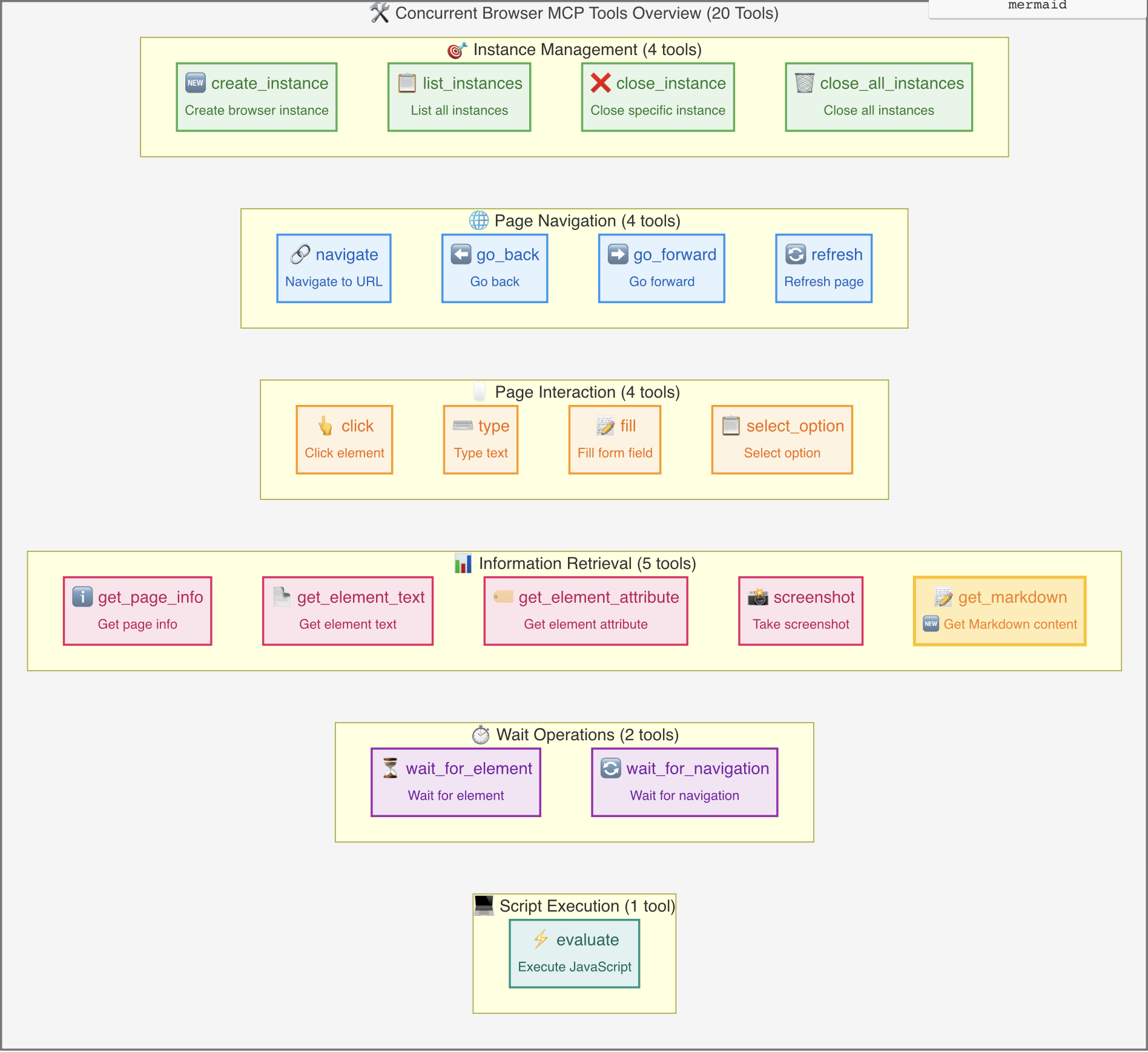
browser_create_instance: Create a new browser instancebrowser_list_instances: List all instancesbrowser_close_instance: Close a specific instancebrowser_close_all_instances: Close all instancesbrowser_navigate: Navigate to a specified URLbrowser_go_back: Go back to previous pagebrowser_go_forward: Go forward to next pagebrowser_refresh: Refresh current pagebrowser_click: Click on page elementsbrowser_type: Type text contentbrowser_fill: Fill form fieldsbrowser_select_option: Select dropdown optionsbrowser_get_page_info: Get detailed page information including full HTML content, page statistics, and metadatabrowser_get_element_text: Get element textbrowser_get_element_attribute: Get element attributesbrowser_screenshot: Take page screenshotsbrowser_get_markdown: 🆕 Get Markdown contentbrowser_wait_for_element: Wait for element to appearbrowser_wait_for_navigation: Wait for page navigation to completebrowser_evaluate: Execute JavaScript code// Create a new Chrome instance
await callTool('browser_create_instance', {
browserType: 'chromium',
headless: false,
viewport: { width: 1920, height: 1080 },
metadata: {
name: 'main-browser',
description: 'Main browser instance'
}
});
// Navigate to website
await callTool('browser_navigate', {
  instanceId: 'your-instance-id',
  url: 'https://example.com'
});

// Click element
await callTool('browser_click', {
  instanceId: 'your-instance-id',
  selector: 'button.submit'
});

// Input text
await callTool('browser_type', {
  instanceId: 'your-instance-id',
  selector: 'input[name="search"]',
  text: 'search query'
});
// Take screenshot
await callTool('browser_screenshot', {
  instanceId: 'your-instance-id',
  fullPage: true
});

// Get page information
await callTool('browser_get_page_info', {
  instanceId: 'your-instance-id'
});
// Create multiple instances for parallel processing
const instances = await Promise.all([
  callTool('browser_create_instance', { metadata: { name: 'worker-1' } }),
  callTool('browser_create_instance', { metadata: { name: 'worker-2' } }),
  callTool('browser_create_instance', { metadata: { name: 'worker-3' } })
]);

// Navigate to different pages in parallel
await Promise.all(instances.map(async (instance, index) => {
  await callTool('browser_navigate', {
    instanceId: instance.data.instanceId,
    url: `https://example${index + 1}.com`
  });
}));
┌─────────────────────────────────────────────────────────────────┐
│                         MCP Client                              │
├─────────────────────────────────────────────────────────────────┤
│                    Concurrent Browser MCP Server                │
│  ┌─────────────────┐  ┌─────────────────┐  ┌─────────────────┐  │
│  │  Browser Tools  │  │ Browser Manager │  │  MCP Server     │  │
│  │                 │  │                 │  │                 │  │
│  │ - Tool Defs     │  │ - Instance Mgmt │  │ - Request       │  │
│  │ - Execution     │  │ - Lifecycle     │  │   Handling      │  │
│  │ - Validation    │  │ - Cleanup       │  │ - Error Mgmt    │  │
│  └─────────────────┘  └─────────────────┘  └─────────────────┘  │
├─────────────────────────────────────────────────────────────────┤
│                        Playwright                              │
│  ┌─────────────────┐  ┌─────────────────┐  ┌─────────────────┐  │
│  │   Browser 1     │  │   Browser 2     │  │   Browser N     │  │
│  │   (Chromium)    │  │   (Firefox)     │  │   (WebKit)      │  │
│  └─────────────────┘  └─────────────────┘  └─────────────────┘  │
└─────────────────────────────────────────────────────────────────┘
In addition to simulation demo scripts, we also provide real browser functionality test scripts that let you see actual screenshot results:
# Run real browser screenshot test
node test-real-screenshot.js
This test script will:
🚀 Starting real browser screenshot test...
✅ Browser started
✅ Page created
🌐 Navigating to https://example.com...
✅ Page loaded successfully
📸 Taking screenshot and saving as screenshot-2025-07-19T11-04-18-660Z.png...
✅ Screenshot saved: screenshot-2025-07-19T11-04-18-660Z.png
📊 File size: 23.57 KB
📂 File location: /path/to/screenshot-2025-07-19T11-04-18-660Z.png
🌐 Visiting https://github.com...
✅ github screenshot saved: screenshot-github-2025-07-19T11-04-18-660Z.png (265.99 KB)
🛑 Browser closed
After testing, you can find actual screenshot files in the project directory:
# View generated screenshot files
ls -la screenshot-*.png

# Open in system default image viewer
open screenshot-*.png    # macOS
start screenshot-*.png   # Windows
xdg-open screenshot-*.png # Linux
| Feature | Traditional MCP Browser Server | Concurrent Browser MCP |
|---|---|---|
| Instance Management | Single instance | Multi-instance concurrency |
| Resource Isolation | None | Complete isolation |
| Concurrent Processing | Serial | Parallel |
| Instance Lifecycle | Manual management | Automatic management |
| Resource Cleanup | Manual | Automatic |
| Scalability | Limited | Highly scalable |
# 1. Clone project
git clone https://github.com/sailaoda/concurrent-browser-mcp.git
cd concurrent-browser-mcp

# 2. Install dependencies
npm install

# 3. Build project
npm run build

# 4. Local link (optional, for global command testing)
npm link
# Build TypeScript project
npm run build

# Development mode (file watching)
npm run dev

# Run code linting
npm run lint

# Fix code formatting issues
npm run lint:fix

# Clean build artifacts
npm run clean

# Run tests
npm test
concurrent-browser-mcp/
├── src/                    # Source code directory
│   ├── index.ts           # CLI entry point
│   ├── server.ts          # MCP server main logic
│   ├── browser-manager.ts # Browser instance manager
│   └── tools.ts           # MCP tool definitions and implementation
├── dist/                  # Build artifacts directory
├── assets/                # Static resources directory
├── examples/              # Example scripts
├── test-real-screenshot.js # Real test script
├── config.example.json    # Configuration example
├── package.json           # Project configuration
├── tsconfig.json         # TypeScript configuration
└── README.md             # Project documentation
After building, you can use the local version in several ways:
# Run built files
node dist/index.js --max-instances 20

# Use absolute path in MCP configuration
{
  "mcpServers": {
    "concurrent-browser": {
      "command": "node",
      "args": ["/absolute/path/to/concurrent-browser-mcp/dist/index.js", "--max-instances", "20"]
    }
  }
}
# Execute link in project root directory
npm link

# Now you can use it like a global package
concurrent-browser-mcp --max-instances 20

# Use in MCP configuration
{
  "mcpServers": {
    "concurrent-browser": {
      "command": "concurrent-browser-mcp",
      "args": ["--max-instances", "20"]
    }
  }
}
# Run directly in project directory
cd /path/to/concurrent-browser-mcp
npm run build
node dist/index.js

# MCP configuration using relative path
{
  "mcpServers": {
    "concurrent-browser": {
      "command": "node",
      "args": ["./concurrent-browser-mcp/dist/index.js"],
      "cwd": "/parent/directory/path"
    }
  }
}
# Run real browser tests
node test-real-screenshot.js

# Run simulated MCP call tests
node examples/demo.js

# Start development server (with debug output)
node dist/index.js --max-instances 5 --browser chromium --headless false
git checkout -b feature/amazing-feature)git commit -m 'Add some amazing feature')git push origin feature/amazing-feature)Claim this server with your GitHub account to request manual ownership verification.
Link to the catalog listing for Concurrent Browser MCP from your README. This badge does not certify ownership, compatibility or security.
[](https://awesome-mcp.com/servers/concurrent-browser-mcp)Public repository statistics could not be verified. Check the configured source address; unavailable counts are not zero.
Separate sources, scopes and periods. Never combined or treated as installations, active users or security reviews.
No reviewed package or image identity; download statistics are not listed yet.
Alternative and complementary servers in the same category
A Model Context Protocol (MCP) server for controlling Chrome with debugging capabilities, userscript injection, and extension support.

An MCP server that lets AI assistants browse websites and extract content using optional CSS selectors.

An MCP server that reads pages, fills forms, takes screenshots, and hands the browser to a person for logins or CAPTCHAs.