

A directory listing describing a cancellation-letter and mailing-address service. The configured public GitHub repository returned 404 during source verification.
Repository stats unavailable
Developer Tools
A Node.js MCP server that gives AI agents eyes and hands on macOS through tools for screenshots, clicking, typing, window and app control, accessibility inspection, and clipboard access.
mac-use-mcp is cataloged as an MCP server attributed to antbotlab. A Node.js MCP server that gives AI agents eyes and hands on macOS through tools for screenshots, clicking, typing, window and app control, accessibility inspection, and clipboard access. It is categorized under developer tools. See the capability inspector for recorded interfaces and their independent review status; consult upstream documentation for the current interface.
Installation configuration is not reviewed. No executable setup is offered for this entry; inspect the source repository before proceeding.
Catalog license label: MIT. Check the source repository's current license and terms before using, modifying or distributing this software.
Capability definitions are not reviewed. Unreviewed imports are not exposed as trusted interfaces.
No reviewed records to display. This does not establish that upstream lacks this capability.
No reviewed records to display. This does not establish that upstream lacks this capability.
No reviewed records to display. This does not establish that upstream lacks this capability.
Email delivery is not connected. This page does not collect email addresses or create subscriptions.
Browse the registry for current listings instead.
Reviews for mac-use-mcp are not available yet
Review publishing and storage are not connected. This page does not collect or publish ratings or comments, including after sign-in.
It requires Accessibility permission for mouse and keyboard control and Screen Recording permission for screenshots, which can be verified with the check_permissions tool.
It works only on macOS 13 or newer, on both Intel and Apple Silicon, and requires Node.js 22 or newer.
No. It ships a pre-compiled Swift binary with the npm package and has no native Node.js addons or build step.
README.md · f19bbd95da4e · Fetched 2026-11-13 10:27:07 UTC
Original upstream text, without AI rewriting. Scripts, forms and unsafe links are filtered for safety.
Showing the last retrieved documentation snapshot; check the source for current changes.
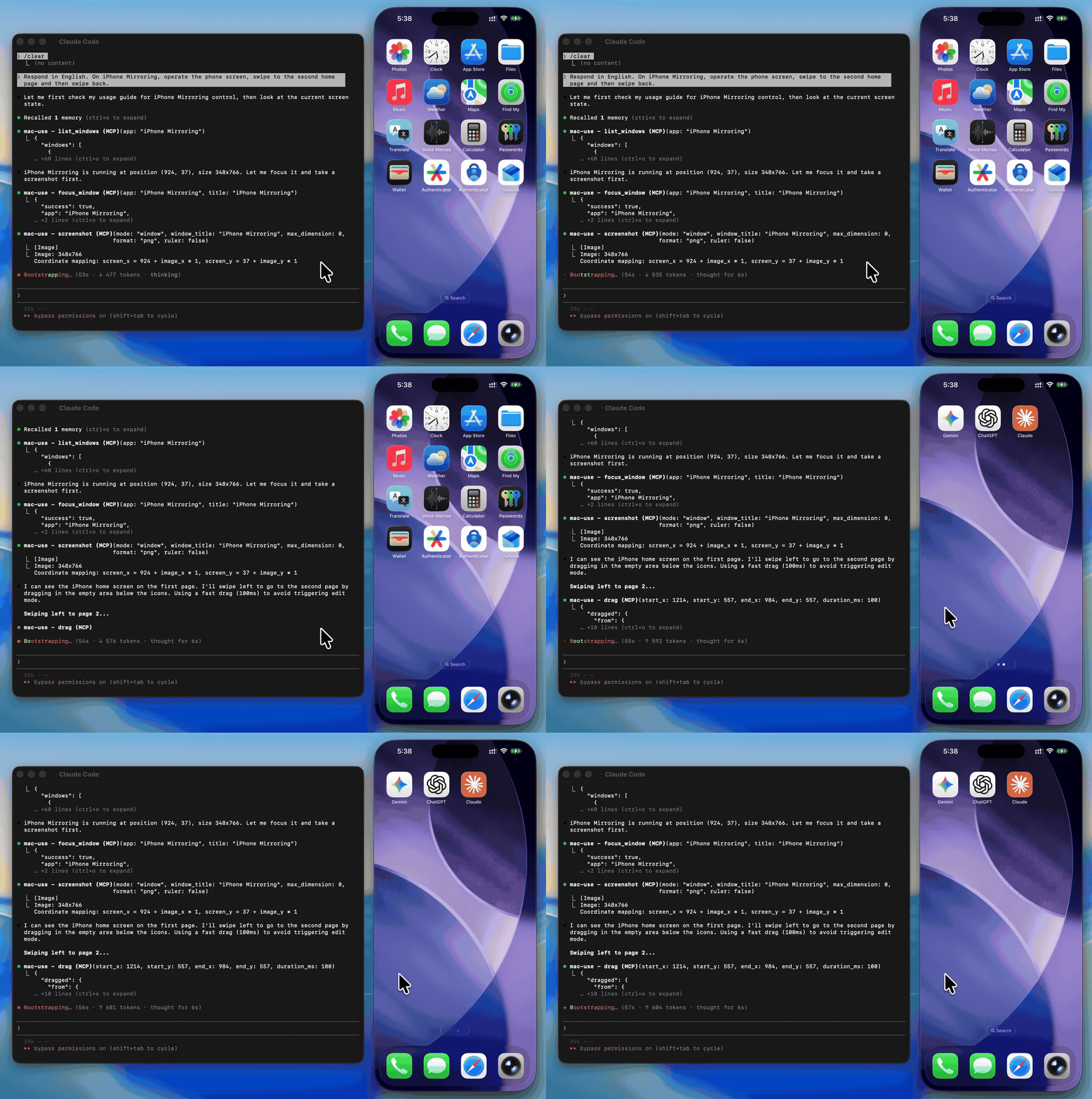
[!WARNING] This tool has full control over mouse, keyboard, and screen. Please use in a sandboxed environment to protect your privacy and avoid accidental data loss by your agents. You are responsible for any actions performed through this tool.
Zero-native-dependency macOS desktop automation via MCP.
Give AI agents eyes and hands on macOS — click, type, screenshot, and inspect any application.






get_ui_elements, validate screen content via screenshotopen_application, fill forms with type_text, navigate menus via click_menuscreenshot for visual diffing or alertingget_ui_elements for QA and compliance checksscreenshot, click, type_text, and morenpx mac-use-mcp and grant two macOS permissions. No node-gyp, no Xcode tools, no build step.Requirements: macOS 13+ and Node.js 22+. The server communicates over stdio transport.
This package only works on macOS. It will refuse to install on other operating systems.
No build steps. No native dependencies. Just run:
npx mac-use-mcp
npxwill prompt to install the package on first run. Usenpx -y mac-use-mcpto skip the confirmation.
[!TIP] Model selection matters. Desktop automation involves screenshot–action loops that add up in token usage. A fast model with solid reasoning, good vision, and reliable tool calling is recommended:
Model Provider Gemini 3 Flash Claude Sonnet 4.6 Anthropic GPT-5 mini OpenAI MiniMax-M2.5 MiniMax Kimi K2.5 Moonshot AI Qwen3.5 Alibaba GLM-4.7 Zhipu AI
mac-use-mcp requires two macOS permissions to function. Grant them once and you're set.
Required for mouse and keyboard control.
Required for screenshots.
After granting both permissions and configuring your MCP client (see next section), use the check_permissions tool to confirm everything is working:
> check_permissions
✓ Accessibility: granted
✓ Screen Recording: granted
claude mcp add mac-use-mcp -- npx mac-use-mcp
Add to ~/Library/Application Support/Claude/claude_desktop_config.json:
{
  "mcpServers": {
    "mac-use-mcp": {
      "command": "npx",
      "args": ["mac-use-mcp"]
    }
  }
}
Add to ~/.codex/config.toml:
[mcp_servers.mac-use]
command = "npx"
args = ["-y", "mac-use-mcp"]
Or via CLI:
codex mcp add mac-use -- npx -y mac-use-mcp
Add to ~/.gemini/antigravity/mcp_config.json:
{
  "mcpServers": {
    "mac-use-mcp": {
      "command": "npx",
      "args": ["mac-use-mcp"]
    }
  }
}
Add to ~/.gemini/settings.json:
{
  "mcpServers": {
    "mac-use-mcp": {
      "command": "npx",
      "args": ["mac-use-mcp"]
    }
  }
}
Add to .vscode/mcp.json in your workspace (or open the Command Palette and run MCP: Open User Configuration for global setup):
{
  "servers": {
    "mac-use-mcp": {
      "command": "npx",
      "args": ["mac-use-mcp"]
    }
  }
}
Add to ~/.cursor/mcp.json (global) or .cursor/mcp.json (project-level):
{
  "mcpServers": {
    "mac-use-mcp": {
      "command": "npx",
      "args": ["mac-use-mcp"]
    }
  }
}
Add to ~/.codeium/windsurf/mcp_config.json:
{
  "mcpServers": {
    "mac-use-mcp": {
      "command": "npx",
      "args": ["mac-use-mcp"]
    }
  }
}
Open Cline's MCP settings (in the Cline extension panel, click the MCP servers icon), then add:
{
  "mcpServers": {
    "mac-use-mcp": {
      "command": "npx",
      "args": ["mac-use-mcp"]
    }
  }
}
Add to ~/.aws/amazonq/mcp.json:
{
  "mcpServers": {
    "mac-use-mcp": {
      "command": "npx",
      "args": ["mac-use-mcp"]
    }
  }
}
This Node.js MCP server exposes 18 tools for mouse, keyboard, and screen control to any MCP-compatible client.
| Tool | Description |
|---|---|
screenshot | Capture the screen, a region, or a window by title (PNG or JPEG) |
get_screen_info | Get display count, resolution, origin, and scale factor for each display |
get_cursor_position | Get current cursor coordinates |
| Tool | Description |
|---|---|
click | Click at screen coordinates with button, click count, and modifier options |
move_mouse | Move the cursor to a position |
scroll | Scroll up, down, left, or right at a position |
drag | Drag from one point to another over a configurable duration |
type_text | Type text at the cursor position (supports Unicode, CJK, and emoji) |
press_key | Press a key or key combination (e.g., "cmd+c", "Return") |
| Tool | Description |
|---|---|
list_windows | List all visible windows with positions and sizes |
focus_window | Activate an app and bring a specific window to the front |
open_application | Launch an application by name |
click_menu | Click a menu bar item by path (e.g., "File > Save As...") |
App names support fuzzy matching — "chrome" resolves to "Google Chrome", "code" to "Code", etc.
| Tool | Description |
|---|---|
get_ui_elements | Query UI elements via Accessibility API — find buttons, text fields, and other controls by role or title |
| Tool | Description |
|---|---|
clipboard_read | Read the current system clipboard as plain text |
clipboard_write | Write text to the system clipboard |
| Tool | Description |
|---|---|
wait | Pause for a specified duration (in milliseconds, 0–10 000, default 500) |
check_permissions | Verify Accessibility and Screen Recording access |
Common workflow patterns using mac-use-mcp tools:
1. focus_window({ app: "Safari" })
2. screenshot({ mode: "window", window_title: "Safari" })
1. get_ui_elements({ app: "Finder", role: "AXButton" })
   → finds "OK" button at position (500, 300)
2. click({ x: 500, y: 300 })
1. open_application({ name: "TextEdit" })
2. click_menu({ app: "TextEdit", path: "Format > Make Plain Text" })
1. focus_window({ app: "Safari" })
2. press_key({ key: "cmd+a" })       # select all
3. press_key({ key: "cmd+c" })       # copy
4. focus_window({ app: "Notes" })
5. press_key({ key: "cmd+v" })       # paste
key code), window focus, and menu clicksSystem Events key code) as a workaround, which may behave differently in some edge cases.Grant Accessibility and Screen Recording permissions to your terminal app in System Settings > Privacy & Security. A restart of the terminal may be required.
macOS 15 (Sequoia) introduced stricter permission prompts. Allow the prompts when they appear. The check_permissions tool can verify your current permission status.
Some password fields and secure text inputs block programmatic key events. This is a macOS security feature. Use clipboard_write + press_key("cmd+v") as a workaround.
Ensure Screen Recording permission is granted to your terminal app (not just Accessibility). Restart the terminal after granting.
See CONTRIBUTING.md for development setup and guidelines.
To report a vulnerability, see SECURITY.md.
MIT © 2026 antbotlab
macOS is a trademark of Apple Inc., registered in the U.S. and other countries and regions.
Claim this server with your GitHub account to request manual ownership verification.
Link to the catalog listing for mac-use-mcp from your README. This badge does not certify ownership, compatibility or security.
[](https://awesome-mcp.com/servers/mac-use-mcp)Public repository statistics could not be verified. Check the configured source address; unavailable counts are not zero.
Separate sources, scopes and periods. Never combined or treated as installations, active users or security reviews.
No reviewed package or image identity; download statistics are not listed yet.
Alternative and complementary servers in the same category
A directory listing describing a cancellation-letter and mailing-address service. The configured public GitHub repository returned 404 during source verification.

A hosted MCP service for browsing and searching through Singapore mobile-network proxies.

A directory listing describing a Markdown-to-PDF service. The configured public GitHub repository returned 404 during source verification.