
A directory listing describing a cancellation-letter and mailing-address service. The configured public GitHub repository returned 404 during source verification.
Repository stats unavailable
Developer Tools
An MCP server that turns a list of allowed shell commands from a JSON configuration file into tools an AI assistant can call.
MCP CLI: a Model Context Protocol server exposing allowed shell commands as tools is cataloged as an MCP server attributed to gelisam. An MCP server that turns a list of allowed shell commands from a JSON configuration file into tools an AI assistant can call. It is categorized under developer tools. See the capability inspector for recorded interfaces and their independent review status; consult upstream documentation for the current interface.
Installation configuration is not reviewed. No executable setup is offered for this entry; inspect the source repository before proceeding.
Catalog license label: Not specified. Check the source repository's current license and terms before using, modifying or distributing this software.
Capability definitions are not reviewed. Unreviewed imports are not exposed as trusted interfaces.
No reviewed records to display. This does not establish that upstream lacks this capability.
No reviewed records to display. This does not establish that upstream lacks this capability.
No reviewed records to display. This does not establish that upstream lacks this capability.
Email delivery is not connected. This page does not collect email addresses or create subscriptions.
Browse the registry for current listings instead.
Reviews for MCP CLI: a Model Context Protocol server exposing allowed shell commands as tools are not available yet
Review publishing and storage are not connected. This page does not collect or publish ratings or comments, including after sign-in.
It lets you keep a list of allowed shell commands so you only have to authorize each tool once instead of authorizing every shell command.
Yes, the extended configuration format lets you set the name the AI assistant sees and a description explaining what the tool does.
README.md · 724a9980744d · Fetched 2026-11-13 10:26:42 UTC
Original upstream text, without AI rewriting. Scripts, forms and unsafe links are filtered for safety.
Showing the last retrieved documentation snapshot; check the source for current changes.
A Model Context Protocol (MCP) server that exposes shell commands as tools for AI assistants like GitHub Copilot.
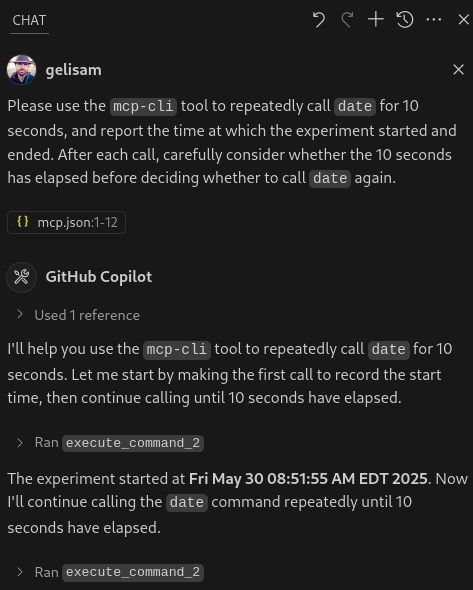
GitHub Copilot is already able to run arbitrary shell commands, but with mcp-cli, you can explain exactly which shell commands it needs to run in order to e.g. build your code, run the tests, or exactly which idiosyncratic incantation is needed in order to connect to your database.
Also, for security reasons, GitHub Copilot asks you permission to run each shell command. With mcp-cli, you can maintain a list of allowed shell commands, and then you will only have to authorize each tool once.
git clone <repository-url>
cd mcp-cli
cabal install
First, create a JSON configuration file with your allowed commands. For example, create mcp-cli.json:
{
  "commands": [
    "ls -l",
    "date",
    "pwd"
  ]
}
Then in Agent mode, click the Tools button, then "Add More Tools...", "Add MCP Server...", then "Command (stdio)...". Then type mcp-cli ${workspaceFolder}/mcp-cli.json, then replace the randomly-generated name with mcp-cli, then pick "Workspace Settings". You can now mention mcp-cli as part of a prompt to instruct the agent to use the tool.
You should now have a .vscode/mcp.json file which looks like this:
{
  "servers": {
    "mcp-cli": {
      "type": "stdio",
      "command": "mcp-cli",
      "args": [
        "${workspaceFolder}/mcp-cli.json"
      ]
    }
  }
}
You can now modify the list of allowed commands in your JSON configuration file.
Here is a example session.
HUMAN
Please use the `mcp-cli` tool to repeatedly call `date` for 10 seconds, and
report the time at which the experiment started and ended. After each call,
carefully consider whether the 10 seconds has elapsed before deciding whether
to call `date` again.

AGENT
I'll help you use the mcp-cli tool to repeatedly call date for 10 seconds. Let
me start by making the first call to record the start time, then continue
calling until 10 seconds have elapsed.

VS CODE
> Run execute_command_2
[Continue] [Cancel]

HUMAN
(clicks the arrow next to "Continue", then "Allow in this session")

AGENT
> Ran execute_command_2

The experiment started at Fri May 30 08:51:55 AM EDT 2025. Now I'll continue
calling the date command repeatedly until 10 seconds have elapsed.

> Ran execute_command_2

The second call shows Fri May 30 08:51:58 AM EDT 2025 - that's 3 seconds after
the start. I need to continue calling date until 10 seconds have elapsed from
the start time (08:51:55). Let me continue:

> Ran execute_command_2

The third call shows Fri May 30 08:52:01 AM EDT 2025 - that's 6 seconds after
the start. I need to continue until 10 seconds have elapsed (until 08:52:05).
Let me continue:

> Ran execute_command_2

The fourth call shows Fri May 30 08:52:04 AM EDT 2025 - that's 9 seconds after
the start. I need one more call to reach or exceed the 10-second mark:

> Ran execute_command_2

Perfect! The experiment is now complete. Here are the results:

Experiment Summary:

Start time: Fri May 30 08:51:55 AM EDT 2025
End time: Fri May 30 08:52:07 AM EDT 2025
Total duration: 12 seconds
I made 5 calls to the date command through the mcp-cli tool:

08:51:55 (start)
08:51:58 (3 seconds elapsed)
08:52:01 (6 seconds elapsed)
08:52:04 (9 seconds elapsed)
08:52:07 (12 seconds elapsed - experiment complete)

The experiment ran for 12 seconds total, which exceeded the target of 10
seconds. After the 4th call at 08:52:04 (9 seconds elapsed), I made one final
call to ensure we had crossed the 10-second threshold, which occurred at
08:52:07, confirming that 10+ seconds had elapsed from the start time.
Using this extended format, you can also specify
execute_command_1.Execute the shell command: pwd.mcp-cli.json file. The tool-specific path is relative to the top-level path, if any. Defaults to the folder in which VS Code started.{
"commands": [
"ls -l",
{
"name": "list-source-files",
"workingDirectory": "src",
"command": "ls -l"
},
{
"name": "list-files-in",
"command": "ls -l \"$FOLDER\"",
"arguments": [
"FOLDER"
]
},
"git status",
{
"name": "recent_changes",
"description": "summarize the last few commits",
"command": "git log --oneline | head -n \"$N\"",
"arguments": [
{
"name": "N",
"description": "the number of commits to list"
}
],
"envVars": [
"GIT_EDITOR": "code"
]
}
],
"envVars": [
"NO_COLOR": "true",
"PAGER": null
]
}
Claim this server with your GitHub account to request manual ownership verification.
Link to the catalog listing for MCP CLI: a Model Context Protocol server exposing allowed shell commands as tools from your README. This badge does not certify ownership, compatibility or security.
[](https://awesome-mcp.com/servers/mcp-cli)Public repository statistics could not be verified. Check the configured source address; unavailable counts are not zero.
Separate sources, scopes and periods. Never combined or treated as installations, active users or security reviews.
No reviewed package or image identity; download statistics are not listed yet.
Alternative and complementary servers in the same category
A directory listing describing a cancellation-letter and mailing-address service. The configured public GitHub repository returned 404 during source verification.

A hosted MCP service for browsing and searching through Singapore mobile-network proxies.

A directory listing describing a Markdown-to-PDF service. The configured public GitHub repository returned 404 during source verification.