
This is a Model Context Protocol (MCP) server for interacting with AIStor object stores.
Repository stats unavailable
Databases & Storage
An MCP server that connects a Metabase instance to AI assistants, letting users interact with dashboards, charts, and other BI assets using natural language.
Metabase MCP Server is cataloged as an MCP server attributed to cw-codewalnut. An MCP server that connects a Metabase instance to AI assistants, letting users interact with dashboards, charts, and other BI assets using natural language. It is categorized under databases storage. See the capability inspector for recorded interfaces and their independent review status; consult upstream documentation for the current interface.
Installation configuration is not reviewed. No executable setup is offered for this entry; inspect the source repository before proceeding.
Catalog license label: Apache License 2.0. Check the source repository's current license and terms before using, modifying or distributing this software.
Capability definitions are not reviewed. Unreviewed imports are not exposed as trusted interfaces.
No reviewed records to display. This does not establish that upstream lacks this capability.
No reviewed records to display. This does not establish that upstream lacks this capability.
No reviewed records to display. This does not establish that upstream lacks this capability.
Email delivery is not connected. This page does not collect email addresses or create subscriptions.
Browse the registry for current listings instead.
Reviews for Metabase MCP Server are not available yet
Review publishing and storage are not connected. This page does not collect or publish ratings or comments, including after sign-in.
No. Remote HTTP/SSE transports are read-only by default; write, admin, and SQL tools must be explicitly enabled via environment variables.
Yes, it offers an execute_sql_query tool for running native SQL queries.
README.md · 2827fa1f9c25 · Fetched 2026-11-13 10:02:46 UTC
Original upstream text, without AI rewriting. Scripts, forms and unsafe links are filtered for safety.
Showing the last retrieved documentation snapshot; check the source for current changes.
Metabase MCP Server is a backend integration layer that connects your Metabase instance with AI assistants using the Model Context Protocol (MCP). This allows business leaders, product managers and analysts to interact with business intelligence assets like dashboards and charts using natural language—through any MCP client (e.g., Claude Desktop).
Instead of navigating through menus or constructing SQL queries manually, you can:
This project makes Metabase not just a dashboarding tool—but a conversational, intelligent business assistant.
Watch this video to see the Metabase MCP Server in action:

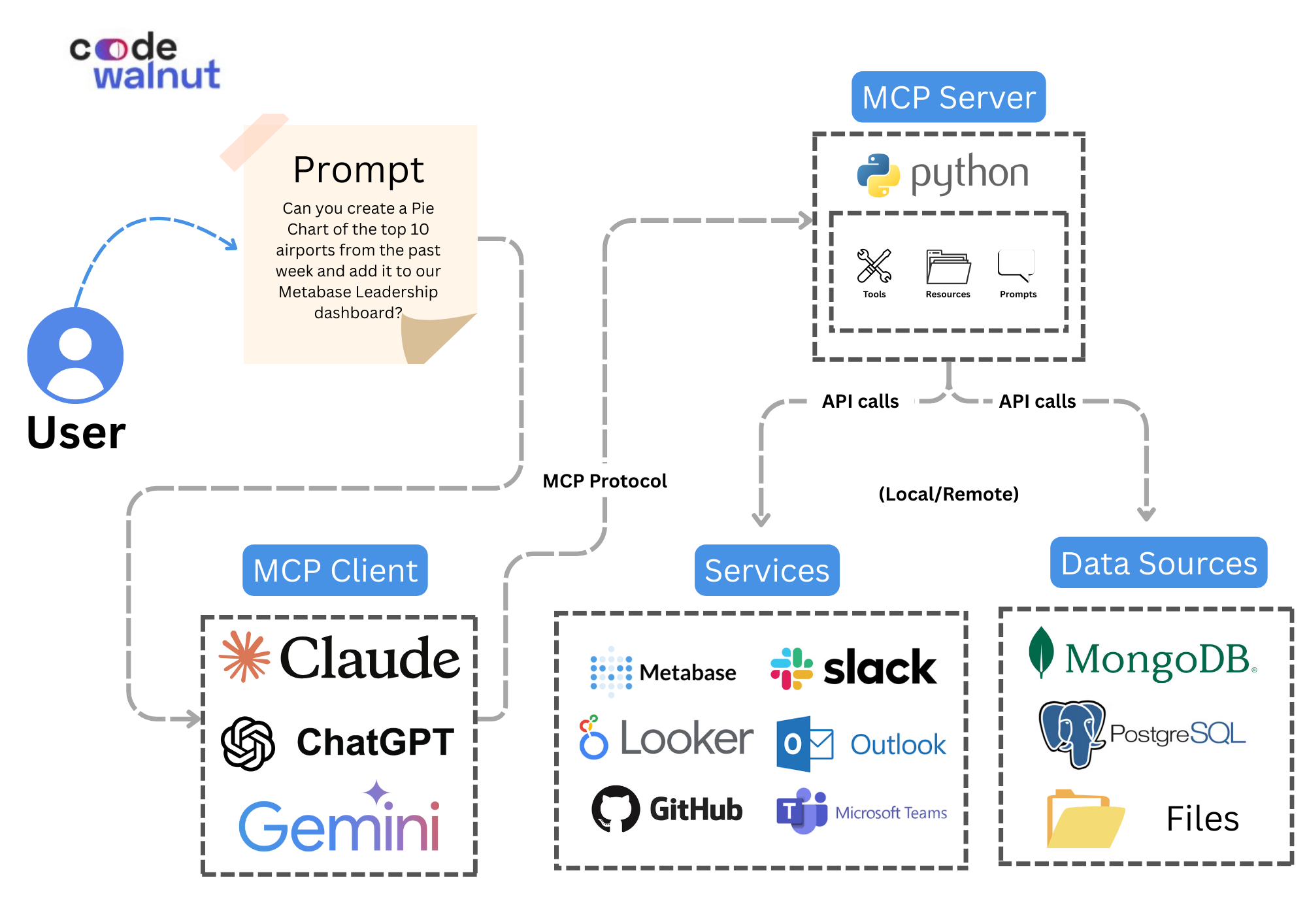
Follow the official Metabase installation guide: Metabase Docs
Install uv which includes Python and package management:
Windows:
powershell -ExecutionPolicy ByPass -c "irm https://astral.sh/uv/install.ps1 | iex"
macOS/Linux:
curl -LsSf https://astral.sh/uv/install.sh | sh
Or install via package managers:
# macOS
brew install uv

# Windows (via Scoop)
scoop install uv

# Windows (via Chocolatey)
choco install uv
For more information about uv installation and usage, please visit the official documentation: https://docs.astral.sh/uv/getting-started/installation/
You need to get this tool onto your computer. You can either download it manually or use Git. Open your computer's Terminal (Mac) or Command Prompt (Windows). Navigate to the folder where you unzipped the files or want to clone the project:
# Example (replace with your actual path):
cd ~/Downloads/metabase-mcp-server-dev
Option 1: Download ZIP
Option 2: Use Git If you're familiar with Git, run this in your terminal:
git clone https://github.com/CW-Codewalnut/Metabase-MCP-Server.git
cd Metabase-MCP-Server
This command will automatically:
uv sync
You have three options to configure your Metabase credentials for the MCP Server:
Option 1: Using a .env file (Recommended)
Create a .env file in the project root:
METABASE_URL=http://localhost:3000
METABASE_API_KEY=mb_xxx_your_key
PORT=3200
HOST=localhost
TRANSPORT=streamable-http
LOG_LEVEL=INFO
Option 2: Using command-line arguments Pass configuration directly via command line:
uv run src/metabase_mcp_server.py --metabase-url http://localhost:3000 --metabase-api-key "YOUR_API_KEY" --port 3200 --host localhost --transport streamable-http --log-level INFO
Option 3: Using environment variables in MCP client config
Configure directly in your MCP client without a .env file (see examples below).
{
  "mcpServers": {
    "metabase": {
      "type": "stdio",
      "command": "C:\\Users\\YourName\\Projects\\metabase-mcp-server\\.venv\\Scripts\\python.exe",
      "args": [
        "C:\\Users\\YourName\\Projects\\metabase-mcp-server\\src\\metabase_mcp_server.py"
      ],
      "env": {
        "METABASE_URL": "http://localhost:3000",
        "METABASE_API_KEY": "mb_xxx_your_key",
        "PORT": 3200,
        "HOST": "localhost",
        "TRANSPORT": "streamable-http",
        "LOG_LEVEL": "INFO"
      }
    }
  }
}
Choose your preferred MCP clients like Claude Desktop app, Claude Code, Cursor, Windsurf etc., and add the Metabase MCP server in their respective configuration files. All MCP clients follow a similar configuration pattern.
For stdio transport (recommended for local MCP server):
Windows:
{
  "mcpServers": {
    "metabase": {
      "type": "stdio",
      "command": "C:\\Users\\YourName\\Projects\\metabase-mcp-server\\.venv\\Scripts\\python.exe",
      "args": [
        "C:\\Users\\YourName\\Projects\\metabase-mcp-server\\src\\metabase_mcp_server.py"
      ]
    }
  }
}
Mac:
{
  "mcpServers": {
    "metabase": {
      "type": "stdio",
      "command": "/Users/YourName/Projects/metabase-mcp-server/.venv/bin/python",
      "args": [
        "/Users/YourName/Projects/metabase-mcp-server/src/metabase_mcp_server.py"
      ]
    }
  }
}
\\ in paths/ in pathsFULL_PATH with the actual absolute path to your project directory.cursor/mcp.json file in your project directory~/.cursor/mcp.json file in your home directoryFor streamable-http transport (recommended for remote MCP server):
{
  "mcpServers": {
    "metabase": {
      "type": "streamable-http",
      "url": "http://localhost:3200/mcp/"
    }
  }
}
Click on any client to visit their official MCP setup documentation:
| Client | Official MCP Documentation |
|---|---|
 | Anthropic's official MCP guide for Claude Desktop |
 | Official Claude Code MCP setup documentation |
 | Cursor's official MCP configuration guide |
 | Windsurf official MCP setup documentation |
 | Cline's official MCP quickstart guide |
 | VS Code Copilot MCP server configuration |
Once you have added the configuration, the MCP server should be visible in your MCP client.
The Metabase MCP Server supports flexible configuration through environment variables, command-line arguments, or a combination of both.
| Variable | Description | Default Value | Example |
|---|---|---|---|
METABASE_URL | Your Metabase instance URL | Required | http://127.0.0.1:3000 |
METABASE_API_KEY | Your Metabase API key | Required | mb_xxx_your_api_key |
TRANSPORT | Transport protocol | stdio | stdio, sse, streamable-http |
HOST | Host for HTTP transports | localhost | 0.0.0.0, 127.0.0.1 |
PORT | Port for HTTP transports | 3200 | 8080, 9000 |
LOG_LEVEL | Logging level | INFO | DEBUG, INFO, WARNING, ERROR |
| Argument | Description | Options | Default Value |
|---|---|---|---|
--metabase-url | Metabase instance URL | Any Metabase URL | Required |
--metabase-api-key | Metabase API key | mb_... key | Required |
--transport | Transport protocol | stdio, sse, streamable-http | stdio |
--host | Host for HTTP transports | Any host or IP | localhost |
--port | Port for HTTP transports | Any port number | 3200 |
--log-level | Logging verbosity level | DEBUG, INFO, WARNING, ERROR | INFO |
| Protocol | Description | Use Case |
|---|---|---|
| stdio | Standard input/output communication | Best for local integrations (Claude Desktop, Cursor, etc.) |
| streamable-http | HTTP-based streaming protocol | Ideal for remote deployments and web-based integrations |
| sse | Server-Sent Events over HTTP | ⚠️ Deprecated - Not recommended for new setups |
Configuration values are applied in the following priority order (highest to lowest):
uv run src/metabase_mcp_server.py --transport streamable-http --host localhost --port 3200 --metabase-url http://127.0.0.1:3000 --metabase-api-key mb_xxx_your_key
Note: You don't need to pass every parameter when running the server. However, you must provide the Metabase URL and API key. Any parameters not specified will use their default values as shown above.
To get your Metabase API key:
mb_)⚠️ Important: Store your API key securely and never commit it to version control. The key provides full access to your Metabase instance.
You no longer need to go through the steps of cloning the repository and setting up the environment. Simply follow the steps below to install the Metabase MCP Server in your Claude Desktop App:
Download the DXT File
Check the link below to download the latest DXT file directly:
Download DXT File
Open the Claude Desktop App
Once you have the file, open the Claude Desktop App on your system.
Navigate to Extensions Settings
In the Claude Desktop App:
Select the DXT File
In the Advanced Settings section, click on Choose File, select the downloaded DXT file.
Enter the Required Details
After selecting the DXT file, a prompt will appear asking you to fill in the required details:
Complete the Setup
After entering the necessary details, click Save to apply the configuration.
That's it! The Metabase MCP Server is now installed and ready to use in your Claude Desktop App.
If you want to create your own DXT file, please visit the Official Guide:
Creating Your Own DXT File
For production use or team collaboration, you can deploy the Metabase MCP Server remotely. We use this approach internally at Codewalnut.
We've included Docker configuration files to make remote deployment straightforward.
# Build the Docker image
docker build -t metabase-mcp-server .

# Run with environment variables
docker run -d \
  -p 3200:3200 \
  -e METABASE_URL="http://your-metabase-instance.com" \
  -e METABASE_API_KEY="mb_xxx_your_api_key" \
  metabase-mcp-server
version: "3.8"
services:
  metabase-mcp:
    build: .
    ports:
      - "3200:3200"
    environment:
      - METABASE_URL=http://your-metabase-instance.com
      - METABASE_API_KEY=mb_xxx_your_api_key
      ##- PORT=3200
      ##- HOST=localhost
      ##- TRANSPORT=streamable-http
      ##- LOG_LEVEL=INFO
    restart: unless-stopped
Remote HTTP/SSE transports are read-only by default. Set the matching ALLOW_*
environment variable to true only when the server is behind trusted access
controls and the configured Metabase API key is allowed to make those changes:
ALLOW_WRITE_TOOLS, ALLOW_ADMIN_TOOLS, and ALLOW_SQL_TOOL.
Once deployed, configure your MCP clients to connect to the remote server:
{
  "mcpServers": {
    "metabase": {
      "type": "streamable-http",
      "url": "http://server-ip:3200/mcp/"
    }
  }
}
Our team at CodeWalnut offers deployment and consulting services. Contact us for enterprise-grade setup and support.
To debug and test your Metabase MCP Server setup, you can use the official MCP Inspector tool.
First, install Node.js if you haven't already:
Download from: nodejs.org
Or install via package manager:
# macOS
brew install node

# Windows (via Chocolatey)
choco install nodejs

# Windows (via Scoop)
scoop install nodejs
# Install MCP Inspector globally
npm install -g @modelcontextprotocol/inspector

# Run the inspector with your Metabase MCP Server
npx @modelcontextprotocol/inspector uv run FULL_PATH/metabase-mcp-server/src/metabase_mcp_server.py
The MCP Inspector provides:
Once running, open your browser to http://localhost:5173 to access the inspector interface.
| Function | Description |
|---|---|
| Collection Operations | |
get_metabase_collection | Get a collection by ID |
create_metabase_collection | Create a new collection |
update_metabase_collection | Update collection metadata |
delete_metabase_collection | Delete a collection |
| Chart (Card) Operations | |
get_metabase_cards | List all charts |
get_card_query_results | Get results from a chart query |
create_metabase_card | Create a new chart |
update_metabase_card | Update an existing chart |
delete_metabase_card | Delete a chart |
| Dashboard Operations | |
get_metabase_dashboards | List all dashboards |
get_dashboard_by_id | Get a dashboard by ID |
get_dashboard_cards | Get cards in a dashboard |
get_dashboard_items | Get all dashboard items |
create_metabase_dashboard | Create a dashboard |
update_metabase_dashboard | Update a dashboard |
delete_metabase_dashboard | Delete a dashboard |
copy_metabase_dashboard | Create a copy of an existing dashboard |
| Database Operations | |
get_metabase_databases | List databases |
create_metabase_database | Create a new database connection |
update_metabase_database | Update a database connection |
delete_metabase_database | Delete a database connection |
| User Operations | |
get_metabase_users | List all users |
get_metabase_current_user | Get current user details |
create_metabase_user | Create a new user |
update_metabase_user | Update user info |
delete_metabase_user | Delete a user |
| Group Operations | |
get_metabase_groups | List user groups |
create_metabase_group | Create a user group |
delete_metabase_group | Delete a user group |
| SQL Operations | |
execute_sql_query | Execute a native SQL query |
SELECT origin, destination, COUNT(*) FROM flights GROUP BY origin, destination LIMIT 10.Stay connected and get support through our community channels:
📢 Follow us for updates on new MCP servers, AI integrations, and business intelligence tools!
This project is licensed under the Apache License 2.0.
You can find the full license text in the LICENSE file.
Claim this server with your GitHub account to request manual ownership verification.
Link to the catalog listing for Metabase MCP Server from your README. This badge does not certify ownership, compatibility or security.
[](https://awesome-mcp.com/servers/metabase-mcp-server-cw-codewalnut)Public repository statistics could not be verified. Check the configured source address; unavailable counts are not zero.
Separate sources, scopes and periods. Never combined or treated as installations, active users or security reviews.
No reviewed package or image identity; download statistics are not listed yet.
Alternative and complementary servers in the same category
This is a Model Context Protocol (MCP) server for interacting with AIStor object stores.

A Model Context Protocol server that lets AI assistants run SQL queries against AWS Athena databases and retrieve results.

A Model Context Protocol (MCP) server that exposes access to an InfluxDB v2 instance using the InfluxDB OSS API v2.