
A directory listing describing a cancellation-letter and mailing-address service. The configured public GitHub repository returned 404 during source verification.
Repository stats unavailable
Developer Tools
A Model Context Protocol server that connects MCP clients to Port, enabling natural language retrieval and management of blueprints, entities, scorecards, permissions, and AI agents through Port's developer portal.
Deprecated Port MCP Server for Port's developer portal is cataloged as an MCP server attributed to port-labs. A Model Context Protocol server that connects MCP clients to Port, enabling natural language retrieval and management of blueprints, entities, scorecards, permissions, and AI agents through Port's developer portal. It is categorized under developer tools. See the capability inspector for recorded interfaces and their independent review status; consult upstream documentation for the current interface.
Installation configuration is not reviewed. No executable setup is offered for this entry; inspect the source repository before proceeding.
Catalog license label: MIT License. Check the source repository's current license and terms before using, modifying or distributing this software.
Capability definitions are not reviewed. Unreviewed imports are not exposed as trusted interfaces.
No reviewed records to display. This does not establish that upstream lacks this capability.
No reviewed records to display. This does not establish that upstream lacks this capability.
No reviewed records to display. This does not establish that upstream lacks this capability.
Email delivery is not connected. This page does not collect email addresses or create subscriptions.
Browse the registry for current listings instead.
Reviews for Deprecated Port MCP Server for Port's developer portal are not available yet
Review publishing and storage are not connected. This page does not collect or publish ratings or comments, including after sign-in.
No. The repository is deprecated and no further updates, bug fixes, or security patches will be provided; users are encouraged to migrate to Port's Remote MCP Server.
Yes. You provide your Port region as either EU or US, defaulting to EU if not provided.
README.md · 99e0686af319 · Fetched 2026-11-13 08:22:37 UTC
Original upstream text, without AI rewriting. Scripts, forms and unsafe links are filtered for safety.
Showing the last retrieved documentation snapshot; check the source for current changes.
[!WARNING] This repository has been deprecated and is no longer actively maintained or supported. No further updates, bug fixes, or security patches will be provided.
We strongly encourage all users to migrate to Port's Remote MCP Server, which is the actively maintained and supported solution.
The Remote MCP Server offers full feature parity and ongoing improvements backed by the Port team.
The Port IO MCP server is a Model Context Protocol (MCP) server, enabling advanced automations and natual language interactions for developers and AI applications.
We're continuously expanding Port MCP's capabilities. Have a suggestion? We'd love to hear your feedback on our roadmap!
Before you begin, you'll need:
Create a Port Account (if you don't have one):
Obtain Port Credentials:
Installation Requirements:
[!NOTE] You will also need to provide your Port region, which is either EU or US. If not provided, the default is EU.
Port MCP Server can be installed using two methods:
Use our official Port MCP server package with uvx for easy installation and management.
Create a Python Virtual Environment (Recommended)
python -m venv venv
Activate the Virtual Environment
# On Linux/macOS:
source venv/bin/activate

# On Windows:
venv\Scripts\activate
Install the UV Package Manager
# Using Homebrew (macOS/Linux):
brew install uv

# Or using pip:
pip install uv
Verify UV Installation
which uv
Set Required Environment Variables
export PORT_CLIENT_ID="your_port_client_id"
export PORT_CLIENT_SECRET="your_port_client_secret"
export PORT_REGION="EU"  # or "US"
Set Python Path (if using virtual environment)
export PYTHONPATH="/path/to/your/venv/bin/python"
Run the MCP Server
uvx mcp-server-port --client-id your_port_client_id --client-secret your_port_client_secret --region EU --log-level DEBUG
Verify Server is Running You should start seeing logs from the server. You can also check the log file:
cat /tmp/port-mcp.log
Use our official Docker image:
docker pull ghcr.io/port-labs/port-mcp-server:latest
See below for detailed instructions on each MCP client.
You can pass these additional arguments for more advanced configuration:
| Configuration Parameter | UVX Flag | Docker Environment Variable | Description | Default Value |
|---|---|---|---|---|
| Log Level | log-level | PORT_LOG_LEVEL | Controls the level of log output | ERROR |
| API Validation | api-validation-enabled | PORT_API_VALIDATION_ENABLED | Controls if API schema should be validated and fail if it's not valid | False |
claude_desktop_config.json file and add the below configuration based on the installation method.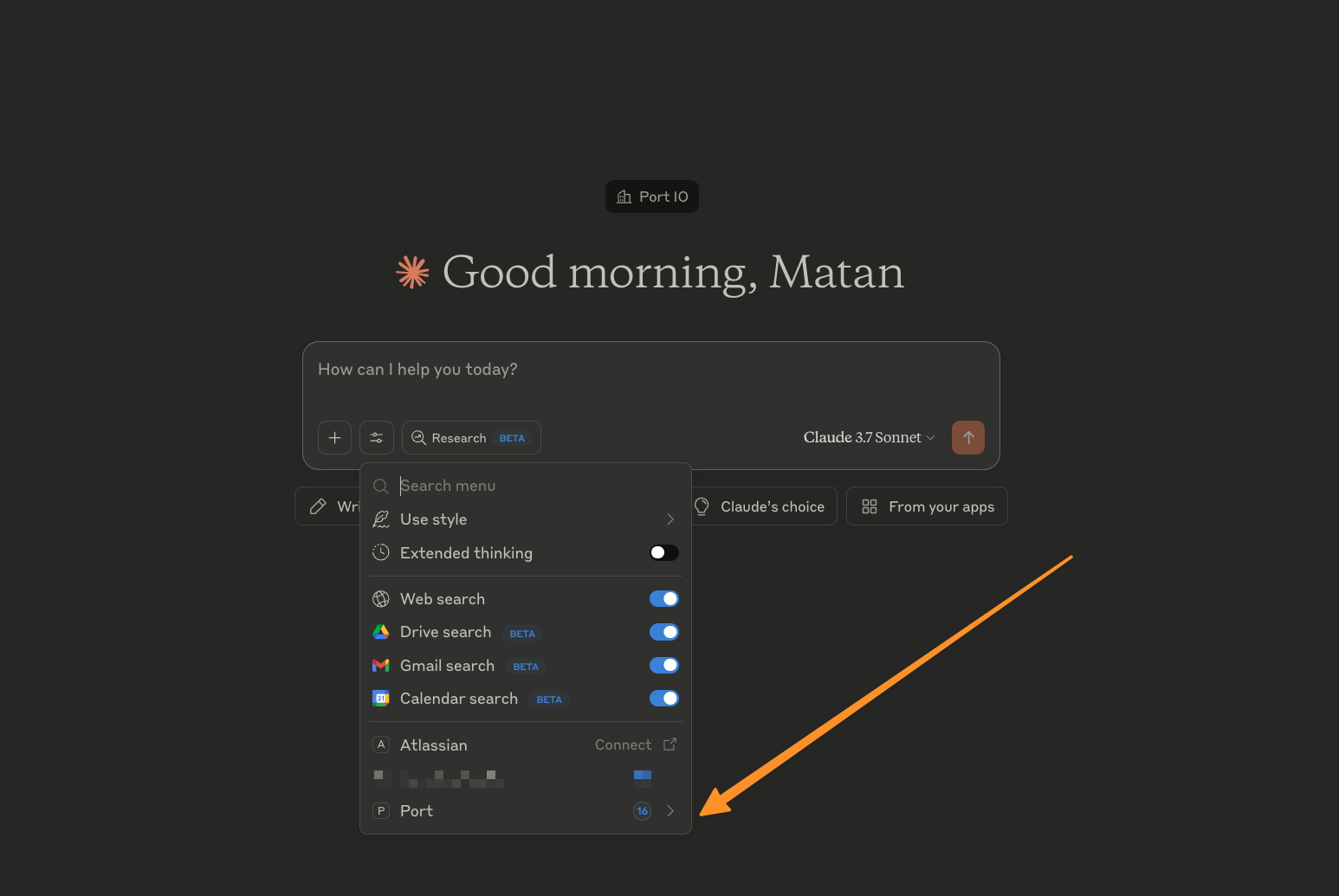
[!TIP] Consider using the full path to Docker (e.g.,
/usr/local/bin/docker) instead of justdocker. You can find this path by runningwhich dockerin your terminal. Using the full path helps avoid PATH resolution issues and ensures consistent behavior across different shell environments.
{
  "mcpServers": {
    "port": {
      "command": "docker",
      "args": [
               "run",
                "-i",
                "--rm",
                "-e",
                "PORT_CLIENT_ID",
                "-e",
                "PORT_CLIENT_SECRET",
                "-e",
                "PORT_REGION",
                "-e",
                "PORT_LOG_LEVEL",
                "ghcr.io/port-labs/port-mcp-server:latest"
              ],
              "env": {
                "PORT_CLIENT_ID": "<PORT_CLIENT_ID>",
                "PORT_CLIENT_SECRET": "<PORT_CLIENT_SECRET>",
                "PORT_REGION": "<PORT_REGION>",
                "PORT_LOG_LEVEL": "<PORT_LOG_LEVEL>"
              }
    }
  }
}
[!NOTE] If you want to run the command from a virtual Python environment, add a
PYTHONPATHvariable to theenvobject with its path, e.g.,/path/to/your/venv/bin/python.
{
  "mcpServers": {
    "Port": {
          "command": "uvx",
          "args": [
              "mcp-server-port@0.2.8",
              "--client-id",
              "<PORT_CLIENT_ID>",
              "--client-secret",
              "<PORT_CLIENT_SECRET>",
              "--region",
              "<PORT_REGION>"
          ],
          "env": {
              "PORT_CLIENT_ID": "<PORT_CLIENT_ID>",
              "PORT_CLIENT_SECRET": "<PORT_CLIENT_SECRET>",
              "PORT_REGION": "<PORT_REGION>",
              "PYTHONPATH": "/Users/matangrady/.venv-port-mcp/bin/python"
          }
      }
  }
}
mcp.json file and add the below configuration based on the installation method.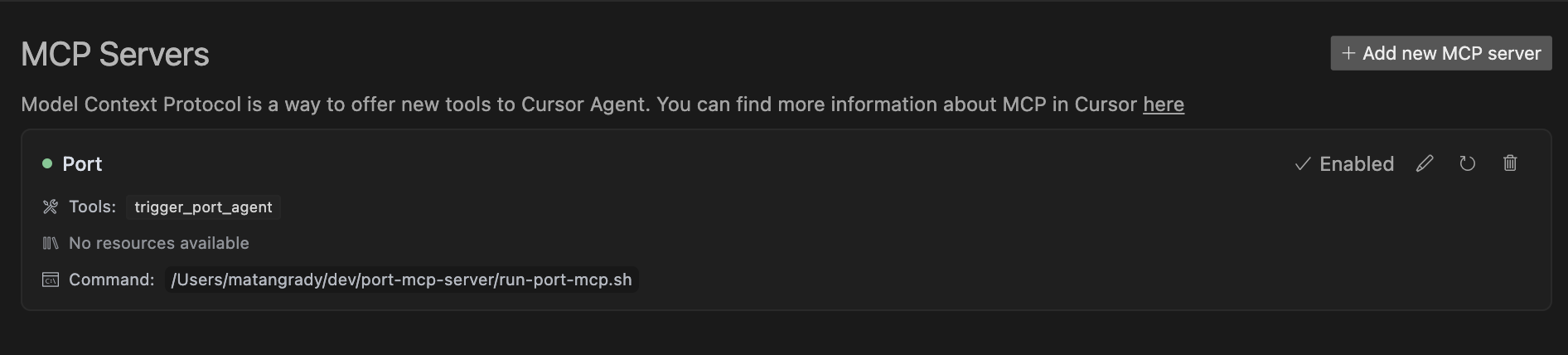
[!TIP] Consider using the full path to Docker (e.g.,
/usr/local/bin/docker) instead of justdocker. You can find this path by runningwhich dockerin your terminal. Using the full path helps avoid PATH resolution issues and ensures consistent behavior across different shell environments.
{
  "mcpServers": {
    "port": {
      "command": "docker",
      "args": [
               "run",
                "-i",
                "--rm",
                "-e",
                "PORT_CLIENT_ID",
                "-e",
                "PORT_CLIENT_SECRET",
                "-e",
                "PORT_REGION",
                "-e",
                "PORT_LOG_LEVEL",
                "ghcr.io/port-labs/port-mcp-server:latest"
              ],
              "env": {
                "PORT_CLIENT_ID": "<PORT_CLIENT_ID>",
                "PORT_CLIENT_SECRET": "<PORT_CLIENT_SECRET>",
                "PORT_REGION": "<PORT_REGION>",
                "PORT_LOG_LEVEL": "<PORT_LOG_LEVEL>"
              }
    }
  }
}
[!NOTE] If you want to run the command from a virtual Python environment, add a
PYTHONPATHvariable to theenvobject with its path, e.g.,/path/to/your/venv/bin/python.
{
  "mcpServers": {
    "Port": {
          "command": "uvx",
          "args": [
              "mcp-server-port@0.2.8",
              "--client-id",
              "<PORT_CLIENT_ID>",
              "--client-secret",
              "<PORT_CLIENT_SECRET>",
              "--region",
              "<PORT_REGION>"
          ],
          "env": {
              "PORT_CLIENT_ID": "<PORT_CLIENT_ID>",
              "PORT_CLIENT_SECRET": "<PORT_CLIENT_SECRET>",
              "PORT_REGION": "<PORT_REGION>",
              "PYTHONPATH": "/Users/matangrady/.venv-port-mcp/bin/python"
          }
      }
  }
}
[!TIP] VS Code can automatically discover MCP servers already installed in Cursor and Claude.
[!NOTE] For quick installation, use the one-click install buttons and select where to add the MCP configuration. Make sure to replace the placeholders with your Port credentials.
Docker quick installation uvx quick installation
For manual installation follow these steps:
Cmd + Shift + P / Ctrl + Shift + P.Preferences: Open User Settings (JSON) and press enter.settings.json file and add the below configuration under the mcp>servers.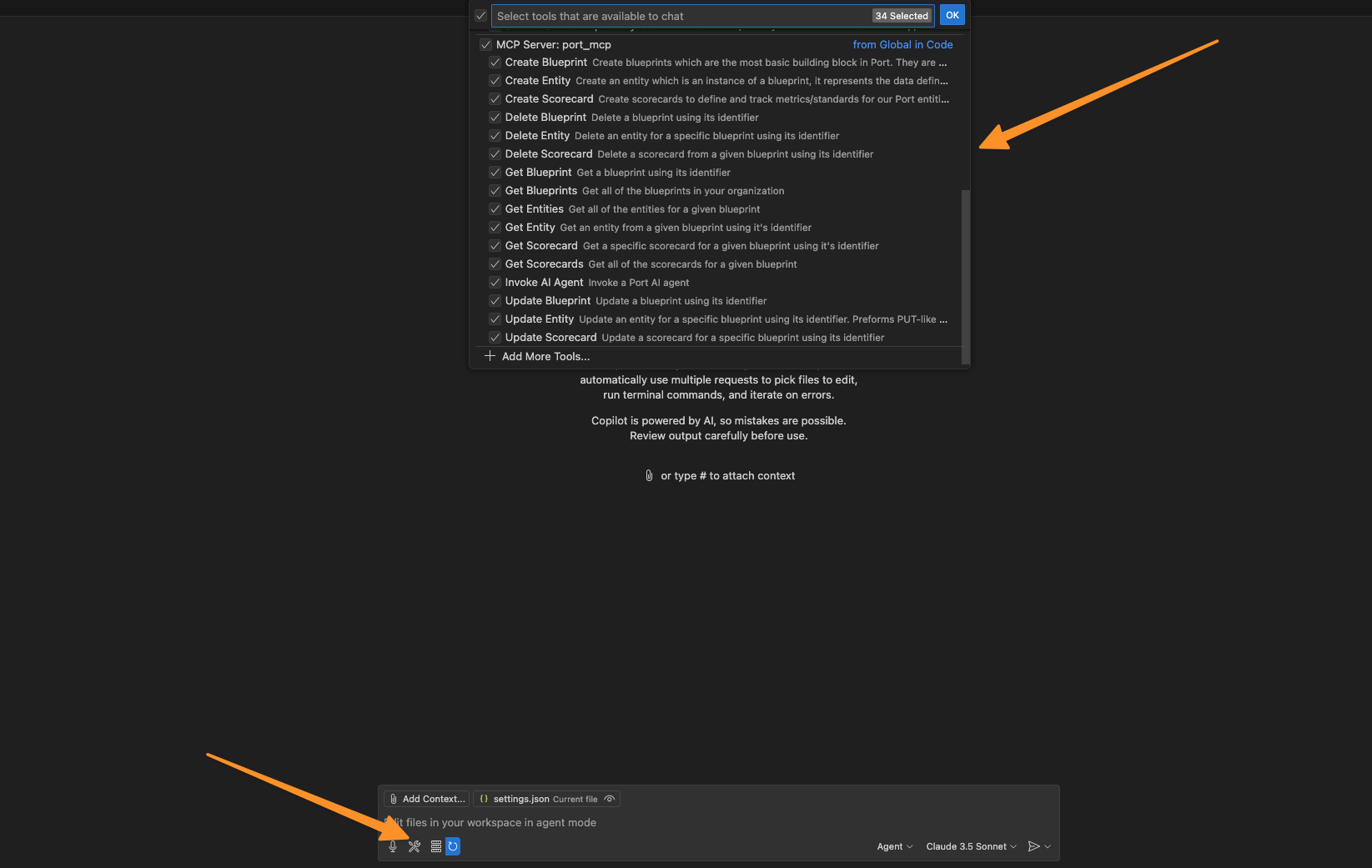
[!TIP] Consider using the full path to Docker (e.g.,
/usr/local/bin/docker) instead of justdocker. You can find this path by runningwhich dockerin your terminal. Using the full path helps avoid PATH resolution issues and ensures consistent behavior across different shell environments.
  "Port": {
      "type": "stdio",
      "command": "docker",
      "args": [
          "run",
          "-i",
          "--rm",
          "-e",
          "PORT_CLIENT_ID",
          "-e",
          "PORT_CLIENT_SECRET",
          "-e",
          "PORT_REGION",
          "ghcr.io/port-labs/port-mcp-server:latest"
      ],
      "env": {
          "PORT_CLIENT_ID": "<PORT_CLIENT_ID>",
          "PORT_CLIENT_SECRET": "<PORT_CLIENT_SECRET>",
          "PORT_REGION": "<PORT_REGION>"
      }
  }
[!NOTE] If you want to run the command from a virtual Python environment, add a
PYTHONPATHvariable to theenvobject with its path, e.g.,/path/to/your/venv/bin/python.
  "Port": {
      "type": "stdio",
      "command": "uvx",
      "args": [
          "mcp-server-port@0.2.8",
          "--client-id",
          "<PORT_CLIENT_ID>",
          "--client-secret",
          "<PORT_CLIENT_SECRET>",
          "--region",
          "<PORT_REGION>"
      ],
      "env": {
          "PORT_CLIENT_ID": "<PORT_CLIENT_ID>",
          "PORT_CLIENT_SECRET": "<PORT_CLIENT_SECRET>",
          "PORT_REGION": "<PORT_REGION>"
      }
  }
mcphub.nvim)To use Port MCP Server in Neovim, use the plugin mcphub.nvim with one of the supported LLM extensions, such as Avante or CodeCompanion.
Once installed, add Port's MCP server configuration:
:MCPHub and navigate to the Config tab, or open the servers config file directly, usually located at ~/.config/mcphub/servers.json.mcpServers section (see below).PORT_CLIENT_ID and PORT_CLIENT_SECRET set in your Neovim environment.:MCPHub and triggering the restart command with R.@mcp tool in your LLM extension. For example, prompt: @mcp list my blueprints.Check the mcphub.nvim documentation for more details on how to use it.
mcphub.nvim[!NOTE] Make sure that you have the environment variables
PORT_CLIENT_IDandPORT_CLIENT_SECRETset with your Port credentials.
{
    "mcpServers": {
        "port": {
            "command": "docker",
            "args": [
                "run",
                "-i",
                "--rm",
                "-e",
                "PORT_CLIENT_ID",
                "-e",
                "PORT_CLIENT_SECRET",
                "-e",
                "PORT_REGION",
                "ghcr.io/port-labs/port-mcp-server:latest"
            ],
            "env": {
                "PORT_REGION": "EU",
                "PORT_CLIENT_ID": "",
                "PORT_CLIENT_SECRET": ""
            }
        }
    }
}
uvx Configuration Example for mcphub.nvim[!NOTE] Make sure that you have the environment variables
PORT_CLIENT_IDandPORT_CLIENT_SECRETset with your Port credentials.
{
    "mcpServers": {
        "port": {
            "command": "uvx",
            "args": [
                "mcp-server-port@0.2.8",
                "--client-id",
                "PORT_CLIENT_ID",
                "--client-secret",
                "PORT_CLIENT_SECRET",
                "--region",
                "PORT_REGION"
            ],
            "env": {
                "PORT_CLIENT_ID": "",
                "PORT_CLIENT_SECRET": "",
                "PORT_REGION": "EU"
            }
        }
    }
}
get_blueprints
detailed (boolean, default: false): Return complete schema details for each blueprintget_blueprint
blueprint_identifier (string): The unique identifier of the blueprint to retrievedetailed (boolean, default: true): Return complete schema detailscreate_blueprint
update_blueprint
identifier (string): The unique identifier of the blueprint to updatedelete_blueprint
blueprint_identifier (string): The unique identifier of the blueprint to deleteget_entities
blueprint_identifier (string): The identifier of the blueprint to get entities fordetailed (boolean, default: false): Return complete entity details including propertiesget_entity
blueprint_identifier (string): The identifier of the blueprint the entity belongs toentity_identifier (string): The unique identifier of the entity to retrievedetailed (boolean, default: true): Return complete entity detailscreate_entity
blueprint_identifier (string): The identifier of the blueprint to create the entity forentity (object): The entity data following the blueprint schemaupdate_entity
blueprint_identifier (string): The identifier of the blueprint the entity belongs toentity_identifier (string): The unique identifier of the entity to updateentity (object): The updated entity datadelete_entity
blueprint_identifier (string): The identifier of the blueprint the entity belongs toentity_identifier (string): The unique identifier of the entity to deletedelete_dependents (boolean, default: false): If true, also deletes all dependenciesget_scorecards
detailed (boolean, default: false): Return complete scorecard detailsget_scorecard
scorecard_id (string): The unique identifier of the scorecard to retrieveblueprint_id (string, optional): The identifier of the blueprint the scorecard belongs tocreate_scorecard
blueprint_id (string): The identifier of the blueprint to create the scorecard foridentifier (string): The unique identifier for the new scorecardtitle (string): The display title of the scorecardlevels (list): List of levels for the scorecardrules (list): List of rules for the scorecarddescription (string): Description for the scorecardupdate_scorecard
blueprint_identifier (string): The identifier of the blueprint the scorecard belongs toscorecard_identifier (string): The unique identifier of the scorecard to updatedelete_scorecard
blueprint_identifier (string): The identifier of the blueprint the scorecard belongs toscorecard_identifier (string): The unique identifier of the scorecard to deleteinvoke_ai_agent
prompt (string): The prompt to send to the AI agentFor developing and testing new functionalities locally before publishing a new version, you can configure your MCP client (e.g., Cursor) to use your local cloned repository.
port-mcp-server repository to your local machine.make install. This command should set up a virtual environment (venv) and install all necessary dependencies..venv directory within the repository).Below is an example of how you might configure your local development server. You'll need to replace the placeholder paths with the actual paths on your system.
Important:
command should point to the Python executable within your local repository's virtual environment.PYTHONPATH in the env object should point to the root directory of your cloned repository.{
"mcpServers": {
"port_local": {
"command": "/path/to/your/port-mcp-server/.venv/bin/python", // Replace with the actual path to the venv Python
"args": [
"-m",
"src",
"--client-id",
"<YOUR_PORT_CLIENT_ID>",
"--client-secret",
"<YOUR_PORT_CLIENT_SECRET>",
"--region",
"<YOUR_PORT_REGION>", // e.g., EU or US
"--log-level",
"DEBUG" // Or your preferred log level
],
"env": {
"PORT_CLIENT_ID": "<YOUR_PORT_CLIENT_ID>",
"PORT_CLIENT_SECRET": "<YOUR_PORT_CLIENT_SECRET>",
"PORT_REGION": "<YOUR_PORT_REGION>",
"PORT_LOG_LEVEL": "DEBUG",
"PYTHONPATH": "/path/to/your/port-mcp-server" // Replace with the actual path to your repository
}
}
}
}
After setting this up, your MCP client will use your local version of the server, allowing you to test changes from your current branch.
We're continuously improving Port MCP and would love to hear from you! Please share your feedback and feature requests on our roadmap page.
If you encounter authentication errors, verify that:
This MCP server is licensed under the MIT License. This means you are free to use, modify, and distribute the software, subject to the terms and conditions of the MIT License.
Claim this server with your GitHub account to request manual ownership verification.
Link to the catalog listing for Deprecated Port MCP Server for Port's developer portal from your README. This badge does not certify ownership, compatibility or security.
[](https://awesome-mcp.com/servers/port)Public repository statistics could not be verified. Check the configured source address; unavailable counts are not zero.
Separate sources, scopes and periods. Never combined or treated as installations, active users or security reviews.
No reviewed package or image identity; download statistics are not listed yet.
Alternative and complementary servers in the same category
A directory listing describing a cancellation-letter and mailing-address service. The configured public GitHub repository returned 404 during source verification.

A hosted MCP service for browsing and searching through Singapore mobile-network proxies.

A directory listing describing a Markdown-to-PDF service. The configured public GitHub repository returned 404 during source verification.