






A Model Context Protocol (MCP) server for controlling Chrome with debugging capabilities, userscript injection, and extension support.
Repository stats unavailable
Browser & Scraping
Skyvern automates browser-based workflows using LLMs and computer vision, and offers an MCP server so MCP-capable LLMs can drive it.
Skyvern MCP server for LLM-driven browser automation is cataloged as an MCP server attributed to skyvern-ai. Skyvern automates browser-based workflows using LLMs and computer vision, and offers an MCP server so MCP-capable LLMs can drive it. It is categorized under browser automation. See the capability inspector for recorded interfaces and their independent review status; consult upstream documentation for the current interface.
Installation configuration is not reviewed. No executable setup is offered for this entry; inspect the source repository before proceeding.
Catalog license label: AGPL-3.0. Check the source repository's current license and terms before using, modifying or distributing this software.
Capability definitions are not reviewed. Unreviewed imports are not exposed as trusted interfaces.
No reviewed records to display. This does not establish that upstream lacks this capability.
No reviewed records to display. This does not establish that upstream lacks this capability.
No reviewed records to display. This does not establish that upstream lacks this capability.
Email delivery is not connected. This page does not collect email addresses or create subscriptions.
Browse the registry for current listings instead.
Reviews for Skyvern MCP server for LLM-driven browser automation are not available yet
Review publishing and storage are not connected. This page does not collect or publish ratings or comments, including after sign-in.
Skyvern supports the Model Context Protocol so it can be used with any LLM that supports MCP.
Supported providers include OpenAI, Anthropic, Azure OpenAI, AWS Bedrock, Gemini, Ollama, OpenRouter, and OpenAI-compatible endpoints.
Yes, Skyvern Cloud is a managed cloud version that runs multiple instances in parallel and bundles anti-bot detection, proxy network, and CAPTCHA solvers.
README.md · 5a3171be5c48 · Fetched 2026-11-13 12:07:42 UTC
Original upstream text, without AI rewriting. Scripts, forms and unsafe links are filtered for safety.
Showing the last retrieved documentation snapshot; check the source for current changes.

🐉 Automate Browser-based workflows using LLMs and Computer Vision 🐉
Skyvern automates browser-based workflows using LLMs and computer vision. It provides a Playwright-compatible SDK that adds AI functionality on top of playwright, as well as a no-code workflow builder to help both technical and non-technical users automate manual workflows on any website, replacing brittle or unreliable automation solutions.
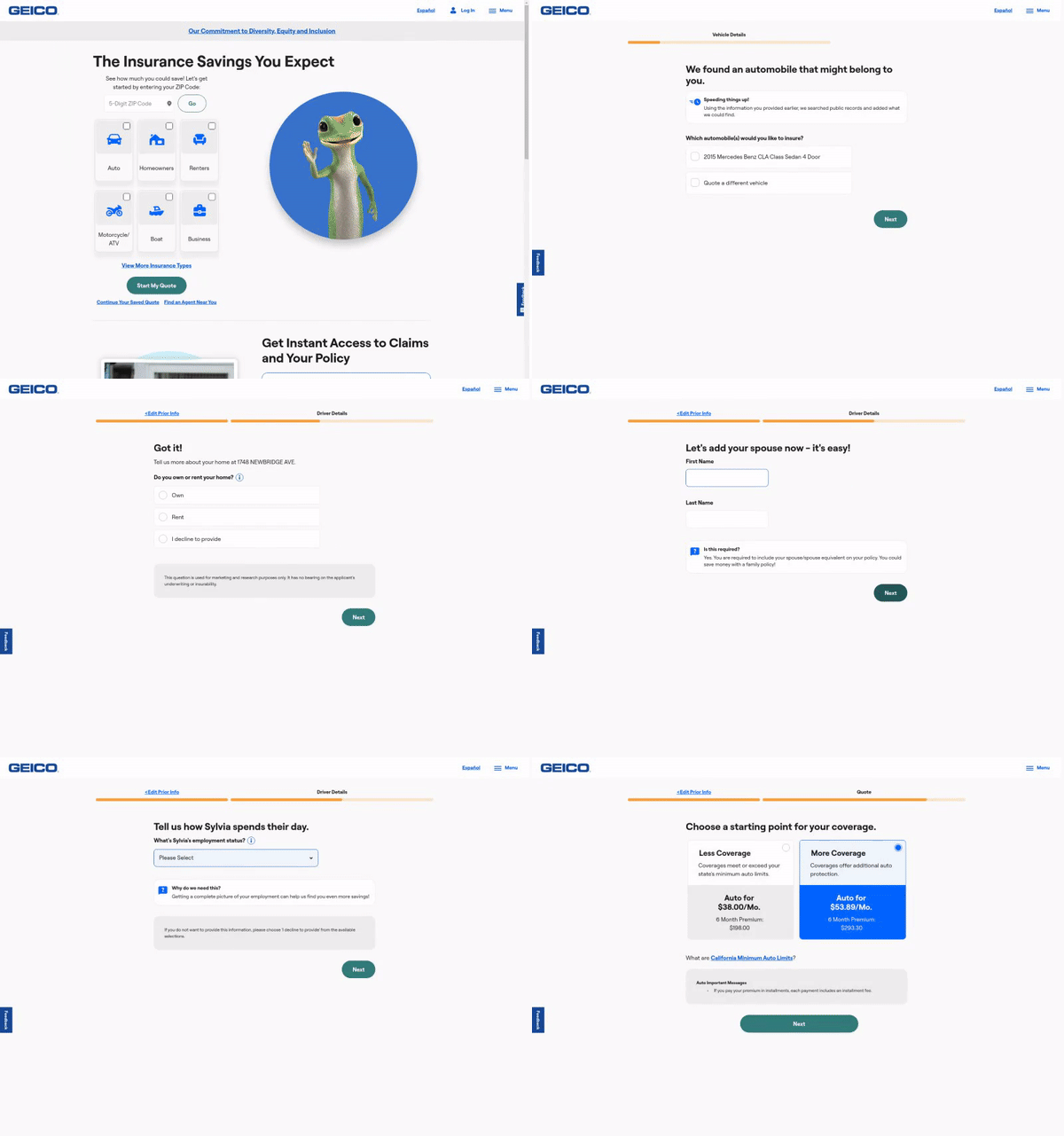
Traditional approaches to browser automations required writing custom scripts for websites, often relying on DOM parsing and XPath-based interactions which would break whenever the website layouts changed.
Instead of only relying on code-defined XPath interactions, Skyvern relies on Vision LLMs to learn and interact with the websites.
Skyvern was inspired by the Task-Driven autonomous agent design popularized by BabyAGI and AutoGPT -- with one major bonus: we give Skyvern the ability to interact with websites using browser automation libraries like Playwright.
Skyvern uses a swarm of agents to comprehend a website, and plan and execute its actions:

This approach has a few advantages:
https://github.com/user-attachments/assets/5cab4668-e8e2-4982-8551-aab05ff73a7f
Skyvern Cloud is a managed cloud version of Skyvern that allows you to run Skyvern without worrying about the infrastructure. It allows you to run multiple Skyvern instances in parallel and comes bundled with anti-bot detection mechanisms, proxy network, and CAPTCHA solvers.
If you'd like to try it out, navigate to app.skyvern.com and create an account.
Choose your preferred setup method:
Database default:
skyvern quickstartandskyvern run serverdefault to a SQLite database at~/.skyvern/data.dbso the pip path works without Postgres or Docker. To use Postgres instead, pass--database-stringfor an existing database (or omit--no-postgressoquickstartstarts its own Postgres container). Docker Compose always uses the bundled Postgres service.
Dependencies needed:
Additionally, for Windows:
pip install "skyvern[all]"
skyvern quickstart
The pip quickstart uses SQLite by default. To use a local Postgres container instead, run skyvern quickstart (Postgres container is started unless you pass --no-postgres), or connect to an existing database with --database-string=postgresql+psycopg://user:pass@host:5432/dbname.
Use this option if you want everything containerized (Postgres, API, UI) and don't want to install Python/Node locally.
git clone https://github.com/skyvern-ai/skyvern.git && cd skyvern
.env (the quickstart --docker-compose command below will create it from .env.example if missing):
cp .env.example .env  # if not already created
# edit .env to add your LLM API key
docker compose up -d
(sqlite3.OperationalError) table organizations already exists — You hit a known bug in pip install skyvern==1.0.31. Fix:
rm ~/.skyvern/data.db   # remove the leftover SQLite file
pip install --upgrade skyvern   # 1.0.32+ contains the fix
skyvern quickstart
If you are still on 1.0.31 and cannot upgrade, install via uv instead:
uv pip install skyvern
pip install skyvern fails with ResolutionImpossible (litellm / fastmcp) — You hit a dependency-resolution conflict in 1.0.31. Either upgrade to 1.0.32+ or use uv: uv pip install skyvern.
Skyvern is a Playwright extension that adds AI-powered browser automation. It gives you the full power of Playwright with additional AI capabilities—use natural language prompts to interact with elements, extract data, and automate complex multi-step workflows.
Installation:
pip install skyvernpip install "skyvern[all]" then run skyvern quickstartpip install "skyvern[all]" then run skyvern quickstart --database-string=postgresql+psycopg://user:pass@host:5432/dbnamepip install "skyvern[ui]" then set VITE_API_BASE_URL (and VITE_SKYVERN_API_KEY if your API requires a key) and run skyvern run uinpm install @skyvern/clientSkyvern adds four core AI commands directly on the page object:
| Command | Description |
|---|---|
page.act(prompt) | Perform actions using natural language (e.g., "Click the login button") |
page.extract(prompt, schema) | Extract structured data from the page with optional JSON schema |
page.validate(prompt) | Validate page state, returns bool (e.g., "Check if user is logged in") |
page.prompt(prompt, schema) | Send arbitrary prompts to the LLM with optional response schema |
Additionally, page.agent provides higher-level workflow commands:
| Command | Description |
|---|---|
page.agent.run_task(prompt) | Execute complex multi-step tasks |
page.agent.login(credential_type, credential_id) | Authenticate with stored credentials (Skyvern, Bitwarden, 1Password) |
page.agent.download_files(prompt) | Navigate and download files |
page.agent.run_workflow(workflow_id) | Execute pre-built workflows |
All standard Playwright actions support an optional prompt parameter for AI-powered element location:
| Action | Playwright | AI-Augmented |
|---|---|---|
| Click | page.click("#btn") | page.click(prompt="Click login button") |
| Fill | page.fill("#email", "a@b.com") | page.fill(prompt="Email field", value="a@b.com") |
| Select | page.select_option("#country", "US") | page.select_option(prompt="Country dropdown", value="US") |
| Upload | page.upload_file("#file", "doc.pdf") | page.upload_file(prompt="Upload area", files="doc.pdf") |
Three interaction modes:
# 1. Traditional Playwright - CSS/XPath selectors
await page.click("#submit-button")

# 2. AI-powered - natural language
await page.click(prompt="Click the green Submit button")

# 3. AI fallback - tries selector first, falls back to AI if it fails
await page.click("#submit-btn", prompt="Click the Submit button")
# act - Perform actions using natural language
await page.act("Click the login button and wait for the dashboard to load")

# extract - Extract structured data with optional JSON schema
result = await page.extract("Get the product name and price")
result = await page.extract(
    prompt="Extract order details",
    schema={"order_id": "string", "total": "number", "items": "array"}
)

# validate - Check page state (returns bool)
is_logged_in = await page.validate("Check if the user is logged in")

# prompt - Send arbitrary prompts to the LLM
summary = await page.prompt("Summarize what's on this page")
Run via UI:
skyvern run all
Navigate to http://localhost:8080 to run tasks through the web interface. If the packaged UI is missing, skyvern run ui will offer to install the matching UI package.
To run only the packaged UI against an existing Skyvern API, install skyvern[ui] and set the
environment variables below before running skyvern run ui:
VITE_API_BASE_URL (e.g. http://localhost:8000/api/v1) — points the UI at your Skyvern APIVITE_SKYVERN_API_KEY — the API key if your API requires oneVITE_WSS_BASE_URL — WebSocket endpoint (inferred from VITE_API_BASE_URL if unset)VITE_ARTIFACT_API_BASE_URL — base URL for artifact downloadsVITE_BROWSER_STREAMING_MODE — browser viewport streaming modePython SDK:
from skyvern import Skyvern

# Local mode
skyvern = Skyvern.local()

# Or connect to Skyvern Cloud
skyvern = Skyvern(api_key="your-api-key")

# Launch browser and get page
browser = await skyvern.launch_cloud_browser()
page = await browser.get_working_page()

# Mix Playwright with AI-powered actions
await page.goto("https://example.com")
await page.click("#login-button")  # Traditional Playwright
await page.agent.login(credential_type="skyvern", credential_id="cred_123")  # AI login
await page.click(prompt="Add first item to cart")  # AI-augmented click
await page.agent.run_task("Complete checkout with: John Snow, 12345")  # AI task
TypeScript SDK:
import { Skyvern } from "@skyvern/client";

const skyvern = new Skyvern({ apiKey: "your-api-key" });
const browser = await skyvern.launchCloudBrowser();
const page = await browser.getWorkingPage();

// Mix Playwright with AI-powered actions
await page.goto("https://example.com");
await page.click("#login-button");  // Traditional Playwright
await page.agent.login("skyvern", { credentialId: "cred_123" });  // AI login
await page.click({ prompt: "Add first item to cart" });  // AI-augmented click
await page.agent.runTask("Complete checkout with: John Snow, 12345");  // AI task

await browser.close();
Simple task execution:
from skyvern import Skyvern

skyvern = Skyvern()
task = await skyvern.run_task(prompt="Find the top post on hackernews today")
print(task)
Let Skyvern control your existing Chrome browser — with all your cookies, logins, and extensions.
chrome://inspect/#remote-debugging[!TIP] The
skyvern init browsercommand can do this automatically — it openschrome://inspect/#remote-debugging, waits for you to enable it, and saves the config.
Option A — Python Code:
from skyvern import Skyvern

skyvern = Skyvern(
    base_url="http://localhost:8000",
    api_key="YOUR_API_KEY",
    browser_address="http://127.0.0.1:9222",
)
task = await skyvern.run_task(
    prompt="Find the top post on hackernews today",
)
Option B — Skyvern Service:
Add two variables to your .env file:
BROWSER_TYPE=cdp-connect
BROWSER_REMOTE_DEBUGGING_URL=http://127.0.0.1:9222
Restart Skyvern service skyvern run all and run the task through UI or code
Let Skyvern Cloud control a Chrome browser running on your machine — with all your existing cookies, logins, and extensions. Useful for automating sites where you're already logged in or behind a VPN.
# One command to start Chrome + create a tunnel to Skyvern Cloud
skyvern browser serve --tunnel
Then use the tunnel URL in your task:
from skyvern import Skyvern

skyvern = Skyvern(api_key="your-api-key")
task = await skyvern.run_task(
    prompt="Download the latest invoice from my account",
    browser_address="https://abc123.ngrok-free.dev",
)
[!WARNING] Always use
--api-keywhen exposing your browser via a tunnel. Without it, anyone with the URL has full control of your browser. See the security docs.
See the full documentation for all options, manual tunnel setup, and troubleshooting.
You can do this by adding the data_extraction_schema parameter:
from skyvern import Skyvern

skyvern = Skyvern()
task = await skyvern.run_task(
    prompt="Find the top post on hackernews today",
    data_extraction_schema={
        "type": "object",
        "properties": {
            "title": {
                "type": "string",
                "description": "The title of the top post"
            },
            "url": {
                "type": "string",
                "description": "The URL of the top post"
            },
            "points": {
                "type": "integer",
                "description": "Number of points the post has received"
            }
        }
    }
)
# Launch the Skyvern Server Separately*
skyvern run server

# Launch the Skyvern UI
skyvern run ui

# Check status of the Skyvern service
skyvern status

# Stop the Skyvern service
skyvern stop all

# Stop the Skyvern UI
skyvern stop ui

# Stop the Skyvern Server Separately
skyvern stop server
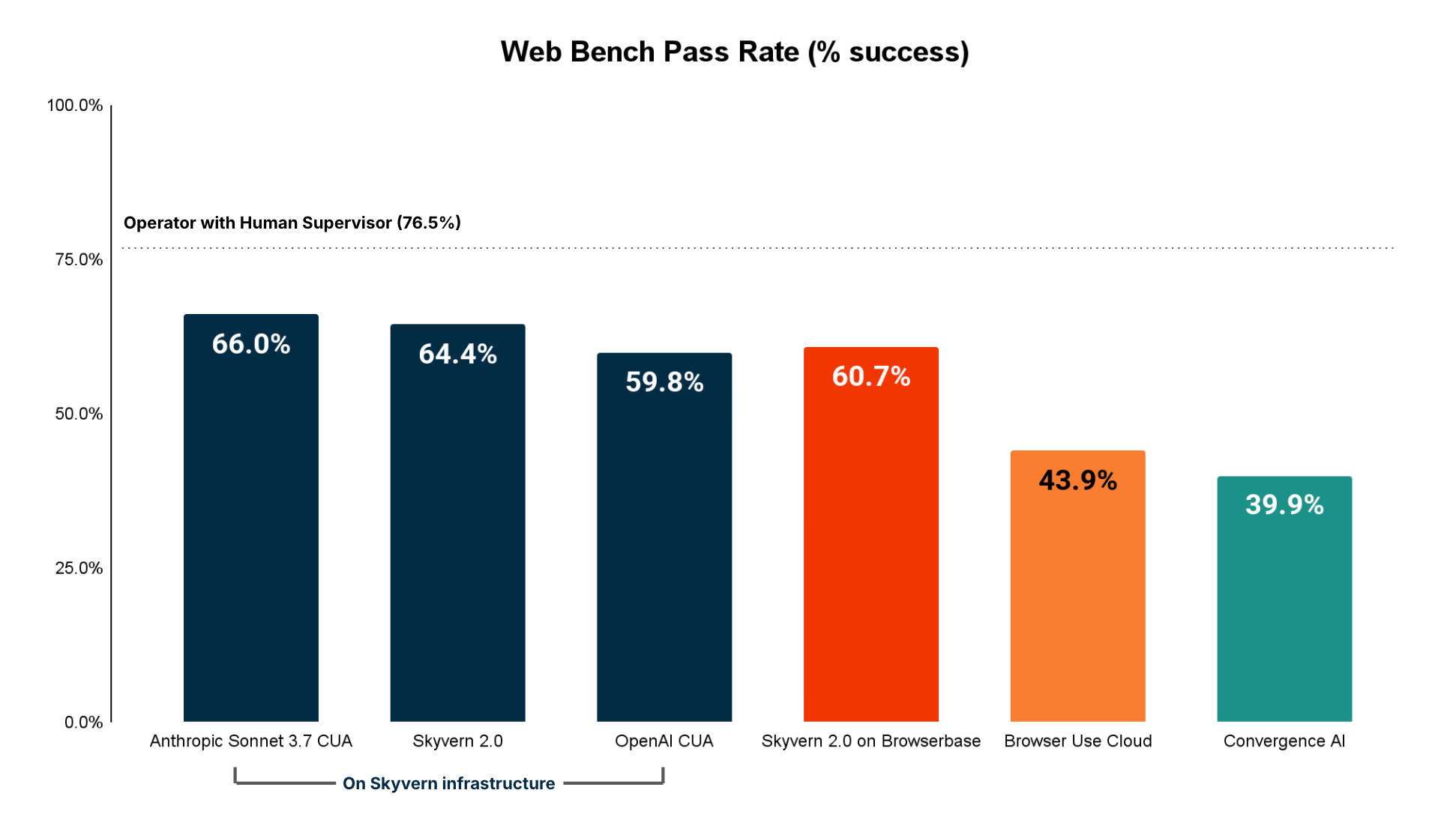
Skyvern has SOTA performance on the WebBench benchmark with a 64.4% accuracy. The technical report + evaluation can be found here
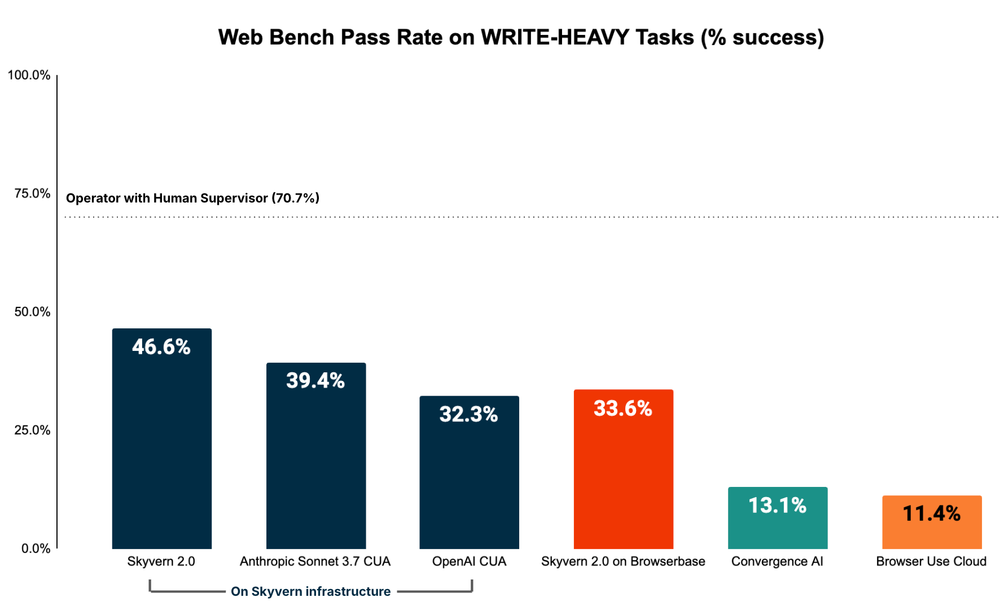
Skyvern is the best performing agent on WRITE tasks (eg filling out forms, logging in, downloading files, etc), which is primarily used for RPA (Robotic Process Automation) adjacent tasks.
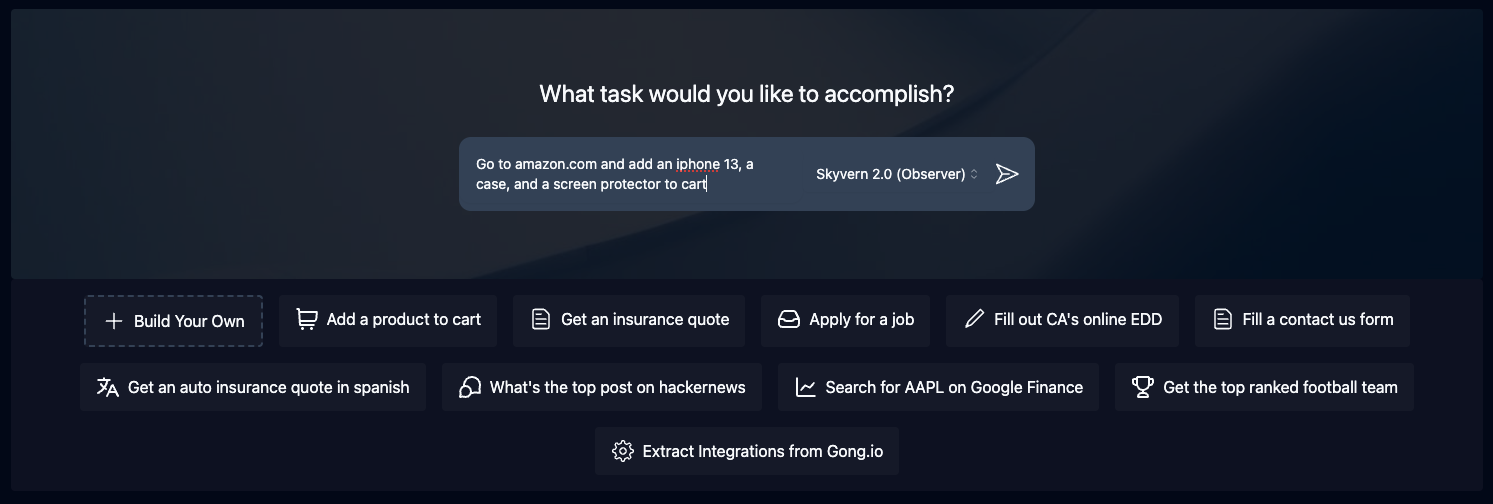
Tasks are the fundamental building block inside Skyvern. Each task is a single request to Skyvern, instructing it to navigate through a website and accomplish a specific goal.
Tasks require you to specify a url, prompt, and can optionally include a data schema (if you want the output to conform to a specific schema) and error codes (if you want Skyvern to stop running in specific situations).
Workflows are a way to chain multiple tasks together to form a cohesive unit of work.
For example, if you wanted to download all invoices newer than January 1st, you could create a workflow that first navigated to the invoices page, then filtered down to only show invoices newer than January 1st, extracted a list of all eligible invoices, and iterated through each invoice to download it.
Another example is if you wanted to automate purchasing products from an e-commerce store, you could create a workflow that first navigated to the desired product, then added it to a cart. Second, it would navigate to the cart and validate the cart state. Finally, it would go through the checkout process to purchase the items.
Supported workflow features include:
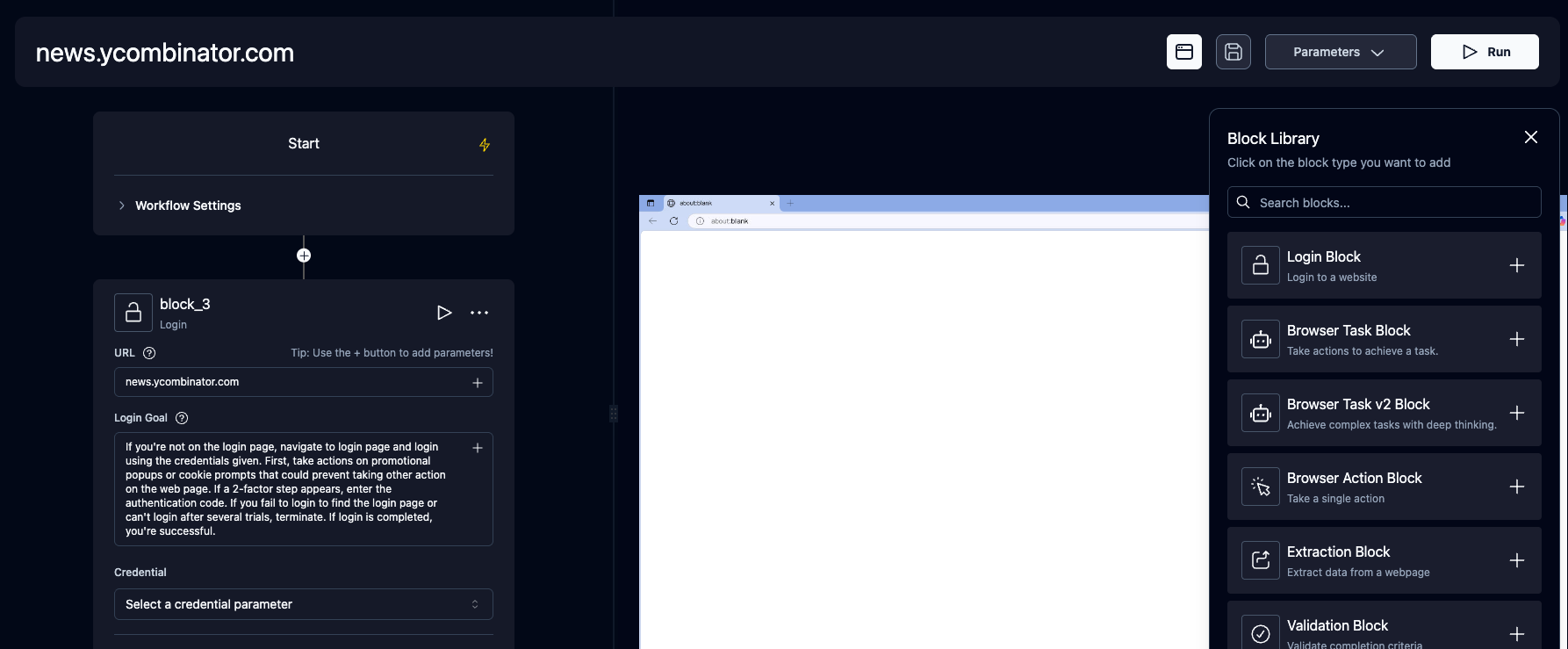
Skyvern allows you to livestream the viewport of the browser to your local machine so that you can see exactly what Skyvern is doing on the web. This is useful for debugging and understanding how Skyvern is interacting with a website, and intervening when necessary
Skyvern is natively capable of filling out form inputs on websites. Passing in information via the navigation_goal will allow Skyvern to comprehend the information and fill out the form accordingly.
Skyvern is also capable of extracting data from a website.
You can also specify a data_extraction_schema directly within the main prompt to tell Skyvern exactly what data you'd like to extract from the website, in jsonc format. Skyvern's output will be structured in accordance to the supplied schema.
Skyvern is also capable of downloading files from a website. All downloaded files are automatically uploaded to block storage (if configured), and you can access them via the UI.
Skyvern supports a number of different authentication methods to make it easier to automate tasks behind a login. If you'd like to try it out, please reach out to us via email or discord.
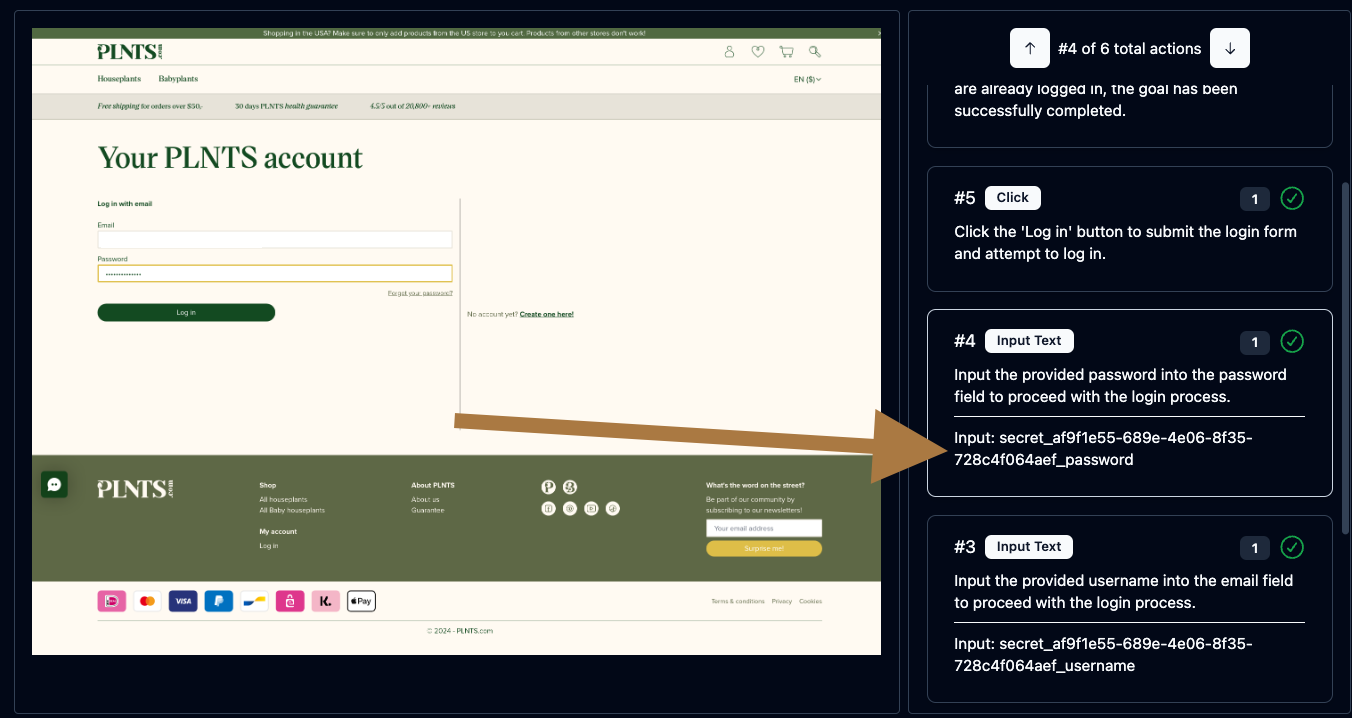
Skyvern supports a number of different 2FA methods to allow you to automate workflows that require 2FA.
Examples include:
🔐 Learn more about 2FA support here.
Skyvern currently supports the following password manager integrations:
Skyvern supports the Model Context Protocol (MCP) to allow you to use any LLM that supports MCP.
See the MCP documentation here
Skyvern supports Zapier, Make.com, and N8N to allow you to connect your Skyvern workflows to other apps.
🔐 Learn more about 2FA support here.
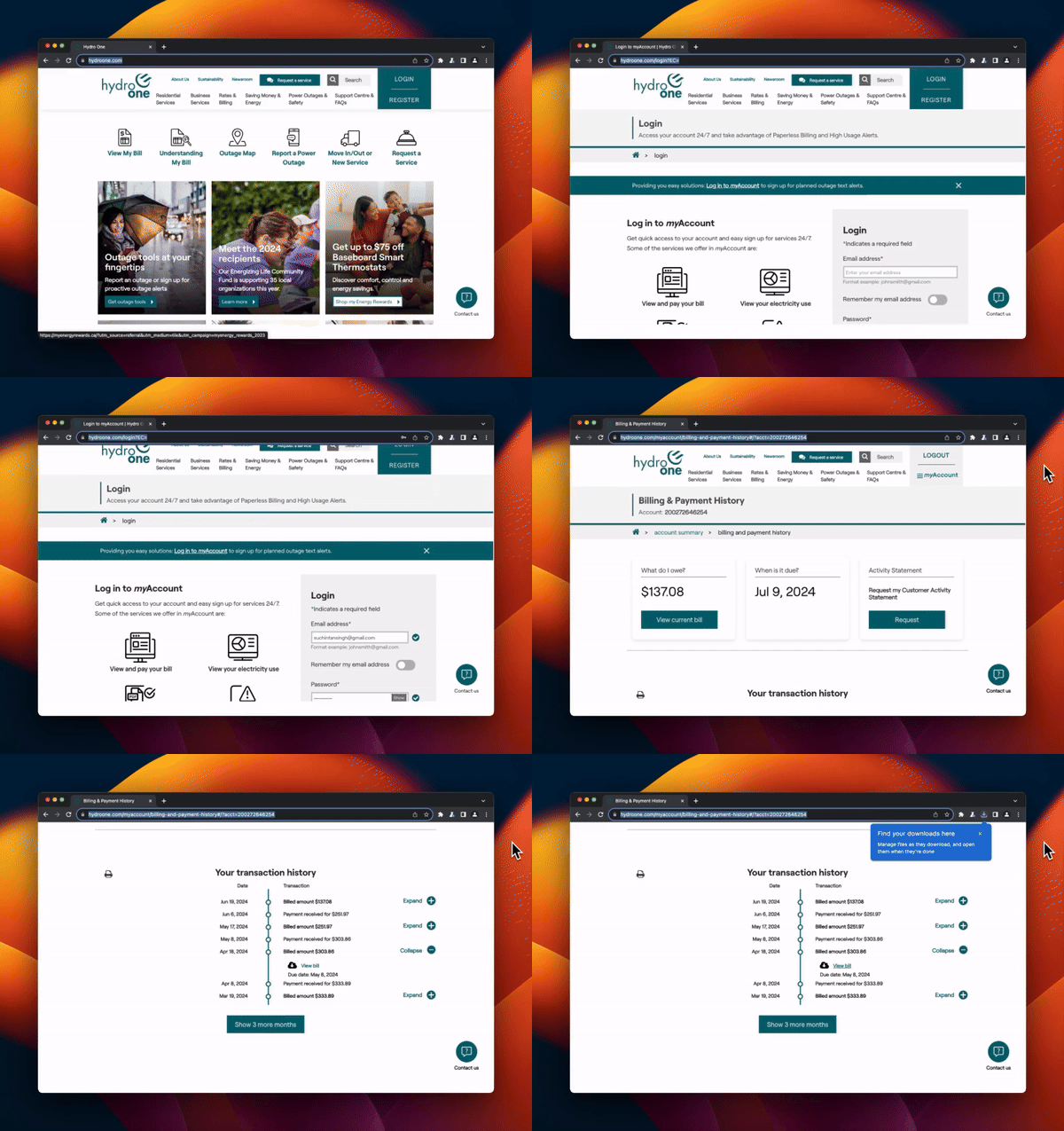
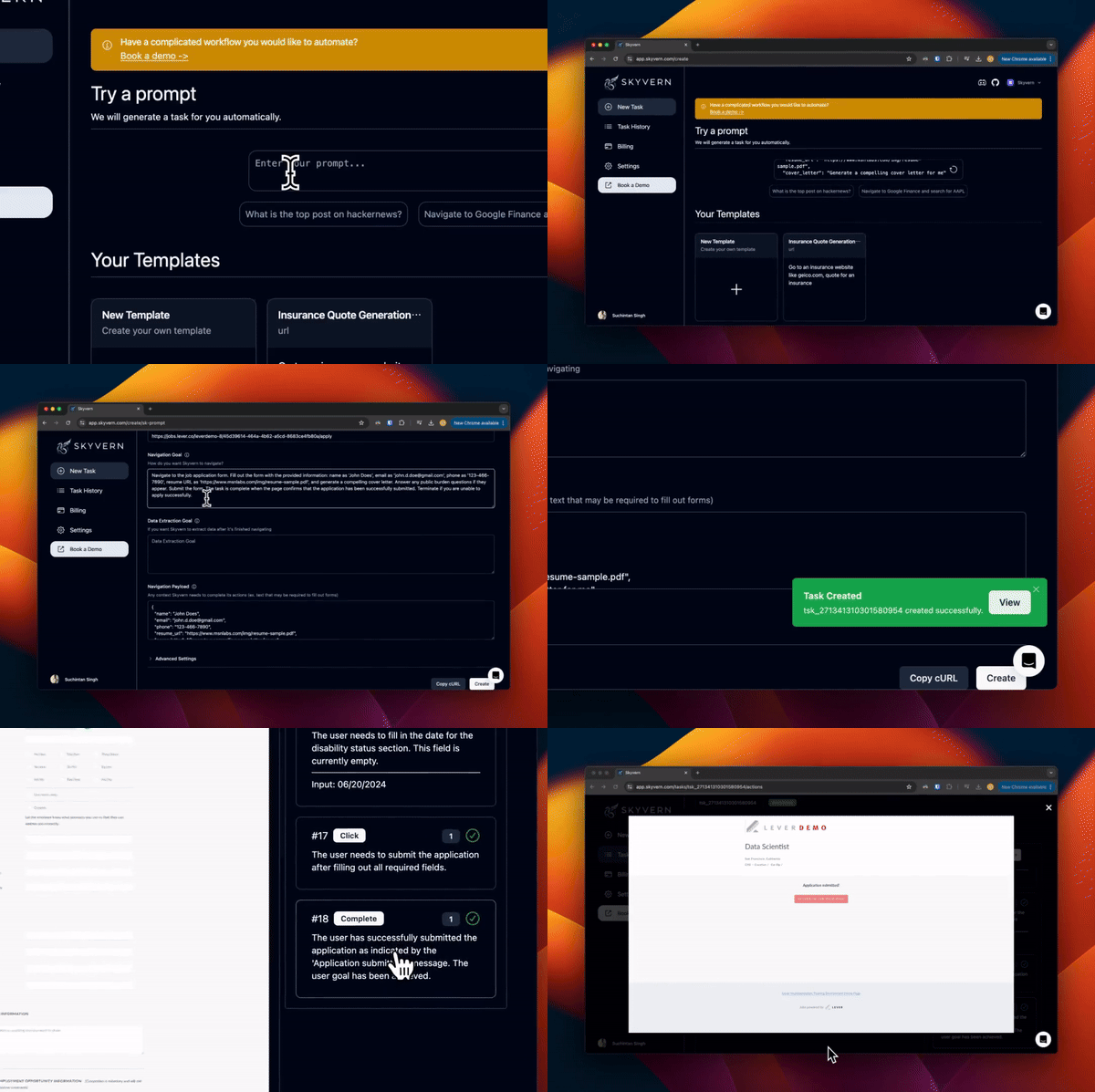
We love to see how Skyvern is being used in the wild. Here are some examples of how Skyvern is being used to automate workflows in the real world. Please open PRs to add your own examples!

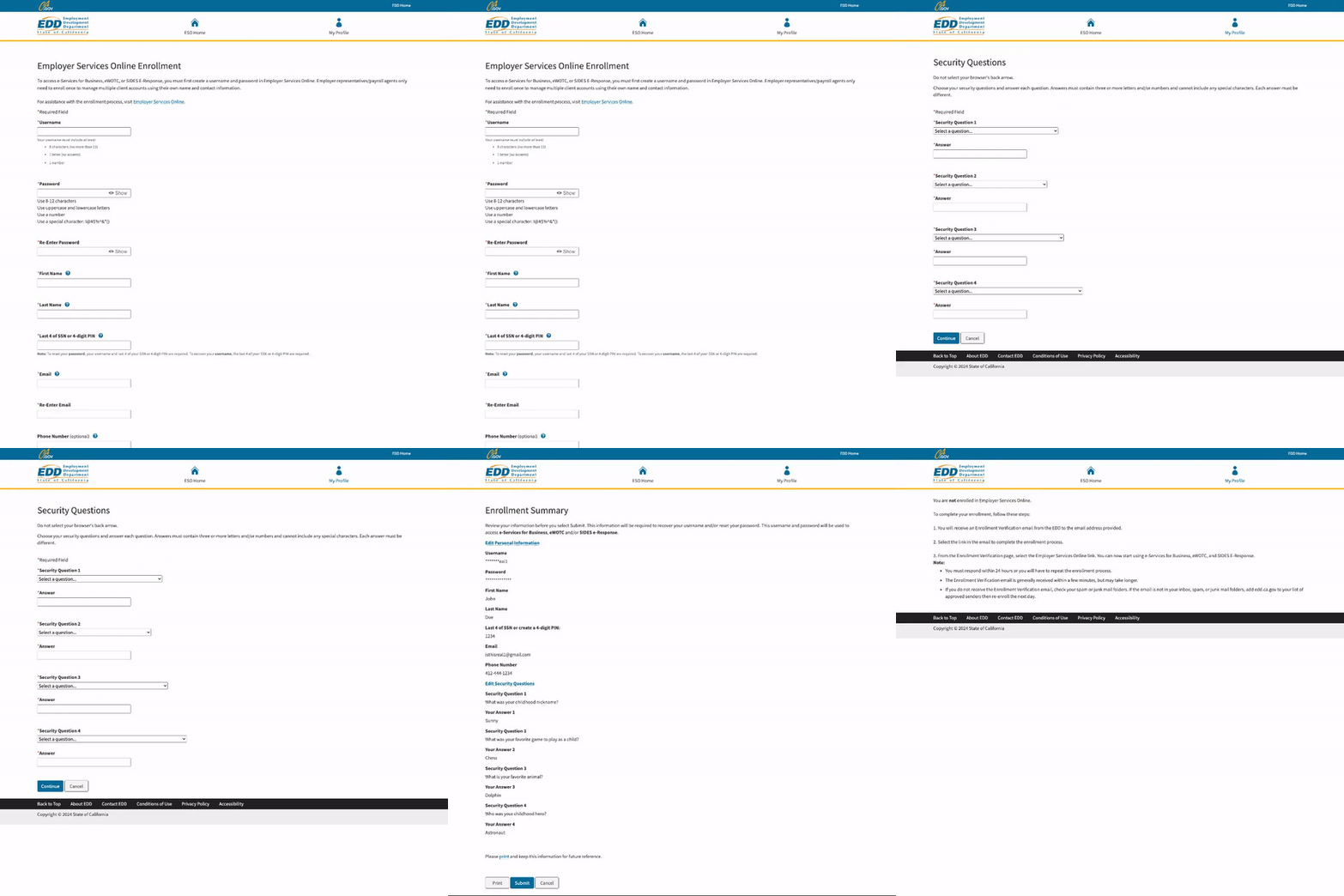
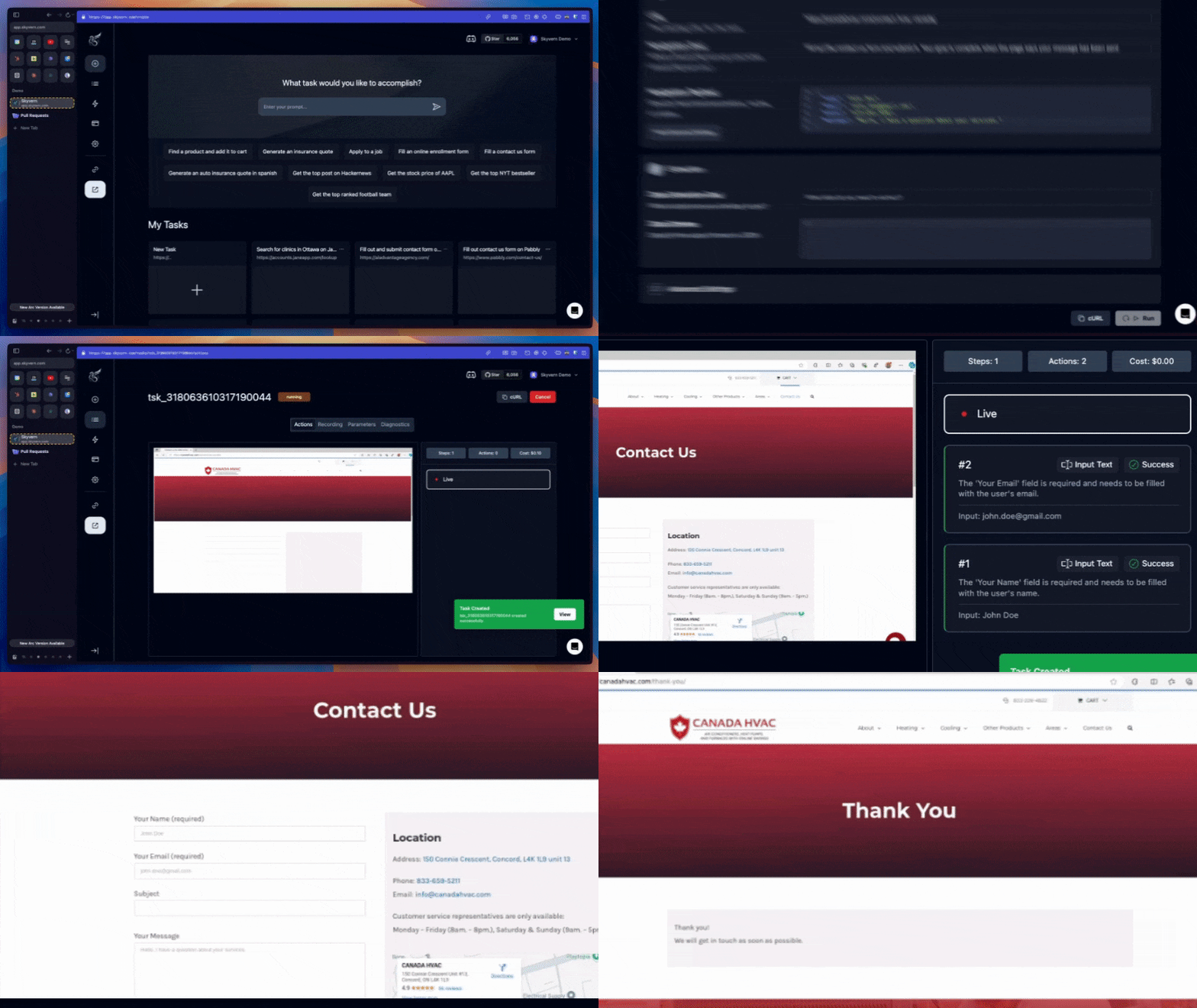
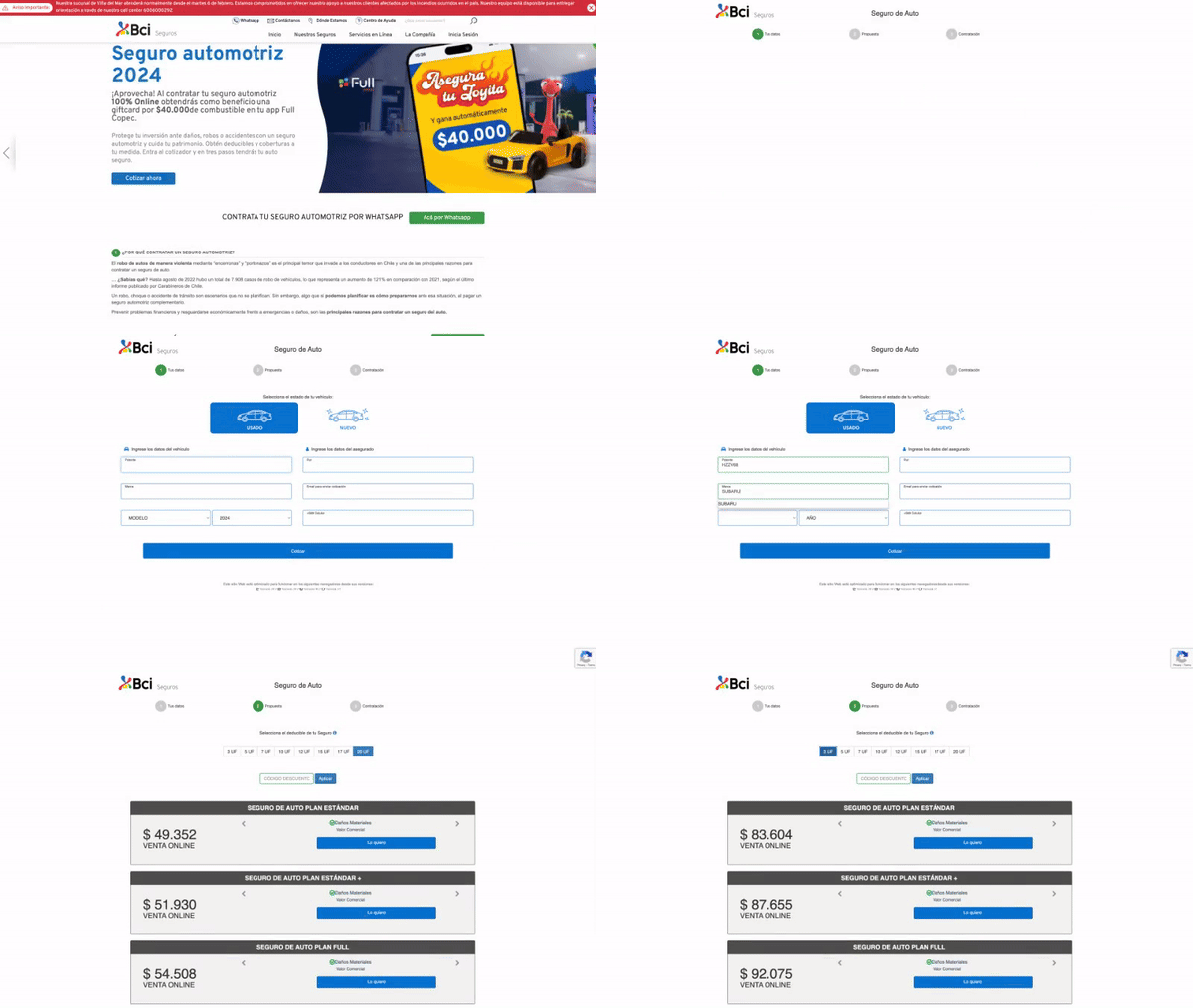
Make sure to have uv installed.
.venv)
uv sync --group dev
uv run skyvern quickstart
http://localhost:8080 in your browser to start using the UI
The Skyvern CLI supports Windows, WSL, macOS, and Linux environments.More extensive documentation can be found on our 📕 docs page. Please let us know if something is unclear or missing by opening an issue or reaching out to us via email or discord.
| Provider | Supported Models |
|---|---|
| OpenAI | GPT-5.5, GPT-5.4, GPT-5, GPT-4.1, o3, o4-mini |
| Anthropic | Claude 4.7 Opus, Claude 4.6 (Sonnet, Opus), Claude 4.5 (Haiku, Sonnet, Opus) |
| Azure OpenAI | Any GPT models deployed to your Azure subscription |
| AWS Bedrock | Claude 4.7, Claude 4.6 (Sonnet, Opus), Claude 4.5 (Sonnet, Opus) |
| Gemini | Gemini 3.1 Pro, Gemini 3 Flash, Gemini 2.5 Pro/Flash |
| Ollama | Run any locally hosted model via Ollama |
| OpenRouter | Access models through OpenRouter |
| OpenAI-compatible | Any custom API endpoint that follows OpenAI's API format (via liteLLM) |
For detailed LLM configuration including all available model keys, environment variables, and multi-model setups, see the LLM Configuration docs.
We welcome PRs and suggestions! Don't hesitate to open a PR/issue or to reach out to us via email or discord. Please have a look at our contribution guide and "Help Wanted" issues to get started!
If you want to chat with the skyvern repository to get a high level overview of how it is structured, how to build off it, and how to resolve usage questions, check out Code Sage.
By Default, Skyvern collects basic usage statistics to help us understand how Skyvern is being used. If you would like to opt-out of telemetry, please set the SKYVERN_TELEMETRY environment variable to false.
Skyvern's open source repository is supported via a managed cloud. All of the core logic powering Skyvern is available in this open source repository licensed under the AGPL-3.0 License, with the exception of anti-bot measures available in our managed cloud offering.
If you have any questions or concerns around licensing, please contact us and we would be happy to help.
Claim this server with your GitHub account to request manual ownership verification.
Link to the catalog listing for Skyvern MCP server for LLM-driven browser automation from your README. This badge does not certify ownership, compatibility or security.
[](https://awesome-mcp.com/servers/skyvern)Public repository statistics could not be verified. Check the configured source address; unavailable counts are not zero.
Separate sources, scopes and periods. Never combined or treated as installations, active users or security reviews.
No reviewed package or image identity; download statistics are not listed yet.
Alternative and complementary servers in the same category
A Model Context Protocol (MCP) server for controlling Chrome with debugging capabilities, userscript injection, and extension support.

An MCP server that lets AI assistants browse websites and extract content using optional CSS selectors.

An MCP server that reads pages, fills forms, takes screenshots, and hands the browser to a person for logins or CAPTCHAs.