
A directory listing describing a cancellation-letter and mailing-address service. The configured public GitHub repository returned 404 during source verification.
Repository stats unavailable
Developer Tools
An MCP server that exposes ResOS restaurant data tools, backed by a ResOS-compatible backend or the ResOS API.
Spring AI ResOS MCP server for restaurant management is cataloged as an MCP server attributed to pacphi. An MCP server that exposes ResOS restaurant data tools, backed by a ResOS-compatible backend or the ResOS API. It is categorized under developer tools. See the capability inspector for recorded interfaces and their independent review status; consult upstream documentation for the current interface.
Installation configuration is not reviewed. No executable setup is offered for this entry; inspect the source repository before proceeding.
Catalog license label: Not specified. Check the source repository's current license and terms before using, modifying or distributing this software.
Capability definitions are not reviewed. Unreviewed imports are not exposed as trusted interfaces.
No reviewed records to display. This does not establish that upstream lacks this capability.
No reviewed records to display. This does not establish that upstream lacks this capability.
No reviewed records to display. This does not establish that upstream lacks this capability.
Email delivery is not connected. This page does not collect email addresses or create subscriptions.
Browse the registry for current listings instead.
Reviews for Spring AI ResOS MCP server for restaurant management are not available yet
Review publishing and storage are not connected. This page does not collect or publish ratings or comments, including after sign-in.
Claude Desktop connects to the MCP server using STDIO transport, allowing Claude to directly invoke restaurant management tools.
An API key from ResOS is optional; it is only needed if you intend to register as a restaurateur, since an API-compatible backend can be run instead.
README.md · 9a0bb7c8760a · Fetched 2026-11-13 12:41:39 UTC
Original upstream text, without AI rewriting. Scripts, forms and unsafe links are filtered for safety.
Showing the last retrieved documentation snapshot; check the source for current changes.



This multi-module project hosts a client code-generated from an OpenAPI derivative of the ResOs API combined with a Spring AI implementation. It also includes an MCP server, MCP client configuration for use with Claude and a standalone ReactJS powered chatbot UI.
As a Spring Boot and Spring AI developer, I want to consume libraries that make it convenient to add capabilities to my application(s) as for the following
Use-case:
Start with:
with Git CLI
git clone https://github.com/pacphi/spring-ai-resos
with Github CLI
gh repo clone pacphi/spring-ai-resos
Open a terminal shell, then execute:
cd spring-ai-resos
mvn clean install
If you want to incorporate any of the starters as dependencies in your own projects, you would:
Maven
<dependency>
    <groupId>me.pacphi</groupId>
    <artifactId>spring-ai-resos-client</artifactId>
    <version>{release-version}</version>
</dependency>
Gradle
implementation 'me.pacphi:spring-ai-resos-client:{release-version}'
Replace occurrences of {release-version} above with a valid artifact release version number
Following Spring Boot conventions, you would add a stanza like this to your:
application.properties
default.url=${RESOS_API_ENDPOINT:https://api.resos.com/v1}
application.yml
default:
  url: ${RESOS_API_ENDPOINT:https://api.resos.com/v1}
To activate the client, specify an API key (if required), and tune other associated configuration.
Consult the chatbot module's configuration for alternative dependencies and configuration that are available to add.
Configuration will be found in labeled spring.config.activate.on-profile sections of the application.yml file.
You're going to need to launch the backend module first, unless you're a restaurateur, and you have a valid API key for interacting with the ResOS v1.2 API.
To launch the backend, open a terminal shell and execute
cd backend
mvn clean spring-boot:run -Dspring-boot.run.profiles=dev -Dspring-boot.run.jvmArguments="--add-opens java.base/java.net=ALL-UNNAMED"
There's the chatbot module.
But there's also a way to integrate with Claude desktop via MCP client configuration that will consume the MCP server implementation.
Claude Desktop can connect to the MCP server using STDIO transport. This allows Claude to directly invoke restaurant management tools.
spring-ai-resos-mcp-server-stdio-{VERSION}.jar from the Releases page.cd mcp-server && mvn clean package -Pstdiocd backend
mvn spring-boot:run -Dspring-boot.run.profiles=dev -Dspring-boot.run.jvmArguments="--add-opens java.base/java.net=ALL-UNNAMED"
Add the following to your Claude Desktop configuration file:
~/Library/Application Support/Claude/claude_desktop_config.json%APPDATA%\Claude\claude_desktop_config.json~/.config/claude/claude_desktop_config.jsonIf using downloaded release JAR:
{
  "mcpServers": {
    "spring-ai-resos": {
      "command": "java",
      "args": [
        "-Dspring.profiles.active=stdio",
        "-jar",
        "<path-to-jar>/spring-ai-resos-mcp-server-stdio-{VERSION}.jar"
      ],
      "env": {
        "RESOS_API_ENDPOINT": "http://localhost:8080/api/v1/resos"
      }
    }
  }
}
If built from source:
{
  "mcpServers": {
    "spring-ai-resos": {
      "command": "java",
      "args": [
        "-Dspring.profiles.active=stdio",
        "-jar",
        "<path-to-project>/mcp-server/target/spring-ai-resos-mcp-server-1.0.0-SNAPSHOT.jar"
      ],
      "env": {
        "RESOS_API_ENDPOINT": "http://localhost:8080/api/v1/resos"
      }
    }
  }
}
Replace
<path-to-jar>or<path-to-project>with the absolute path to your JAR file or project directory.
Once connected, Claude Desktop will have access to these tools:
| Tool | Description |
|---|---|
getTables | Fetch all restaurant tables |
getCustomers | Fetch customer records with filtering/pagination |
getCustomerById | Fetch a specific customer |
getFeedback | Fetch customer feedback and reviews |
getFeedbackById | Fetch specific feedback |
getOpeningHours | Fetch opening hours for the next two weeks |
getOpeningHoursById | Fetch specific opening hours |
Server not connecting:
Tools not appearing:
Backend connection errors:
RESOS_API_ENDPOINT environment variable is correctFollow these instructions.
To launch the server module, open a terminal shell and execute
cd mcp-server
export RESOS_API_ENDPOINT=http://localhost:8080/api/v1/resos
mvn spring-boot:run -Dspring-boot.run.profiles=cloud,dev
Next, we'll store an API key in a credential file that will allow the chatbot to interact with an LLM service provider.
cd ../mcp-client
Build and run a version of the chatbot that is compatible for use with OpenAI. You will need to obtain an API key.
Before launching the app:
config folder which would be a sibling of the src folder. Create a file named creds.yml inside that folder. Add your own API key into that file.spring:
ai:
openai:
api-key: { REDACTED }
Replace
{REDACTED}above with your OpenAI API key
Next, to launch the chatbot, open a terminal shell and execute
mvn spring-boot:run -Dspring-boot.run.profiles=openai,dev
Build and run a version of the chatbot that is compatible for use with Groq Cloud. You will need to obtain an API key.
Note that Groq does not currently have support for text embedding. So if you intend to run with the groq-cloud Spring profile activated, you will also need to provide additional credentials
Before launching the app:
config folder which would be a sibling of the src folder. Create a file named creds.yml inside that folder. Add your own API key into that file.spring:
ai:
openai:
api-key: { REDACTED-1 }
embedding:
api-key: { REDACTED-2 }
Replace
{REDACTED-1}and{REDACTED-2}above with your Groq Cloud API and OpenAI keys respectively.
Next, to launch the chatbot, open a terminal shell and execute
mvn spring-boot:run -Dspring-boot.run.profiles=groq-cloud,dev
Build and run a version of the chatbot that is compatible for use with OpenRouter. You will need to obtain an API key.
Note that OpenRouter does not currently have support for text embedding. So if you intend to run with the openrouter Spring profile activated, you will also need to provide additional credentials
Before launching the app:
config folder which would be a sibling of the src folder. Create a file named creds.yml inside that folder. Add your own API key into that file.spring:
ai:
openai:
api-key: { REDACTED-1 }
embedding:
api-key: { REDACTED-2 }
Replace
{REDACTED-1}and{REDACTED-2}above with your OpenRouter API and OpenAI keys respectively.
Next, to launch the chatbot, open a terminal shell and execute
mvn spring-boot:run -Dspring-boot.run.profiles=openrouter,dev
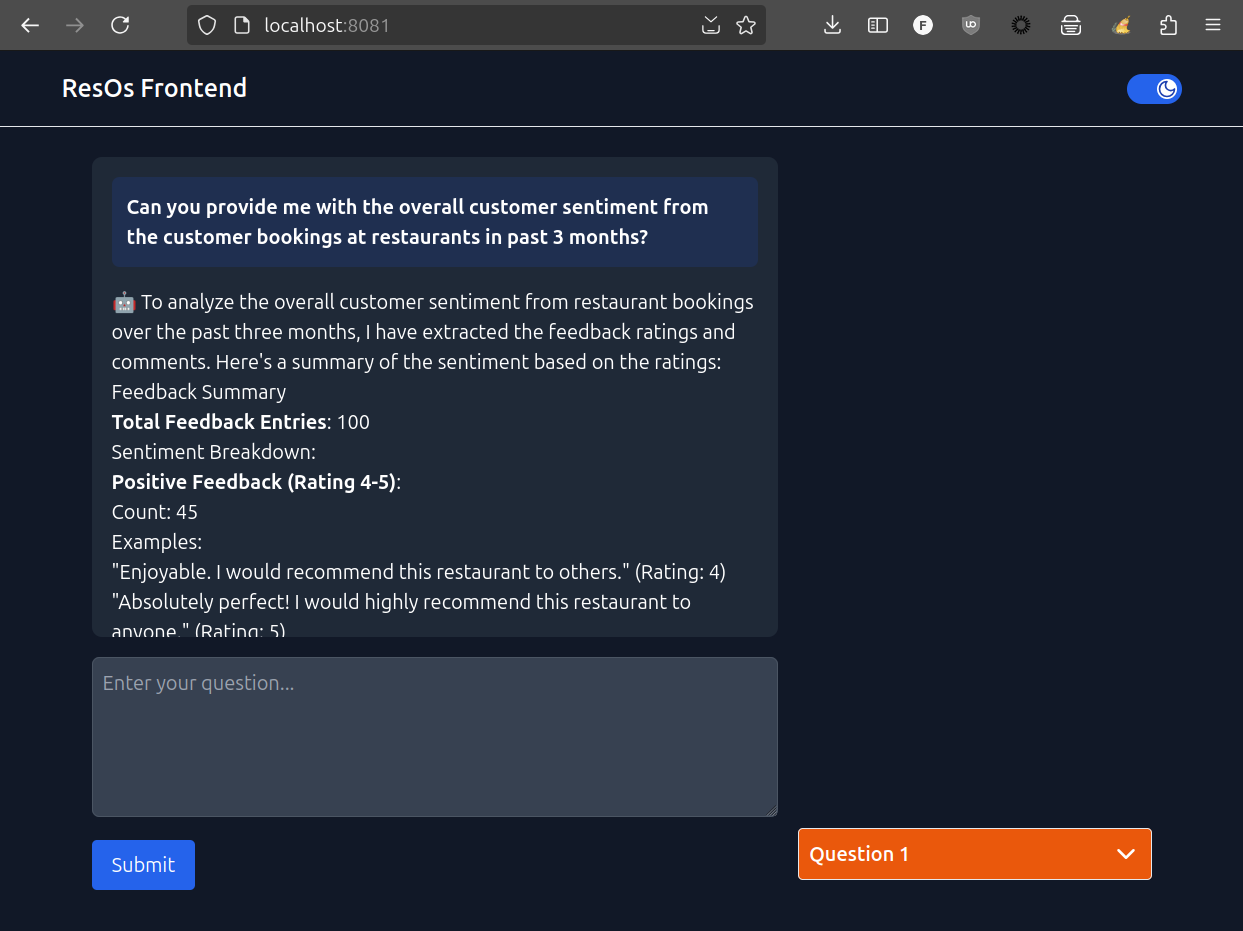
Now, visit http://localhost:8081 in your favorite web-browser.
Claim this server with your GitHub account to request manual ownership verification.
Link to the catalog listing for Spring AI ResOS MCP server for restaurant management from your README. This badge does not certify ownership, compatibility or security.
[](https://awesome-mcp.com/servers/spring-ai-resos)Public repository statistics could not be verified. Check the configured source address; unavailable counts are not zero.
Separate sources, scopes and periods. Never combined or treated as installations, active users or security reviews.
No reviewed package or image identity; download statistics are not listed yet.
Alternative and complementary servers in the same category
A directory listing describing a cancellation-letter and mailing-address service. The configured public GitHub repository returned 404 during source verification.

A hosted MCP service for browsing and searching through Singapore mobile-network proxies.

A directory listing describing a Markdown-to-PDF service. The configured public GitHub repository returned 404 during source verification.