
A directory listing describing a cancellation-letter and mailing-address service. The configured public GitHub repository returned 404 during source verification.
Repository stats unavailable
Developer Tools
An MCP server that offers tools for programmatically creating and modifying Xcode project files, including targets, files, build settings, and Swift Package dependencies.
Xcode Project MCP Server is cataloged as an MCP server attributed to giginet. An MCP server that offers tools for programmatically creating and modifying Xcode project files, including targets, files, build settings, and Swift Package dependencies. It is categorized under developer tools. See the capability inspector for recorded interfaces and their independent review status; consult upstream documentation for the current interface.
Installation configuration is not reviewed. No executable setup is offered for this entry; inspect the source repository before proceeding.
Catalog license label: MIT License. Check the source repository's current license and terms before using, modifying or distributing this software.
Capability definitions are not reviewed. Unreviewed imports are not exposed as trusted interfaces.
No reviewed records to display. This does not establish that upstream lacks this capability.
No reviewed records to display. This does not establish that upstream lacks this capability.
No reviewed records to display. This does not establish that upstream lacks this capability.
Email delivery is not connected. This page does not collect email addresses or create subscriptions.
Browse the registry for current listings instead.
Reviews for Xcode Project MCP Server are not available yet
Review publishing and storage are not connected. This page does not collect or publish ratings or comments, including after sign-in.
Yes. When a base path is provided as a command-line argument, project and file paths are resolved relative to it, and attempts to access files outside the base directory result in an error.
It uses the tuist/xcodeproj library for project file manipulation and the swift-sdk for the Model Context Protocol.
README.md · 6f6fc6dd051e · Fetched 2026-11-13 09:31:43 UTC
Original upstream text, without AI rewriting. Scripts, forms and unsafe links are filtered for safety.
Showing the last retrieved documentation snapshot; check the source for current changes.






A Model Context Protocol (MCP) server for manipulating Xcode project files (.xcodeproj) using Swift.
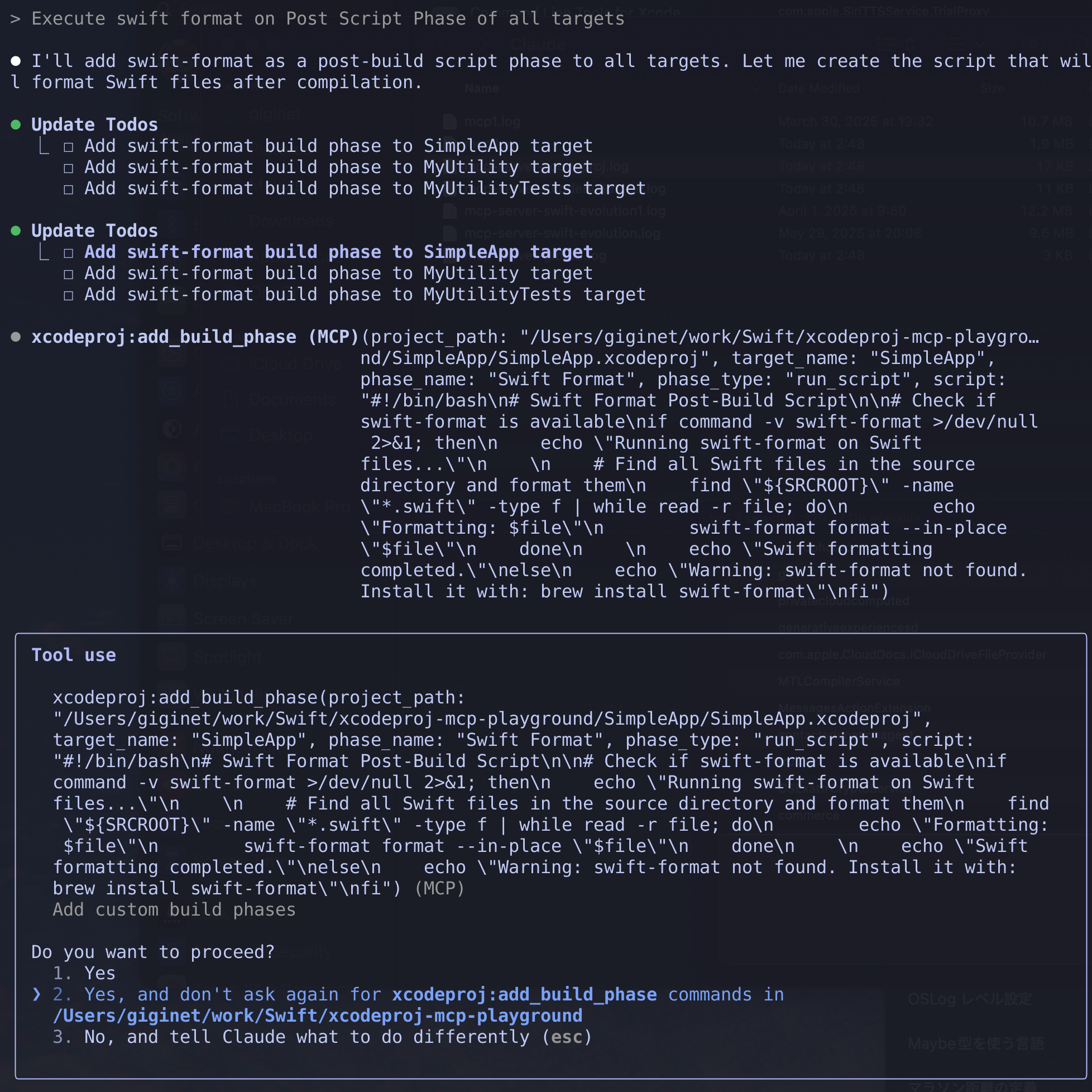
xcodeproj-mcp-server is an MCP server that provides tools for programmatically manipulating Xcode project files. It leverages the tuist/xcodeproj library for reliable project file manipulation and implements the Model Context Protocol using the swift-sdk.
This server enables AI assistants and other MCP clients to:
container (recommended) or DockerThe server is distributed as a linux/arm64 container image, which runs on either runtime.
container (recommended)container is Apple's own tool for running Linux containers as lightweight virtual machines on macOS. It is the recommended runtime for this server: it comes from Apple, requires no third-party desktop application, and runs the published linux/arm64 image natively on Apple silicon.
container does not support older versions)Install the container CLI from the official release page.
container needs its background service running. Start it once after installing, and again after each reboot:
container system start
Then pull the pre-built image from GitHub Container Registry:
container image pull ghcr.io/giginet/xcodeproj-mcp-server:latest
container run has no --pull option, so run container image pull again whenever you want to update to the latest image.
claude mcp add xcodeproj -- container run --rm -i -v '${CLAUDE_PROJECT_DIR:-.}:/workspace' ghcr.io/giginet/xcodeproj-mcp-server:latest /workspace
This mounts the project directory to /workspace inside the container, which is how the server gets access to your Xcode projects. Keep the single quotes: they stop your shell from expanding the mount at registration time, so Claude Code resolves it every time it launches the server instead of pinning it to the directory you happened to run claude mcp add from. It falls back to ., the working directory Claude Code starts the server in, which is the project root.
Add the following to your Claude Desktop configuration file:
macOS: ~/Library/Application Support/Claude/claude_desktop_config.json
{
  "mcpServers": {
    "xcodeproj": {
      "command": "/usr/local/bin/container",
      "args": [
        "run",
        "--rm",
        "-i",
        "-v",
        "${workspaceFolder}:/workspace",
        "ghcr.io/giginet/xcodeproj-mcp-server",
        "/workspace"
      ]
    }
  }
}
The installer places the binary at /usr/local/bin/container. The absolute path is used here because that directory is not always on the PATH of GUI applications.
container build reads the same Dockerfile:
container build -t xcodeproj-mcp-server:local .
The builder container defaults to 2 CPUs and 2 GB of memory. Allocate more to it to speed up the release build:
container build -c 8 -m 8g -t xcodeproj-mcp-server:local .
Use Docker if you are on macOS 15 or earlier, or if Docker is already part of your workflow.
Pull the pre-built Docker image from GitHub Container Registry:
docker pull ghcr.io/giginet/xcodeproj-mcp-server
claude mcp add xcodeproj -- docker run --pull=always --rm -i -v '${CLAUDE_PROJECT_DIR:-.}:/workspace' ghcr.io/giginet/xcodeproj-mcp-server:latest /workspace
As with container, the project directory is mounted to /workspace inside the container so that the server can access your Xcode projects, and the single quotes keep the mount unexpanded until Claude Code launches the server.
Add the following to your Claude Desktop configuration file:
macOS: ~/Library/Application Support/Claude/claude_desktop_config.json
{
  "mcpServers": {
    "xcodeproj": {
      "command": "docker",
      "args": [
        "run",
        "--rm",
        "-i",
        "-v",
        "${workspaceFolder}:/workspace",
        "ghcr.io/giginet/xcodeproj-mcp-server",
        "/workspace"
      ]
    }
  }
}
Xcode can run Claude Code and Codex as coding agents, and it reads their configuration from agent-specific subfolders of ~/Library/Developer/Xcode/CodingAssistant, a folder Xcode uses exclusively. Configuration placed there affects agents only when you launch them in Xcode, so it does not interfere with your regular ~/.claude or ~/.codex setup. See Apple's Extending and customizing agents for details.
Two things differ from the command-line setup:
. directly. Codex has no equivalent of Claude Code's ${CLAUDE_PROJECT_DIR:-.} expansion, so this keeps both agents on the same mount.command an absolute path, because the agent's environment does not necessarily have /usr/local/bin on its PATH.~/Library/Developer/Xcode/CodingAssistant/ClaudeAgentConfig acts as Claude Code's configuration directory. Point CLAUDE_CONFIG_DIR at it and use claude mcp add:
CLAUDE_CONFIG_DIR=~/Library/Developer/Xcode/CodingAssistant/ClaudeAgentConfig \
  claude mcp add xcodeproj -s user -- \
  /usr/local/bin/container run --rm -i -v .:/workspace ghcr.io/giginet/xcodeproj-mcp-server:latest /workspace
That writes the server into ClaudeAgentConfig/.claude.json. To add it by hand instead, add an entry under mcpServers:
{
  "mcpServers": {
    "xcodeproj": {
      "type": "stdio",
      "command": "/usr/local/bin/container",
      "args": [
        "run",
        "--rm",
        "-i",
        "-v",
        ".:/workspace",
        "ghcr.io/giginet/xcodeproj-mcp-server:latest",
        "/workspace"
      ]
    }
  }
}
~/Library/Developer/Xcode/CodingAssistant/codex acts as Codex's CODEX_HOME:
CODEX_HOME=~/Library/Developer/Xcode/CodingAssistant/codex \
  codex mcp add xcodeproj -- \
  /usr/local/bin/container run --rm -i -v .:/workspace ghcr.io/giginet/xcodeproj-mcp-server:latest /workspace
That writes the server into codex/config.toml. To add it by hand instead:
[mcp_servers.xcodeproj]
command = "/usr/local/bin/container"
args = ["run", "--rm", "-i", "-v", ".:/workspace", "ghcr.io/giginet/xcodeproj-mcp-server:latest", "/workspace"]
If you set up with Docker, use the absolute path to your docker binary in place of /usr/local/bin/container. Restart the agent in Xcode after changing its configuration.
Enabling ENABLE_TOOL_SEARCH in .claude/settings.json activates dynamic MCP tool loading. This prevents unused MCP tools from consuming context.
{
  "env": {
    "ENABLE_TOOL_SEARCH": "1"
  }
}
The MCP server now supports restricting file operations to a specific base directory. When you provide a base path as a command-line argument:
project_path and file path parameters will be resolved relative to this base pathThis is especially useful when running the server in containers or other sandboxed environments.
create_xcodeproj - Create a new Xcode project
project_name, path, organization_name, bundle_identifierlist_targets - List all targets in a project
project_pathlist_build_configurations - List all build configurations
project_pathlist_files - List all files in a specific target
project_path, target_namelist_groups - List all groups in the project with hierarchical paths, optionally filtered by target
project_path, target_name (optional)add_file - Add a file to the project
project_path, file_path, target_name, group_pathremove_file - Remove a file from the project
project_path, file_pathmove_file - Move or rename a file within the project
project_path, source_path, destination_pathadd_synchronized_folder - Add a synchronized folder reference to the project
project_path, folder_path, group_name, target_namecreate_group - Create a new group in the project navigator
project_path, group_name, parent_group_pathadd_target - Create a new target
project_path, target_name, type, platform, bundle_identifierremove_target - Remove an existing target
project_path, target_nameduplicate_target - Duplicate an existing target
project_path, source_target_name, new_target_nameadd_dependency - Add dependency between targets
project_path, target_name, dependency_nameadd_app_extension - Add an App Extension target and embed it in a host app
project_path, extension_name, extension_type, host_target_name, bundle_identifier, platform (optional), deployment_target (optional)widget, notification_service, notification_content, share, today, action, file_provider, intents, intents_ui, keyboard, photo_editing, document_provider, customremove_app_extension - Remove an App Extension target and its embedding from the host app
project_path, extension_nameget_build_settings - Get build settings for a target
project_path, target_name, configuration_nameset_build_setting - Modify build settings
project_path, target_name, setting_name, value, configuration_nameadd_framework - Add framework dependencies
project_path, target_name, framework_name, embedadd_build_phase - Add custom build phases
project_path, target_name, phase_type, name, scriptadd_swift_package - Add a Swift Package dependency to the project
project_path, package_url, requirement, target_name, product_namelist_swift_packages - List all Swift Package dependencies in the project
project_pathremove_swift_package - Remove a Swift Package dependency from the project
project_path, package_url, remove_from_targetsThis project is licensed under the MIT License.
Claim this server with your GitHub account to request manual ownership verification.
Link to the catalog listing for Xcode Project MCP Server from your README. This badge does not certify ownership, compatibility or security.
[](https://awesome-mcp.com/servers/xcodeproj-mcp-server)Public repository statistics could not be verified. Check the configured source address; unavailable counts are not zero.
Separate sources, scopes and periods. Never combined or treated as installations, active users or security reviews.
No reviewed package or image identity; download statistics are not listed yet.
Alternative and complementary servers in the same category
A directory listing describing a cancellation-letter and mailing-address service. The configured public GitHub repository returned 404 during source verification.

A hosted MCP service for browsing and searching through Singapore mobile-network proxies.

A directory listing describing a Markdown-to-PDF service. The configured public GitHub repository returned 404 during source verification.