
Oleafly is a live collaborative LaTeX, Typst and Markdown editor for research that offers a local MCP server and an oleafly mcp stdio command so outside AI clients can use its project tools.
Repository stats unavailable
Productivity & Ops
A command-line tool that fetches Google Calendar events and converts them into a custom prompt or text snippet via a template engine, which can also run as an experimental MCP server.
cal2prompt is cataloged as an MCP server attributed to shuntaka9576. A command-line tool that fetches Google Calendar events and converts them into a custom prompt or text snippet via a template engine, which can also run as an experimental MCP server. It is categorized under productivity work. See the capability inspector for recorded interfaces and their independent review status; consult upstream documentation for the current interface.
Installation configuration is not reviewed. No executable setup is offered for this entry; inspect the source repository before proceeding.
Catalog license label: Not specified. Check the source repository's current license and terms before using, modifying or distributing this software.
Capability definitions are not reviewed. Unreviewed imports are not exposed as trusted interfaces.
No reviewed records to display. This does not establish that upstream lacks this capability.
No reviewed records to display. This does not establish that upstream lacks this capability.
No reviewed records to display. This does not establish that upstream lacks this capability.
Email delivery is not connected. This page does not collect email addresses or create subscriptions.
Browse the registry for current listings instead.
Reviews for cal2prompt are not available yet
Review publishing and storage are not connected. This page does not collect or publish ratings or comments, including after sign-in.
No, it is described as experimental.
It uses the Google Calendar API version 3.
README.md · a43dbe7094ed · Fetched 2026-11-13 10:04:40 UTC
Original upstream text, without AI rewriting. Scripts, forms and unsafe links are filtered for safety.
Showing the last retrieved documentation snapshot; check the source for current changes.
⚠️ This project is still experimental. Features may change without notice. Use with caution! ⚠️
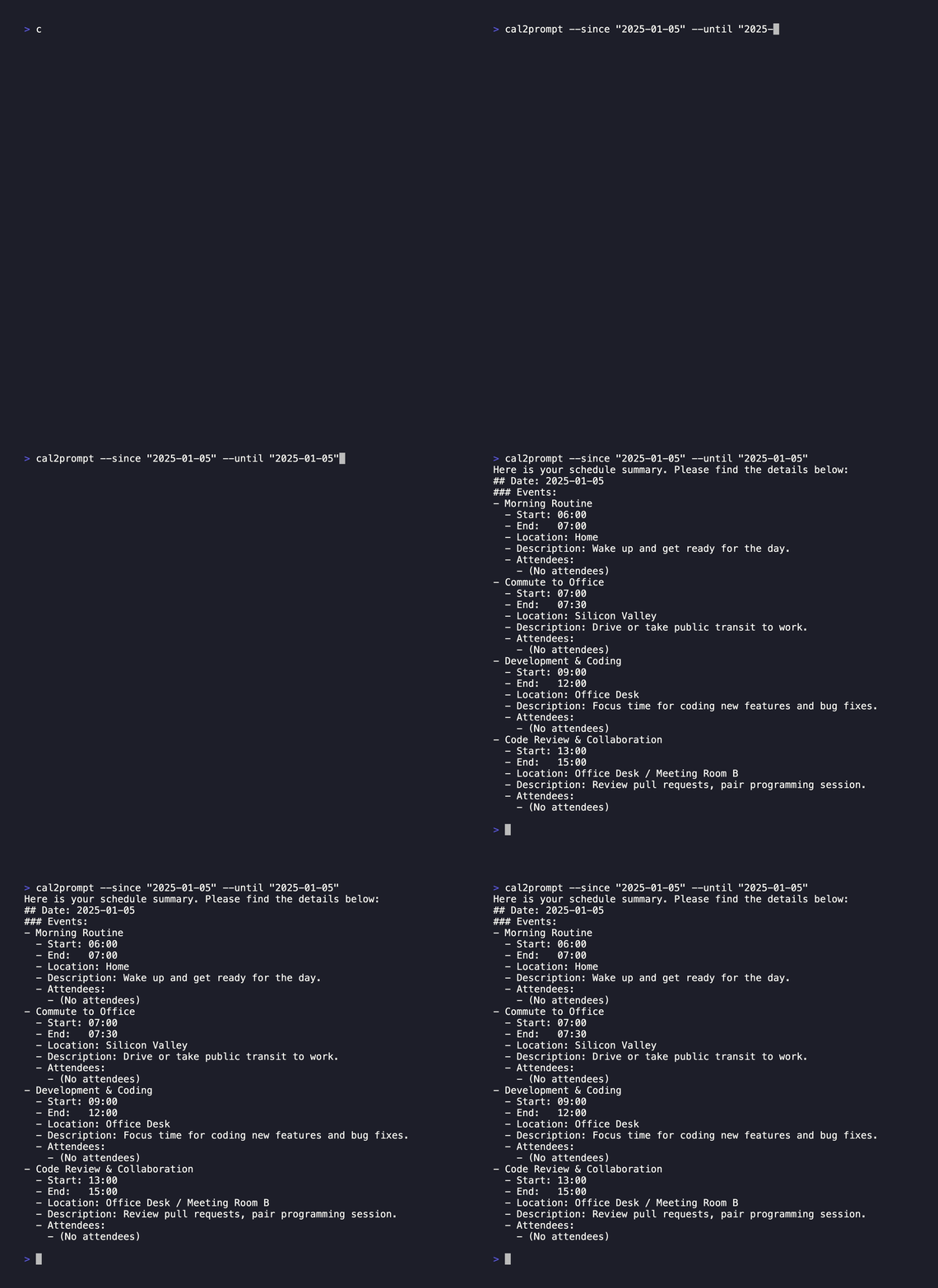
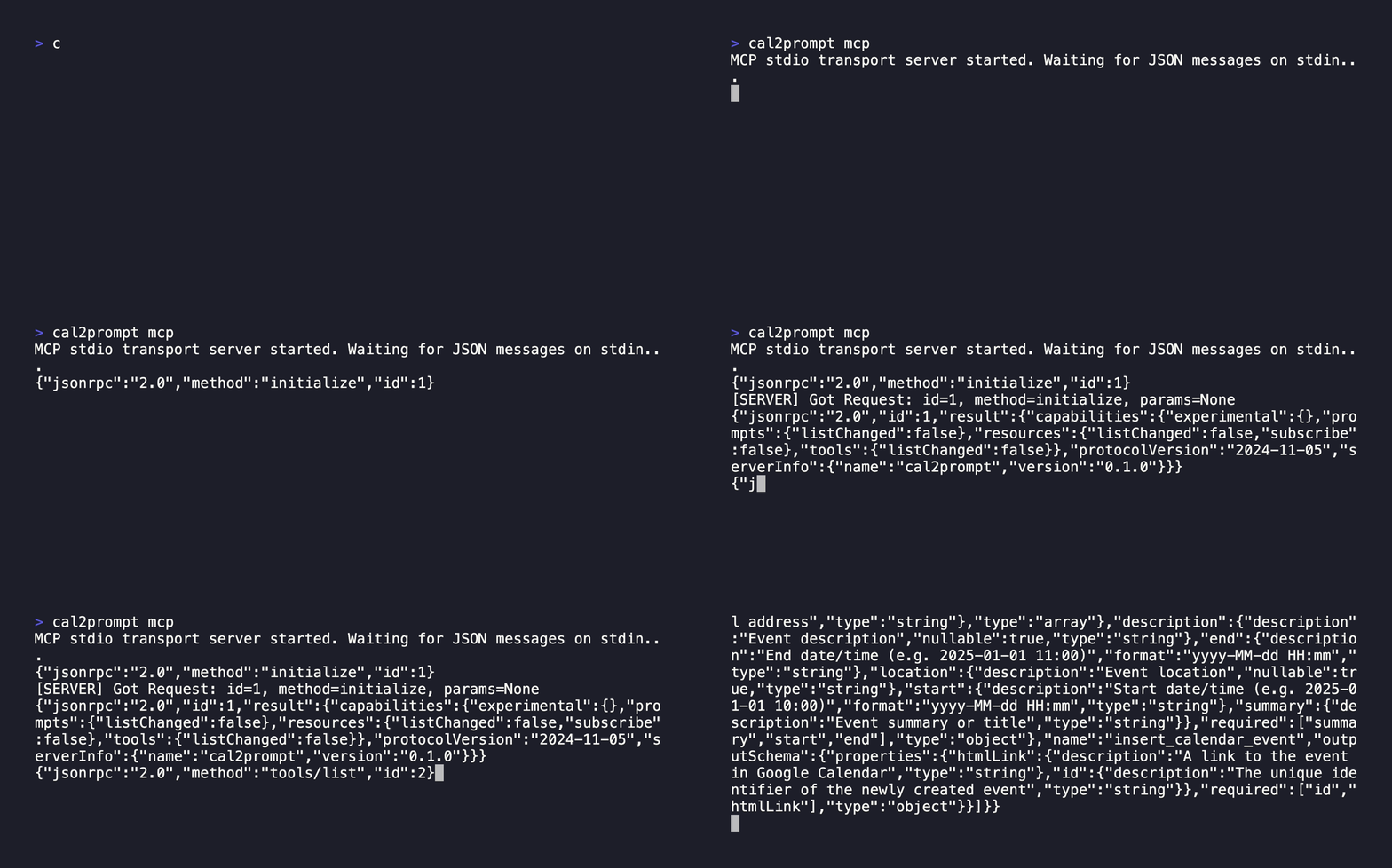
cal2prompt is a command-line tool that fetches your schedule (e.g., from Google Calendar) and converts it into a custom prompt or text snippet via a template engine. It can output directly to your stdout, or run as an experimental MCP (Model Context Protocol) server.
cal2prompt uses the Google Calendar API version 3.
CLI Example
Model Context Protocol(MCP) Example(experimental)
🚀 Google Calendar Integration
Utilizes the Google Calendar API v3 to fetch your schedule.
📄 Flexible LLM Prompt Customization with a Template Engine
Customize the generated prompts using the Jinja2 template engine.
⚡️ Blazing fast
High-speed Processing Powered by the Rust Ecosystem.
🔧 Experimental MCP Mode
Run cal2prompt as a Model Context Protocol server.
brew install shuntaka9576/tap/cal2prompt
git clone https://github.com/shuntaka9576/cal2prompt
cd cal2prompt
cargo install --path .
$ cal2prompt --help
✨ Fetches your schedule (e.g., from Google Calendar) and converts it into a single LLM prompt. It can also run as an MCP (Model Context Protocol) server.

Usage: cal2prompt [OPTIONS] [COMMAND]

Commands:
  mcp   Launch cal2prompt as an MCP server (experimental).
  help  Print this message or the help of the given subcommand(s)

Options:
      --since <DATE>  Start date (YYYY-MM-DD). Requires --until.
      --until <DATE>  End date (YYYY-MM-DD). Requires --since.
      --today         Fetch events for today only.
      --this-week     Fetch events for the current week (Mon-Sun).
      --this-month    Fetch events for the current month (1st - end).
      --next-week     Fetch events for the upcoming week (Mon-Sun).
  -h, --help          Print help
  -V, --version       Print version
We use OAuth2 for authenticating with your Google account. After authentication, the generated token is stored in the oauth file located in your platform’s data directory (e.g., ~/.local/share/cal2prompt/oauth on Linux). When you launch cal2prompt for the first time, the authentication process will begin automatically—simply follow the on-screen instructions.
Currently, you must use your own Calendar API token. The Calendar API token is only granted to a limited number of users and requires Google’s approval. Even if I, as the project owner, were to provide a Google-approved client, there would inevitably be security risks. Therefore, you need to create and manage your own token.
Please follow the steps in docs/setup-oauth to create your own Google “project” and obtain an OAuth token.
Configuration is written in Lua. Below is an example of the configuration. You can separate public and private information into separate files if you prefer—simply customize it to suit your needs.
Create ~/.config/cal2prompt/secrets.lua and add the following contents. The file name can be any name as long as it matches the require statement in the config.lua mentioned later.
Please specify the clientID, clientSecret, and Calendar ID you created earlier. You can find the Calendar ID in the Google Calendar web UI.
local M = {}

M.google = {
  clientID = "***.apps.googleusercontent.com",
  clientSecret = "***",
  calendarIDs = {
    "example@gmail.com"
  },
}

return M
Create ~/.config/cal2prompt/config.lua and add the following contents:
local cal2prompt = require("cal2prompt") -- builtin module
local os = require("os") -- stdlib
local secrets = require("secrets")

return {
  settings = {
    -- see https://en.wikipedia.org/wiki/List_of_tz_database_time_zones
    -- TZ = "Etc/UTC",
    TZ = "Asia/Tokyo",
    -- TZ = "America/Los_Angeles"
    -- TZ - "Asia/Shanghai"
  },
  source = {
    google = {
      oauth2 = {
        clientID = secrets.google.clientID,
        clientSecret = secrets.google.clientSecret,
      },
      calendar = {
        getEvents = {
          calendarIDs = secrets.google.calendarIDs,
        },
      },
    },
  },
  output = {
    -- template = cal2prompt.template.google.standard
    template = [[
Here is your schedule summary. Please find the details below:
{% for day in days %}
## Date: {{ day.date }}
--------------------------------------

### All-Day Events:
{% if day.all_day_events|length == 0 %}
  (No all-day events)
{% else %}
  {% for ev in day.all_day_events %}
  - {{ ev.summary }}
    - (All Day)
    - Location: {{ ev.location or "N/A" }}
    - Description: {{ ev.description or "No description." }}
    - Attendees:
      {% if ev.attendees|length > 0 %}
        {% for a in ev.attendees %}
        - {{ a }}
        {% endfor %}
      {% else %}
      - (No attendees)
      {% endif %}
  {% endfor %}
{% endif %}

### Timed Events:
{% if day.timed_events|length == 0 %}
  (No timed events)
{% else %}
  {% for ev in day.timed_events %}
  - {{ ev.summary }}
    - Start: {{ ev.start }}
    - End:   {{ ev.end }}
    - Location: {{ ev.location or "N/A" }}
    - Description: {{ ev.description or "No description." }}
    - Attendees:
      {% if ev.attendees|length > 0 %}
        {% for a in ev.attendees %}
        - {{ a }}
        {% endfor %}
      {% else %}
      - (No attendees)
      {% endif %}
  {% endfor %}
{% endif %}
{% endfor %}
]],
  },
}
cal2prompt executes the OAuth 2.0 flow to obtain authentication credentials. For detailed step-by-step flow instructions, please refer to docs/setup-cli-auth
cal2prompt
Please add the following configuration to ~/Library/Application\ Support/Claude/claude_desktop_config.json:
mcpServers.cal2prompt.command: You must specify the full path obtained by running which cal2prompt.mcpServers.cal2prompt.env.HOME: Since Claude Desktop may not inherit the HOME environment variable, so it needs to be set explicitly.{
"mcpServers": {
"cal2prompt": {
"command": "/Users/username/.cargo/bin/cal2prompt",
"args": ["mcp"],
"env": {
"HOME": "/Users/username"
}
}
}
}
| Variable Name | Required | Description | Default Value |
|---|---|---|---|
settings.TZ | true | IANA time zone format. (e.g. America/Los_Angeles Asia/Tokyo) | UTC |
settings.oauthFilePath | false | Path where OAuth2.0 tokens are temporarily stored. Typically, users do not need to change this unless they have a custom setup. | ~/.local/share/cal2prompt/oauth |
source.google.oauth2.clientID | true | Your Google OAuth2 Client ID used for authenticating with the Google Calendar API. | (No default; must be specified) |
source.google.oauth2.clientSecret | true | Your Google OAuth2 Client Secret used for authenticating with the Google Calendar API. | (No default; must be specified) |
source.google.oauth2.scopes | false | Scopes to grant to Google OAuth 2.0 client. Please refer to here for the types of scopes. | [https://www.googleapis.com/auth/calendar.events] |
source.google.oauth2.redirectURL | false | The OAuth2 callback URL to which Google will send responses. | "http://127.0.0.1:9004" |
source.google.calendar.getEvents.calendarIDs | true | A list of one or more Google Calendar IDs from which cal2prompt will fetch events. Each ID can typically be found in your Google Calendar settings. If multiple IDs are provided, events from each calendar will be fetched and combined in chronological order. | (No default; must be specified) |
output.template | true | A string that defines how the fetched calendar data should be formatted/output. | (No default; must be specified) |
experimental.mcp.insertCalendarEvent.calendarID | false | The ID of the Google Calendar to which new events will be inserted when using the experimental MCP feature. | None |
| Variable Name | Description | Default Value |
|---|---|---|
CAL2_PROMPT_CONFIG_FILE_PATH | Path to a custom Lua configuration file if you do not want to use the default. | ~/.config/cal2prompt/config.lua |
Claim this server with your GitHub account to request manual ownership verification.
Link to the catalog listing for cal2prompt from your README. This badge does not certify ownership, compatibility or security.
[](https://awesome-mcp.com/servers/cal2prompt)Public repository statistics could not be verified. Check the configured source address; unavailable counts are not zero.
Separate sources, scopes and periods. Never combined or treated as installations, active users or security reviews.
No reviewed package or image identity; download statistics are not listed yet.
Alternative and complementary servers in the same category
Oleafly is a live collaborative LaTeX, Typst and Markdown editor for research that offers a local MCP server and an oleafly mcp stdio command so outside AI clients can use its project tools.
Buddy is an Android app that offers its phone tools through a local MCP server to Claude Code, Codex, OpenCode, Antigravity, and Grok sessions.

Tuqui is a hosted MCP server that connects Odoo with Claude and ChatGPT so users can ask about sales, stock, customers and overdue invoices in plain language.
