

Oleafly is a live collaborative LaTeX, Typst and Markdown editor for research that offers a local MCP server and an oleafly mcp stdio command so outside AI clients can use its project tools.
Repository stats unavailable
Productivity & Ops
LMCP connects compatible AI assistants to apps and accounts through MCP, enabling context gathering and supported actions on the user's computer.
LMCP local MCP server is cataloged as an MCP server attributed to colibird-ai. LMCP connects compatible AI assistants to apps and accounts through MCP, enabling context gathering and supported actions on the user's computer. It is categorized under productivity work. See the capability inspector for recorded interfaces and their independent review status; consult upstream documentation for the current interface.
Installation configuration is not reviewed. No executable setup is offered for this entry; inspect the source repository before proceeding.
Catalog license label: Not specified. Check the source repository's current license and terms before using, modifying or distributing this software.
Capability definitions are not reviewed. Unreviewed imports are not exposed as trusted interfaces.
No reviewed records to display. This does not establish that upstream lacks this capability.
No reviewed records to display. This does not establish that upstream lacks this capability.
No reviewed records to display. This does not establish that upstream lacks this capability.
Email delivery is not connected. This page does not collect email addresses or create subscriptions.
Browse the registry for current listings instead.
Reviews for LMCP local MCP server are not available yet
Review publishing and storage are not connected. This page does not collect or publish ratings or comments, including after sign-in.
Compatible tools execute on the user's computer, though connected services and cloud models may require network access.
No. Cloud Data Forwarding is optional and off by default, and it lets supported web assistants reach tools on the user's computer.
No. Local execution does not mean a cloud AI receives no data; the chosen assistant or connected service may receive content needed for the request, including when a desktop client uses a cloud model.
README.md · 76b29e5bfa4d · Fetched 2026-11-13 08:09:54 UTC
Original upstream text, without AI rewriting. Scripts, forms and unsafe links are filtered for safety.
Showing the last retrieved documentation snapshot; check the source for current changes.


Give your AI the context to get things done. LMCP connects compatible assistants to your apps and accounts through the Model Context Protocol (MCP). Bring together relevant information from email, messages, calendars and files, then use tools to turn that context into useful action — with less searching and copying between apps.
Use it with Claude, ChatGPT, Codex, Cursor and other compatible MCP clients. Available integrations and connection methods vary by assistant, platform and permissions.
Download for Mac or Windows → · Explore the product · Setup guides
This repository contains release information, documentation and the npm wrapper. The core binary is proprietary; documentation and scripts have their own license — see LICENSE.
An email, a message and a document may each contain only part of the answer. With compatible tools and access you authorize, your assistant can find those pieces across apps and accounts and use them together.
| What you ask | How connected context helps |
|---|---|
| “Tell me everything I still owe the architect — I can't remember her name.” | Search relevant messages, email and files to identify the person and assemble outstanding requests with their sources. |
| “Help organize my day so I can meet my commitments.” | Combine calendar events, tasks and relevant messages to propose a realistic plan and make supported updates when authorized. |
| “Prepare replies to customer orders using the inventory and plan dispatch.” | Read accessible order and inventory information, draft replies and use supported scheduling tools. Review proposed actions before authorizing execution. |
These illustrate workflows an assistant can build from available tools, not guaranteed autonomous outcomes. Sources must be accessible; assistant capabilities and each tool's permissions still apply.
Explore email, calendars, contacts, messages, tasks, files, documents, browser automation and other integrations. Examples include Apple Mail, Outlook, Microsoft Teams, Slack, WhatsApp, Signal, Google Drive, OneDrive, Microsoft 365, Notes, Reminders, Microsoft To Do, OmniFocus, Notion and ServiceNow.
Not every integration is available on both operating systems. Apple-native tools require macOS; connected services may need their own sign-in or permissions. Some tools use locally cached or synced data rather than a complete cloud account.
For current tools, requirements and platform coverage, use the tool reference and guides rather than a fixed count in this README.
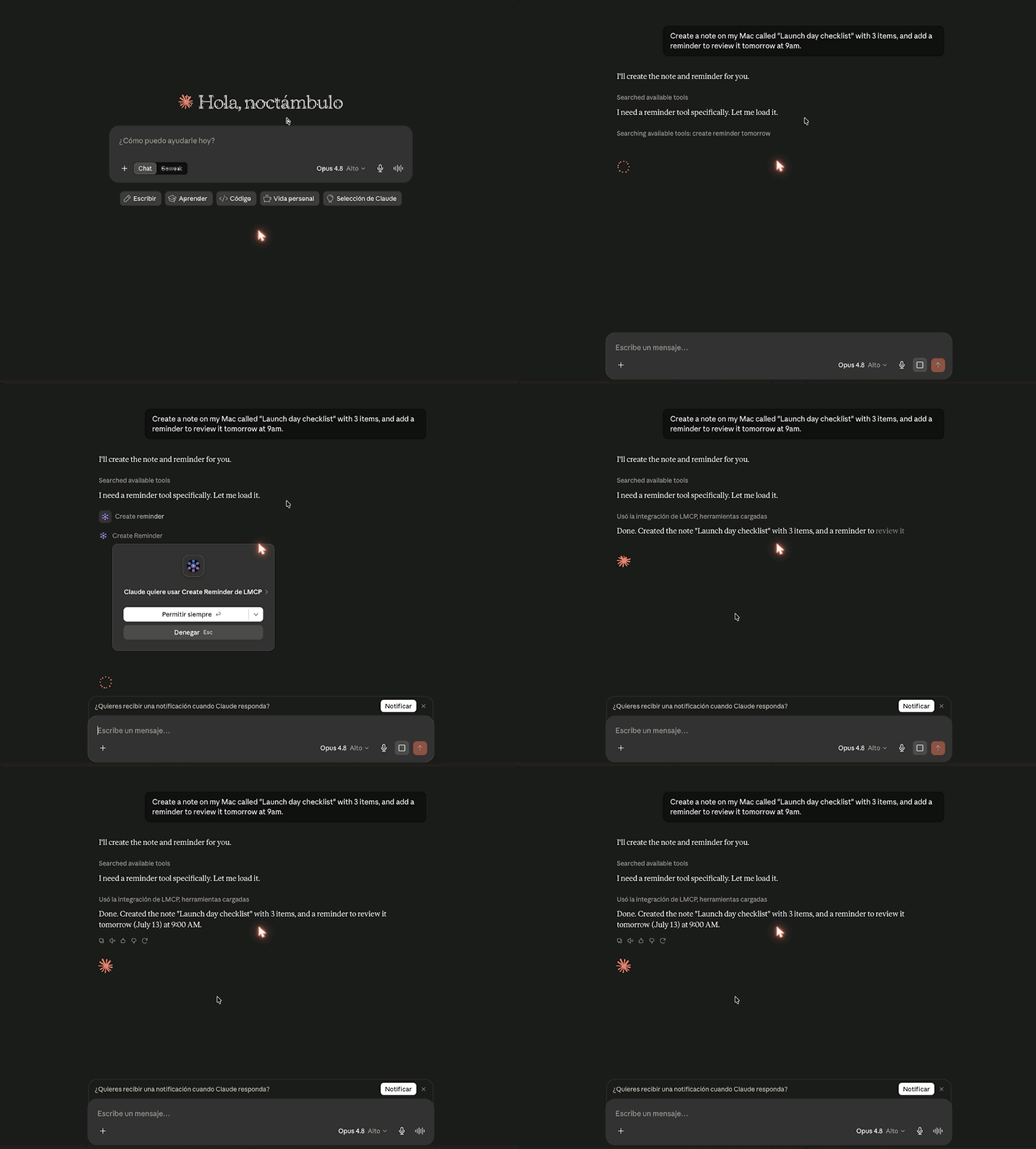
The recording shows a Mac workflow through Cloud Data Forwarding, not every platform or integration.
Watch the 1-minute overview — what MCP is, how LMCP works, and a real run from email to Excel, Word and a reminder:
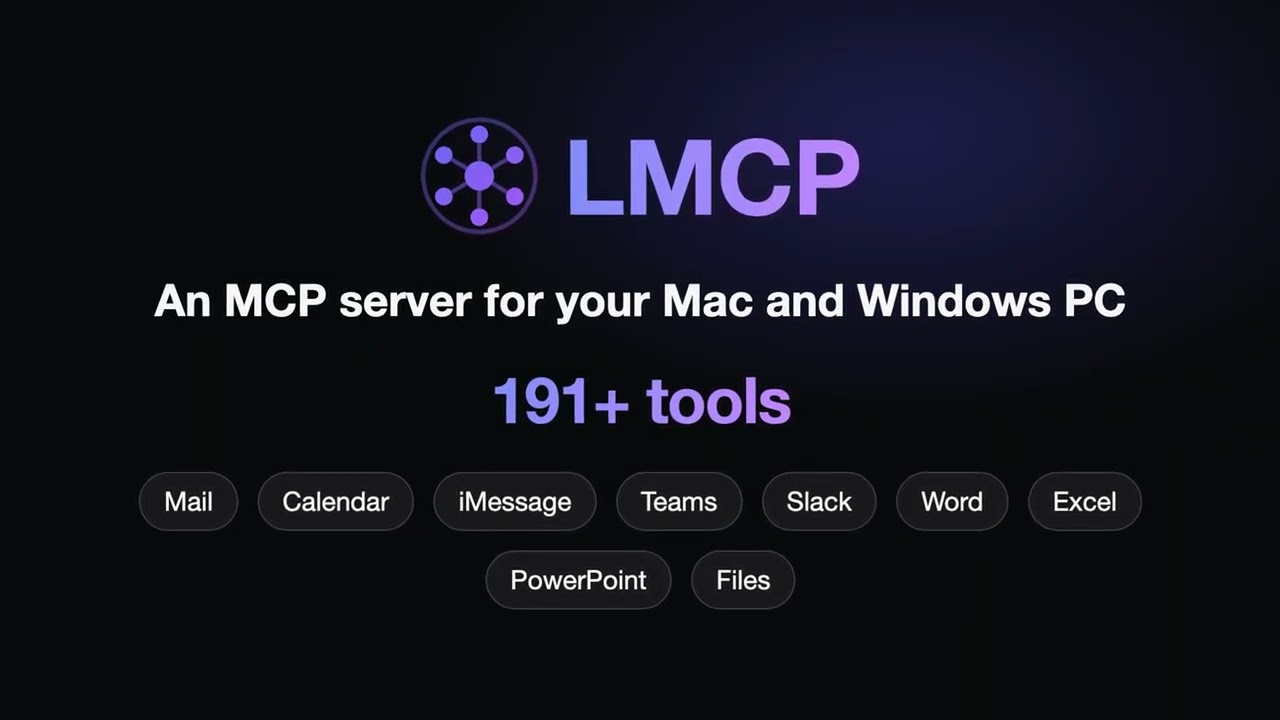
This repository is also a Cursor plugin. It adds the local-mcp MCP server, a rule that tells Cursor's agent when to use LMCP, and skills for email, calendar, messages, files and Office.
LMCP must be installed first (step 1 above): the plugin starts the LMCP server on your computer and does not work without it.
Supports macOS 13+ and Windows 10+ (64-bit).
Choose one installation path:
.pkg) or Windows: download page.curl -fsSL 'https://www.local-mcp.com/install?ref=github-releases' | bashirm https://www.local-mcp.com/install-windows?ref=github-releases | iex (per-user, no administrator rights or Node.js needed)..mcpb at www.local-mcp.com/install/mcpb.npx -y local-mcp@latest setup configures the compatible clients it detects.Details for agents and each path: llms-install.md. After installing, fully restart your AI client; MCP tools load at startup.
Local desktop/CLI clients and web assistants connect differently. The installer configures the compatible local clients it detects. Web assistants (ChatGPT, Claude.ai, Grok, Perplexity) connect through https://www.local-mcp.com/mcp as a custom connector with OAuth. They need the local app installed and Cloud Data Forwarding enabled in LMCP (off by default); with forwarding off, the connector exposes only setup_install. Follow the web AI guide and the current guides.
An endpoint alone is not a verified connection: complete authorization and check that tools are available in your client.
Install the LMCP app first (see above); it runs the tools on your computer. Then add LMCP to your assistant. After any of these, fully restart the tool: MCP tools load at startup.
| Tool | Copy-paste |
|---|---|
| Claude Code | claude plugin marketplace add colibird-ai/local-mcp-claude-plugin && claude plugin install local-mcp@local-mcp (inside Claude Code: /plugin marketplace add colibird-ai/local-mcp-claude-plugin then /plugin install local-mcp@local-mcp) |
| Codex CLI | codex plugin marketplace add colibird-ai/local-mcp-releases && codex plugin add local-mcp@local-mcp (or, MCP server only: codex mcp add local-mcp -- npx -y local-mcp@latest) |
| GitHub Copilot CLI | copilot plugin marketplace add colibird-ai/local-mcp-claude-plugin && copilot plugin install local-mcp@local-mcp |
| VS Code (Copilot Chat) | code --add-mcp '{"name":"local-mcp","command":"npx","args":["-y","local-mcp@latest"]}' |
| Gemini CLI | gemini extensions install https://github.com/colibird-ai/local-mcp-releases |
| Cursor | npx -y local-mcp@latest setup (or install the Cursor plugin from this repository) |
| Windsurf, Zed, Claude Desktop | npx -y local-mcp@latest setup configures the clients it detects |
| LM Studio (0.3.17 and later) |  |
| Cline, Continue, Goose, OpenCode and other MCP clients | Add this server to the client's MCP settings: npx -y local-mcp@latest (command npx, arguments -y local-mcp@latest) |
Examples for clients that use their own config format:
# Goose
goose session --with-extension "npx -y local-mcp@latest"
// OpenCode: opencode.json
{ "mcp": { "local-mcp": { "type": "local", "command": ["npx", "-y", "local-mcp@latest"] } } }
// Zed: settings.json
{ "context_servers": { "local-mcp": { "command": "npx", "args": ["-y", "local-mcp@latest"] } } }
// Cline (cline_mcp_settings.json), LM Studio (mcp.json), Claude Desktop, Windsurf
{ "mcpServers": { "local-mcp": { "command": "npx", "args": ["-y", "local-mcp@latest"] } } }
These paths need Node.js. Web assistants (ChatGPT, Claude.ai, Grok, Perplexity) connect differently; see above.
Your assistant → MCP → available tools → relevant apps and accounts → context and actions.
Compatible tools execute on your computer. Some read native data, local caches or synced files; others connect to services requiring authentication and a network connection. Your assistant chooses tools for your request within the access you grant — it does not automatically gain access to every account.
See Privacy and Security. Compliance depends on your complete workflow and provider agreements, not only on where a tool runs.
See GitHub Releases for this repository's history and the download page for current installers. Mac and Windows can have different release versions; a GitHub tag alone is not a fleet-wide deployment signal.
If LMCP helps you, star the repository to help others discover it.
Claim this server with your GitHub account to request manual ownership verification.
Link to the catalog listing for LMCP local MCP server from your README. This badge does not certify ownership, compatibility or security.
[](https://awesome-mcp.com/servers/local-mcp-lmcp)Public repository statistics could not be verified. Check the configured source address; unavailable counts are not zero.
Separate sources, scopes and periods. Never combined or treated as installations, active users or security reviews.
No reviewed package or image identity; download statistics are not listed yet.
Alternative and complementary servers in the same category
Oleafly is a live collaborative LaTeX, Typst and Markdown editor for research that offers a local MCP server and an oleafly mcp stdio command so outside AI clients can use its project tools.
Buddy is an Android app that offers its phone tools through a local MCP server to Claude Code, Codex, OpenCode, Antigravity, and Grok sessions.

Tuqui is a hosted MCP server that connects Odoo with Claude and ChatGPT so users can ask about sales, stock, customers and overdue invoices in plain language.
