

Oleafly is a live collaborative LaTeX, Typst and Markdown editor for research that offers a local MCP server and an oleafly mcp stdio command so outside AI clients can use its project tools.
Repository stats unavailable
Productivity & Ops
An MCP server that inserts SVG vector images into PowerPoint (PPTX) slides, letting AI models design presentations while keeping images editable and scalable.
MCP server for inserting SVG images into PowerPoint presentations is cataloged as an MCP server attributed to neekchaw. An MCP server that inserts SVG vector images into PowerPoint (PPTX) slides, letting AI models design presentations while keeping images editable and scalable. It is categorized under productivity work. See the capability inspector for recorded interfaces and their independent review status; consult upstream documentation for the current interface.
Installation configuration is not reviewed. No executable setup is offered for this entry; inspect the source repository before proceeding.
Catalog license label: MIT. Check the source repository's current license and terms before using, modifying or distributing this software.
Capability definitions are not reviewed. Unreviewed imports are not exposed as trusted interfaces.
No reviewed records to display. This does not establish that upstream lacks this capability.
No reviewed records to display. This does not establish that upstream lacks this capability.
No reviewed records to display. This does not establish that upstream lacks this capability.
Email delivery is not connected. This page does not collect email addresses or create subscriptions.
Browse the registry for current listings instead.
Reviews for MCP server for inserting SVG images into PowerPoint presentations are not available yet
Review publishing and storage are not connected. This page does not collect or publish ratings or comments, including after sign-in.
The project recommends using the copy_svg_slide or create_pptx_from_svg functions, which are designed to keep SVG vector properties.
Pass multiple SVG paths as a list to insert_svg, or use create_pptx_from_svg to create a presentation containing multiple SVGs at once.
Each operation adds a timestamp; the README suggests creating the final file in one step or specifying a concise output name on the last operation.
README.md · fea2c01ba4c3 · Fetched 2026-11-13 09:04:10 UTC
Original upstream text, without AI rewriting. Scripts, forms and unsafe links are filtered for safety.
Showing the last retrieved documentation snapshot; check the source for current changes.
一个基于Model Context Protocol (MCP)的服务器工具,专门用于将SVG图像插入到PowerPoint演示文稿中。它能够保留SVG的矢量特性,确保在PowerPoint中显示的图像保持高品质和可缩放性。
此项目是让大型语言模型(如Claude、GPT等)能够自主设计PowerPoint演示文稿的"曲线救国"解决方案。通过让AI生成SVG图像,再借助本工具将其全屏插入PPT幻灯片,我们成功实现了AI完全控制PPT设计的能力,而无需直接操作复杂的PPT对象模型。
这种方法带来三大核心优势:
这一创新思路通过SVG作为AI与PPT之间的桥梁,既保证了设计的高度自由,又兼顾了最终成果的实用性和可维护性。
以下是一些使用MCP OKPPT Server生成的PPT效果图:
 2008年金融危机分析PPT封面
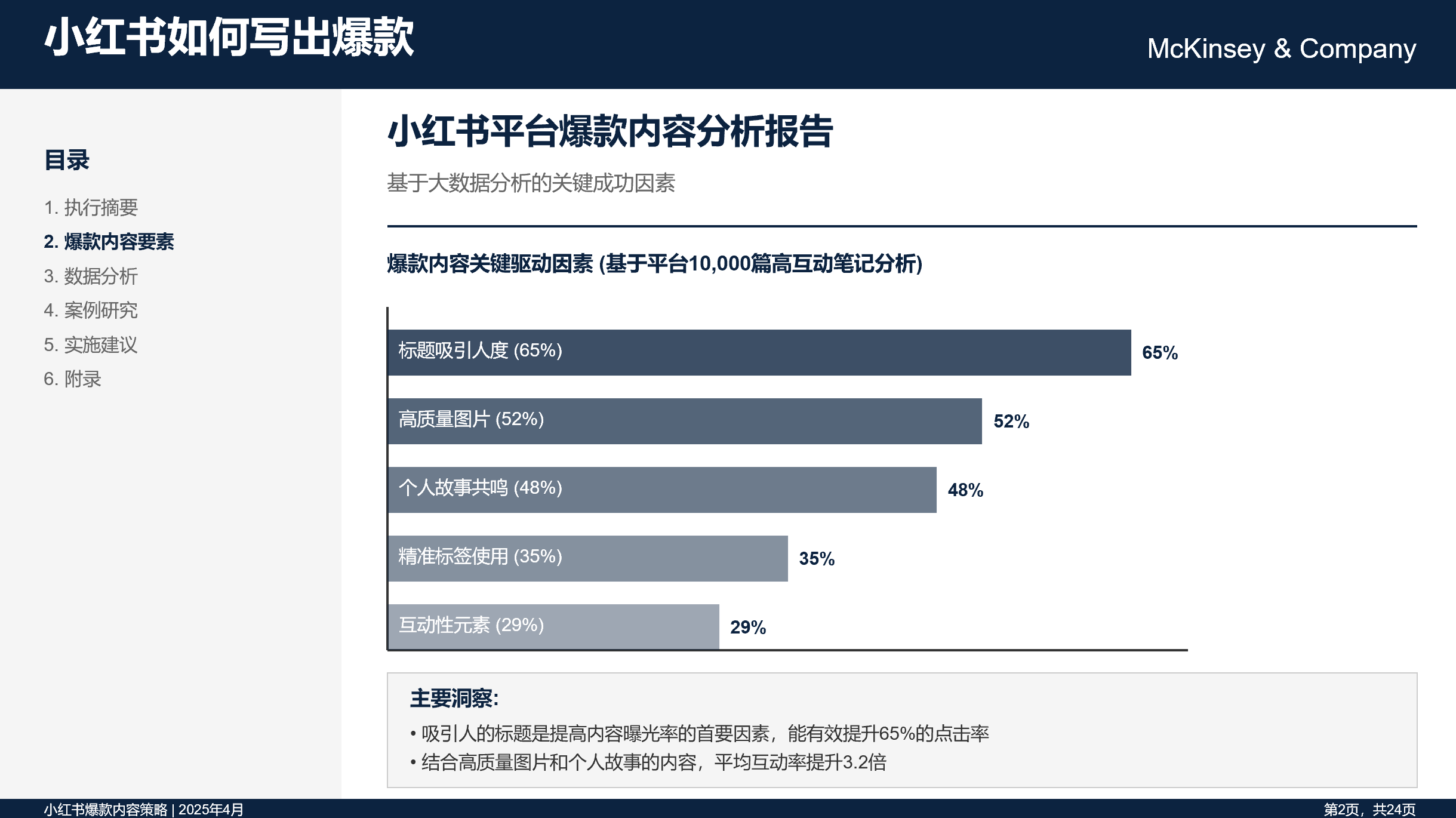 小红书爆款内容分析报告PPT页面
# 使用pip安装
pip install mcp-server-okppt

# 或使用uv安装
uv pip install mcp-server-okppt
在Claude Desktop配置文件中添加服务器配置:
macOS: ~/Library/Application Support/Claude/claude_desktop_config.json
Windows: %APPDATA%\Claude\claude_desktop_config.json
添加以下配置:
{
  "mcpServers": {
    "okppt": {
      "command": "uvx",
      "args": [
        "mcp-server-okppt"
      ]
    }
  }
}
在Cursor IDE中,可以通过本地配置文件来设置MCP服务器:
Windows: C:\Users\用户名\.cursor\mcp.json
macOS: ~/.cursor/mcp.json
添加以下配置:
{
  "mcpServers": {
    "okppt": {
      "command": "uv",
      "args": [
        "--directory",
        "D:\\本地项目路径\\mcp-server-okppt\\src\\mcp_server_okppt",
        "run",
        "cli.py"
      ]
    }
  }
}
这种配置方式适合本地开发和测试使用,可以直接指向本地代码目录。
# 运行测试
mcp test server.py
def insert_svg(
    pptx_path: str,
    svg_path: List[str],
    slide_number: int = 1,
    x_inches: float = 0,
    y_inches: float = 0,
    width_inches: float = 16,
    height_inches: float = 9,
    output_path: str = "",
    create_if_not_exists: bool = True
) -> str
将SVG图像插入到PPTX文件的指定位置。
参数:
pptx_path: PPTX文件路径svg_path: SVG文件路径或路径列表slide_number: 要插入的幻灯片编号(从1开始)x_inches: X坐标(英寸)y_inches: Y坐标(英寸)width_inches: 宽度(英寸)height_inches: 高度(英寸)output_path: 输出文件路径create_if_not_exists: 如果PPTX不存在是否创建返回: 操作结果消息
def list_files(
    directory: str = ".",
    file_type: Optional[str] = None
) -> str
列出目录中的文件。
参数:
directory: 目录路径file_type: 文件类型过滤,可以是"svg"或"pptx"返回: 文件列表
def get_file_info(
    file_path: str
) -> str
获取文件信息。
参数:
file_path: 文件路径返回: 文件信息
def convert_svg_to_png(
    svg_path: str,
    output_path: Optional[str] = None
) -> str
将SVG文件转换为PNG图像。
参数:
svg_path: SVG文件路径output_path: 输出PNG文件路径返回: 操作结果消息
def get_pptx_info(
    pptx_path: str
) -> str
获取PPTX文件的基本信息。
参数:
pptx_path: PPTX文件路径返回: 包含文件信息和幻灯片数量的字符串
def save_svg_code(
    svg_code: str
) -> str
将SVG代码保存为SVG文件并返回保存的绝对路径。
参数:
svg_code: SVG代码内容返回: 操作结果消息和保存的文件路径
def delete_slide(
    pptx_path: str,
    slide_number: int,
    output_path: Optional[str] = None
) -> str
从PPTX文件中删除指定编号的幻灯片。
参数:
pptx_path: PPTX文件路径slide_number: 要删除的幻灯片编号output_path: 输出文件路径返回: 操作结果消息
def insert_blank_slide(
    pptx_path: str,
    slide_number: int,
    layout_index: int = 6,
    output_path: Optional[str] = None,
    create_if_not_exists: bool = True
) -> str
在PPTX文件的指定位置插入一个空白幻灯片。
参数:
pptx_path: PPTX文件路径slide_number: 插入位置layout_index: 幻灯片布局索引,默认为6(空白布局)output_path: 输出文件路径create_if_not_exists: 如果PPTX不存在是否创建返回: 操作结果消息
def copy_svg_slide(
    source_pptx_path: str,
    target_pptx_path: str = "",
    source_slide_number: int = 1,
    target_slide_number: Optional[int] = None,
    output_path: Optional[str] = None,
    create_if_not_exists: bool = True
) -> str
复制包含SVG图像的幻灯片。
参数:
source_pptx_path: 源PPTX文件路径target_pptx_path: 目标PPTX文件路径source_slide_number: 要复制的源幻灯片编号target_slide_number: 要插入到目标文件的位置output_path: 输出文件路径create_if_not_exists: 如果目标PPTX不存在是否创建返回: 操作结果消息
# 步骤1:删除要替换的幻灯片
delete_slide(
    pptx_path="演示文稿.pptx",
    slide_number=3,
    output_path="临时文件.pptx"
)

# 步骤2:在同一位置插入空白幻灯片
insert_blank_slide(
    pptx_path="临时文件.pptx",
    slide_number=3,
    output_path="临时文件2.pptx"
)

# 步骤3:将新SVG插入到空白幻灯片
insert_svg(
    pptx_path="临时文件2.pptx",
    svg_path=["新内容.svg"],
    slide_number=3,
    output_path="最终文件.pptx"
)
svg_path参数必须是数组形式,即使只有一个文件save_svg_code时,特殊字符(如"&")需要正确转义为"&"A: 请确保使用copy_svg_slide或create_pptx_from_svg函数,这些函数专门设计用于保留SVG的矢量特性。
A: 可以使用insert_svg函数并将多个SVG路径作为列表传入,或者使用create_pptx_from_svg一次性创建包含多个SVG的演示文稿。
A: 这是因为每次操作都会添加时间戳。建议使用"新文件法"一次性创建最终文件,或在最后一步操作中指定简洁的输出文件名。
当前最新版本: v0.2.0
查看所有版本和更新信息: GitHub Releases
本项目在开发过程中受益于Model Context Protocol(MCP) 编程极速入门这一优质资源。该项目提供了全面而清晰的MCP开发指南,涵盖了从基础概念到实际部署的各个方面,极大地降低了开发者学习MCP协议的门槛。特别感谢其在服务配置、工具开发和部署流程等方面的详细示例和说明,为MCP生态的发展和普及做出了宝贵贡献。推荐所有对MCP开发感兴趣的开发者参考这份指南,它将帮助你快速掌握MCP服务器的开发与配置技能。
欢迎提交问题和拉取请求到项目仓库!以下是一些潜在的改进方向:
本项目采用MIT许可证。
Claim this server with your GitHub account to request manual ownership verification.
Link to the catalog listing for MCP server for inserting SVG images into PowerPoint presentations from your README. This badge does not certify ownership, compatibility or security.
[](https://awesome-mcp.com/servers/mcp-server-okppt)Public repository statistics could not be verified. Check the configured source address; unavailable counts are not zero.
Separate sources, scopes and periods. Never combined or treated as installations, active users or security reviews.
No reviewed package or image identity; download statistics are not listed yet.
Alternative and complementary servers in the same category
Oleafly is a live collaborative LaTeX, Typst and Markdown editor for research that offers a local MCP server and an oleafly mcp stdio command so outside AI clients can use its project tools.
Buddy is an Android app that offers its phone tools through a local MCP server to Claude Code, Codex, OpenCode, Antigravity, and Grok sessions.

Tuqui is a hosted MCP server that connects Odoo with Claude and ChatGPT so users can ask about sales, stock, customers and overdue invoices in plain language.
