
Oleafly is a live collaborative LaTeX, Typst and Markdown editor for research that offers a local MCP server and an oleafly mcp stdio command so outside AI clients can use its project tools.
Repository stats unavailable
Productivity & Ops
An MCP server for scheduling meetings in Microsoft Outlook through the Microsoft Graph API, including creating calendar events and adding attendees.
Outlook Meetings Scheduler MCP Server is cataloged as an MCP server attributed to anoopt. An MCP server for scheduling meetings in Microsoft Outlook through the Microsoft Graph API, including creating calendar events and adding attendees. It is categorized under productivity work. See the capability inspector for recorded interfaces and their independent review status; consult upstream documentation for the current interface.
Installation configuration is not reviewed. No executable setup is offered for this entry; inspect the source repository before proceeding.
Catalog license label: ISC License. Check the source repository's current license and terms before using, modifying or distributing this software.
Capability definitions are not reviewed. Unreviewed imports are not exposed as trusted interfaces.
No reviewed records to display. This does not establish that upstream lacks this capability.
No reviewed records to display. This does not establish that upstream lacks this capability.
No reviewed records to display. This does not establish that upstream lacks this capability.
Email delivery is not connected. This page does not collect email addresses or create subscriptions.
Browse the registry for current listings instead.
Reviews for Outlook Meetings Scheduler MCP Server are not available yet
Review publishing and storage are not connected. This page does not collect or publish ratings or comments, including after sign-in.
Yes. The client_credentials mode uses Azure AD application credentials and works without user interaction for server-to-server scenarios.
Yes. The find-person tool finds a person's email address by their name and returns matching people with names and email addresses.
The update-event-attendees tool adds or removes attendees from a calendar event and returns the updated attendee information.
README.md · d77d3ed54269 · Fetched 2026-11-13 08:45:03 UTC
Original upstream text, without AI rewriting. Scripts, forms and unsafe links are filtered for safety.
Showing the last retrieved documentation snapshot; check the source for current changes.

MCP Server for scheduling meetings in Microsoft Outlook using Microsoft Graph API.
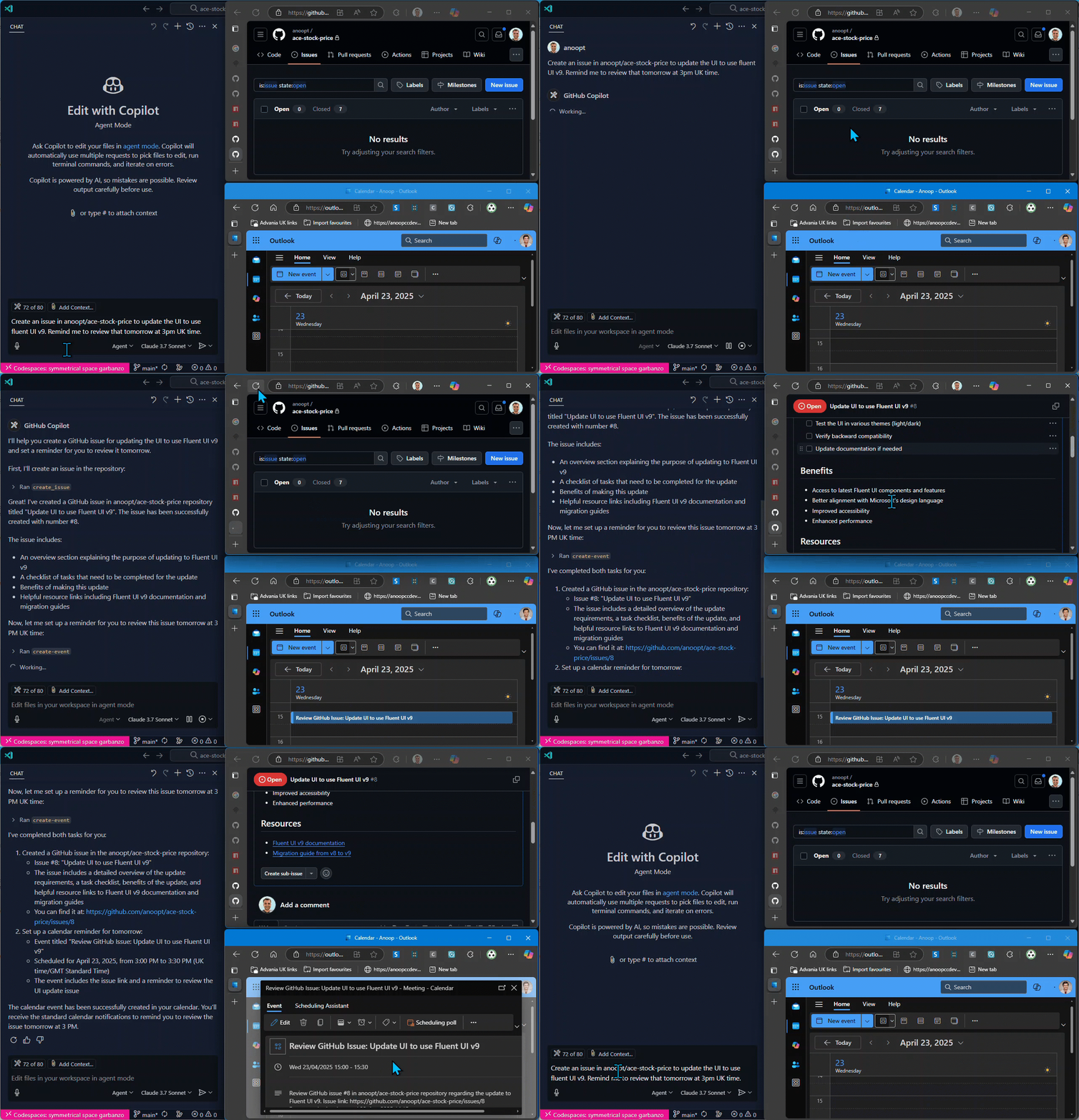
This MCP server allows you to create calendar events, create events with attendees (including finding their email addresses). It integrates seamlessly with other MCP servers, such as the GitHub MCP server, to enhance your workflow.
find-person
name (string)create-event
subject (string): Subject of the calendar eventbody (string): Content/body of the calendar eventstart (optional): ISO format datetime (e.g., 2025-04-20T12:00:00)end (optional): ISO format datetime (e.g., 2025-04-20T13:00:00)timeZone (optional): Time zone for the event (default: "GMT Standard Time")create-event-with-attendees
subject (string): Subject of the calendar eventbody (string): Content/body of the calendar eventstart (optional): ISO format datetime (e.g., 2025-04-20T12:00:00)end (optional): ISO format datetime (e.g., 2025-04-20T13:00:00)timeZone (optional): Time zone for the event (default: "GMT Standard Time")location (optional): Location of the eventattendees: Array of { email, name (optional), type (optional) }get-event
eventId (string): ID of the event to retrievelist-events
subject (optional): Filter events by subject containing this textstartDate (optional): Start date in ISO format (e.g., 2025-04-20T00:00:00) to filter events fromendDate (optional): End date in ISO format (e.g., 2025-04-20T23:59:59) to filter events untilmaxResults (optional): Maximum number of events to returndelete-event
eventId (string): ID of the event to deleteupdate-event
eventId (string): ID of the event to updatesubject (optional): New subject for the calendar eventbody (optional): New content/body for the calendar eventstart (optional): New start time in ISO format (e.g., 2025-04-20T12:00:00)end (optional): New end time in ISO format (e.g., 2025-04-20T13:00:00)timeZone (optional): New time zone for the eventlocation (optional): New location for the eventattendees (optional): Array of { email, name (optional), type (optional) }update-event-attendees
eventId (string): ID of the event to updateaddAttendees (optional): Array of attendees to add: { email, name (optional), type (optional) }removeAttendees (optional): Array of email addresses to remove from the eventThis MCP server supports three authentication modes:
Thank you Lokka
Best for: User-impersonation scenarios, accessing user-specific data
Best for: Server-to-server scenarios, automated processes
Best for: Custom token management, pre-acquired tokens
http://localhost (Mobile and desktop applications platform)Note: The server uses a built-in multi-tenant app by default, so custom app setup is optional. When authentication is needed, the device code and login URL will appear directly in your MCP client chat interface.
The MCP server supports different authentication modes via the AUTH_MODE environment variable:
interactive (default) - User authentication with browser or device code flowclient_credentials - App-only authentication with client secretclient_provided_token - Use a pre-acquired tokenBackward Compatibility: If AUTH_MODE is not specified, the server automatically detects the mode:
CLIENT_SECRET → client_credentials modeACCESS_TOKEN → client_provided_token modeinteractive mode (default)You can run the MCP server directly with Node.js from your local build:
git clone https://github.com/anoopt/outlook-meetings-scheduler-mcp-server.git
cd outlook-meetings-scheduler-mcp-server
npm install
npm run build
Ctrl + Shift + P and typing Preferences: Open User Settings (JSON).Optionally, you can add it to a file called .vscode/mcp.json in your workspace. This will allow you to share the configuration with others:
Interactive Mode (Default - Zero Configuration):
{
  "mcpServers": {
    "outlook-meetings-scheduler": {
      "command": "node",
      "args": [
        "/path/to/outlook-meetings-scheduler-mcp-server/build/index.js"
      ]
    }
  }
}
Interactive Mode with Custom App:
{
  "mcpServers": {
    "outlook-meetings-scheduler": {
      "command": "node",
      "args": [
        "/path/to/outlook-meetings-scheduler-mcp-server/build/index.js"
      ],
      "env": {
        "AUTH_MODE": "interactive",
        "CLIENT_ID": "<YOUR_CLIENT_ID>",
        "TENANT_ID": "<YOUR_TENANT_ID>"
      }
    }
  }
}
Client Credentials Mode:
{
  "mcpServers": {
    "outlook-meetings-scheduler": {
      "command": "node",
      "args": [
        "/path/to/outlook-meetings-scheduler-mcp-server/build/index.js"
      ],
      "env": {
        "AUTH_MODE": "client_credentials",
        "CLIENT_ID": "<YOUR_CLIENT_ID>",
        "CLIENT_SECRET": "<YOUR_CLIENT_SECRET>",
        "TENANT_ID": "<YOUR_TENANT_ID>",
        "USER_EMAIL": "<YOUR_EMAIL>"
      }
    }
  }
}
Client Provided Token Mode:
{
  "mcpServers": {
    "outlook-meetings-scheduler": {
      "command": "node",
      "args": [
        "/path/to/outlook-meetings-scheduler-mcp-server/build/index.js"
      ],
      "env": {
        "AUTH_MODE": "client_provided_token",
        "ACCESS_TOKEN": "<YOUR_ACCESS_TOKEN>",
        "TOKEN_EXPIRES_ON": "2025-10-03T12:00:00Z",
        "USER_EMAIL": "<YOUR_EMAIL>"
      }
    }
  }
}
Note:
- Uses a built-in multi-tenant Azure AD app (works for any organization)
- USER_EMAIL is automatically determined from the signed-in user
- Users will see a one-time consent prompt (no admin approval needed)
- Zero configuration required - works out of the box
Interactive Mode with Custom App:
{
  "mcpServers": {
    "outlook-meetings-scheduler": {
      "command": "node",
      "args": [
        "/path/to/outlook-meetings-scheduler-mcp-server/build/index.js"
      ],
      "env": {
        "AUTH_MODE": "interactive",
        "CLIENT_ID": "<YOUR_CLIENT_ID>",
        "TENANT_ID": "<YOUR_TENANT_ID>"
      }
    }
  }
}
Use a custom app if you need specific branding or tenant restrictions.
Replace /path/to/outlook-meetings-scheduler-mcp-server with the absolute path to your cloned repository.
Run the MCP server using Docker locally. Build the Docker image with the following command:
docker build -t mcp/outlook-meetings-scheduler .
For manual installation, add the following JSON block to your User Settings (JSON) file in VS Code. You can do this by pressing Ctrl + Shift + P and typing Preferences: Open User Settings (JSON).
Optionally, you can add it to a file called .vscode/mcp.json in your workspace. This will allow you to share the configuration with others.
{
     "inputs": [
      {
        "type": "promptString",
        "id": "client_secret",
        "description": "Enter the client secret",
        "password": true
      }
    ],
    "servers": {
        "outlook-meetings-scheduler": {
            "command": "docker",
            "args": [
                "run",
                "-i",
                "--rm",
                "-e",
                "CLIENT_ID",
                "-e",
                "CLIENT_SECRET",
                "-e",
                "TENANT_ID",
                "-e",
                "USER_EMAIL",
                "mcp/outlook-meetings-scheduler"
            ],
            "env": {
                "USER_EMAIL": "<YOUR_EMAIL>",
                "CLIENT_ID": "<YOUR_CLIENT_ID>",
                "CLIENT_SECRET": "${input:client_secret}",
                "TENANT_ID": "<YOUR_TENANT_ID>"
            }
        }
    }
}
Interactive Mode (Default - Zero Configuration):
{
  "mcpServers": {
    "outlook-meetings-scheduler": {
      "command": "npx",
      "args": [
        "-y",
        "outlook-meetings-scheduler"
      ]
    }
  }
}
Interactive Mode with Custom App:
{
  "mcpServers": {
    "outlook-meetings-scheduler": {
      "command": "npx",
      "args": [
        "-y",
        "outlook-meetings-scheduler"
      ],
      "env": {
        "AUTH_MODE": "interactive",
        "CLIENT_ID": "<YOUR_CLIENT_ID>",
        "TENANT_ID": "<YOUR_TENANT_ID>"
      }
    }
  }
}
Client Credentials Mode:
{
  "mcpServers": {
    "outlook-meetings-scheduler": {
      "command": "npx",
      "args": [
        "-y",
        "outlook-meetings-scheduler"
      ],
      "env": {
        "AUTH_MODE": "client_credentials",
        "CLIENT_ID": "<YOUR_CLIENT_ID>",
        "CLIENT_SECRET": "<YOUR_CLIENT_SECRET>",
        "TENANT_ID": "<YOUR_TENANT_ID>",
        "USER_EMAIL": "<YOUR_EMAIL>"
      }
    }
  }
}
Client Provided Token Mode:
{
  "mcpServers": {
    "outlook-meetings-scheduler": {
      "command": "npx",
      "args": [
        "-y",
        "outlook-meetings-scheduler"
      ],
      "env": {
        "AUTH_MODE": "client_provided_token",
        "ACCESS_TOKEN": "<YOUR_ACCESS_TOKEN>",
        "TOKEN_EXPIRES_ON": "2025-10-03T12:00:00Z",
        "USER_EMAIL": "<YOUR_EMAIL>"
      }
    }
  }
}
docker build -t mcp/outlook-meetings-scheduler .
claude_desktop_config.json:{
"mcpServers": {
"outlook-meetings-scheduler": {
"command": "docker",
"args": [
"run",
"-i",
"--rm",
"-e",
"CLIENT_ID",
"-e",
"CLIENT_SECRET",
"-e",
"TENANT_ID",
"-e",
"USER_EMAIL",
"mcp/outlook-meetings-scheduler"
],
"env": {
"CLIENT_ID": "<YOUR_CLIENT_ID>",
"CLIENT_SECRET": "<YOUR_CLIENT_SECRET>",
"TENANT_ID": "<YOUR_TENANT_ID>",
"USER_EMAIL": "<YOUR_EMAIL>"
}
}
}
}
Interactive Mode (Default - Zero Configuration):
{
  "mcpServers": {
    "outlook-meetings-scheduler": {
      "command": "npx",
      "args": [
        "-y",
        "outlook-meetings-scheduler"
      ]
    }
  }
}
Interactive Mode with Custom App:
{
  "mcpServers": {
    "outlook-meetings-scheduler": {
      "command": "npx",
      "args": [
        "-y",
        "outlook-meetings-scheduler"
      ],
      "env": {
        "AUTH_MODE": "interactive",
        "CLIENT_ID": "<YOUR_CLIENT_ID>",
        "TENANT_ID": "<YOUR_TENANT_ID>"
      }
    }
  }
}
Client Credentials Mode:
{
  "mcpServers": {
    "outlook-meetings-scheduler": {
      "command": "npx",
      "args": [
        "-y",
        "outlook-meetings-scheduler"
      ],
      "env": {
        "AUTH_MODE": "client_credentials",
        "CLIENT_ID": "<YOUR_CLIENT_ID>",
        "CLIENT_SECRET": "<YOUR_CLIENT_SECRET>",
        "TENANT_ID": "<YOUR_TENANT_ID>",
        "USER_EMAIL": "<YOUR_EMAIL>"
      }
    }
  }
}
Client Provided Token Mode:
{
  "mcpServers": {
    "outlook-meetings-scheduler": {
      "command": "npx",
      "args": [
        "-y",
        "outlook-meetings-scheduler"
      ],
      "env": {
        "AUTH_MODE": "client_provided_token",
        "ACCESS_TOKEN": "<YOUR_ACCESS_TOKEN>",
        "TOKEN_EXPIRES_ON": "2025-10-03T12:00:00Z",
        "USER_EMAIL": "<YOUR_EMAIL>"
      }
    }
  }
}
You can combine this MCP server with other MCP servers like the GitHub MCP server for powerful workflows.
Create an issue in the organization/repo repository titled "Fix pagination bug in user dashboard" with the description "Users report seeing duplicate entries when navigating between pages." Then schedule a calendar reminder for me to review this issue tomorrow at 3 PM.
This will:
Find the open PR about the authentication feature in the organization/app-backend repository and schedule a code review meeting with the contributors for tomorrow morning.
This will:
To use both GitHub and Outlook MCP servers together :
{
  "mcpServers": {
    "outlook-meetings-scheduler": {
      "command": "npx",
      "args": [
        "-y",
        "outlook-meetings-scheduler"
      ],
      "env": {
        "CLIENT_ID": "<YOUR_CLIENT_ID>",
        "CLIENT_SECRET": "<YOUR_CLIENT_SECRET>",
        "TENANT_ID": "<YOUR_TENANT_ID>",
        "USER_EMAIL": "<YOUR_EMAIL>"
      }
    },
    "github": {
      "command": "npx",
      "args": [
        "-y",
        "@modelcontextprotocol/github-mcp"
      ],
      "env": {
        "GITHUB_TOKEN": "<YOUR_GITHUB_TOKEN>"
      }
    }
  }
}
I need to schedule a meeting with John Smith. Can you find his email address?
Schedule a meeting titled "Weekly Team Sync" for next Monday at 10 AM with the following agenda:
- Project updates
- Resource allocation
- Questions and concerns
Schedule a 1:1 meeting with Sarah for tomorrow at 3 PM.
This will find Sarah's email address and create a calendar event.
To find Sarah's email address, the MCP server will use the find-person tool - which uses the Microsoft Graph API to find relevant people for USER_EMAIL or searches for the name in the organization.
Create a meeting called "Project Kickoff" for tomorrow at 2 PM.
Add sarah.jones@example.com and mike.thompson@example.com as required attendees.
The agenda is:
1. Project overview
2. Timeline discussion
3. Role assignments
4. Next steps
| Variable | Description | Required | Default |
|---|---|---|---|
AUTH_MODE | Authentication mode | No | interactive |
CLIENT_ID | Azure AD Application (Client) ID | No | Built-in multi-tenant app |
TENANT_ID | Azure AD Tenant ID | No | common (multi-tenant) |
USER_EMAIL | Email address of the user | No | Auto-detected from signed-in user |
REDIRECT_URI | Custom redirect URI | No | http://localhost |
| Variable | Description | Required |
|---|---|---|
AUTH_MODE | Authentication mode | Yes |
CLIENT_ID | Azure AD Application (Client) ID | Yes |
CLIENT_SECRET | Azure AD Application Client Secret | Yes |
TENANT_ID | Azure AD Tenant ID | Yes |
USER_EMAIL | Email address of the user whose calendar to access | Yes |
| Variable | Description | Required | Default |
|---|---|---|---|
AUTH_MODE | Authentication mode | Yes | - |
ACCESS_TOKEN | Pre-acquired access token | Yes | - |
USER_EMAIL | Email address of the user | Yes | - |
TOKEN_EXPIRES_ON | Token expiration date (ISO format) | No | 1 hour from start time |
You can obtain an access token through several methods:
1. Azure CLI (For Microsoft Graph - Recommended for testing):
# Login to Azure
az login

# Get token specifically for Microsoft Graph with correct scopes
az account get-access-token --resource=https://graph.microsoft.com --query accessToken --output tsv
Note: The Azure CLI token has broad permissions but may not include specific calendar scopes (Calendars.ReadWrite). For production use, consider methods 3 or 4 below with explicit scope configuration.
2. PowerShell REST API (Recommended for Windows):
# For client credentials flow (app-only) - most reliable method
$clientId = "your-client-id"
$clientSecret = "your-client-secret"
$tenantId = "your-tenant-id"

$body = @{
    grant_type = "client_credentials"
    client_id = $clientId
    client_secret = $clientSecret
    scope = "https://graph.microsoft.com/.default"
}

$response = Invoke-RestMethod -Uri "https://login.microsoftonline.com/$tenantId/oauth2/v2.0/token" -Method Post -Body $body
$token = $response.access_token
Write-Host "Access Token: $token"
3. From Your Own Application (Most Reliable):
// Using @azure/identity with specific scopes
import { ClientSecretCredential } from '@azure/identity';

const credential = new ClientSecretCredential(
  'your-tenant-id',
  'your-client-id',
  'your-client-secret'
);

// Request token with specific Microsoft Graph scopes
const token = await credential.getToken([
  'https://graph.microsoft.com/Calendars.ReadWrite',
  'https://graph.microsoft.com/People.Read',
  'https://graph.microsoft.com/User.Read'
]);

// Use token.token as your ACCESS_TOKEN
console.log(token.token);
4. Using OAuth2 Device Code Flow (Interactive):
# For personal Microsoft accounts or when you need user consent
curl -X POST \
  https://login.microsoftonline.com/common/oauth2/v2.0/devicecode \
  -H 'Content-Type: application/x-www-form-urlencoded' \
  -d 'client_id={your-client-id}&scope=https://graph.microsoft.com/Calendars.ReadWrite https://graph.microsoft.com/People.Read https://graph.microsoft.com/User.Read'

# Follow the device code instructions, then exchange for token
curl -X POST \
  https://login.microsoftonline.com/common/oauth2/v2.0/token \
  -H 'Content-Type: application/x-www-form-urlencoded' \
  -d 'grant_type=urn:ietf:params:oauth:grant-type:device_code&client_id={your-client-id}&device_code={device-code-from-step-1}'
5. Client Credentials Flow (App-Only):
curl -X POST \
  https://login.microsoftonline.com/{tenant-id}/oauth2/v2.0/token \
  -H 'Content-Type: application/x-www-form-urlencoded' \
  -d 'grant_type=client_credentials&client_id={client-id}&client_secret={client-secret}&scope=https://graph.microsoft.com/.default'
Important: Ensure your Azure AD app registration has the required delegated or application permissions:
CLIENT_ID, CLIENT_SECRET, TENANT_ID, USER_EMAILCLIENT_ID and TENANT_ID for custom appACCESS_TOKEN, USER_EMAILTOKEN_EXPIRES_ON (if not provided, assumes 1-hour validity from start time)# Install dependencies
npm install
# Build the project
npm run build
# Docker build
docker build -t mcp/outlook-meetings-scheduler .
This MCP server is licensed under the ISC License. For more details, please see the LICENSE file in the project repository.
This MCP server is not affiliated with Microsoft or Microsoft Graph API. Use at your own risk. Ensure you comply with your organization's policies and guidelines when using this tool.
Claim this server with your GitHub account to request manual ownership verification.
Link to the catalog listing for Outlook Meetings Scheduler MCP Server from your README. This badge does not certify ownership, compatibility or security.
[](https://awesome-mcp.com/servers/outlook-meetings-scheduler)Public repository statistics could not be verified. Check the configured source address; unavailable counts are not zero.
Separate sources, scopes and periods. Never combined or treated as installations, active users or security reviews.
No reviewed package or image identity; download statistics are not listed yet.
Alternative and complementary servers in the same category
Oleafly is a live collaborative LaTeX, Typst and Markdown editor for research that offers a local MCP server and an oleafly mcp stdio command so outside AI clients can use its project tools.
Buddy is an Android app that offers its phone tools through a local MCP server to Claude Code, Codex, OpenCode, Antigravity, and Grok sessions.

Tuqui is a hosted MCP server that connects Odoo with Claude and ChatGPT so users can ask about sales, stock, customers and overdue invoices in plain language.
