

Oleafly is a live collaborative LaTeX, Typst and Markdown editor for research that offers a local MCP server and an oleafly mcp stdio command so outside AI clients can use its project tools.
Repository stats unavailable
Productivity & Ops
A Rust terminal time tracker that stores time entries as markdown tables and ships an MCP server so AI agents can create, validate, and query time entries.
wdttg - terminal time tracker with a built-in MCP server for AI agents is cataloged as an MCP server attributed to plattnum. A Rust terminal time tracker that stores time entries as markdown tables and ships an MCP server so AI agents can create, validate, and query time entries. It is categorized under productivity work. See the capability inspector for recorded interfaces and their independent review status; consult upstream documentation for the current interface.
Installation configuration is not reviewed. No executable setup is offered for this entry; inspect the source repository before proceeding.
Catalog license label: MIT. Check the source repository's current license and terms before using, modifying or distributing this software.
Capability definitions are not reviewed. Unreviewed imports are not exposed as trusted interfaces.
No reviewed records to display. This does not establish that upstream lacks this capability.
No reviewed records to display. This does not establish that upstream lacks this capability.
No reviewed records to display. This does not establish that upstream lacks this capability.
Email delivery is not connected. This page does not collect email addresses or create subscriptions.
Browse the registry for current listings instead.
Reviews for wdttg - terminal time tracker with a built-in MCP server for AI agents are not available yet
Review publishing and storage are not connected. This page does not collect or publish ratings or comments, including after sign-in.
The MCP server performs parsing, validation, overlap detection, chronological sorting, and atomic file writes programmatically, rather than relying on the model to read and rewrite the file correctly.
Yes; the TUI and MCP server share the same data files, so entries created by AI appear in the timeline quickly.
README.md · 9c92798d52fd · Fetched 2026-11-13 11:34:44 UTC
Original upstream text, without AI rewriting. Scripts, forms and unsafe links are filtered for safety.
Showing the last retrieved documentation snapshot; check the source for current changes.
A terminal time tracker for freelancers, built in Rust. No cloud, no subscriptions, no app store approval queues. Just markdown files, a TUI, and an MCP server because life's too short for time entry forms.
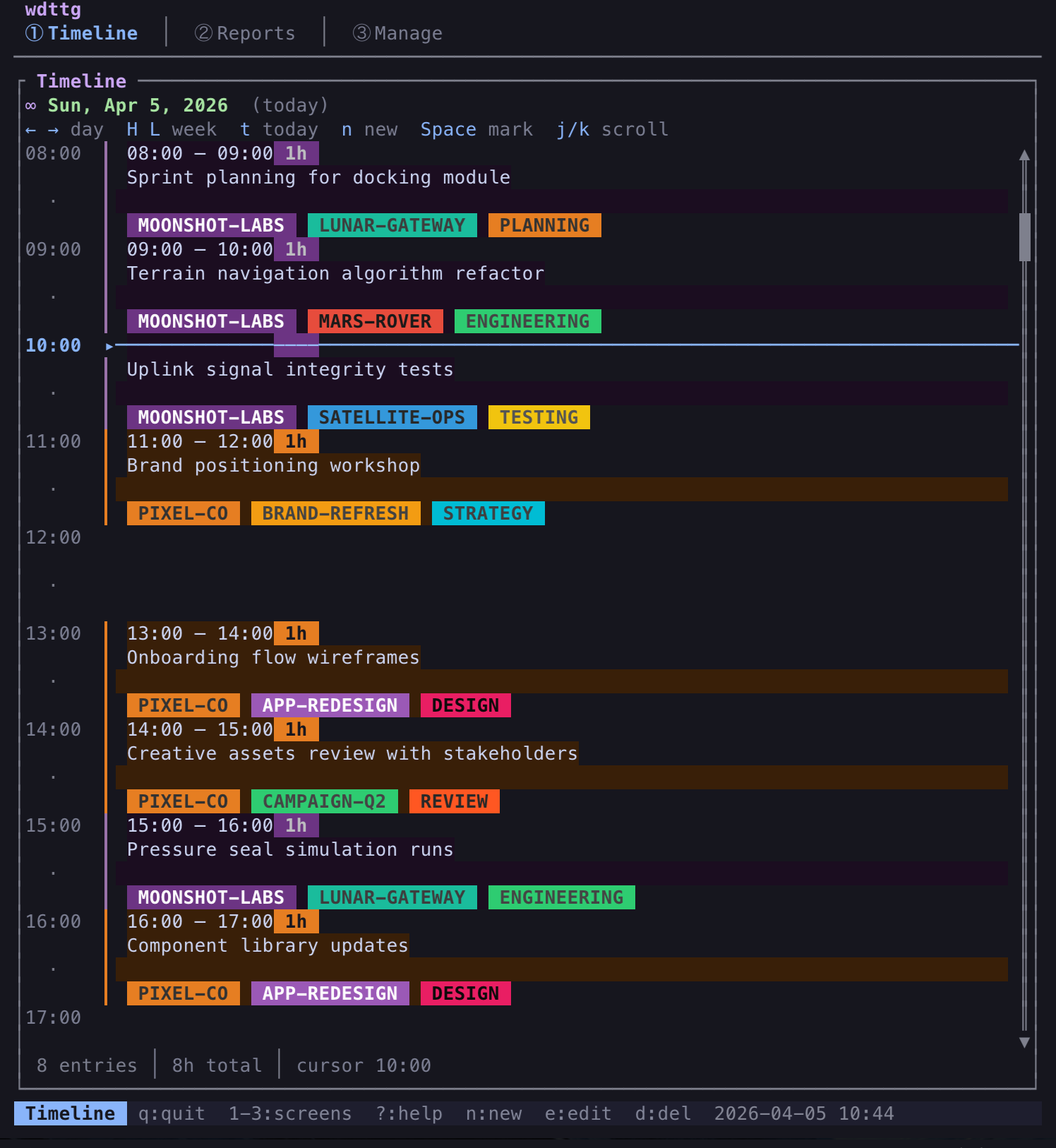
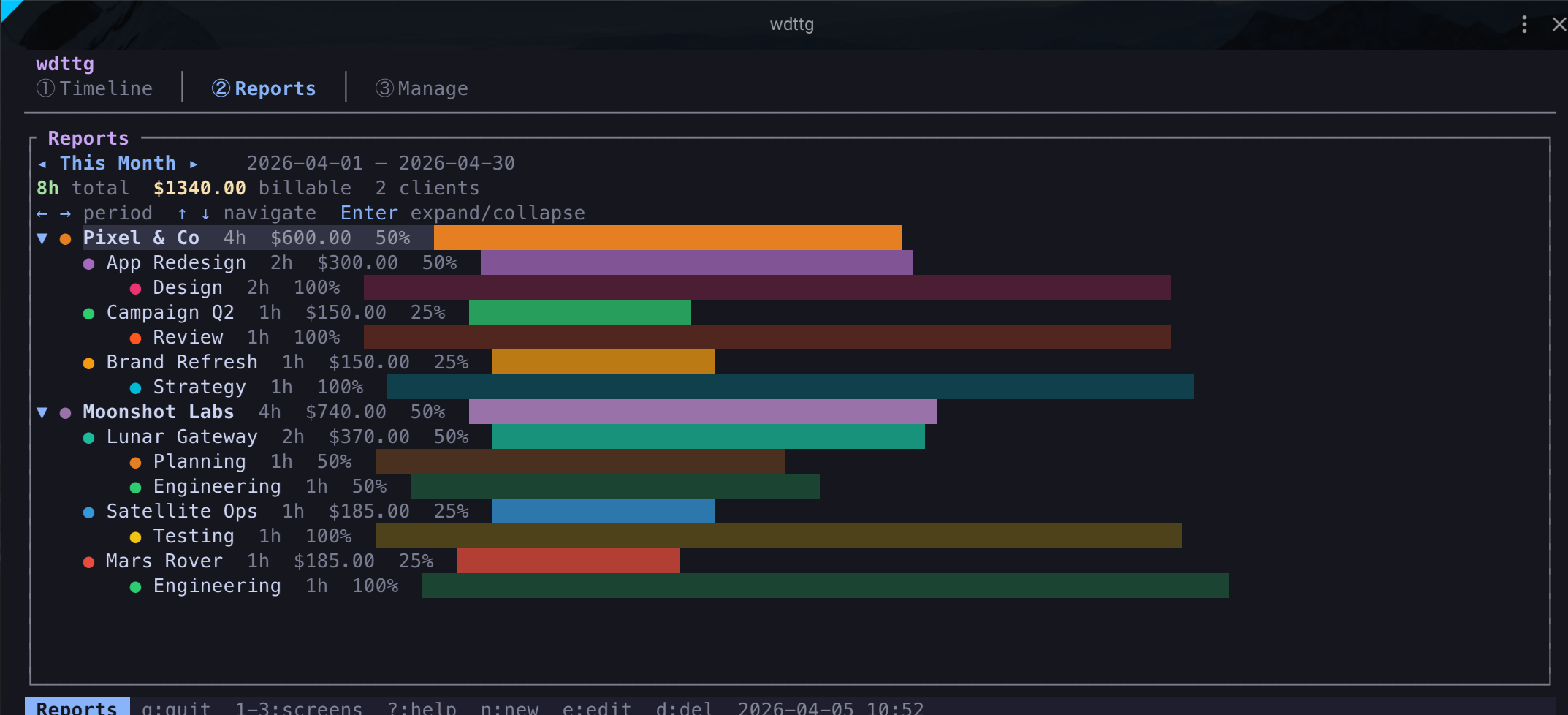
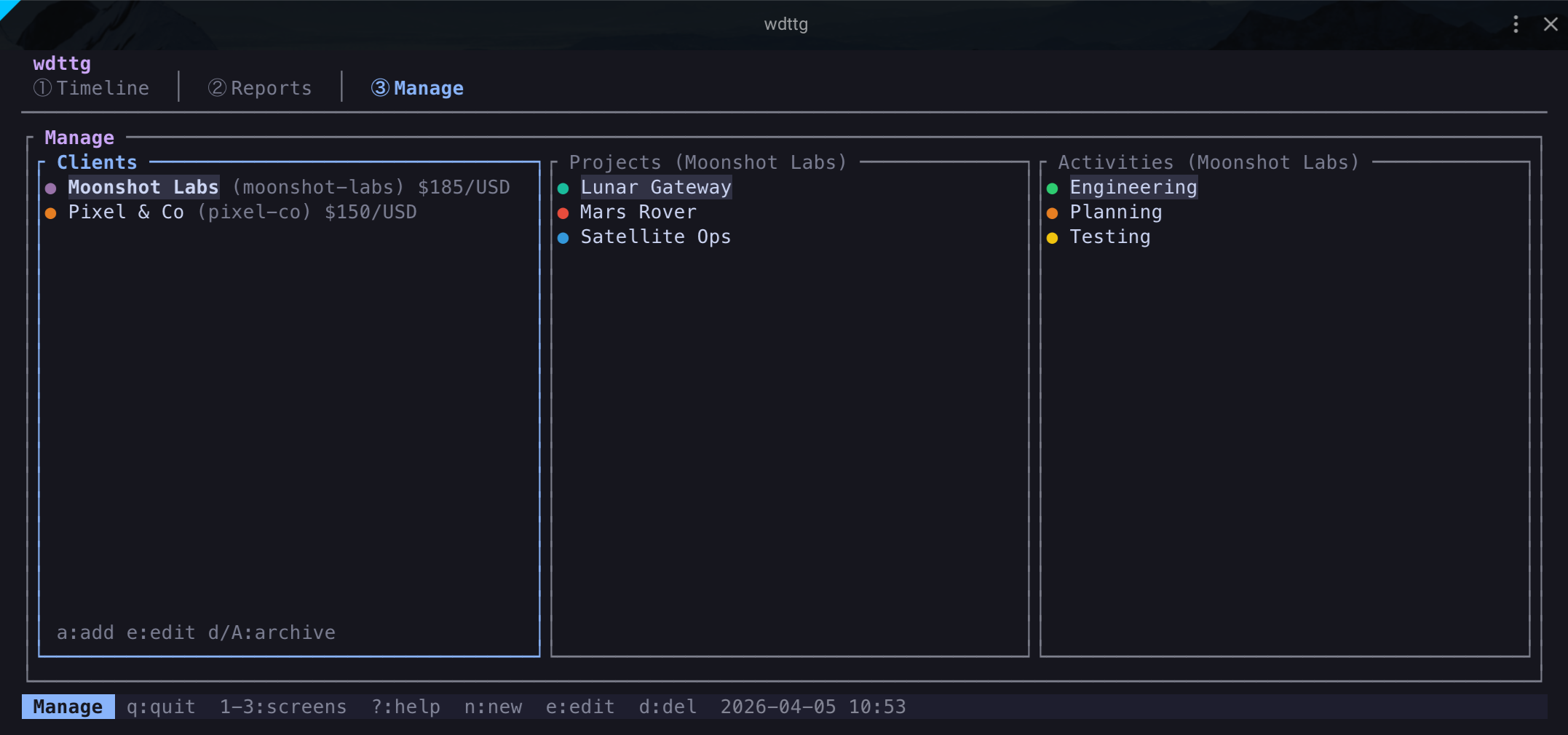
I built the where-did-the-time-go Obsidian plugin to scratch this itch the first time around. It worked great, but I got tired of being tied to a specific application platform. Plugin approval on Obsidian takes forever, and at the end of the day the data format was already just markdown tables.
Markdown is everywhere now — every IDE reads it, every AI agent works well with it. So instead of fighting an approval process, I pulled the concept out into its own thing: a lightweight TUI for visualization and an MCP server so AI agents can do the heavy lifting.
The core idea is dead simple: I did X between A and B. Categorize it so I can report on it and bill from it.
This is not a task manager. My tasks live in tickets, ad-hoc journal entries, kanban boards — wherever makes sense at the time. This tool only cares about what you did and when. A meeting with a client. A two-hour dev session. A quick call that ran long. Log it, tag it, move on.
The MCP server is the real unlock here. Instead of clicking through forms, I just tell Claude what I did:
"I had a sprint planning meeting with Acme from 9 to 10:30 this morning"
Claude calls the MCP tools, validates the entry, checks for overlaps, and logs it. If I'm too vague, it asks for the missing pieces.
Without the MCP server, the AI would have to read the raw markdown into its context, parse the table, mentally compare timestamps to check for overlaps, format a new row correctly, and write the whole file back. Any of those steps can go wrong — the LLM might miscalculate a time comparison, botch the table formatting, or hallucinate that a time slot is free when it isn't. And every entry eats context tokens just to read and rewrite the file.
With the MCP server, create_entry handles all of that programmatically — parsing, validation, overlap detection, chronological sorting, atomic file writes. The AI just says "create this entry" and gets back a definitive yes or a structured error. No guesswork, no wasted tokens, no risk of corrupting the file.
The TUI and MCP server share the same data files, so entries created by AI show up in the timeline within ~200ms.
macOS and Linux only. Windows is not yet supported.
curl --proto '=https' --tlsv1.2 -LsSf https://github.com/plattnum/wdttg-tui/releases/latest/download/wdttg-tui-installer.sh | sh
Requires Rust 1.85+ (2024 edition).
git clone https://github.com/plattnum/wdttg-tui.git
cd wdttg-tui
cargo install --path crates/wdttg-tui
wdttg init
Interactive setup wizard — asks for time format (12h/24h), week start day, data directory, and your first client. Press Enter to accept defaults at each step.
Welcome to wdttg! Let's set things up.

Time format [24h/12h] (24h):
Week start [monday/sunday] (monday):
Data directory (/Users/you/.local/share/wdttg/data):

Set up your first client:
  Client name (Personal): Acme Corp
  Hourly rate (0): 150
  Currency (USD):

✓ Config saved to ~/.config/wdttg/config.toml
✓ Client data saved to ~/.local/share/wdttg/data/clients.toml
wdttg
The MCP server is launched automatically by your AI client — you don't run wdttg serve manually. Just add the config and your AI can create/query time entries for you.
See MCP Server Setup below.
wdttg export --format csv --preset this-month          # CSV to stdout
wdttg export --format json --preset last-week           # JSON to stdout
wdttg export --format csv --start 2026-03-01 --end 2026-03-31 --client acme > report.csv
Or press x on the Reports tab to export the current view as CSV to your data directory.
wdttg init --force # resets preferences and client data (keeps time entries)
After installing a new version, restart any AI clients (Claude Desktop, Claude Code, Cursor, etc.) that run the MCP server. They cache the old binary — the MCP server won't pick up changes until the AI client restarts and re-launches wdttg serve.
cargo install --path crates/wdttg-tui   # or download new release
# Then restart Claude Desktop / reload Claude Code
Add to your project's .mcp.json (or ~/.claude/mcp.json for global access):
{
  "mcpServers": {
    "wdttg": {
      "command": "wdttg",
      "args": ["serve"]
    }
  }
}
If running from source instead of an installed binary:
{
  "mcpServers": {
    "wdttg": {
      "command": "cargo",
      "args": ["run", "-p", "wdttg-tui", "--", "serve"],
      "cwd": "/path/to/wdttg-tui"
    }
  }
}
| Tool | Description |
|---|---|
| Time entries | |
list_entries | List time entries with date range, presets, and filters |
get_entry | Get a single entry by ID or start/end timestamps |
create_entry | Create a new time entry with validation and overlap checking |
update_entry | Update an entry (supports partial updates) |
delete_entry | Delete an entry by ID or timestamps |
check_overlaps | Check if a proposed time range conflicts with existing entries |
available_slots | Find free time gaps within a datetime range |
| Reports | |
generate_report | Aggregated report by client/project/activity with billable amounts |
get_status | Today/week totals, entry counts, config summary |
| Clients & projects | |
list_clients | List clients with their projects and activities |
create_client | Add a new client |
update_client | Update client fields |
archive_client | Archive/unarchive a client (cascades to projects + activities) |
create_project | Add a project under a client |
update_project | Update project fields |
archive_project | Archive/unarchive a project |
create_activity | Add an activity under a client |
update_activity | Update activity fields |
archive_activity | Archive/unarchive an activity |
Use the MCP Inspector to interactively test and debug the server:
# From source
npx -y @modelcontextprotocol/inspector cargo run -p wdttg-tui -- serve

# Or using the installed binary
npx -y @modelcontextprotocol/inspector wdttg serve
This opens a web UI (usually http://localhost:6274) where you can browse available tools, invoke them with custom inputs, and inspect results.
Configuration is split into two files:
~/.config/wdttg/config.tomlMachine-local settings. Created by wdttg init.
[preferences]
time_format = "24h"
week_start = "monday"
day_start_hour = 6
day_end_hour = 22
snap_minutes = 15
tag_style = "flat"            # "flat" | "powerline" | "triangle"
# data_dir = "/custom/path"   # optional, overrides default data location
tag_style controls how tag chips are separated on timeline entries. flat is the default and works on any terminal. powerline uses Powerline chevron glyphs (U+E0B0) that blend chip colors — requires a Powerline / Nerd Font in your terminal. triangle uses U+25B6 and works on any Unicode terminal but doesn't blend as smoothly. Press T in the TUI to cycle styles at runtime; the chosen style is persisted to this file.
<data_dir>/clients.tomlClients, projects, activities, and billing info. Lives alongside time entries so the whole data directory is portable and syncable (git, Dropbox, etc.).
[bill_from]
name = "Jane Freelancer"
email = "jane@example.com"

[[clients]]
id = "acme"
name = "Acme Corp"
color = "#FF6B6B"
rate = 150.0
currency = "USD"

[[clients.projects]]
id = "webapp"
name = "Web App"
color = "#4ECDC4"

[[clients.activities]]
id = "dev"
name = "Development"
color = "#45B7D1"
Time entries are stored as GFM tables in ~/.local/share/wdttg/data/YYYY-MM.md:
# 2026-03

| Start | End | Description | Client | Project | Activity | Notes |
|-------|-----|-------------|--------|---------|----------|-------|
| 2026-03-15 09:00 | 2026-03-15 10:30 | Sprint planning | acme | webapp | meeting | |
| 2026-03-15 11:00 | 2026-03-15 13:00 | API auth refactor | acme | webapp | dev | ticket ACME-412 |
| 2026-03-15 14:00 | 2026-03-15 14:30 | Quick sync with design team | acme | webapp | meeting | |
| 2026-03-15 14:30 | 2026-03-15 17:00 | Frontend dashboard work | acme | webapp | dev | |
cargo build                    # Build everything
cargo test                     # Run all tests
cargo test -p wdttg-core       # Core library tests
cargo test -p wdttg-mcp        # MCP integration tests
cargo run -p wdttg-tui         # Run the TUI
cargo clippy --all-targets     # Lint
cargo fmt --check              # Check formatting
| Crate | Purpose |
|---|---|
wdttg-core | Library: parsing, validation, storage, reporting |
wdttg-tui | Binary: terminal UI (ratatui + crossterm) |
wdttg-mcp | Library: MCP server tool implementations |
wdttg pairs well with bulletd — a terminal bullet journal built on the same principles: local-first, plain Markdown, MCP-enabled. Together they cover the daily workflow: bulletd captures what you need to do, wdttg captures how long it took. Both run as MCP servers, so your AI agent can manage your task log and time entries in the same conversation.
Organizational tracking systems — Jira, Linear, Asana — are built for planned work, not the ad-hoc reality of your day. You're not going to file a ticket for "check rollout status on Google Play Console" or "help debug staging." And MCP integrations to those systems are either nonexistent, not allowed, or painfully slow. These tools let you capture what actually happens locally, then reconcile back to the official system when it matters.
If this is useful to you, consider buying me a coffee.
MIT - Do whatever you want with it.
Claim this server with your GitHub account to request manual ownership verification.
Link to the catalog listing for wdttg - terminal time tracker with a built-in MCP server for AI agents from your README. This badge does not certify ownership, compatibility or security.
[](https://awesome-mcp.com/servers/wdttg-tui)Public repository statistics could not be verified. Check the configured source address; unavailable counts are not zero.
Separate sources, scopes and periods. Never combined or treated as installations, active users or security reviews.
No reviewed package or image identity; download statistics are not listed yet.
Alternative and complementary servers in the same category
Oleafly is a live collaborative LaTeX, Typst and Markdown editor for research that offers a local MCP server and an oleafly mcp stdio command so outside AI clients can use its project tools.
Buddy is an Android app that offers its phone tools through a local MCP server to Claude Code, Codex, OpenCode, Antigravity, and Grok sessions.

Tuqui is a hosted MCP server that connects Odoo with Claude and ChatGPT so users can ask about sales, stock, customers and overdue invoices in plain language.
