Cloud Run MCP server and Gemini CLI extension
Enable MCP-compatible AI agents to deploy apps to Cloud Run.
"mcpServers":{
  "cloud-run": {
    "command": "npx",
    "args": ["-y", "@google-cloud/cloud-run-mcp"]
  }
}
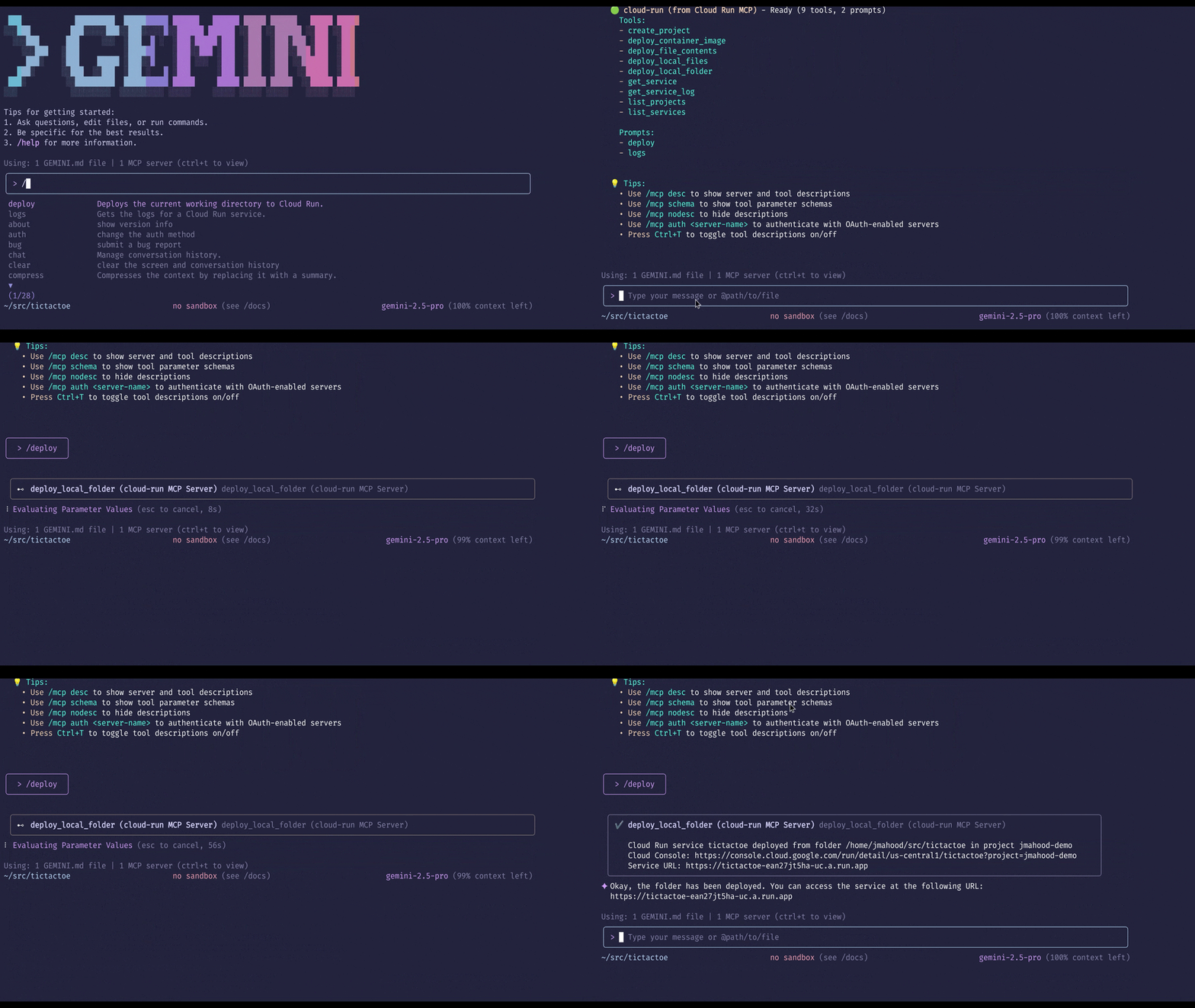
Deploy from Gemini CLI and other AI-powered CLI agents:
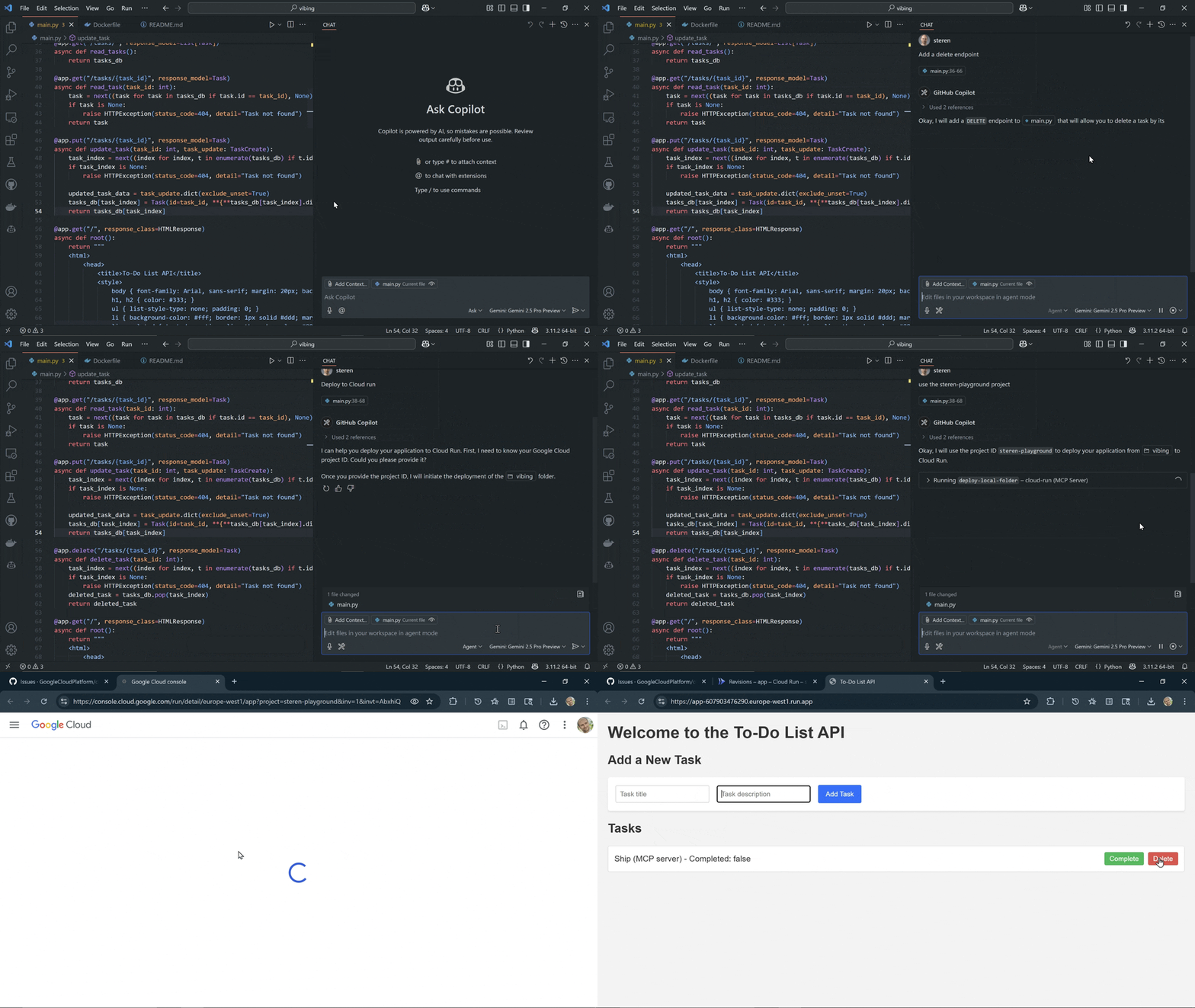
Deploy from AI-powered IDEs:
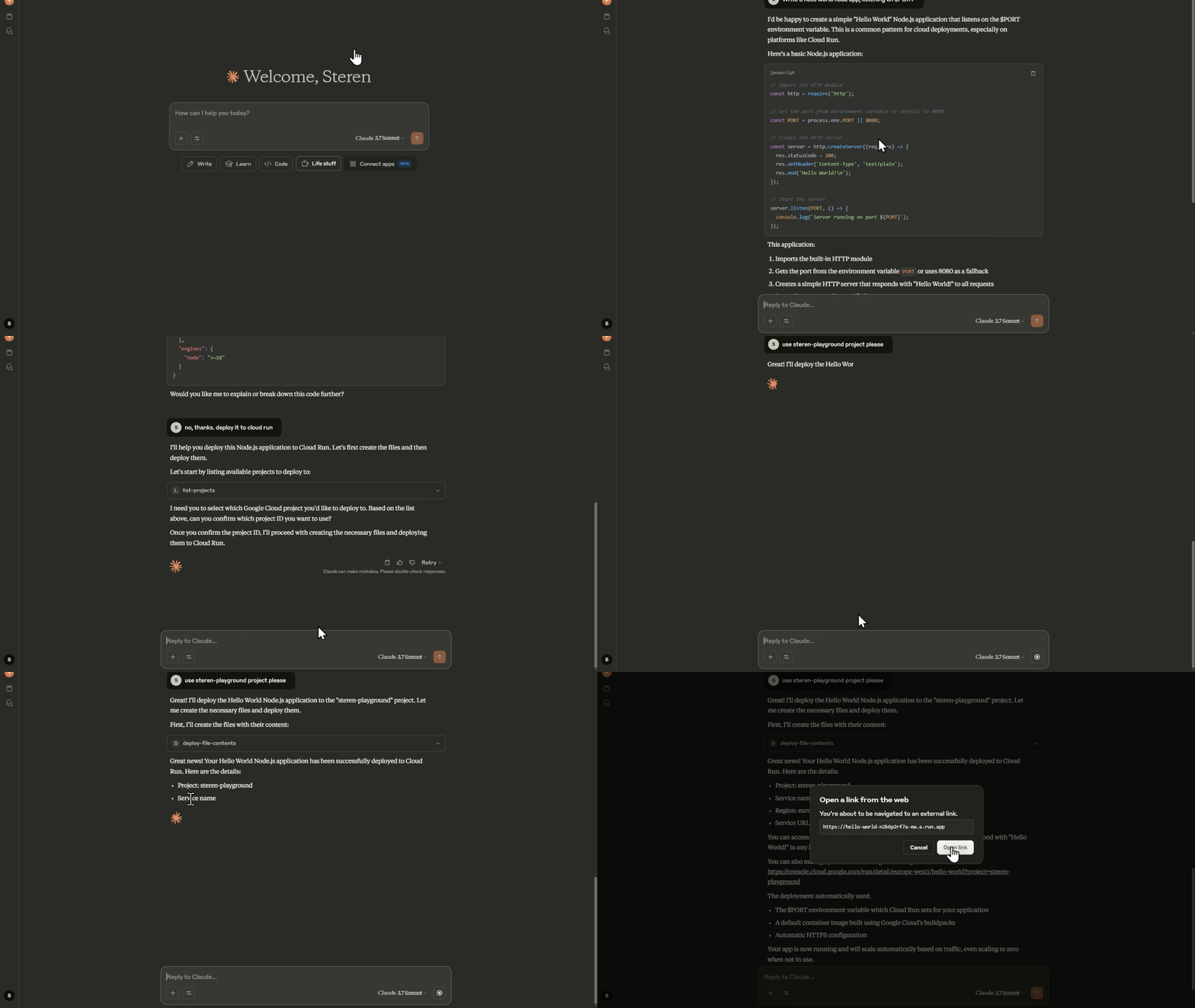
Deploy from AI assistant apps:
Deploy from agent SDKs, like the Google Gen AI SDK or Agent Development Kit.
[!NOTE]
This is the repository of an MCP server to deploy code to Cloud Run, to learn how to host MCP servers on Cloud Run, visit the Cloud Run documentation.
-
deploy-file-contents: Deploys files to Cloud Run by providing their contents directly.
-
list-services: Lists Cloud Run services in a given project and region.
-
get-service: Gets details for a specific Cloud Run service.
-
get-service-log: Gets Logs and Error Messages for a specific Cloud Run service.
-
deploy-local-folder*: Deploys a local folder to a Google Cloud Run service.
-
list-projects*: Lists available GCP projects.
-
create-project*: Creates a new GCP project and attach it to the first available billing account. A project ID can be optionally specified.
* only available when running locally
Prompts
Prompts are natural language commands that can be used to perform common tasks. They are shortcuts for executing tool calls with pre-filled arguments.
deploy: Deploys the current working directory to Cloud Run. If a service name is not provided, it will use the DEFAULT_SERVICE_NAME environment variable, or the name of the current working directory.logs: Gets the logs for a Cloud Run service. If a service name is not provided, it will use the DEFAULT_SERVICE_NAME environment variable, or the name of the current working directory.
Environment Variables
The Cloud Run MCP server can be configured using the following environment variables:
Use as a Gemini CLI extension
To install this as a Gemini CLI extension, run the following command:
-
Install the extension:
gemini extensions install https://github.com/GoogleCloudPlatform/cloud-run-mcp
-
Log in to your Google Cloud account using the command:
gcloud auth login
-
Set up application credentials using the command:
gcloud auth application-default login
Use in MCP Clients
Most MCP clients require a configuration file to be created or modified to add the MCP server.
The configuration file syntax can be different across clients. Please refer to the following links for the latest expected syntax:
Once you have identified how to configure your MCP client, select one of these two options to set up the MCP server.
We recommend setting up as a local MCP server using Node.js.
Set up as local MCP server
Run the Cloud Run MCP server on your local machine using local Google Cloud credentials. This is best if you are using an AI-assisted IDE (e.g. Cursor) or a desktop AI application (e.g. Claude).
-
Install the Google Cloud SDK and authenticate with your Google account.
-
Log in to your Google Cloud account using the command:
gcloud auth login
-
Set up application credentials using the command:
gcloud auth application-default login
Then configure the MCP server using either Node.js or Docker:
Using Node.js
-
Install Node.js (LTS version recommended).
-
Update the MCP configuration file of your MCP client with the following:
   "cloud-run": {
     "command": "npx",
     "args": ["-y", "@google-cloud/cloud-run-mcp"]
   }
-
[Optional] Add default configurations
   "cloud-run": {
      "command": "npx",
      "args": ["-y", "@google-cloud/cloud-run-mcp"],
      "env": {
            "GOOGLE_CLOUD_PROJECT": "PROJECT_NAME",
            "GOOGLE_CLOUD_REGION": "PROJECT_REGION",
            "DEFAULT_SERVICE_NAME": "SERVICE_NAME"
      }
   }
Using Docker
See Docker's MCP catalog, or use these manual instructions:
-
Install Docker
-
Update the MCP configuration file of your MCP client with the following:
   "cloud-run": {
     "command": "docker",
     "args": [
       "run",
       "-i",
       "--rm",
       "-e",
       "GOOGLE_APPLICATION_CREDENTIALS",
       "-v",
       "/local-directory:/local-directory",
       "mcp/cloud-run-mcp:latest"
     ],
     "env": {
       "GOOGLE_APPLICATION_CREDENTIALS": "/Users/slim/.config/gcloud/application_default-credentials.json",
       "DEFAULT_SERVICE_NAME": "SERVICE_NAME"
     }
   }
Set up as remote MCP server
[!WARNING]
Do not use the remote MCP server without authentication. In the following instructions, we will use IAM authentication to secure the connection to the MCP server from your local machine. This is important to prevent unauthorized access to your Google Cloud resources.
Run the Cloud Run MCP server itself on Cloud Run with connection from your local machine authenticated via IAM.
With this option, you will only be able to deploy code to the same Google Cloud project as where the MCP server is running.
-
Install the Google Cloud SDK and authenticate with your Google account.
-
Log in to your Google Cloud account using the command:
gcloud auth login
-
Set your Google Cloud project ID using the command:
gcloud config set project YOUR_PROJECT_ID
-
Deploy the Cloud Run MCP server to Cloud Run:
gcloud run deploy cloud-run-mcp --image us-docker.pkg.dev/cloudrun/container/mcp --no-allow-unauthenticated
When prompted, pick a region, for example europe-west1.
Note that the MCP server is not publicly accessible, it requires authentication via IAM.
-
[Optional] Add default configurations
gcloud run services update cloud-run-mcp --region=REGION --update-env-vars GOOGLE_CLOUD_PROJECT=PROJECT_NAME,GOOGLE_CLOUD_REGION=PROJECT_REGION,DEFAULT_SERVICE_NAME=SERVICE_NAME,SKIP_IAM_CHECK=false
-
Run a Cloud Run proxy on your local machine to connect securely using your identity to the remote MCP server running on Cloud Run:
gcloud run services proxy cloud-run-mcp --port=3000 --region=REGION --project=PROJECT_ID
This will create a local proxy on port 3000 that forwards requests to the remote MCP server and injects your identity.
-
Update the MCP configuration file of your MCP client with the following:
   "cloud-run": {
     "url": "http://localhost:3000/sse"
   }
If your MCP client does not support the url attribute, you can use mcp-remote:
   "cloud-run": {
     "command": "npx",
     "args": ["-y", "mcp-remote", "http://localhost:3000/sse"]
   }
Using MCP Server with OAuth
Cloud Run MCP server supports OAuth as an authentication mechanism. In order to use OAuth, create the OAuth client, and configure a .env file with the appropriate values pertaining to your OAuth client. A .env.example is provided for reference.
The Cloud Run MCP server works seamlessly with Google Cloud SDK OAuth client. In order to leverage the Google Cloud SDK OAuth client, you can use the .env.gcloud-sdk-oauth file as your .env file as follows:
cp .env.gcloud-sdk-oauth .env
node mcp-server.js
When the Cloud Run MCP server is started in the OAuth mode, the MCP client should also be configured to use OAuth. You can setup the MCP server in OAuth mode in the Gemini CLI by using the following JSON in the ~/.gemini/settings.json file:
{
  "mcpServers": {
    "cloud-run": {
      "httpUrl": "http://localhost:3000/mcp",
      "oauth": {
        "enabled": true,
        "clientId": "<OAUTH_CLIENT_ID>",
        "clientSecret": "<OAUTH_CLIENT_SECRET>"
      }
    }
  }
}
Post the configuration changes as shown above, start the Gemini CLI. You should authenticate the Cloud Run MCP server using the following prompt in the Gemini CLI:
/mcp auth cloud-run
This will take you to the authentication page on your browser, wherein you need to sign in using the appropriate gmail id, and accept the terms and conditions. Once the authentication is succcessful, you can come back to the Gemini CLI, and the Cloud Run MCP server will be ready to use.
The Google Cloud Platform Terms of Service (available at https://cloud.google.com/terms/) and the Data Processing and Security Terms (available at https://cloud.google.com/terms/data-processing-terms) do not apply to any component of the Cloud Run MCP Server software.
Cloud Run Skills
We introduce Cloud Run skills to enable AI agents to perform actions on Cloud Run. You can use these skills with Gemini CLI and other agentic AI tools. The skills are available at Cloud Run Skills.
The Cloud Run skills are based on top of gcloud cli for Cloud Run empowering agents to perform all the actions on the Cloud Run using gcloud, as can be performed by the GCP user using gcloud cli.
In order to use Cloud Run skills:
- Ensure you have the
gcloud CLI installed and authenticated with gcloud auth login and gcloud auth application-default login.
- Set your project with
gcloud config set project [PROJECT_ID].
- Enable the skills on your agentic AI tool. For example, you can enable the skills for Gemini CLI using the following command on your terminal:
gemini skills install https://github.com/GoogleCloudPlatform/cloud-run-mcp.git --path skills/cloud-run
- Once the skills are enabled, you can use them to perform actions on Cloud Run. Here are some of the prompts for you to get started:
-
List the Cloud Run services in the project test-gcp-project in the region us-west1.
-
Deploy the folder /home/username/workspace/hello-world as Cloud Run service hello-world to the project test-gcp-project in the region us-west1.
-
Describe the Cloud Run job hello-job in the project test-gcp-project in the region europe-west1.


