


A directory listing describing a cancellation-letter and mailing-address service. The configured public GitHub repository returned 404 during source verification.
Repository stats unavailable
Developer Tools
An MCP server that lets AI assistants control any Electron app over the Chrome DevTools Protocol to click, fill forms, take screenshots, read logs, and run JavaScript without app changes.
Electron MCP Server is cataloged as an MCP server attributed to halilural. An MCP server that lets AI assistants control any Electron app over the Chrome DevTools Protocol to click, fill forms, take screenshots, read logs, and run JavaScript without app changes. It is categorized under developer tools. See the capability inspector for recorded interfaces and their independent review status; consult upstream documentation for the current interface.
Installation configuration is not reviewed. No executable setup is offered for this entry; inspect the source repository before proceeding.
Catalog license label: MIT License. Check the source repository's current license and terms before using, modifying or distributing this software.
能力定义尚未审核。未核验的采集内容不会作为可信接口展示。
暂无可展示的已审核记录。这不表示上游不支持此能力。
暂无可展示的已审核记录。这不表示上游不支持此能力。
暂无可展示的已审核记录。这不表示上游不支持此能力。
Email delivery is not connected. This page does not collect email addresses or create subscriptions.
Browse the registry for current listings instead.
Reviews for Electron MCP Server are not available yet
Review publishing and storage are not connected. This page does not collect or publish ratings or comments, including after sign-in.
No; it attaches over CDP to any Electron app started with remote debugging enabled, requiring no app modifications.
It offers configurable security levels, strict through development, balancing safety with functionality.
README.md · 842c6878b162 · 采集于 2026-11-13 09:23:37 UTC
保留上游原文,不做 AI 改写。为安全起见过滤脚本、表单和不安全链接。
当前显示最后一次成功采集的文档快照,请以来源页面为准。





Control any Electron app with natural language. An MCP server that lets AI assistants (Claude, Cursor, VS Code, …) drive your Electron app: click buttons, fill forms, take screenshots, read console logs, and run JavaScript inside it — all over the Chrome DevTools Protocol, with no changes to your app.
npx -y electron-mcp-server
Then ask your AI: "Click the Settings button in my Electron app and screenshot the result."
Why you might want it
--remote-debugging-port=9222The 4 tools it exposes: get_electron_window_info, take_screenshot, send_command_to_electron (UI interaction + eval), read_electron_logs.
See the Electron MCP Server in action:
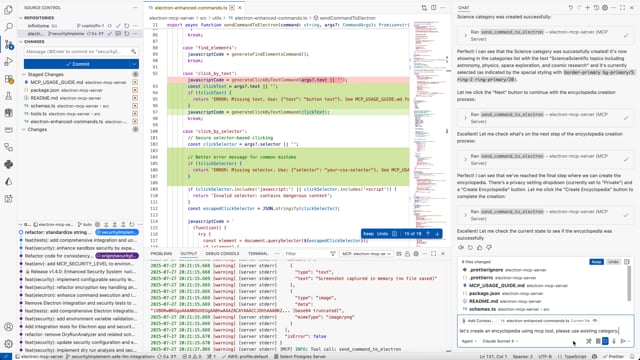
Watch how easy it is to automate Electron applications with AI-powered MCP commands.
Configurable security levels to balance safety with functionality:
Configure the security level and other settings through your MCP client configuration:
VS Code MCP Settings:
{
  "mcp": {
    "servers": {
      "electron": {
        "command": "npx",
        "args": ["-y", "electron-mcp-server"],
        "env": {
          "SECURITY_LEVEL": "balanced",
          "SCREENSHOT_ENCRYPTION_KEY":"your-32-byte-hex-string"
        }
      }
    }
  }
}
Claude Desktop Configuration:
{
  "mcpServers": {
    "electron": {
      "command": "npx",
      "args": ["-y", "electron-mcp-server"],
      "env": {
        "SECURITY_LEVEL": "balanced",
        "SCREENSHOT_ENCRYPTION_KEY":"your-32-byte-hex-string"
      }
    }
  }
}
Alternative: Local .env file (for development):
# Create .env file in your project directory
SECURITY_LEVEL=balanced
SCREENSHOT_ENCRYPTION_KEY=your-32-byte-hex-string
Security Level Behaviors:
| Level | UI Interactions | DOM Queries | Property Access | Assignments | Function Calls | Risk Threshold |
|---|---|---|---|---|---|---|
strict | ❌ Blocked | ❌ Blocked | ✅ Allowed | ❌ Blocked | ❌ None allowed | Low |
balanced | ✅ Allowed | ✅ Allowed | ✅ Allowed | ❌ Blocked | ✅ Safe UI functions | Medium |
permissive | ✅ Allowed | ✅ Allowed | ✅ Allowed | ✅ Allowed | ✅ Extended UI functions | High |
development | ✅ Allowed | ✅ Allowed | ✅ Allowed | ✅ Allowed | ✅ All functions | Critical |
Environment Setup:
.env.example to .envSECURITY_LEVEL to your desired levelcp .env.example .env
# Edit .env and set SECURITY_LEVEL=balanced
Instead of raw JavaScript eval, use these secure commands:
// ✅ Secure button clicking
{
  "command": "click_by_text",
  "args": { "text": "Create New Encyclopedia" }
}

// ✅ Secure element selection
{
  "command": "click_by_selector",
  "args": { "selector": "button[title='Create']" }
}

// ✅ Secure keyboard shortcuts
{
  "command": "send_keyboard_shortcut",
  "args": { "text": "Ctrl+N" }
}

// ✅ Secure navigation
{
  "command": "navigate_to_hash",
  "args": { "text": "create" }
}
See SECURITY_CONFIG.md for detailed security documentation.
The most common mistake when using this MCP server is incorrect argument structure for the send_command_to_electron tool.
{
  "command": "click_by_selector",
  "args": "button.submit-btn"  // ❌ Raw string - WRONG!
}
{
  "command": "click_by_selector",
  "args": {
    "selector": "button.submit-btn"  // ✅ Object with selector property
  }
}
| Command | Required Args | Example |
|---|---|---|
click_by_selector | {"selector": "css-selector"} | {"selector": "button.primary"} |
click_by_text | {"text": "button text"} | {"text": "Submit"} |
fill_input | {"value": "text", "selector": "..."} or {"value": "text", "placeholder": "..."} | {"placeholder": "Enter name", "value": "John"} |
send_keyboard_shortcut | {"text": "key combination"} | {"text": "Ctrl+N"} |
eval | {"code": "javascript"} | {"code": "document.title"} |
get_title, get_url, get_body_text | No args needed | {} or omit args |
get_page_structure or debug_elements// Step 1: Understand the page
{
"command": "get_page_structure"
}
// Step 2: Click button using text (most reliable)
{
"command": "click_by_text",
"args": {
"text": "Create New Encyclopedia"
}
}
// Step 3: Fill form field
{
"command": "fill_input",
"args": {
"placeholder": "Enter encyclopedia name",
"value": "AI and Machine Learning"
}
}
// Step 4: Submit with selector
{
"command": "click_by_selector",
"args": {
"selector": "button[type='submit']"
}
}
| Error | Cause | Solution |
|---|---|---|
| "The provided selector is empty" | Passing string instead of object | Use {"selector": "..."} |
| "Element not found" | Wrong selector | Use get_page_structure first |
| "Command blocked" | Security restriction | Check security level settings |
| "Click prevented - too soon" | Rapid consecutive clicks | Wait before retrying |
Enterprise-grade security built for safe AI-powered automation:
eval, file system access, and network requests are blocked by defaultSafety First: Every command is analyzed, validated, and executed in a secure sandbox before reaching your application.
Add to your VS Code MCP settings:
{
  "mcp": {
    "servers": {
      "electron": {
        "command": "npx",
        "args": ["-y", "electron-mcp-server"],
        "env": {
          "SECURITY_LEVEL": "balanced",
          "SCREENSHOT_ENCRYPTION_KEY": "your-32-byte-hex-string-here"
        }
      }
    }
  }
}
Add to ~/Library/Application Support/Claude/claude_desktop_config.json:
{
  "mcpServers": {
    "electron": {
      "command": "npx",
      "args": ["-y", "electron-mcp-server"],
      "env": {
        "SECURITY_LEVEL": "balanced",
        "SCREENSHOT_ENCRYPTION_KEY": "your-32-byte-hex-string-here"
      }
    }
  }
}
npm install -g electron-mcp-server
launch_electron_appLaunch an Electron application with debugging capabilities.
{
  "appPath": "/path/to/electron-app",
  "devMode": true,  // Enables Chrome DevTools Protocol on port 9222
  "args": ["--enable-logging", "--dev"]
}
Returns: Process ID and launch confirmation
get_electron_window_infoGet comprehensive window and target information via Chrome DevTools Protocol.
{
  "includeChildren": true  // Include child windows and DevTools instances
}
Returns:
take_screenshotCapture high-quality screenshots using Playwright and Chrome DevTools Protocol.
{
  "outputPath": "/path/to/screenshot.png",  // Optional: defaults to temp directory
  "windowTitle": "My App"  // Optional: target specific window
}
Features:
send_command_to_electronExecute JavaScript commands in the running Electron application via WebSocket.
{
  "command": "eval",  // Built-in commands: eval, get_title, get_url, click_button, console_log
  "args": {
    "code": "document.querySelector('button').click(); 'Button clicked!'"
  }
}
Enhanced UI Interaction Commands:
find_elements: Analyze all interactive UI elements with their properties and positionsclick_by_text: Click elements by their visible text, aria-label, or title (more reliable than selectors)fill_input: Fill input fields by selector, placeholder text, or associated label textselect_option: Select dropdown options by value or visible textget_page_structure: Get organized overview of all page elements (buttons, inputs, selects, links)get_title: Get document titleget_url: Get current URLget_body_text: Extract visible text contentclick_button: Click buttons by CSS selector (basic method)console_log: Send console messageseval: Execute custom JavaScript codeRecommended workflow: Use get_page_structure first to understand available elements, then use specific interaction commands like click_by_text or fill_input.
read_electron_logsStream application logs from main process, renderer, and console.
{
  "logType": "all",  // Options: "all", "main", "renderer", "console"
  "lines": 50,       // Number of recent lines
  "follow": false    // Stream live logs
}
close_electron_appGracefully close the Electron application.
{
  "force": false  // Force kill if unresponsive
}
build_electron_appBuild Electron applications for distribution.
{
  "projectPath": "/path/to/project",
  "platform": "darwin",  // win32, darwin, linux
  "arch": "x64",         // x64, arm64, ia32
  "debug": false
}
// 1. First, understand the page structure
await send_command_to_electron({
  command: 'get_page_structure',
});

// 2. Click a button by its text (much more reliable than selectors)
await send_command_to_electron({
  command: 'click_by_text',
  args: {
    text: 'Login', // Finds buttons containing "Login" in text, aria-label, or title
  },
});

// 3. Fill inputs by their label or placeholder text
await send_command_to_electron({
  command: 'fill_input',
  args: {
    text: 'username', // Finds input with label "Username" or placeholder "Enter username"
    value: 'john.doe@example.com',
  },
});

await send_command_to_electron({
  command: 'fill_input',
  args: {
    text: 'password',
    value: 'secretpassword',
  },
});

// 4. Select dropdown options by visible text
await send_command_to_electron({
  command: 'select_option',
  args: {
    text: 'country', // Finds select with label containing "country"
    value: 'United States', // Selects option with this text
  },
});

// 5. Take a screenshot to verify the result
await take_screenshot();
// Find all interactive elements with detailed information
await send_command_to_electron({
  command: 'find_elements',
});

// This returns detailed info about every clickable element and input:
// {
//   "type": "clickable",
//   "text": "Submit Form",
//   "id": "submit-btn",
//   "className": "btn btn-primary",
//   "ariaLabel": "Submit the registration form",
//   "position": { "x": 100, "y": 200, "width": 120, "height": 40 },
//   "visible": true
// }
// Launch app in development mode
await launch_electron_app({
  appPath: '/path/to/app',
  devMode: true,
});

// Take a screenshot
await take_screenshot();

// Click a button programmatically
await send_command_to_electron({
  command: 'eval',
  args: {
    code: "document.querySelector('#submit-btn').click()",
  },
});

// Verify the result
await send_command_to_electron({
  command: 'get_title',
});
// Get window information
const windowInfo = await get_electron_window_info();

// Extract application data
await send_command_to_electron({
  command: 'eval',
  args: {
    code: 'JSON.stringify(window.appState, null, 2)',
  },
});

// Monitor logs
await read_electron_logs({
  logType: 'all',
  lines: 100,
});
// Get system information
await send_command_to_electron({
  command: 'eval',
  args: {
    code: '({memory: performance.memory, timing: performance.timing})',
  },
});

// Take periodic screenshots for visual regression testing
await take_screenshot({
  outputPath: '/tests/screenshots/current.png',
});
ELECTRON_RUN_AS_NODE and other environment variablesNode.js 20+
TypeScript 4.5+
Electron - Required for running and testing Electron applications
# Install Electron globally (recommended)
npm install -g electron

# Or install locally in your project
npm install electron --save-dev
For the MCP server to work with your Electron application, you need to enable remote debugging. Add this code to your Electron app's main process:
const { app } = require('electron');
const isDev = process.env.NODE_ENV === 'development' || process.argv.includes('--dev');

// Enable remote debugging in development mode
if (isDev) {
  app.commandLine.appendSwitch('remote-debugging-port', '9222');
}
Alternative approaches:
# Launch your app with debugging enabled
electron . --remote-debugging-port=9222

# Or via npm script
npm run dev -- --remote-debugging-port=9222
Note: The MCP server automatically scans ports 9222-9225 to detect running Electron applications with remote debugging enabled.
git clone https://github.com/halilural/electron-mcp-server.git
cd electron-mcp-server

npm install
npm run build

# Run tests
npm test

# Development mode with auto-rebuild
npm run dev
The project includes comprehensive test files for React compatibility:
# Run React compatibility tests
cd tests/integration/react-compatibility
electron test-react-electron.js
See tests/integration/react-compatibility/README.md for detailed testing instructions and scenarios.
This MCP server has been thoroughly tested with React applications and handles common React patterns correctly:
preventDefault() in click handlerssrc/
├── handlers.ts # MCP tool handlers
├── index.ts # Server entry point
├── tools.ts # Tool definitions
├── screenshot.ts # Screenshot functionality
├── utils/
│ ├── process.ts # Process management & DevTools Protocol
│ ├── logs.ts # Log management
│ └── project.ts # Project scaffolding
└── schemas/ # JSON schemas for validation
We welcome contributions! Please see our Contributing Guide for details.
Before reporting issues: Please use the standardized ISSUE_TEMPLATE.md for proper bug reporting format. For React compatibility problems or similar technical issues, also review REACT_COMPATIBILITY_ISSUES.md for detailed debugging examples, including proper command examples, error outputs, and reproduction steps.
git checkout -b feature/awesome-feature)git commit -m 'Add awesome feature')git push origin feature/awesome-feature)MIT License - see LICENSE file for details.
If this project helped you, consider buying me a coffee! ☕

Your support helps me maintain and improve this project. Thank you! 🙏
Ready to supercharge your Electron development with AI-powered automation? Install the MCP server and start building smarter workflows today! 🚀
Claim this server with your GitHub account to request manual ownership verification.
Link to the catalog listing for Electron MCP Server from your README. This badge does not certify ownership, compatibility or security.
[](https://awesome-mcp.com/servers/electron-desktop-automation)Public repository statistics could not be verified. Check the configured source address; unavailable counts are not zero.
来源、范围和时段分别列出;不相加,不代表安装人数、活跃用户或安全审核。
尚无已审核的包 / 镜像标识,暂不展示下载统计。
Alternative and complementary servers in the same category
A directory listing describing a cancellation-letter and mailing-address service. The configured public GitHub repository returned 404 during source verification.

A hosted MCP service for browsing and searching through Singapore mobile-network proxies.

A directory listing describing a Markdown-to-PDF service. The configured public GitHub repository returned 404 during source verification.