

Oleafly is a live collaborative LaTeX, Typst and Markdown editor for research that offers a local MCP server and an oleafly mcp stdio command so outside AI clients can use its project tools.
Repository stats unavailable
Productivity & Ops
A locally run Node.js/TypeScript MCP server that enables interactive communication between LLMs and users through prompts, OS notifications, and command-line chat sessions.
interactive-mcp: an MCP server for LLM-user interaction is cataloged as an MCP server attributed to ttommyth. A locally run Node.js/TypeScript MCP server that enables interactive communication between LLMs and users through prompts, OS notifications, and command-line chat sessions. It is categorized under productivity work. See the capability inspector for recorded interfaces and their independent review status; consult upstream documentation for the current interface.
Installation configuration is not reviewed. No executable setup is offered for this entry; inspect the source repository before proceeding.
Catalog license label: MIT. Check the source repository's current license and terms before using, modifying or distributing this software.
能力定义尚未审核。未核验的采集内容不会作为可信接口展示。
暂无可展示的已审核记录。这不表示上游不支持此能力。
暂无可展示的已审核记录。这不表示上游不支持此能力。
暂无可展示的已审核记录。这不表示上游不支持此能力。
Email delivery is not connected. This page does not collect email addresses or create subscriptions.
Browse the registry for current listings instead.
Reviews for interactive-mcp: an MCP server for LLM-user interaction are not available yet
Review publishing and storage are not connected. This page does not collect or publish ratings or comments, including after sign-in.
It is designed to run locally alongside the MCP client because it needs direct access to the user's operating system to display notifications and command-line prompts.
Yes, the --disable-tools option disables specific tools or groups from being advertised or registered, with options including request_user_input, message_complete_notification, and intensive_chat.
README.md · 691b030aa2a6 · 采集于 2026-11-13 09:36:26 UTC
保留上游原文,不做 AI 改写。为安全起见过滤脚本、表单和不安全链接。
当前显示最后一次成功采集的文档快照,请以来源页面为准。






A MCP Server implemented in Node.js/TypeScript, facilitating interactive communication between LLMs and users. Note: This server is designed to run locally alongside the MCP client (e.g., Claude Desktop, VS Code), as it needs direct access to the user's operating system to display notifications and command-line prompts.
(Note: This project is in its early stages.)
Want a quick overview? Check out the introductory blog post: Stop Your AI Assistant From Guessing — Introducing interactive-mcp
This server exposes the following tools via the Model Context Protocol (MCP):
request_user_input: Asks the user a question and returns their answer. Can display predefined options.message_complete_notification: Sends a simple OS notification.start_intensive_chat: Initiates a persistent command-line chat session.ask_intensive_chat: Asks a question within an active intensive chat session.stop_intensive_chat: Closes an active intensive chat session.Here are demonstrations of the interactive features:
| Normal Question | Completion Notification |
|---|---|
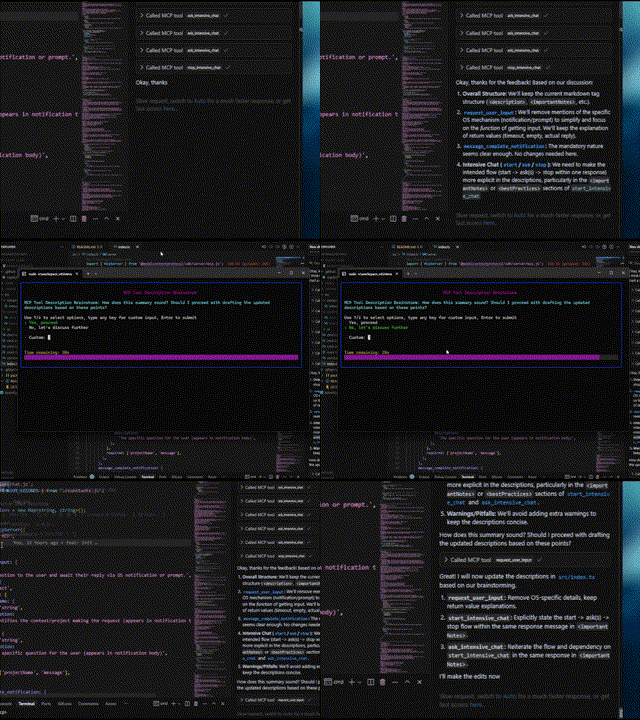 | 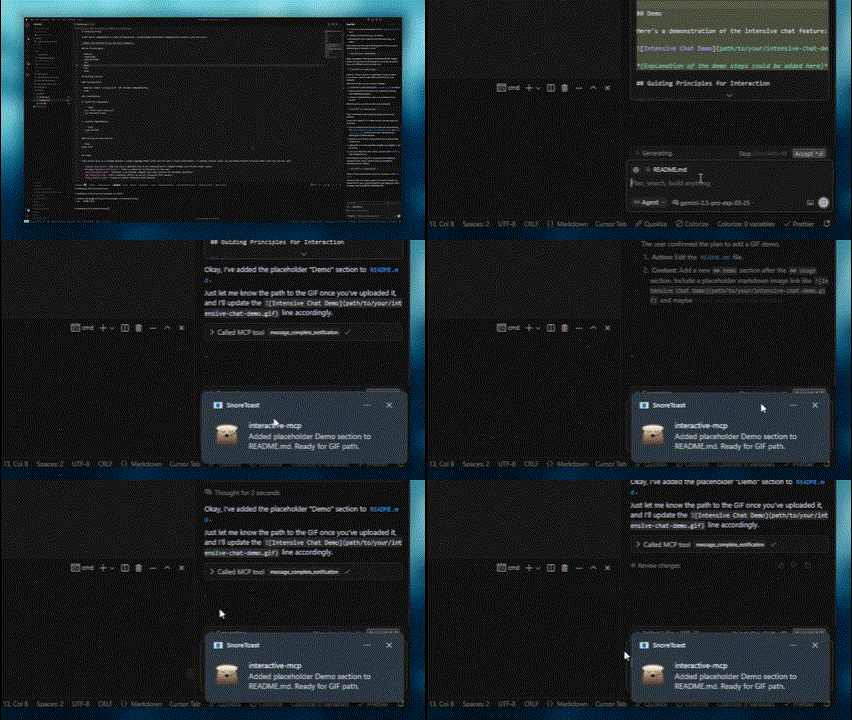 |
| Intensive Chat Start | Intensive Chat End |
|---|---|
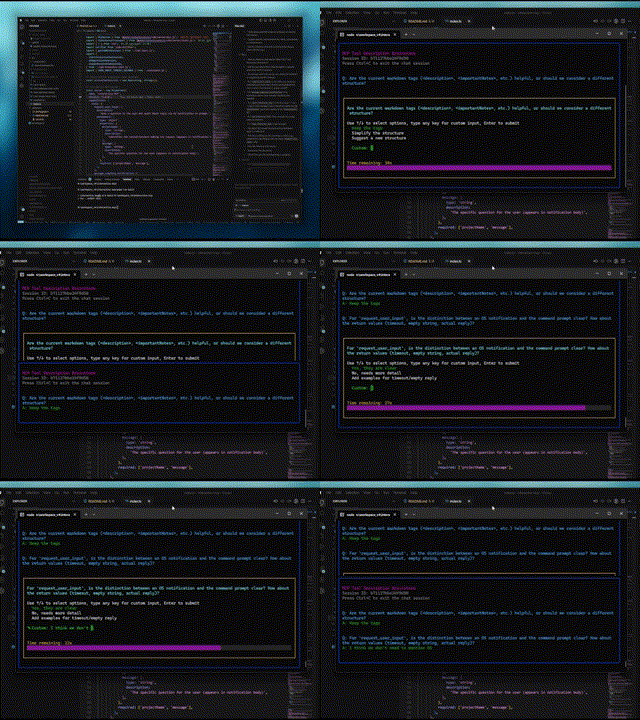 | 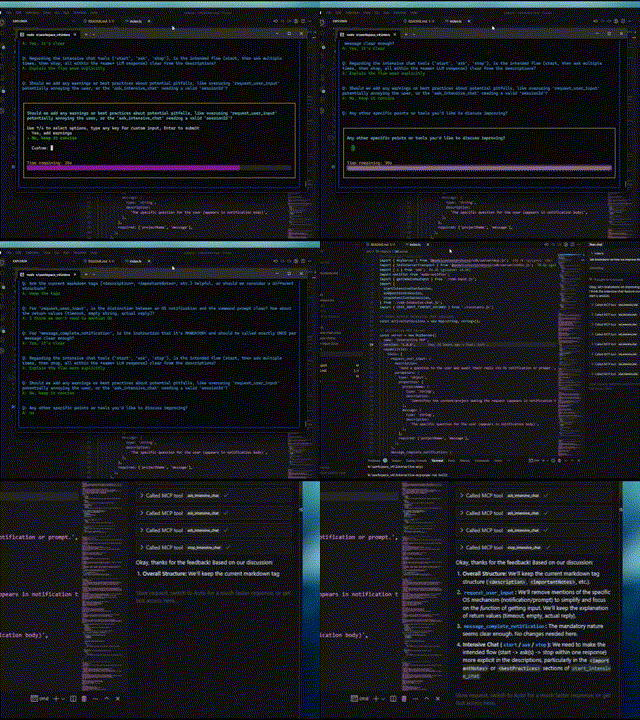 |
This server is ideal for scenarios where an LLM needs to interact directly with the user on their local machine, such as:
This section explains how to configure MCP clients to use the interactive-mcp server.
By default, user prompts will time out after 30 seconds. You can customize server options like timeout or disabled tools by adding command-line flags directly to the args array when configuring your client.
Please make sure you have the npx command available.
Add the following minimal configuration to your claude_desktop_config.json (Claude Desktop) or mcp.json (Cursor):
{
  "mcpServers": {
    "interactive": {
      "command": "npx",
      "args": ["-y", "interactive-mcp"]
    }
  }
}
With specific version
{
  "mcpServers": {
    "interactive": {
      "command": "npx",
      "args": ["-y", "interactive-mcp@1.9.0"]
    }
  }
}
Example with Custom Timeout (30s):
{
  "mcpServers": {
    "interactive": {
      "command": "npx",
      "args": ["-y", "interactive-mcp", "-t", "30"]
    }
  }
}
Add the following minimal configuration to your User Settings (JSON) file or .vscode/mcp.json:
{
  "mcp": {
    "servers": {
      "interactive-mcp": {
        "command": "npx",
        "args": ["-y", "interactive-mcp"]
      }
    }
  }
}
For a smoother experience on macOS using the default Terminal.app, consider this profile setting:
This section is primarily for developers looking to modify or contribute to the server. If you just want to use the server with an MCP client, see the "Client Configuration" section above.
package.json for version compatibility.npm install -g pnpm after installing Node.js.Clone the repository:
git clone https://github.com/ttommyth/interactive-mcp.git
cd interactive-mcp
Install dependencies:
pnpm install
pnpm start
The interactive-mcp server accepts the following command-line options. These should typically be configured in your MCP client's JSON settings by adding them directly to the args array (see "Client Configuration" examples).
| Option | Alias | Description |
|---|---|---|
--timeout | -t | Sets the default timeout (in seconds) for user input prompts. Defaults to 30 seconds. |
--disable-tools | -d | Disables specific tools or groups (comma-separated list). Prevents the server from advertising or registering them. Options: request_user_input, message_complete_notification, intensive_chat. |
Example: Setting multiple options in the client config args array:
// Example combining options in client config's "args":
"args": [
  "-y", "interactive-mcp",
  "-t", "30", // Set timeout to 30 seconds
  "--disable-tools", "message_complete_notification,intensive_chat" // Disable notifications and intensive chat
]
pnpm buildpnpm lintpnpm formatWhen interacting with this MCP server (e.g., as an LLM client), please adhere to the following principles to ensure clarity and reduce unexpected changes:
request_user_input, start_intensive_chat, etc.) frequently to engage with the user.You can provide these instructions to an LLM client like this:
# Interaction

- Please use the interactive MCP tools
- Please provide options to interactive MCP if possible

# Reduce Unexpected Changes

- Do not make assumption.
- Ask more questions before executing, until you think the requirement is clear enough.
Contributions are welcome! Please follow standard development practices. (Further details can be added later).
MIT (See LICENSE file for details - if applicable, or specify license directly).
Claim this server with your GitHub account to request manual ownership verification.
Link to the catalog listing for interactive-mcp: an MCP server for LLM-user interaction from your README. This badge does not certify ownership, compatibility or security.
[](https://awesome-mcp.com/servers/interactive-mcp)Public repository statistics could not be verified. Check the configured source address; unavailable counts are not zero.
来源、范围和时段分别列出;不相加,不代表安装人数、活跃用户或安全审核。
尚无已审核的包 / 镜像标识,暂不展示下载统计。
Alternative and complementary servers in the same category
Oleafly is a live collaborative LaTeX, Typst and Markdown editor for research that offers a local MCP server and an oleafly mcp stdio command so outside AI clients can use its project tools.
Buddy is an Android app that offers its phone tools through a local MCP server to Claude Code, Codex, OpenCode, Antigravity, and Grok sessions.

Tuqui is a hosted MCP server that connects Odoo with Claude and ChatGPT so users can ask about sales, stock, customers and overdue invoices in plain language.
