
A directory listing describing a cancellation-letter and mailing-address service. The configured public GitHub repository returned 404 during source verification.
Repository stats unavailable
Developer Tools
Connects Jupyter Notebook to Claude AI via the Model Context Protocol, enabling AI-assisted code execution, data analysis, and visualization.
JupyterMCP - Jupyter Notebook Model Context Protocol Integration is cataloged as an MCP server attributed to jjsantos01. Connects Jupyter Notebook to Claude AI via the Model Context Protocol, enabling AI-assisted code execution, data analysis, and visualization. It is categorized under developer tools. See the capability inspector for recorded interfaces and their independent review status; consult upstream documentation for the current interface.
Installation configuration is not reviewed. No executable setup is offered for this entry; inspect the source repository before proceeding.
Catalog license label: MIT. Check the source repository's current license and terms before using, modifying or distributing this software.
能力定义尚未审核。未核验的采集内容不会作为可信接口展示。
暂无可展示的已审核记录。这不表示上游不支持此能力。
暂无可展示的已审核记录。这不表示上游不支持此能力。
暂无可展示的已审核记录。这不表示上游不支持此能力。
Email delivery is not connected. This page does not collect email addresses or create subscriptions.
Browse the registry for current listings instead.
Reviews for JupyterMCP - Jupyter Notebook Model Context Protocol Integration are not available yet
Review publishing and storage are not connected. This page does not collect or publish ratings or comments, including after sign-in.
It is compatible only with Jupyter Notebook version 6.x and does not work with Jupyter Lab, Jupyter Notebook v7.x, VS Code Notebooks, or Google Colab.
Text output from cells is limited to 1500 characters by default.
README.md · 1511d78bb03f · 采集于 2026-11-13 09:31:34 UTC
保留上游原文,不做 AI 改写。为安全起见过滤脚本、表单和不安全链接。
当前显示最后一次成功采集的文档快照,请以来源页面为准。
JupyterMCP connects Jupyter Notebook to Claude AI through the Model Context Protocol (MCP), allowing Claude to directly interact with and control Jupyter Notebooks. This integration enables AI-assisted code execution, data analysis, visualization, and more.
This tool is compatible ONLY with Jupyter Notebook version 6.x.
It does NOT work with:
The system consists of three main components:
jupyter_ws_server.py): Sets up a WebSocket server inside Jupyter that bridges communication between notebook and external clientsclient.js): Runs in the notebook to handle operations (inserting cells, executing code, etc.)jupyter_mcp_server.py): Implements the Model Context Protocol and connects to the WebSocket serveruv package managerIf you're on Mac:
brew install uv
On Windows (PowerShell):
powershell -ExecutionPolicy ByPass -c "irm https://astral.sh/uv/install.ps1 | iex"
For other platforms, see the uv installation guide.
Clone or download this repository to your computer:
git clone https://github.com/jjsantos01/jupyter-notebook-mcp.git
Create virtual environment with required packages an install jupyter-mcp kernel, so it can be recognized by your jupyter installation, if you had one before.
uv run python -m ipykernel install --name jupyter-mcp
(optional) Install additional Python packages for your analysis:
uv pip install seaborn
Configure Claude desktop integration:
Go to Claude > Settings > Developer > Edit Config > claude_desktop_config.json to include the following:
   {
    "mcpServers": {
        "jupyter": {
            "command": "uv",
            "args": [
                "--directory",
                "/ABSOLUTE/PATH/TO/PARENT/REPO/FOLDER/src",
                "run",
                "jupyter_mcp_server.py"
            ]
        }
    }
}
Replace /ABSOLUTE/PATH/TO/ with the actual path to the src folder on your system. For example:
"C:\\Users\\MyUser\\GitHub\\jupyter-notebook-mcp\\src\\"/Users/MyUser/GitHub/jupyter-notebook-mcp/src/If you had previously opened Claude, then File > Exit and open it again.
Start your Jupyter Notebook (version 6.x) server:
uv run jupyter nbclassic
Create a new Jupyter Notebook and make sure that you choose the jupyter-mcp kernel: kernel -> change kernel -> jupyter-mcp
In a notebook cell, run the following code to initialize the WebSocket server:
import sys
sys.path.append('/path/to/jupyter-notebook-mcp/src')  # Add the path to where the scripts are located

from jupyter_ws_server import setup_jupyter_mcp_integration

# Start the WebSocket server inside Jupyter
server, port = setup_jupyter_mcp_integration()
Don't forget to replace here '/path/to/jupyter-notebook-mcp/src' with src folder on your system. For example:
"C:\\Users\\MyUser\\GitHub\\jupyter-notebook-mcp\\src\\"/Users/MyUser/GitHub/jupyter-notebook-mcp/src/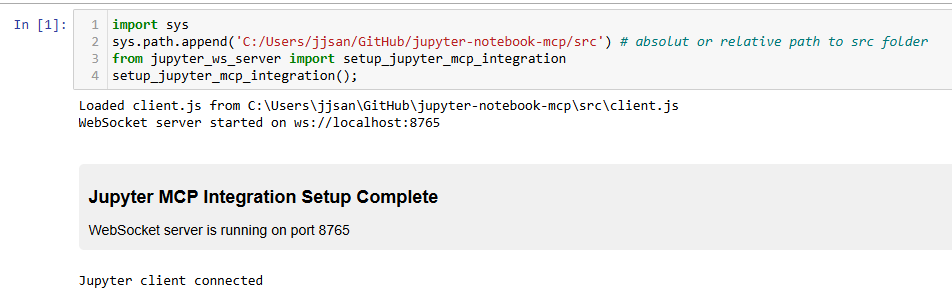
Launch Claude desktop with MCP enabled.
Once connected, Claude will have access to the following tools:
ping - Check server connectivityinsert_and_execute_cell - Insert a cell at the specified position and execute itsave_notebook - Save the current Jupyter notebookget_cells_info - Get information about all cells in the notebookget_notebook_info - Get information about the current notebookrun_cell - Run a specific cell by its indexrun_all_cells - Run all cells in the notebookget_cell_text_output - Get the output content of a specific cellget_image_output - Get the images output of a specific celledit_cell_content - Edit the content of an existing cellset_slideshow_type- Set the slide show type for cellThis is an experimental project and should be used with caution. This tool runs arbitrary Python code in your computer, which could potentially modify or delete data if not used carefully. Always back up your important projects and data.
Ask Claude to perform notebook operations:
You can check the example notebook and the video demo
You have access to a Jupyter Notebook server.

I need to create a presentation about Python's Seaborn library.
The content is as follows:

- What is Seaborn?
- Long vs. Wide data format
- Advantages of Seaborn over Matplotlib
- Commonly used Seaborn functions
- Live demonstration (comparison of Seaborn vs. Matplotlib)
  - Bar plot
  - Line plot
  - Scatter plot

For each concept, I want the main explanations provided in markdown cells, followed by one or more Python code cells demonstrating its usage. Keep the text concise—the cells shouldn't exceed 10 lines each.

Use appropriate slideshow types for each cell to make the presentation visually appealing.
Check Here the full conversation
For this example, you need the Stata Software (v17 or later), which is not open source. If you already have Stata, you need to install the stata-setup package:
uv pip install stata-setup
Then, at the begining of your notebook, you need to additionally include:
import stata_setup
stata_setup.config('your_stata_installation_directory', 'your_stata_edition')
You can check the example notebook and the video demo
This exercise comes from Professor John Robert Warren webpage
You have access to a Jupyter Notebook server. By default it runs Python, but you can run Stata (v18) code in this server using the %%stata magic, for example:

%%stata
display "hello world"

Run the available tools to solve the exercise, execute the code, and interpret the results.

**EXERCISE:**

In this exercise, you will use data from the American Community Survey (ACS). The ACS is a product of the U.S. Census Bureau and involves interviewing millions of Americans each year. For an introduction to the ACS, visit the ACS website (here).

For this exercise, I have created a data file containing two variables collected from respondents of the 2010 ACS who lived in one of two metropolitan areas: Minneapolis/St Paul and Duluth/Superior. The two variables are: (1) People's poverty status and (2) the time it takes people to commute to work.

Use STATA syntax files you already have (from the first assignment or class examples) and modify them to accomplish the following goals.

1. Read the data file (`"./stata_assignment_2.dat"`) for this assignment into STATA.
2. Be sure to declare "zero" as a missing value for `TRANTIME`, the commuting time variable.
3. Create a new dichotomous poverty variable that equals "1" if a person's income-to-poverty-line ratio (`POVRATIO`) is less than 100, and "0" otherwise; see the bottom of the assignment for an example of how to do this in STATA.
4. Separately for Minneapolis/St Paul and Duluth/Superior, produce:
   - a histogram of the commuting time (`TRANTIME`) variable.
   - measures of central tendency and spread for commuting time.
   - a frequency distribution for the poverty status (0 vs 1) variable.
5. Separately for Minneapolis/St Paul and Duluth/Superior, use STATA code to produce:
   - a 95% confidence interval for the mean commuting time.
   - a 95% confidence interval for the proportion of people who are poor. See below for an example of how to do this in STATA.

Use the results from step #4 above to:

6. Separately for Minneapolis/St Paul and Duluth/Superior, manually calculate:
   - a 95% confidence interval for the mean commuting time.
   - a 95% confidence interval for the proportion of people who are poor.
7. Confirm that your answers from steps #5 and #6 match.

Based on the results above, answer this question:

8. How do you interpret the confidence intervals calculated in steps #5 and #6 above?

9. Finally, create a do file (.do) with the all the Stata code and the answers as comments.

---

**DESCRIPTION OF VARIABLES IN "STATA ASSIGNMENT 2.DAT"**

**METAREAD** (Column 4-7)
Metropolitan Area
- `2240`: Duluth-Superior, MN/WI
- `5120`: Minneapolis-St. Paul, MN

**POVRATIO** (Column 18-20)
Ratio of person's income to the poverty threshold:
- `<100`: Below Poverty Line
- `100`: At Poverty Line
- `>100`: Above Poverty Line

**TRANTIME** (Column 21-23)
Travel time to work
- `0`: Zero minutes
- `1`: 1 Minute
- etc.
Check Here the full conversation
You can test the functionality without using Claude Desktop with the included external client:
uv run python src/jupyter_ws_external_client.py
This will provide an interactive menu to test some available functions.
For automated testing of all commands:
uv run python src/jupyter_ws_external_client.py --batch
This project is inspired by similar MCP integrations for Jupyter as:
Claim this server with your GitHub account to request manual ownership verification.
Link to the catalog listing for JupyterMCP - Jupyter Notebook Model Context Protocol Integration from your README. This badge does not certify ownership, compatibility or security.
[](https://awesome-mcp.com/servers/jupyter-notebook-mcp)Public repository statistics could not be verified. Check the configured source address; unavailable counts are not zero.
来源、范围和时段分别列出;不相加,不代表安装人数、活跃用户或安全审核。
尚无已审核的包 / 镜像标识,暂不展示下载统计。
Alternative and complementary servers in the same category
A directory listing describing a cancellation-letter and mailing-address service. The configured public GitHub repository returned 404 during source verification.

A hosted MCP service for browsing and searching through Singapore mobile-network proxies.

A directory listing describing a Markdown-to-PDF service. The configured public GitHub repository returned 404 during source verification.