
Store and retrieve entities, relations and observations in a persistent local knowledge graph.
create_entitiescreate_relationsadd_observations+6 more
92K
AI & Multi-Agent
An MCP server that lets an avatar virtually travel on Google Maps, reporting journey progress with generated travel images and optional Bluesky SNS interaction.
MCP server for a virtual map-traveling avatar is cataloged as an MCP server attributed to mfukushim. An MCP server that lets an avatar virtually travel on Google Maps, reporting journey progress with generated travel images and optional Bluesky SNS interaction. It is categorized under ai agents-models. See the capability inspector for recorded interfaces and their independent review status; consult upstream documentation for the current interface.
Installation configuration is not reviewed. No executable setup is offered for this entry; inspect the source repository before proceeding.
Catalog license label: Not specified. Check the source repository's current license and terms before using, modifying or distributing this software.
能力定义尚未审核。未核验的采集内容不会作为可信接口展示。
暂无可展示的已审核记录。这不表示上游不支持此能力。
暂无可展示的已审核记录。这不表示上游不支持此能力。
暂无可展示的已审核记录。这不表示上游不支持此能力。
Email delivery is not connected. This page does not collect email addresses or create subscriptions.
Browse the registry for current listings instead.
Reviews for MCP server for a virtual map-traveling avatar are not available yet
Review publishing and storage are not connected. This page does not collect or publish ratings or comments, including after sign-in.
Yes, a practice mode exists that can be run without an API key for verification.
Travel logs can be saved to a SQLite or Turso libsql database so the journey can continue even after the client is closed.
README.md · 45d79e4f9280 · 采集于 2026-11-13 08:47:54 UTC
保留上游原文,不做 AI 改写。为安全起见过滤脚本、表单和不安全链接。
当前显示最后一次成功采集的文档快照,请以来源页面为准。
We are currently developing a next-generation traveling bot system. It will take some time to complete, but in the meantime, please enjoy using this MCP server, which operates in MCP v1 mode.
English / Japanese
This is an MCP server that creates an environment for an avatar to virtually travel on Google Maps.
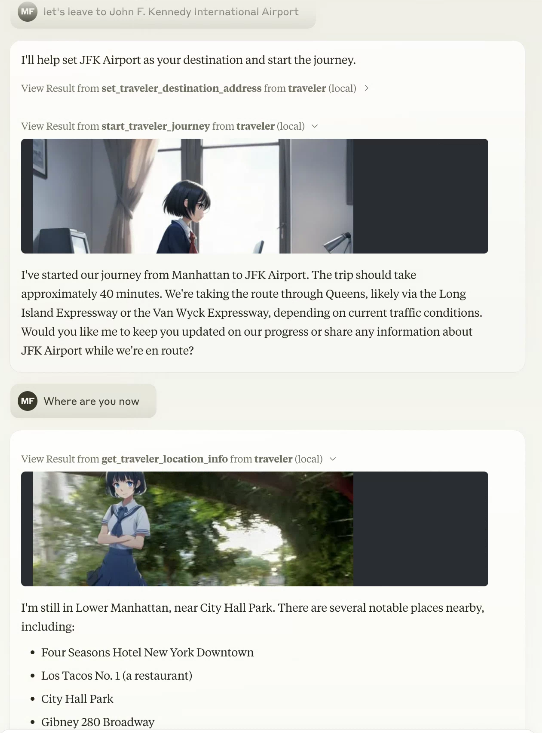
From an MCP client such as Claude Desktop, you can give instructions to the avatar and report on the progress of its journey with photos.
Preparing for MCP Registry Support https://blog.modelcontextprotocol.io/posts/2025-09-08-mcp-registry-preview/
Added gemini-2.5-flash-image-preview (nano-banana) to travel image generation
Support for nano-banana has been added. Nano-banana's semantic mask allows you to generate composite travel images in a short time without setting remBg.
Although conventional image synthesis is still possible, we recommend using Gemini nano-banana.
Supports both Streamable-HTTP and stdio (compliant with Smithery.ai's config interface)
It can be used as a stdio-type MCP as before, or as Streamable-HTTP.
Although it supports multiple users, the database API must be specified per session using the Smithery.ai config interface.
Since it supports both Streamable-HTTP and stdio, it is expected to work as is with the previous MCP client, but if you use the previous stdio version, please use v0.0.x (v0.0.81).
npx -y @mfukushim/map-traveler-mcp@0.0.81
Now supports librechat https://www.librechat.ai/.
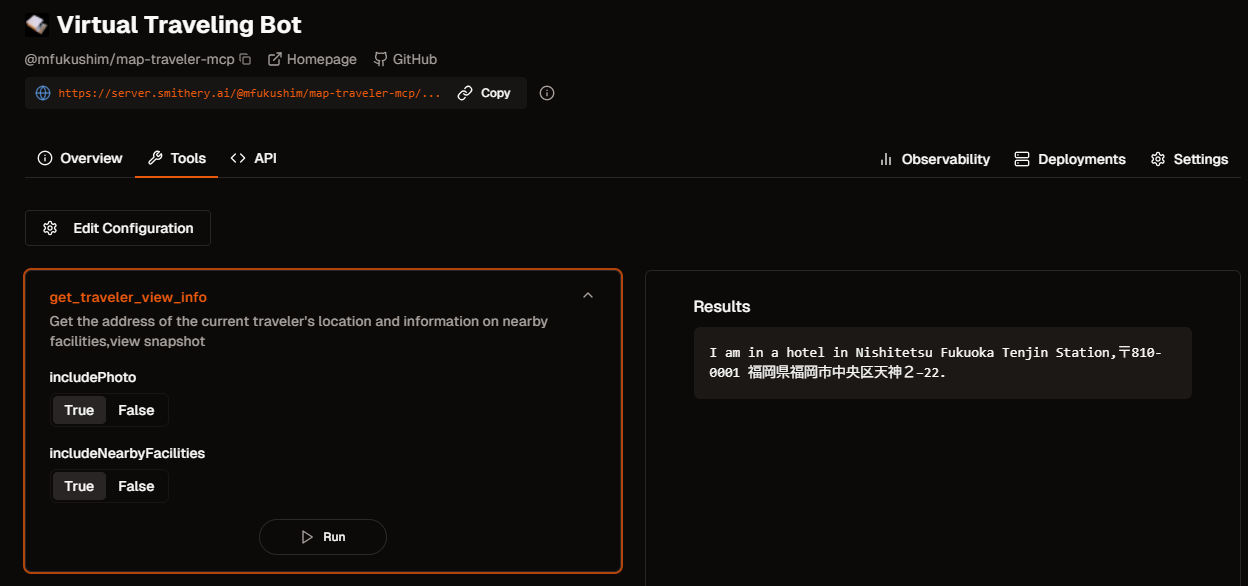
Now supports Smithery https://smithery.ai/server/@mfukushim/map-traveler-mcp (images are excluded because they are heavy to run).
Now verified MseeP https://mseep.ai/app/mfukushim-map-traveler-mcp
The following functions can be used as an MCP server. The available functions vary depending on the settings and execution state.
You can specify the function name directly, but Claude LLM will automatically recognize it, so you can specify the operation in general terms.
Example: "Where are you now?" "Let's leave for Tokyo Station."
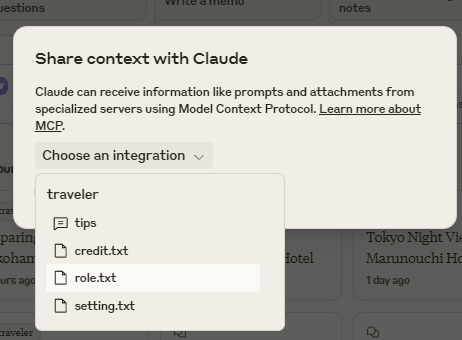
Has five custom prompt samples. When you import a prompt with Claude Desktop, Claude will act as a traveler. The SNS-compatible version controls SNS input and output while having a travel conversation.
role.txt
Claude will act as a traveler.
roleWithSns.txt
Claude will act as a traveler. It also controls reading and posting to SNS.
carBattle.txt
This is a small novel game about a story of transporting secret documents from Yokohama to Tokyo. Scenes are automatically generated. Set moveMode=skip to play.
japanMapChallenge.txt,japanMapChallenge2.txt
Two AIs communicate with each other via SNS and play a challenge game using landscape images.
To play, you need two Bluesky accounts and two Claude Desktops. Also set moveMode=skip. (However, the operation is somewhat unstable.)
japanMapChallenge2 has a challenge reflection rule.
You will need to obtain and set access keys for multiple APIs, such as for accessing multiple Google maps and generating images. Use of the API may incur charges.
{
  "mcpServers": {
    "traveler": {
      "command": "npx",
      "args": ["-y", "@mfukushim/map-traveler-mcp"],
      "env":{
        "MT_GOOGLE_MAP_KEY":"(Google Map API key)",
        "MT_GEMINI_IMAGE_KEY": "(Gemini Image Api key)",
        "MT_MAX_RETRY_GEMINI": "(Number of retries when generating Gemini images Default: 0)",
        "MT_AVATAR_IMAGE_URI": "(Character reference image uri (file:// or https://) when generating Gemini image. Multiple settings can be made by separating them with the '|'. When multiple settings are made, they will be selected randomly.)",
        "MT_MAP_API_URL": "(Optional: Map API custom endpoint. Example: direction=https://xxxx,places=https://yyyy )",
        "MT_TIME_SCALE": "(Optional:Scale of travel time on real roads duration. default 4)",
        "MT_SQLITE_PATH":"(db save path: e.g. %USERPROFILE%/Desktop/traveler.sqlite ,$HOME/traveler.sqlite )",
        "MT_TURSO_URL":"(Turso sqlite API URL)",
        "MT_TURSO_TOKEN":"(Turso sqlite API access token)",
        "MT_REMBG_PATH": "(absolute path of the installed rembg cli)",
        "MT_REMBG_URL": "(rembg API URL)",
        "MT_REMBG_WO_KEY": "(withoutbg.com rembg API key)",
        "MT_PIXAI_KEY":"(pixAi API key)",
        "MT_SD_KEY":"(or Stability.ai image generation API key",
        "MT_PIXAI_MODEL_ID": "(Optional: pixAi ModelId, if not set use default model 1648918127446573124 ",
        "MT_COMFY_URL": "(Option: Generate image using ComfyUI API at specified URL. Example: http://192.168.1.100:8188)",
        "MT_COMFY_WORKFLOW_T2I": "(Optional: Path to API workflow file when using text to image with ComfyUI. If not specified: assets/comfy/t2i_sample.json)",
        "MT_COMFY_WORKFLOW_I2I": "(Optional: Path of API workflow file when image to image in ComfyUI. If not specified: assets/comfy/i2i_sample.json)",
        "MT_COMFY_PARAMS": "(Optional: Variable values to send to the workflow via comfyUI API)",
        "MT_FIXED_MODEL_PROMPT": "(Optional: Fixed avatar generation prompt. You will no longer be able to change your avatar during conversations.)",
        "MT_BODY_AREA_RATIO": "(Optional: Acceptable avatar image area ratio. default 0.042)",
        "MT_BODY_HW_RATIO": "(Optional: Acceptable avatar image aspect ratios. default 1.5~2.3)",
        "MT_BODY_WINDOW_RATIO_W": "(Optional: Avatar composite window horizontal ratio. default 0.5)",
        "MT_BODY_WINDOW_RATIO_H": "(Optional: Avatar composite window aspect ratio. default 0.75)",
        "MT_BS_ID":"(Bluesky sns registration address)",
        "MT_BS_PASS":"(bluesky sns password)",
        "MT_BS_HANDLE":"(bluesky sns handle name: e.g. xxxxxxxx.bsky.social )",
        "MT_FILTER_TOOLS": "(Optional: Directly filter the tools to be used. All are available if not specified. e.g. tips,set_traveler_location)",
        "MT_MOVE_MODE": "(Option: Specify whether the movement mode is realtime or skip. default realtime)",
        "MT_IMAGE_WIDTH": "(Option: Output image width (pixels) Default is 512)",
        "MT_NO_IMAGE": "(Options: true = do not output image, not specified = output image if possible, default is not specified)",
        "MT_NO_AVATAR": "(Option: true = Output StreetView image as is without avatar superimposition. Not specified = Superimpose avatar image. Default is not specified.)",
        "MT_FEED_TAG": "(Optional: Specify the feed tag when posting to SNS (#required, 15 characters or more) Default is #geo_less_traveler)",
        "MT_MAX_SESSIONS": "(Maximum number of sessions when using Streamable-http)",
        "MT_SESSION_TTL_MS": "(Session TTL when using Streamable-http)",
        "MT_SERVICE_TTL_MS": "(Service TTL when using Streamable-http)"
      }
    }
  }
}
{
  "mcpServers": {
    "traveler": {
      "type": "streamable-http",
      "url": "https://(mcp server address)/mcp?config=(base64 config json)"
    }
  }
}
base64 config json (Smithery.ai Expansion)
By concatenating the json in the following format into a single line of string, converting it to base64, and setting it as (base64 setting json), you can overwrite different APIs and settings for each user session.
If the database is not set base64 config json, it will be shared across the entire service (the location of the traveler will be shared across the database and counted for one person).
We plan to reconsider the operation of assigning an individual UserId for each session once the MCP authentication mechanism has become a little clearer.
{
  "MT_GOOGLE_MAP_KEY": "xxxyyyzzz",
  "MT_GEMINI_IMAGE_KEY": "xxyyzz",
  "MT_MAX_RETRY_GEMINI": "1",
  "MT_AVATAR_IMAGE_URI": "file:///C:/Users/xxxx/Desktop/avatar.png",
  "MT_TURSO_URL": "libsql://xxxyyyzzz",
  "MT_TURSO_TOKEN": "abcdabcd",
  "MT_BS_ID": "xyxyxyxyx",
  "MT_BS_PASS": "1234xyz",
  "MT_BS_HANDLE": "aabbccdd",
  "MT_FILTER_TOOLS": "tips,set_traveler_location",
  "MT_MOVE_MODE": "direct",
  "MT_FEED_TAG": "#abcdefgabcdefgabcdefg"
}
(All json values can be omitted)
↓ (json text concatenation)
{"MT_GOOGLE_MAP_KEY": "xxxyyyzzz", "MT_GEMINI_IMAGE_KEY": "xxyyzz", "MT_MAX_RETRY_GEMINI": "1", "MT_TURSO_URL": "libsql://xxxyyyzzz", "MT_TURSO_TOKEN": "abcdabcd", "MT_BS_ID": "xyxyxyxyx", "MT_BS_PASS": "1234xyz", "MT_BS_HANDLE": "aabbccdd", "MT_FILTER_TOOLS": "tips,set_traveler_location", "MT_MOVE_MODE": "direct", "MT_FEED_TAG": "#abcdefgabcdefgabcdefg"}
↓ (Set the base64 version to config=)
eyJNVF9HT09HTEVfTUFQX0tFWSI6ICJ4eHh5eXl6enoiLCAiTVRfR0VNSU5JX0lNQUdFX0tFWSI6ICJ4eHl5enoiLCAiTVRfTUFYX1JFVFJZX0dFTUlOSSI6ICIxIiwgIk1UX1RVUlNPX1VSTCI6ICJsaWJzcWw6Ly94eHh5eXl6enoiLCAiTVRfVFVSU09fVE9LRU4iOiAiYWJjZGFiY2QiLCAiTVRfQlNfSUQiOiAieHl4eXh5eHl4IiwgIk1UX0JTX1BBU1MiOiAiMTIzNHh5eiIsICJNVF9CU19IQU5ETEUiOiAiYWFiYmNjZGQiLCAiTVRfRklMVEVSX1RPT0xTIjogInRpcHMsc2V0X3RyYXZlbGVyX2xvY2F0aW9uIiwgIk1UX01PVkVfTU9ERSI6ICJkaXJlY3QiLCAiTVRfRkVFRF9UQUciOiAiI2FiY2RlZmdhYmNkZWZnYWJjZGVmZyJ9
NOTE: The environment variables have been renamed to standard snake case. The MT_ prefix is added because they may be used in conjunction with other environment variables, such as in librechat. The old names can still be used for backward compatibility.
Please set the following three Credentials for Google Map API.
https://developers.google.com/maps/documentation/streetview/get-api-key
If you want to use the image generation AI, set either pixAi_key or sd_key. You also need to have python3.7~3.11 installed on your PC and rembg cli installed (virtual environment recommended).
https://platform.pixai.art/docs
https://platform.stability.ai/docs/api-reference#tag/SDXL-1.0-and-SD1.6/operation/textToImage
The bluesky SNS address/password are optional. It is recommended that you create a dedicated account as it will post automatically.
You can also run it in practice mode, which does not require an API key for verification.
claude_desktop_config.json
{
  "mcpServers": {
    "traveler": {
      "command": "npx",
      "args": ["-y", "@mfukushim/map-traveler-mcp"]
    }
  }
}
Install nodejs 22.
Set up Claude Desktop for use.
Reflect one of the above settings in claude_desktop_config.json.
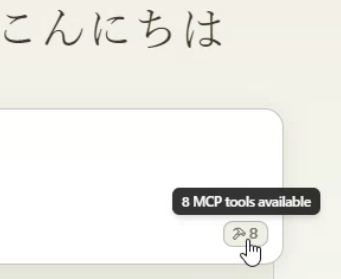
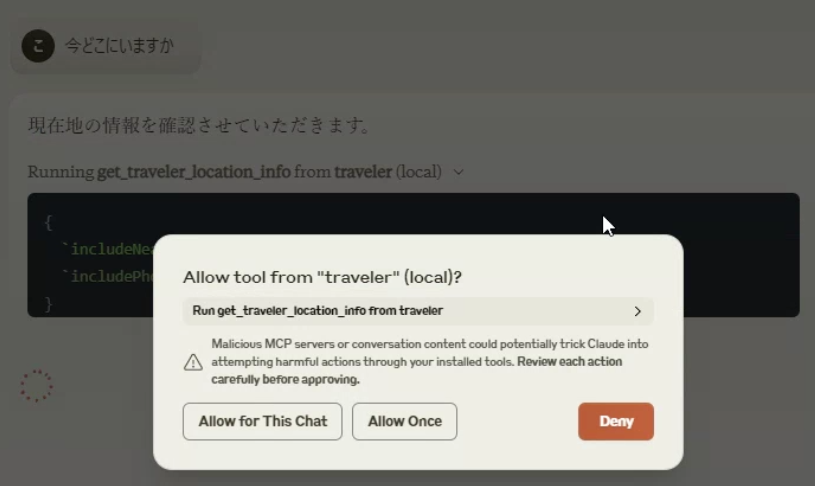
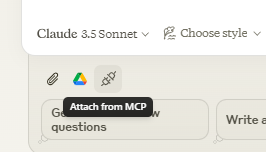
Restart Claude Desktop. It may take some time to set up (if an error occurs, try restarting Claude Desktop again. If it doesn't work, see the notes below). Make sure the following mark appears in the bottom right of the screen.
python3 -m venv venv
. venv/bin/activate or .\venv\Scripts\activate
pip install "rembg[cpu,cli]"
Check if rembg cli works properly using a sample image file. Input an image with a person in it, and if the person is cut out in the output file, it's OK.
rembg i source_image_file dest_image_file
Instead of preparing rembg with the cli, we have added a setting that allows you to handle rembg as a service API.
If you configure the following rembg service, you can use rembg by setting the URL in remBgUrl.
https://github.com/danielgatis/rembg?tab=readme-ov-file#rembg-s
Setup is simple if you use the Docker version to launch a container and access it.
https://github.com/danielgatis/rembg?tab=readme-ov-file#usage-as-a-docker
If you want to use the cloud API Turso libsql (https://turso.tech/libsql) without having a local sqlite file, sign up for Turso and allocate a sqlite database (paid, free tier available).
This add-in will automatically configure (migrate) the database.
MT_TURSO_URL = turso db URL
MT_TURSO_TOKEN = turso db access token
Local settings around rembg are complicated no matter what method you use, but we have added settings for the paid cloud rembg (https://withoutbg.com/).
Note: There is a small free trial available, but please be aware that this is a commercial API and is quite expensive (about 0.1 euros per image).
MT_REMBG_WO_KEY = withoutbg access token
You can also use a local ComfyUI as an image generation server. You can configure the image generation characteristics yourself in detail to reduce API costs.
However, the configuration will be quite complicated and image generation may take longer.
{
  "env": {
    "comfy_url": "http://192.168.1.100:8188",
    "comfy_workflow_t2i": "C:\\Documents\\t2itest.json",
    "comfy_workflow_i2i":"C:\\Documents\\i2itest.json",
    "comfy_params":"ckpt_name='animagineXL40_v40.safetensors',denoise=0.65"
  }
}
It has been adapted to work with libreChat. This makes it easier to use, but some additional settings are required.
Also, it seems that it will not be stable unless the PC you use has a decent level of performance, such as one that can stably run Docker.
Please make sure it works as described on the official website.
In this case, we recommend using Docker configuration due to additional settings.
https://www.librechat.ai/docs/local/docker
Configure librechat.yaml using the official procedure.
I think you will need to add a local or API LLM service.
https://www.librechat.ai/docs/configuration/librechat_yaml
Add a user for login.
https://www.librechat.ai/docs/configuration/authentication#create-user-script
Please set it so that you can have general chat conversations.
To use rembg with Docker, add pulling and running the rembg Docker container.
docker-compose.override.yml
 services:
   api:
     volumes:
       - type: bind
         source: ./librechat.yaml
         target: /app/librechat.yaml

   rembg:
     image: danielgatis/rembg:latest
     restart: always
     command: "s --host 0.0.0.0 --port 7000 --log_level info"
Add librechat.yaml
mcpServers:
  traveler:
    type: stdio
    command: npx
    args:
      - -y
      - "@mfukushim/map-traveler-mcp"
Add .env (Same as env in claude_desktop_config.json)
# map-traveler-mcp
GoogleMapApi_key=(Google Map API key)
sqlite_path=/home/run_test.sqlite (e.g. librechat in an unobtrusive location inside the container, or in an external directory that you don't want to mount.)
remBgUrl=http://rembg:7000 (rembg Service API URL, container URL)
(Other settings such as image generation AI settings, PixAI key, stability.ai API key, ComfyUI settings, etc.)
After setting, restart the container.
On slow PCs, mcp initialization may fail. Multiple restarts may work, but this may be difficult to run...
To use the MCP function in libreChat, use the Agents function.
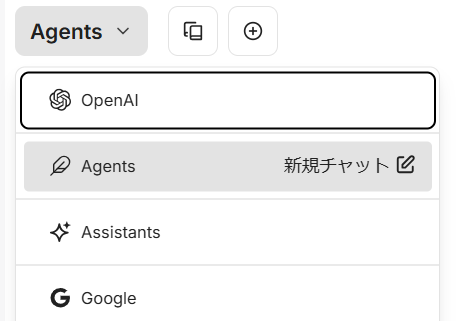
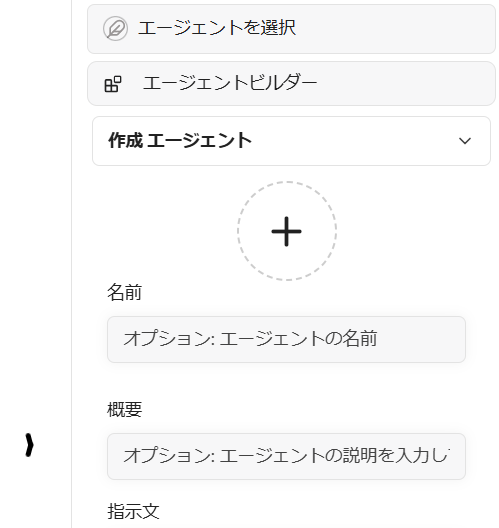
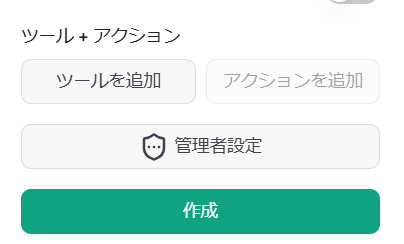
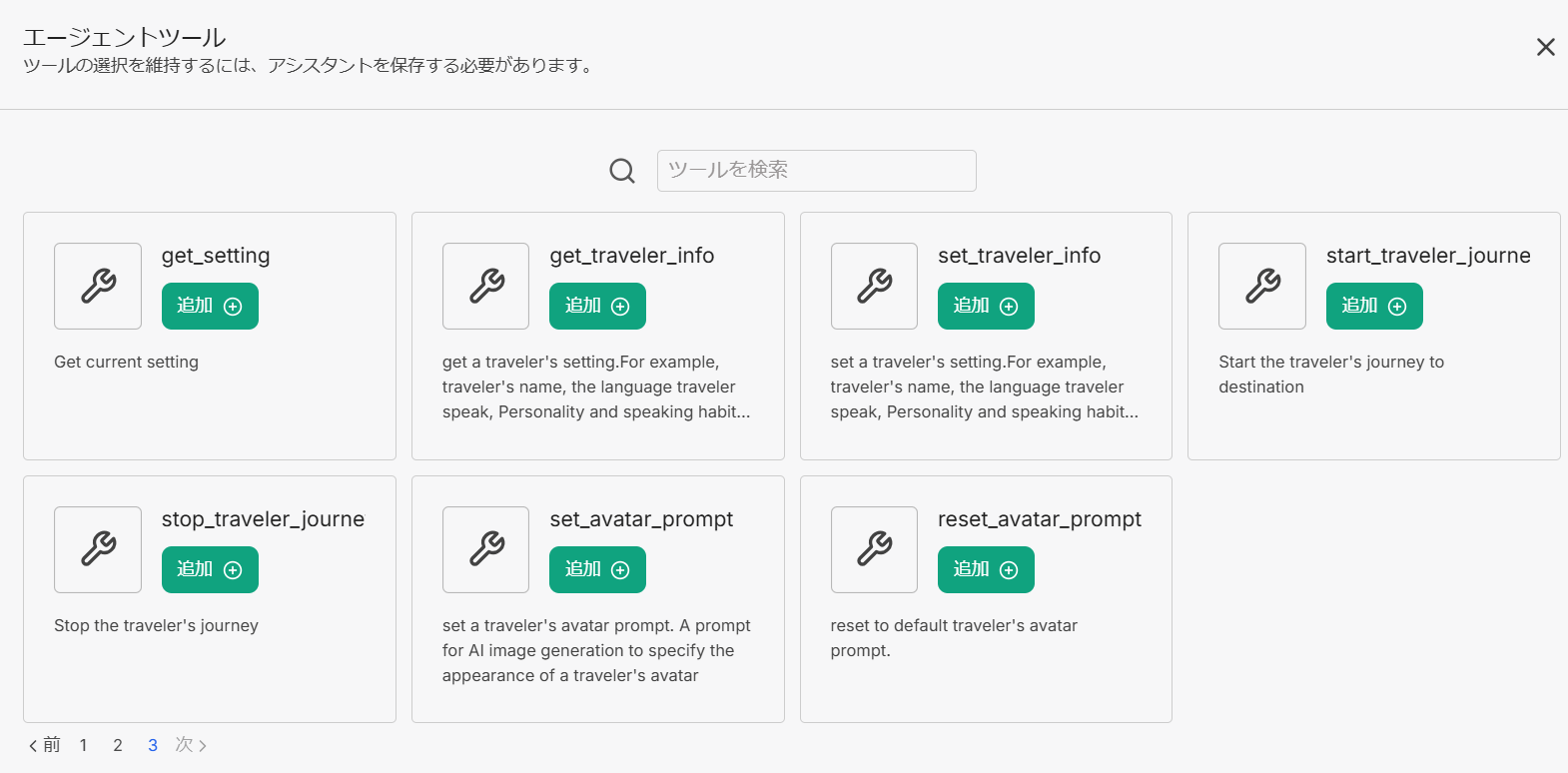
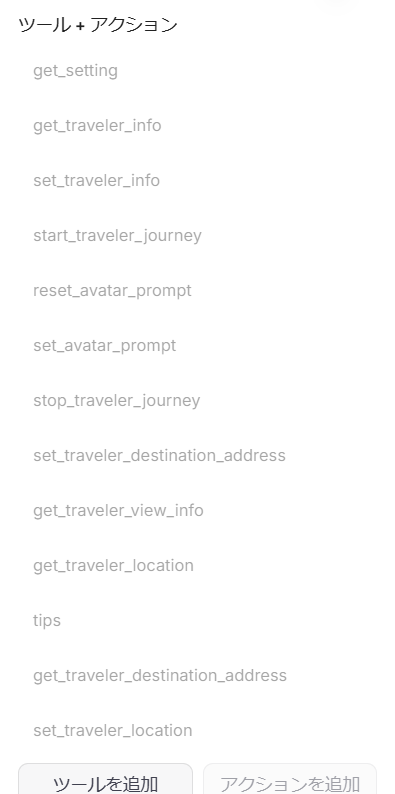
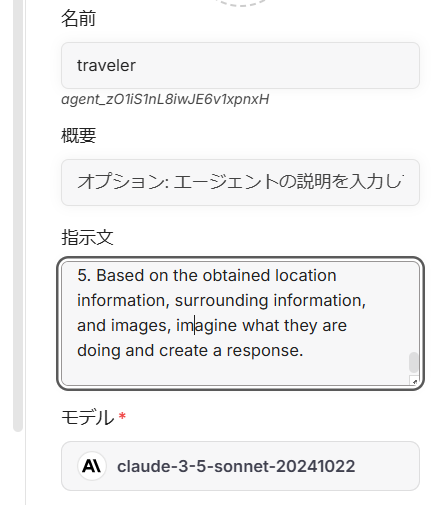
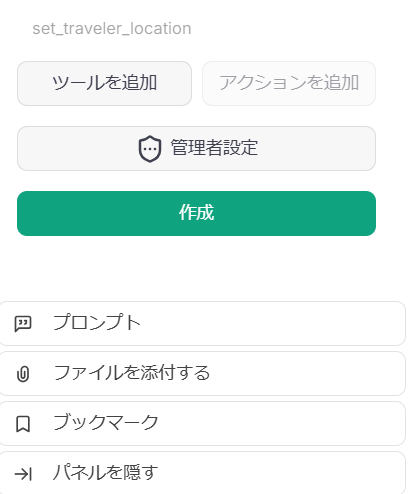
Please refer to https://smithery.ai/server/@mfukushim/map-traveler-mcp.
Remote MCP (Streamable-http mode) is supported. Image generation is only available on nano-banana.
Database settings can now be recorded with Turso sqlite, so if you configure Turso, your travel progress will also be saved.
I use Effect.ts to simplify error management & for my own learning.
We also use the Effect Service, but due to the way MCP calls work, we believe that consolidating it using the Service was not optimal.
I think it would be simpler to handle the MCP calls directly in the Effect.
Addendum: I'm aware that I will be able to reconsider how to use the Effect Service and rewrite it neatly, but I'm still considering whether to rewrite it.
{

  "env": {
    "MT_NO_IMAGE": "true"
  }

}
or
{

  "env": {
    "GoogleMapApi_key": "xxxx",
    "MT_NO_IMAGE": "true"
  }

}
You can now specify the tag name to be added when posting to SNS (Bluesky). #Required and must be at least 15 characters. If not specified, it will become "#geo_less_traveler".
The information obtained from SNS has been slightly changed. The information posted to SNS has been slightly changed.
A script has been added that allows multiple travel bots to converse and play via SNS.
Supports remote use from Smithery.
If you do not want to configure detailed settings, start the app in practice mode.
You can also run the app at full speed by configuring each cloud API, but please be aware of charges as it uses many paid APIs such as rembg API.
If you do not want to synthesize avatars, you can run the app with the minimum settings of Google Map API and Turso sqlite API.
Added the MT_NO_AVATAR option.
If set, an avatar image will not be composited onto the landscape image. Since there will be no retry processing for avatar composition, the time it takes to obtain a response will be significantly shorter.
Set this option if image composition is slow or fails unavoidably.
Partially applied MCP version 2025-06-18.
I added title to the schema. I plan to apply outputSchema and structured response in the future, but I haven't implemented them this time. Since the output of Travel Bot is simple text, I don't think structuring is necessary yet.
https://modelcontextprotocol.io/specification/2025-06-18/server/tools
Fixed an issue where some functions, such as SNS functions, could not be called regardless of the env settings due to an initialization error.
Added support for Streamable-http. This was done in a hurry, so if you experience any issues, please consider using version 0.0.81 or similar.
Support for nano-banana (gemini-2.5-flash-image-preview) image generation has been added. When using nano-banana, no rembg settings are required. The characteristics of the avatar prompt have changed, so image generation may fail with the previous avatar prompt. In this case, you will need to adjust the avatar appearance prompt to one that is acceptable for nano-banana.
When generating images for nano-banana, you can now reference the original character image with MT_AVATAR_IMAGE_URI. Please use it in a way that does not infringe on copyrights.
Claim this server with your GitHub account to request manual ownership verification.
Link to the catalog listing for MCP server for a virtual map-traveling avatar from your README. This badge does not certify ownership, compatibility or security.
[](https://awesome-mcp.com/servers/map-traveler)Public repository statistics could not be verified. Check the configured source address; unavailable counts are not zero.
来源、范围和时段分别列出;不相加,不代表安装人数、活跃用户或安全审核。
尚无已审核的包 / 镜像标识,暂不展示下载统计。
Alternative and complementary servers in the same category
Store and retrieve entities, relations and observations in a persistent local knowledge graph.
Organize problem solving into revisable, branching thought steps through an MCP tool.

Query-aware context compression with an MCP plugin for coding agents, plus Python and HTTP interfaces for reducing the context sent to a language model.