
A directory listing describing a cancellation-letter and mailing-address service. The configured public GitHub repository returned 404 during source verification.
Repository stats unavailable
Developer Tools
An MCP server that lets AI assistants discover SSH hosts from local config files and run remote commands, check connectivity, and transfer files using native ssh and scp tools.
MCP SSH Agent server for managing and controlling SSH connections is cataloged as an MCP server attributed to aiondadotcom. An MCP server that lets AI assistants discover SSH hosts from local config files and run remote commands, check connectivity, and transfer files using native ssh and scp tools. It is categorized under developer tools. See the capability inspector for recorded interfaces and their independent review status; consult upstream documentation for the current interface.
Installation configuration is not reviewed. No executable setup is offered for this entry; inspect the source repository before proceeding.
Catalog license label: MIT License. Check the source repository's current license and terms before using, modifying or distributing this software.
能力定义尚未审核。未核验的采集内容不会作为可信接口展示。
暂无可展示的已审核记录。这不表示上游不支持此能力。
暂无可展示的已审核记录。这不表示上游不支持此能力。
暂无可展示的已审核记录。这不表示上游不支持此能力。
Email delivery is not connected. This page does not collect email addresses or create subscriptions.
Browse the registry for current listings instead.
Reviews for MCP SSH Agent server for managing and controlling SSH connections are not available yet
Review publishing and storage are not connected. This page does not collect or publish ratings or comments, including after sign-in.
The documentation advises against password-protected keys for automated use, but @password annotations can supply key passphrases locally.
The @password annotation is read locally by the server; only a passwordAuth flag is shown when listing hosts, and the config file must have 600 permissions.
Blocks without a Hostname are skipped during host discovery because there is nothing to connect to.
README.md · 9c082ac88f2b · 采集于 2026-11-13 09:06:35 UTC
保留上游原文,不做 AI 改写。为安全起见过滤脚本、表单和不安全链接。
当前显示最后一次成功采集的文档快照,请以来源页面为准。

A Model Context Protocol (MCP) server for managing and controlling SSH connections. This server integrates seamlessly with Claude Desktop and other MCP-compatible clients to provide AI-powered SSH operations.
This MCP server provides SSH operations through a clean, standardized interface that can be used by MCP-compatible language models like Claude Desktop. The server automatically discovers SSH hosts from your ~/.ssh/config and ~/.ssh/known_hosts files and executes commands using native SSH tools for maximum reliability.
The easiest way to install MCP SSH Agent is as an MCP Bundle:
mcp-ssh-*.mcpb file from the GitHub releases page.mcpb file to install it in Claude DesktopThe bundle format was previously called a Desktop Extension and used the
.dxtextension. v1.3.9 shipped both files during the transition; later releases carry.mcpbonly. If your Claude Desktop is old enough to reject a.mcpbfile, update it or use one of the installation methods below.
npx @aiondadotcom/mcp-ssh
To use this MCP server with Claude Desktop using manual configuration, add the following to your MCP settings file:
On macOS: ~/Library/Application Support/Claude/claude_desktop_config.json
On Windows: %APPDATA%/Claude/claude_desktop_config.json
{
  "mcpServers": {
    "mcp-ssh": {
      "command": "npx",
      "args": ["@aiondadotcom/mcp-ssh"]
    }
  }
}
After adding this configuration, restart Claude Desktop. The SSH tools will be available for use in your conversations with Claude.
npm install -g @aiondadotcom/mcp-ssh
git clone https://github.com/aiondadotcom/mcp-ssh.git
cd mcp-ssh
npm install   # also compiles src/ -> dist/
npm start
The server is TypeScript under src/; npm install builds it. After editing sources run
npm run build (or npm test, which reads src/ directly).
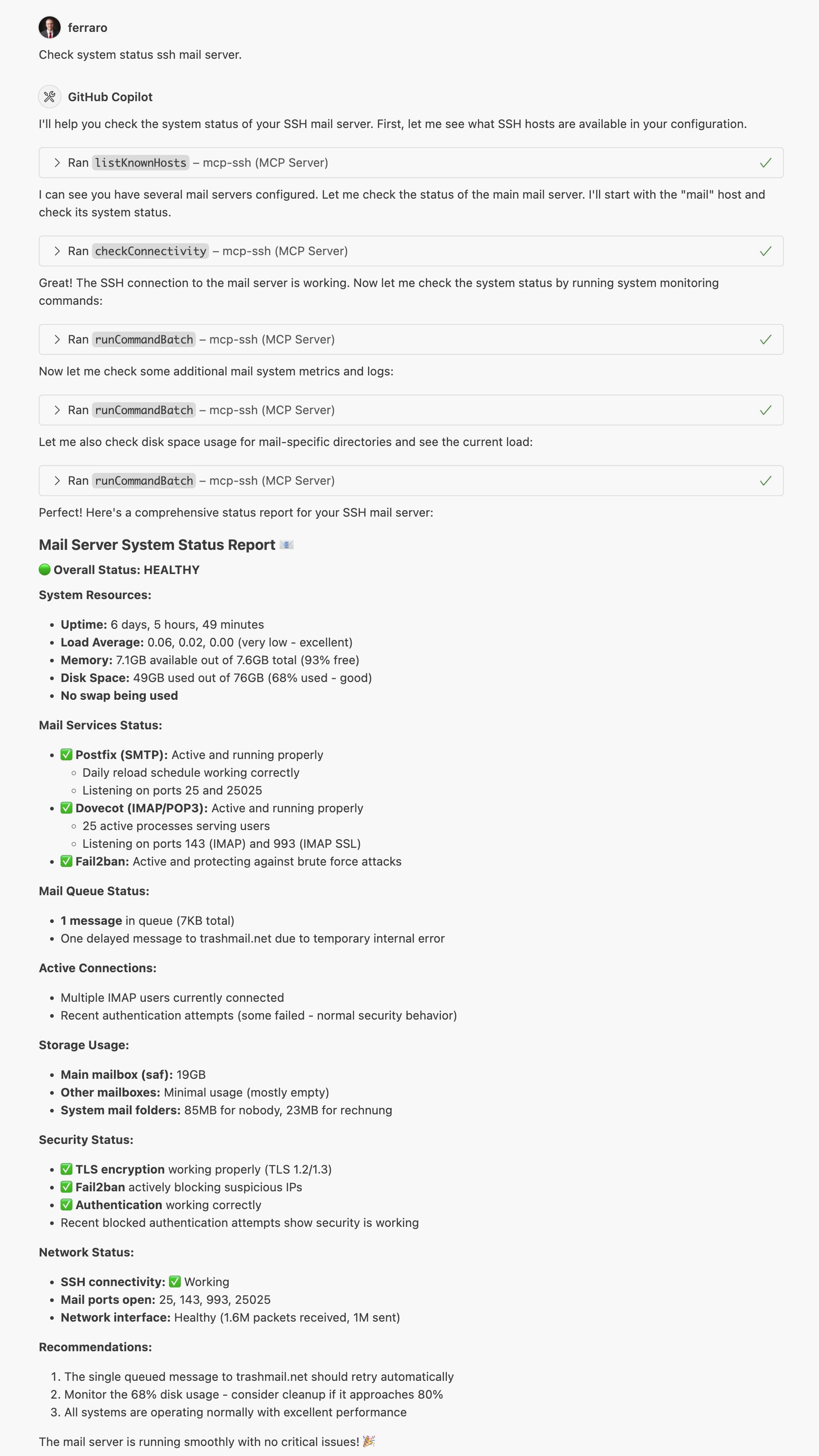
The screenshot above shows the MCP SSH Agent in action, demonstrating how it integrates with MCP-compatible clients to provide seamless SSH operations.
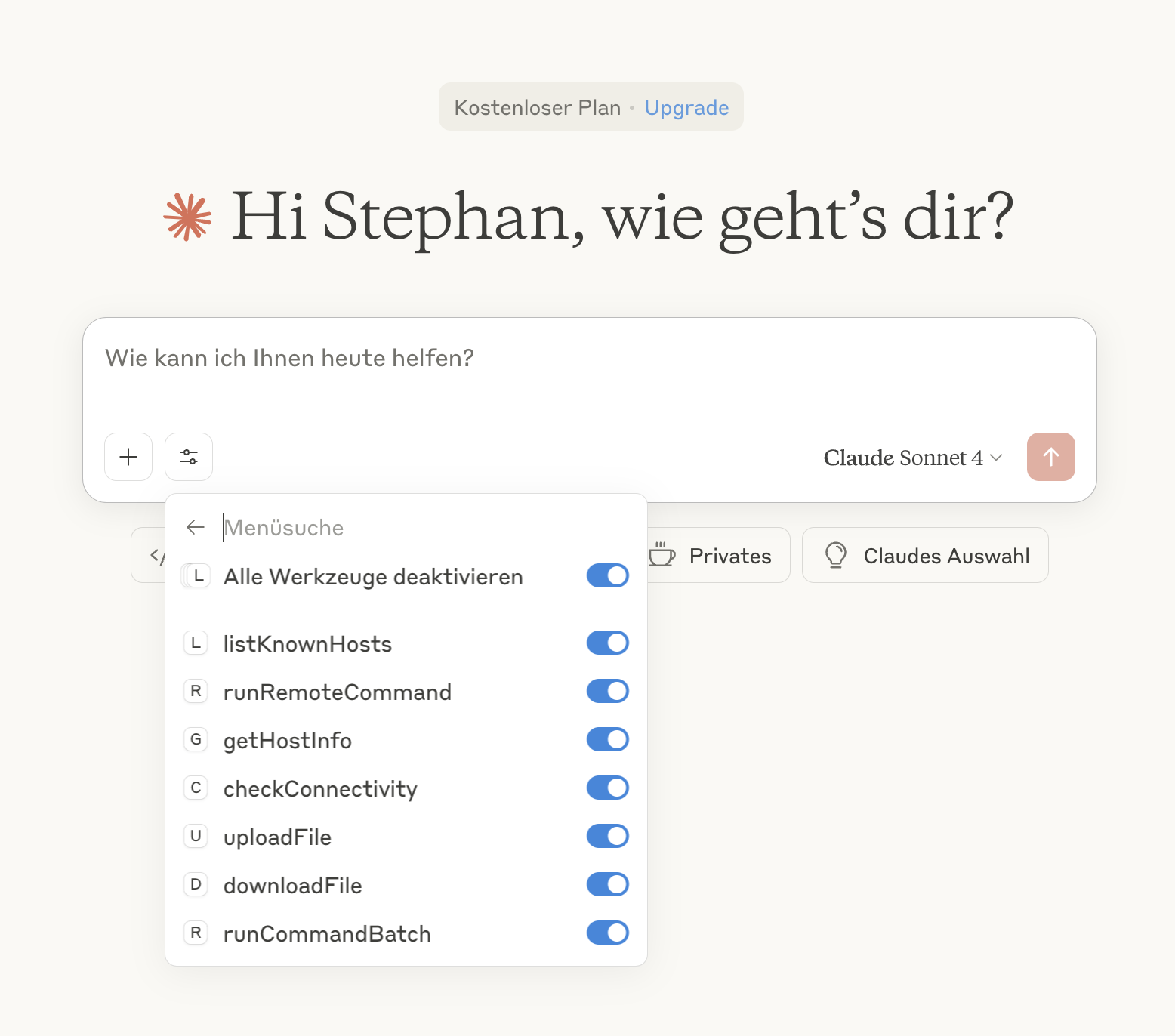
This screenshot demonstrates the MCP SSH Agent integrated with Claude, showing how the AI assistant can directly manage SSH connections and execute remote commands through the MCP protocol.
ssh/scp commands instead of JavaScript SSH libraries@password annotation — passwords never leave your machinescpThe agent provides the following MCP tools:
sshscpscpHere's how your Claude Desktop configuration should look:
{
  "mcpServers": {
    "mcp-ssh": {
      "command": "npx",
      "args": ["@aiondadotcom/mcp-ssh"]
    }
  }
}
If you prefer to run the server manually or integrate it with other MCP clients:
{
  "servers": {
    "mcp-ssh": {
      "command": "npx",
      "args": ["@aiondadotcom/mcp-ssh"]
    }
  }
}
ssh and scp commands available)~/.ssh/config and ~/.ssh/known_hosts)Once configured, you can ask Claude to help you with SSH operations like:
Claude will use the MCP SSH tools to perform these operations safely and efficiently.
The agent runs as a Model Context Protocol server over STDIO. When installed via npm, you can use it directly:
# Run via npx (recommended)
npx @aiondadotcom/mcp-ssh

# Or if installed globally
mcp-ssh

# For development - run with debug output
npm start
The server communicates via clean JSON over STDIO, making it perfect for MCP clients like Claude Desktop.
MCP_SILENT=true - Disable debug output (automatically set when used as MCP server)The agent reads from standard SSH configuration files:
~/.ssh/config - SSH client configuration (supports Include directives)~/.ssh/known_hosts - Known host keysMake sure your SSH keys are properly configured and accessible via SSH agent or key files.
For hosts that require password-based authentication (common with network infrastructure like switches and routers), you can store the password directly in your ~/.ssh/config using a special comment annotation:
Host myrouter
    HostName 192.168.1.1
    User admin
    # @password:yourSecretPassword

Host myserver
    HostName 10.0.0.5
    User deploy
    IdentityFile ~/.ssh/id_rsa
    # @password:myKeyPassphrase
How it works:
# @password: annotation is read locally by the MCP server — the password never reaches the AI model or any cloud provider:, so passwords containing : are supportedpasswordAuth: true is shown — the actual password is never exposedSecurity requirements:
600 permissions when using @password annotationschmod 600 ~/.ssh/configThe MCP SSH Agent fully supports SSH Include directives to organize your configuration across multiple files. However, there's an important SSH bug to be aware of:
⚠️ SSH Include Directive Bug Warning
SSH has a configuration parsing bug where Include statements must be placed at the beginning of your ~/.ssh/config file to work correctly. If placed at the end, SSH will read them but won't properly apply the included configurations.
✅ Correct placement (at the beginning):
# ~/.ssh/config
Include ~/.ssh/config.d/*
Include ~/.ssh/work-hosts

# Global settings
ServerAliveInterval 55

# Host definitions
Host myserver
    HostName example.com
❌ Incorrect placement (at the end) - won't work:
# ~/.ssh/config
# Global settings
ServerAliveInterval 55

# Host definitions
Host myserver
    HostName example.com

# These Include statements won't work properly due to SSH bug:
Include ~/.ssh/config.d/*
Include ~/.ssh/work-hosts
The MCP SSH Agent correctly processes Include directives regardless of their placement in the file, so you'll get full host discovery even if SSH itself has issues with your configuration.
Here's an example SSH configuration file that demonstrates various connection scenarios including Include directives and @password annotations for password-based authentication:
# Include directives must be at the beginning due to SSH bug
Include ~/.ssh/config.d/*
Include ~/.ssh/work-servers

# Global settings - keep connections alive
ServerAliveInterval 55

# Production server with jump host
Host prod
    Hostname 203.0.113.10
    Port 22022
    User deploy
    IdentityFile ~/.ssh/id_prod_rsa

# Root access to production (separate entry)
Host root@prod
    Hostname 203.0.113.10
    Port 22022
    User root
    IdentityFile ~/.ssh/id_prod_rsa

# Router with password authentication (no SSH key)
Host router
    Hostname 192.168.1.1
    User admin
    # @password:cQbG0q@019TAoehZel7V

# Archive server accessed through production jump host
Host archive
    Hostname 2001:db8:1f0:cafe::1
    Port 22077
    User archive-user
    ProxyJump prod

# Web servers with specific configurations
Host web1.example.com
    Hostname 198.51.100.15
    Port 22022
    User root
    IdentityFile ~/.ssh/id_ed25519

Host web2.example.com
    Hostname 198.51.100.25
    Port 22022
    User root
    IdentityFile ~/.ssh/id_ed25519

# Database server with custom key and passphrase-protected key
Host database
    Hostname 203.0.113.50
    Port 22077
    User dbadmin
    IdentityFile ~/.ssh/id_database_rsa
    IdentitiesOnly yes
    # @password:U1Jqn=NoKdELYn&h1jVT

# Mail servers (password auth, no SSH key)
Host mail1
    Hostname 198.51.100.88
    Port 22078
    User mailuser
    # @password:7iBiV8lyoq*zANv46ALD

Host root@mail1
    Hostname 198.51.100.88
    Port 22078
    User root
    # @password:MRDHI2h!zhhN=ZJIxWzH

# Monitoring server
Host monitor
    Hostname 203.0.113.100
    Port 22077
    User monitoring
    IdentityFile ~/.ssh/id_monitor_ed25519
    IdentitiesOnly yes

# Load balancers
Host lb-a
    Hostname 198.51.100.200
    Port 22077
    User root

Host lb-b
    Hostname 198.51.100.201
    Port 22077
    User root

# One host reachable under several aliases - both names work
Host docker-lxc hlab
    Hostname 10.9.0.105
    User root
This configuration demonstrates:
ServerAliveInterval to keep connections aliveprod and root@prod)docker-lxc hlab) — reachable under eachProxyJump to access servers through bastion hostsIdentitiesOnly yes to use only specified keys# @password: annotations for devices without SSH key support (e.g., routers, switches) or for passphrase-protected keyslistKnownHosts() reports every connectable host it finds in ~/.ssh/config (including
everything pulled in through Include), followed by any additional hostnames from
~/.ssh/known_hosts. Three rules decide what counts as connectable:
Multi-alias blocks work under every alias. Host takes a list of patterns, not a single
name, so a block can declare several aliases at once:
Host docker-lxc hlab
    Hostname 10.9.0.105
    User root
Both docker-lxc and hlab reach this host. The response carries the full list in an
aliases field, while alias holds the first one.
Defaults blocks are skipped. A block whose patterns are only wildcards and negations sets defaults for other hosts — it is not something you can connect to, so it is left out of the host list:
Host *
    ServerAliveInterval 55

Host * !bastion          # "everything except bastion" — a defaults block, not a host
    User deploy
    IdentityFile ~/.ssh/id_deploy
(OpenSSH lets you negate a pattern with !. A negated match vetoes the whole line, which
is why negation only makes sense as an exception to a wildcard.)
Hosts without a Hostname are skipped, since there is nothing to connect to.
Plain top-level directives such as a bare ServerAliveInterval 55 are configuration for
ssh itself and are ignored by host discovery — ssh still applies them, because every
operation runs through your system's ssh binary.
The MCP SSH agent automatically discovers and uses your SSH configuration:
~/.ssh/config is available — see the rules abovessh command, so all config options workExample Usage with Claude Desktop:
prod, archive, web1.example.com, etc.ssh and scp are installed and in your PATH~/.ssh/config or ~/.ssh/known_hosts, and that its block has a Hostname — blocks without one, and pure defaults blocks such as Host *, are not connectable hosts. See Which Hosts Are Discovered%ProgramData%, which Win32-OpenSSH needs at startup. Upgrade, or add "ProgramData": "C:\\ProgramData" to the env block of your client configurationRun with debug output to see detailed operation logs:
# Enable debug mode
MCP_SILENT=false npx @aiondadotcom/mcp-ssh
For the MCP SSH Agent to work properly, you need to set up SSH key authentication. Here's a complete guide:
Generate a new SSH key pair (use Ed25519 for better security):
# Generate Ed25519 key (recommended)
ssh-keygen -t ed25519 -C "your-email@example.com"

# Or generate RSA key (if Ed25519 is not supported)
ssh-keygen -t rsa -b 4096 -C "your-email@example.com"
Important: When prompted for a passphrase, leave it empty (press Enter). The MCP SSH Agent cannot handle password-protected keys as it runs non-interactively.
Enter passphrase (empty for no passphrase): [Press Enter]
Enter same passphrase again: [Press Enter]
This creates two files:
~/.ssh/id_ed25519 (private key) - Keep this secret!~/.ssh/id_ed25519.pub (public key) - This gets copied to serversCopy your public key to the remote server's authorized_keys file:
# Method 1: Using ssh-copy-id (easiest)
ssh-copy-id user@hostname

# Method 2: Manual copy
cat ~/.ssh/id_ed25519.pub | ssh user@hostname "mkdir -p ~/.ssh && cat >> ~/.ssh/authorized_keys"

# Method 3: Copy and paste manually
cat ~/.ssh/id_ed25519.pub
# Then SSH to the server and paste into ~/.ssh/authorized_keys
To enable secure key-only authentication on your SSH servers, edit /etc/ssh/sshd_config:
# Edit SSH daemon configuration
sudo nano /etc/ssh/sshd_config
Add or modify these settings:
# Enable public key authentication
PubkeyAuthentication yes
AuthorizedKeysFile .ssh/authorized_keys

# Disable password authentication (security best practice)
PasswordAuthentication no
ChallengeResponseAuthentication no
UsePAM no

# Root login options (choose one):
# Option 1: Allow root login with SSH keys only (recommended for admin access)
PermitRootLogin prohibit-password

# Option 2: Completely disable root login (most secure, but less flexible)
# PermitRootLogin no

# Optional: Restrict SSH to specific users
AllowUsers deploy root admin

# Optional: Change default port for security
Port 22022
After editing, restart the SSH service:
# On Ubuntu/Debian
sudo systemctl restart ssh

# On CentOS/RHEL/Fedora
sudo systemctl restart sshd

# On macOS
sudo launchctl unload /System/Library/LaunchDaemons/ssh.plist
sudo launchctl load /System/Library/LaunchDaemons/ssh.plist
SSH is very strict about file permissions. Set them correctly:
On your local machine:
chmod 700 ~/.ssh
chmod 600 ~/.ssh/id_ed25519
chmod 644 ~/.ssh/id_ed25519.pub
chmod 644 ~/.ssh/config
chmod 644 ~/.ssh/known_hosts
On the remote server:
chmod 700 ~/.ssh
chmod 600 ~/.ssh/authorized_keys
Test your connection before using with MCP SSH Agent:
# Test connection
ssh -i ~/.ssh/id_ed25519 user@hostname

# Test with verbose output for debugging
ssh -v -i ~/.ssh/id_ed25519 user@hostname

# Test specific configuration
ssh -F ~/.ssh/config hostname
You can create different keys for different servers:
# Create specific keys
ssh-keygen -t ed25519 -f ~/.ssh/id_production -C "production-server"
ssh-keygen -t ed25519 -f ~/.ssh/id_staging -C "staging-server"
Then configure them in ~/.ssh/config:
Host production
    Hostname prod.example.com
    User deploy
    IdentityFile ~/.ssh/id_production
    IdentitiesOnly yes

Host staging
    Hostname staging.example.com
    User deploy
    IdentityFile ~/.ssh/id_staging
    IdentitiesOnly yes
MCP SSH Agent gives an LLM the ability to drive ssh and scp on your behalf. Before using it, it is important to understand what an attacker who controls the LLM's instructions (for example via prompt injection through web pages, e‑mails, repository files, or another MCP server's output) can do:
runRemoteCommand is full remote code execution on every host you have configured. If your ~/.ssh/config contains an entry for production, the LLM can run arbitrary commands as that user on that host. This is the tool's purpose, not a bug — but it means you should only configure hosts that you are willing to let the LLM touch, and prefer least-privilege accounts.uploadFile and downloadFile give the LLM access to the local filesystem with the privileges of the user running the MCP server. The LLM can read any file the process can read (including ~/.ssh/id_*, browser data, source trees, .env files) and write to any path it can write to (including ~/.ssh/authorized_keys). The path arguments are not sandboxed because the tool's contract is "transfer arbitrary files".# @password: annotations are kept out of the LLM's context, but they live in ~/.ssh/config on disk. Anything that gives an attacker arbitrary local file read (see above) also exposes those passwords. The annotation only protects against the LLM seeing the password through the MCP protocol, not against local file disclosure.~/.ssh and no access to other secrets on your machine.~/.ssh/config to the smallest set of hosts you trust the LLM with. Use restricted shell users on the remote side where possible.AllowUsersPermitRootLogin prohibit-password - Allows root access with SSH keys only (recommended for admin tasks)PermitRootLogin no - Completely disables root login (most secure, but requires sudo access)For developers who want to build the bundle locally:
npm install
npm run build:mcpb
This writes build/mcp-ssh-<version>.mcpb, installable in Claude Desktop.
The bundle is packed from a staging copy containing only production dependencies,
so it does not carry the test and build toolchain. The build refuses to run if
manifest.json and package.json disagree on the version.
npm run build:mcpb
gh release upload v1.3.9 build/mcp-ssh-1.3.9.mcpb
Contributions are welcome! Please feel free to submit a Pull Request.
npm install        # also compiles src/ -> dist/ via the prepare script
npm run build      # tsc
npm run typecheck  # tsc --noEmit, strict for src/ and relaxed for tests
npm run lint       # eslint with type-aware rules
npm test           # vitest with coverage
npm run test:watch # watch mode
The server is written in TypeScript under src/ and compiled to dist/, which is what
bin/mcp-ssh.js loads and what ships to npm. dist/ is not in git — a fresh checkout gets
it from npm install.
Three things to know before opening a PR:
vitest.config.mjs pins statements, branches, functions and
lines of src/ at 100%, so a change that adds an untested line fails CI. If a branch
is genuinely unreachable, removing it is usually better than working around the threshold.prefer-nullish-coalescing in particular exempts strings and numbers on purpose:
|| and ?? are not interchangeable for environment variables (a stripped launcher env
reports an empty string, see issue #10) or for timeout || DEFAULT.process.platform faked — see
loadServerAs() in src/test-helpers.ts — rather than by skipping tests on one platform.MIT License - see LICENSE file for details.
mcp-ssh/
├── src/                       # TypeScript sources
│   ├── server.ts              # Entry point: MCP server wiring and main()
│   ├── tools.ts               # Tool definitions and dispatch
│   ├── ssh-client.ts          # All ssh/scp operations
│   ├── ssh-config-parser.ts   # Host discovery from config and known_hosts
│   ├── config-values.ts       # ssh-config value normalization
│   ├── platform.ts            # Platform detection, binary resolution, logging
│   ├── types.ts               # Shared types
│   └── server.test.ts         # Test suite (vitest)
├── dist/                      # Compiled output (generated, not in git)
├── bin/
│   └── mcp-ssh.js             # Executable entry point (loads dist/server.js)
├── tsconfig.json              # Strict compiler options for src/
├── tsconfig.build.json        # Build config (excludes tests)
├── tsconfig.test.json         # Relaxed options for test files
├── eslint.config.mjs          # typescript-eslint, type-aware rules
├── vitest.config.mjs          # Test and coverage configuration
├── manifest.json              # MCP Bundle manifest
├── package.json               # Dependencies and scripts
├── README.md                  # Documentation
├── LICENSE                    # MIT License
├── CHANGELOG.md               # Release history
├── PUBLISHING.md              # Publishing instructions
├── .gitattributes             # Forces LF checkout on every platform
├── start.sh                   # Development startup script
├── start-silent.sh            # Silent startup script
├── scripts/
│   └── build-mcpb.sh          # MCP Bundle build script
└── doc/                       # Documentation assets
    ├── example.png            # Usage example screenshot
    └── Claude.png             # Claude Desktop integration example
This project is maintained by aionda.com and provides a reliable bridge between AI assistants and SSH infrastructure through the Model Context Protocol.
Claim this server with your GitHub account to request manual ownership verification.
Link to the catalog listing for MCP SSH Agent server for managing and controlling SSH connections from your README. This badge does not certify ownership, compatibility or security.
[](https://awesome-mcp.com/servers/mcp-ssh)Public repository statistics could not be verified. Check the configured source address; unavailable counts are not zero.
来源、范围和时段分别列出;不相加,不代表安装人数、活跃用户或安全审核。
尚无已审核的包 / 镜像标识,暂不展示下载统计。
Alternative and complementary servers in the same category
A directory listing describing a cancellation-letter and mailing-address service. The configured public GitHub repository returned 404 during source verification.

A hosted MCP service for browsing and searching through Singapore mobile-network proxies.

A directory listing describing a Markdown-to-PDF service. The configured public GitHub repository returned 404 during source verification.