
A Rust CAD application with an MCP server for creating, inspecting and rendering drawings, either headlessly or through a connection to the desktop app.
8K
Media & Design
A text-to-speech MCP server that uses VOICEVOX to make AI assistants speak, with an interactive client-side audio player for MCP Apps hosts.
VOICEVOX TTS MCP is cataloged as an MCP server attributed to kajidog. A text-to-speech MCP server that uses VOICEVOX to make AI assistants speak, with an interactive client-side audio player for MCP Apps hosts. It is categorized under media design. See the capability inspector for recorded interfaces and their independent review status; consult upstream documentation for the current interface.
Installation configuration is not reviewed. No executable setup is offered for this entry; inspect the source repository before proceeding.
Catalog license label: ISC. Check the source repository's current license and terms before using, modifying or distributing this software.
能力定义尚未审核。未核验的采集内容不会作为可信接口展示。
暂无可展示的已审核记录。这不表示上游不支持此能力。
暂无可展示的已审核记录。这不表示上游不支持此能力。
暂无可展示的已审核记录。这不表示上游不支持此能力。
Email delivery is not connected. This page does not collect email addresses or create subscriptions.
Browse the registry for current listings instead.
Reviews for VOICEVOX TTS MCP are not available yet
Review publishing and storage are not connected. This page does not collect or publish ratings or comments, including after sign-in.
No. The voicevox_speak_player tool plays audio on the client side in the browser or app, so it works even over remote connections without a server audio device.
Use voicevox_speak_player instead, which plays audio on the client side and works without any audio device on the server.
README.md · a46b9578c05e · 采集于 2026-11-13 10:03:17 UTC
保留上游原文,不做 AI 改写。为安全起见过滤脚本、表单和不安全链接。
当前显示最后一次成功采集的文档快照,请以来源页面为准。
English | 日本語
A text-to-speech MCP server using VOICEVOX
🎮 Try the Browser Demo — Test VoicevoxClient directly in your browser
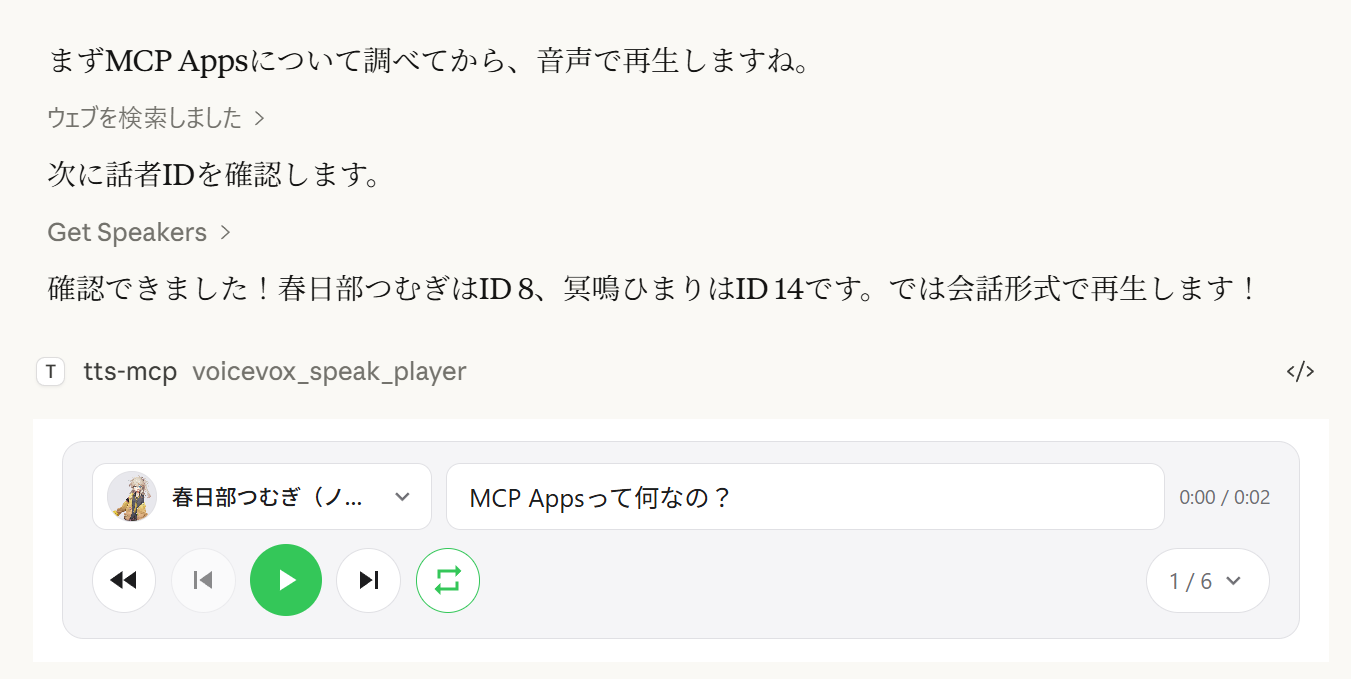
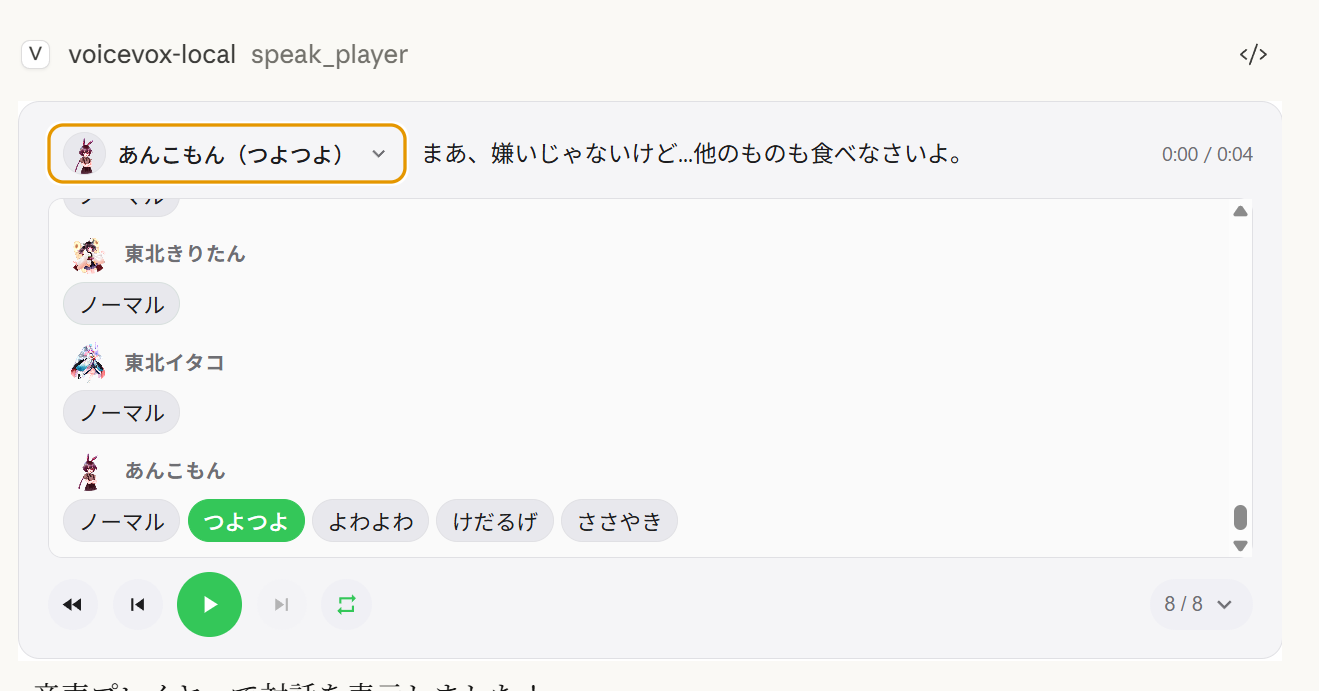
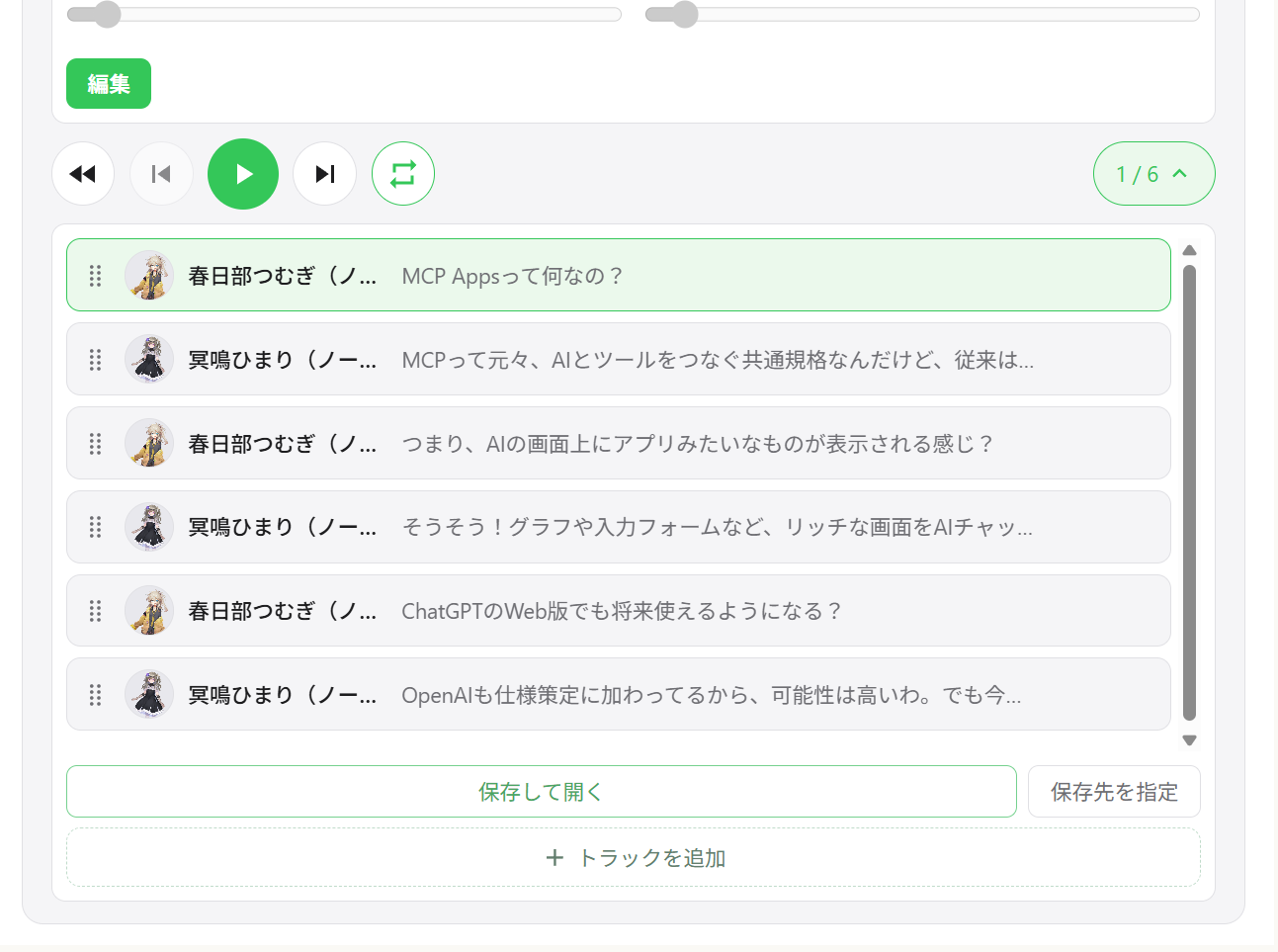
The voicevox_speak_player tool uses MCP Apps to render an interactive audio player directly inside the chat. Unlike the standard voicevox_speak tool which plays audio on the server, audio is played on the client side (in the browser/app) — no audio device needed on the server.
Export behavior by environment:
Save and open always exports WAV files. If opening the file explorer is not supported, export still succeeds and the save path is shown in the UI.Choose output folder uses a native directory picker on Windows/macOS. On unsupported environments, this action falls back to the default export directory.| Multi-speaker playback | Track list | Segment editing |
|---|---|---|
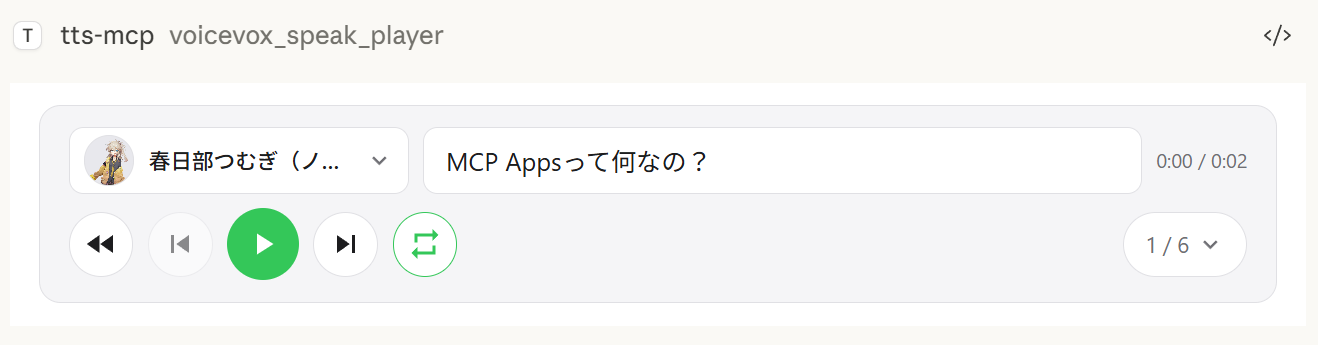 | 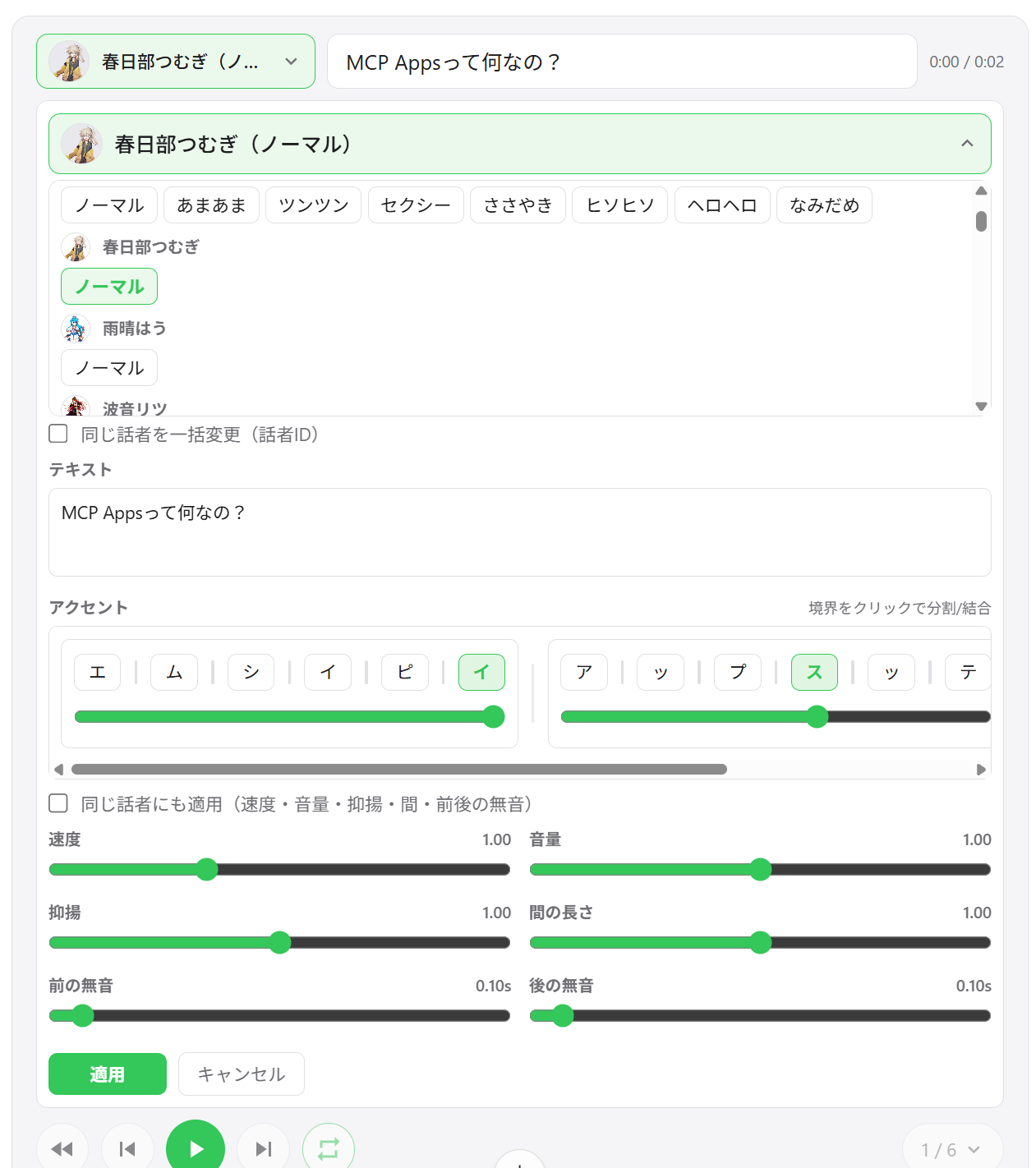 | 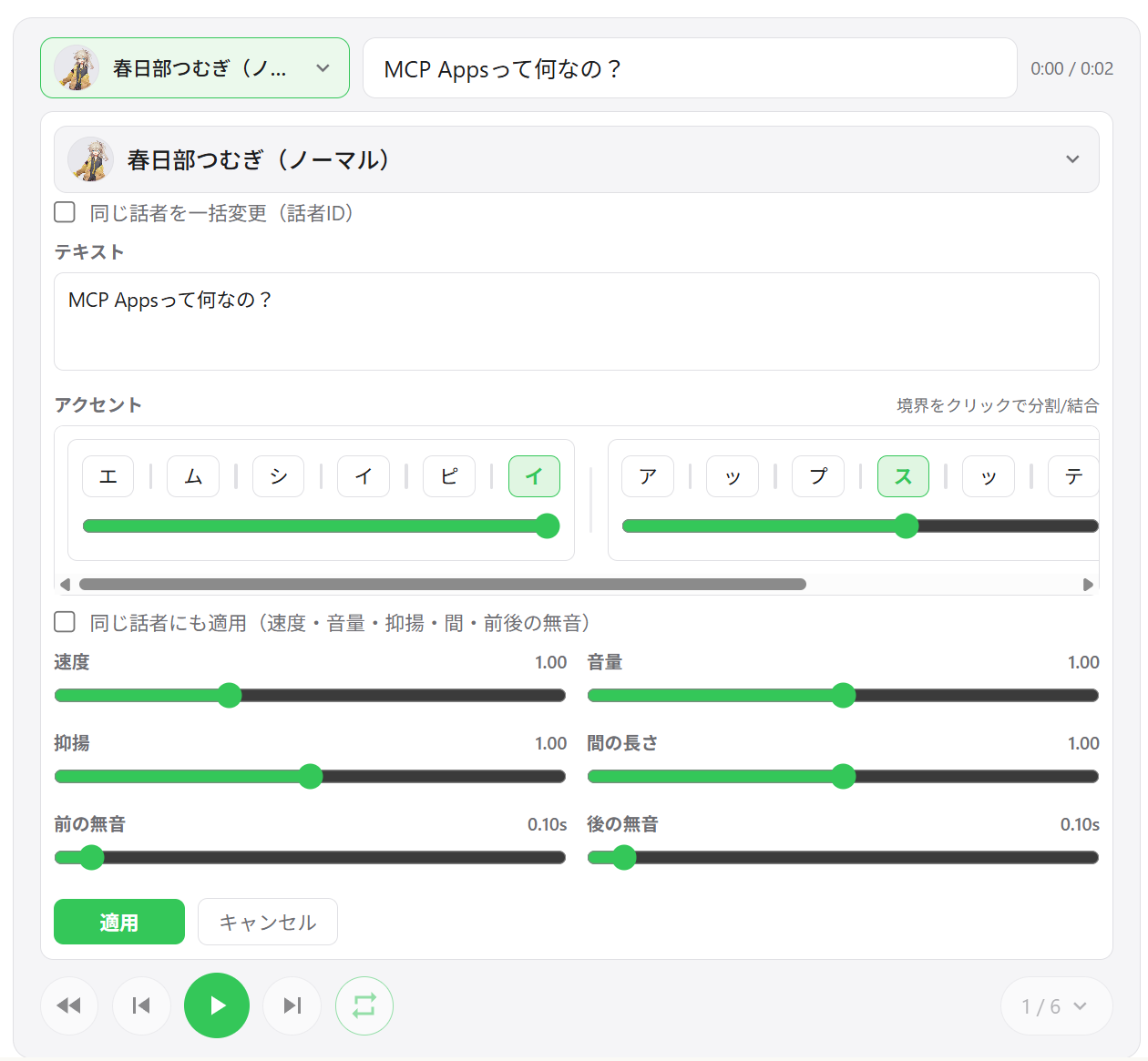 |
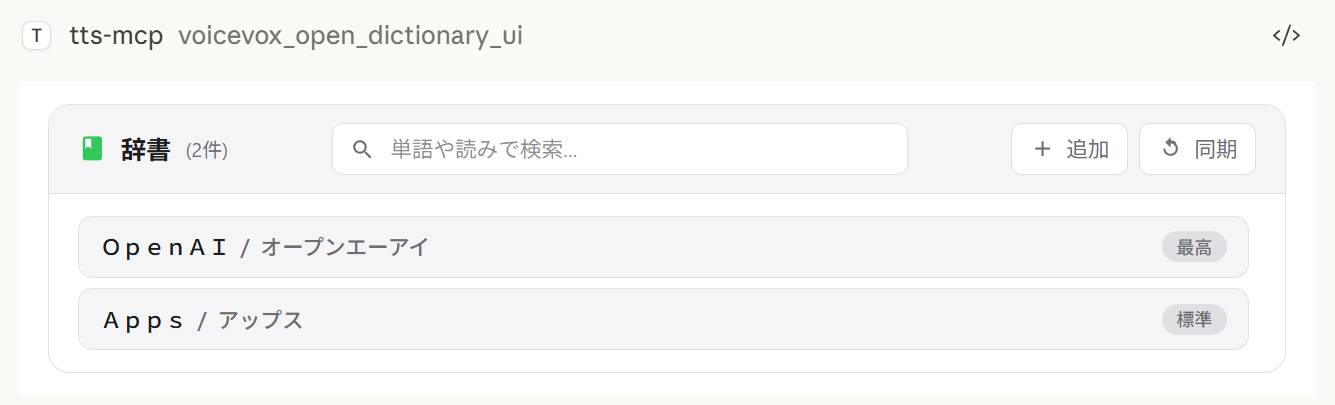
| Speaker selection | Dictionary manager | WAV export |
|---|---|---|
 |  |  |
| Client | Connection | Notes |
|---|---|---|
| ChatGPT | HTTP (remote) | Requires VOICEVOX_PLAYER_DOMAIN |
| Claude Desktop | stdio (local) | Works out of the box |
| Claude Desktop | HTTP (via mcp-remote) | Do not set VOICEVOX_PLAYER_DOMAIN |
Note:
speak_playerrequires a host that supports MCP Apps. In hosts without MCP Apps support, the tool is not available andspeak(server-side playback) can be used instead.
| Tool | Description |
|---|---|
voicevox_speak_player | Create a new player session and display the UI. Returns viewUUID. |
voicevox_resynthesize_player | Update all segments for an existing player (new viewUUID each call). |
voicevox_get_player_state | Read the current player state (paginated) for AI tuning. |
voicevox_open_dictionary_ui | Open the user dictionary manager UI. |
ffplay is a lightweight player included with FFmpeg that supports playback from stdin. When available, it automatically enables low-latency streaming playback.
💡 FFplay is optional. Without it, playback falls back to temp file-based playback (Windows: PowerShell, macOS: afplay, Linux: aplay, etc.).
ffplay must be in PATH (restart terminal/apps after installation)Installation examples:
Windows (any of these)
winget install --id=Gyan.FFmpeg -echoco install ffmpegscoop install ffmpegbin folder to PATHmacOS
brew install ffmpegLinux
sudo apt-get update && sudo apt-get install -y ffmpegsudo dnf install -y ffmpegsudo pacman -S ffmpegPATH Setup:
...\ffmpeg\bin to environment variables, then restart PowerShell/terminal and editor (Claude/VS Code, etc.)
powershell -c "$env:Path" should include the ffmpeg pathecho $PATH if needed, restart shell.Verification:
ffplay -version
If version info is displayed, installation is complete. CLI/MCP will automatically detect ffplay and use stdin streaming playback.
1. Start VOICEVOX Engine
2. Add to Claude Desktop config file
Config file location:
%APPDATA%\Claude\claude_desktop_config.json~/Library/Application Support/Claude/claude_desktop_config.json{
"mcpServers": {
"tts-mcp": {
"command": "npx",
"args": ["-y", "@kajidog/mcp-tts-voicevox"]
}
}
}
💡 If using Bun, just replace
npxwithbunx:"command": "bunx", "args": ["@kajidog/mcp-tts-voicevox"]
3. Restart Claude Desktop
That's it! Ask Claude to "say hello" and it will speak!
You can run both the MCP server and VOICEVOX Engine with a single command using Docker Compose. No Node.js or VOICEVOX installation required.
1. Start the containers
docker compose up -d
This starts the VOICEVOX Engine and the MCP server (HTTP mode on port 3000).
2. Add to Claude Desktop config file (using mcp-remote)
{
  "mcpServers": {
    "tts-mcp": {
      "command": "npx",
      "args": ["-y", "mcp-remote", "http://localhost:3000/mcp"]
    }
  }
}
3. Restart Claude Desktop
Security (Docker):
docker-compose.ymlpublishes port 3000 without authentication.MCP_ALLOWED_HOSTSis not a defense here — non-browser clients can send anyHostheader they like — so anyone who can reach the port can use the server. SetMCP_API_KEY(and send it asX-API-Key), or keep the port bound to a trusted network / localhost only. Consider also settingVOICEVOX_ALLOWED_OUTPUT_DIRSto limit where file-writing tools may write.
Limitations (Docker): The Docker container has no audio device, so the
voicevox_speaktool (server-side playback) is disabled by default. Usevoicevox_speak_playerinstead — it plays audio on the client side (in Claude Desktop) and works without any audio device on the server. See UI Audio Player for details.
voicevox_speak — Text-to-SpeechThe main feature callable from Claude.
| Parameter | Description | Default |
|---|---|---|
text | Text to speak (multiple segments separated by newlines) | Required |
phrases | Inline accent notation (takes priority over text) | (unset) |
speaker | Speaker ID | 1 |
speedScale | Playback speed | 1.0 |
immediate | Immediate playback (clears queue) | true |
waitForStart | Wait for playback to start | false |
waitForEnd | Wait for playback completion | false |
immediate/waitForStart/waitForEnddisappear from the tool schema when the matching--restrict-*option is set.
Examples:
// Simple text
{ "text": "Hello" }

// Specify speaker
{ "text": "Hello", "speaker": 3 }

// Different speakers per segment
{ "text": "1:Hello\n3:Nice weather today" }

// Wait for completion (synchronous processing)
{ "text": "Wait for this to finish before continuing", "waitForEnd": true }

// Control the accent with inline notation (`,` separates phrases, `[` marks the accent)
{ "text": "こんにちは世界", "phrases": "コン[ニ]チワ,セ[カ]イ" }
phrases (and the pronunciation field of the user dictionary tools) accepts katakana with an inline accent marker:
, separates accent phrases — コン[ニ]チワ,セ[カ]イ[ marks where the pitch drops after; コン[ニ]チワ means the accent falls on ニtext stays required even when phrases is given — pass the plain text there and the notation is what gets spoken.
voicevox_get_accent_phrases returns the same notation for a given text, so you can read the estimated accent, tweak the bracket, and feed it back into phrases.
| Tool | Description |
|---|---|
voicevox_speak_player | Speak with UI audio player (see Player MCP Tools) |
voicevox_ping | Check VOICEVOX Engine connection |
voicevox_get_speakers | Get list of available speakers |
voicevox_stop_speaker | Stop playback and clear queue |
voicevox_synthesize_file | Generate audio file |
User dictionary tools (group dictionary):
| Tool | Description |
|---|---|
voicevox_get_accent_phrases | Get reading and accent positions of a text as inline notation |
voicevox_get_user_dictionary | List user dictionary words (filter + pagination) |
voicevox_add_user_dictionary_word | Add a word (pronunciation accepts inline accent notation) |
voicevox_update_user_dictionary_word | Update a word (omitted fields keep their value) |
voicevox_delete_user_dictionary_word | Delete a word by UUID |
voicevox_add_user_dictionary_words | Add multiple words at once |
voicevox_update_user_dictionary_words | Update multiple words at once |
Any tool can be turned off individually with --disable-tools / VOICEVOX_DISABLED_TOOLS, or by group with --disable-groups / VOICEVOX_DISABLED_GROUPS.
| Variable | Description | Default |
|---|---|---|
VOICEVOX_URL | Engine URL | http://localhost:50021 |
VOICEVOX_DEFAULT_SPEAKER | Default speaker ID | 1 |
VOICEVOX_DEFAULT_SPEED_SCALE | Playback speed | 1.0 |
VOICEVOX_RETRY_COUNT | Retries for failed API requests (0 disables) | 2 |
VOICEVOX_RETRY_DELAY_MS | Initial retry delay in ms (exponential backoff) | 250 |
VOICEVOX_TIMEOUT_MS | Timeout for a single VOICEVOX API request in ms. Raise it for long text or a slow engine | 30000 |
| Variable | Description | Default |
|---|---|---|
VOICEVOX_USE_STREAMING | Streaming playback (requires ffplay) | false |
VOICEVOX_DEFAULT_POST_PHONEME_LENGTH | Trailing silence per segment in seconds. Increase for a longer pause between queued segments (also protects the end of speech from being cut off with streaming playback) | engine default |
VOICEVOX_DEFAULT_IMMEDIATE | Immediate playback | true |
VOICEVOX_DEFAULT_WAIT_FOR_START | Wait for playback start | false |
VOICEVOX_DEFAULT_WAIT_FOR_END | Wait for playback end | false |
Restrict AI from specifying certain options.
| Variable | Description |
|---|---|
VOICEVOX_RESTRICT_IMMEDIATE | Restrict immediate option |
VOICEVOX_RESTRICT_WAIT_FOR_START | Restrict waitForStart option |
VOICEVOX_RESTRICT_WAIT_FOR_END | Restrict waitForEnd option |
# Disable individual tools
export VOICEVOX_DISABLED_TOOLS=speak_player,synthesize_file

# Disable a built-in group of tools
export VOICEVOX_DISABLED_GROUPS=player

# Combine groups and individual tools
export VOICEVOX_DISABLED_GROUPS=dictionary
export VOICEVOX_DISABLED_TOOLS=synthesize_file
Built-in groups for VOICEVOX_DISABLED_GROUPS / --disable-groups:
| Group | Tools |
|---|---|
player | speak_player, resynthesize_player, get_player_state, open_dictionary_ui |
dictionary | get_accent_phrases, get_user_dictionary, add_user_dictionary_word, update_user_dictionary_word, delete_user_dictionary_word, add_user_dictionary_words, update_user_dictionary_words |
file | synthesize_file |
apps | speak_player, resynthesize_player, open_dictionary_ui (MCP App UI tools) |
| Variable | Description | Default |
|---|---|---|
VOICEVOX_PLAYER_DOMAIN | Widget domain for UI player (required for ChatGPT, e.g. https://your-app.onrender.com) | (unset) |
VOICEVOX_AUTO_PLAY | Auto-play audio in UI player | true |
VOICEVOX_PLAYER_EXPORT_ENABLED | Enable track export(download) from UI player (false to disable) | true |
VOICEVOX_PLAYER_EXPORT_DIR | Default output directory for exported tracks (also used as fallback when folder picker is unavailable) | ./voicevox-player-exports |
VOICEVOX_PLAYER_CACHE_DIR | Directory for player cache files (*.txt) and default player state file | ./.voicevox-player-cache |
VOICEVOX_PLAYER_AUDIO_CACHE_ENABLED | Enable persistent audio cache on disk (false disables disk cache writes/reads) | true |
VOICEVOX_PLAYER_AUDIO_CACHE_TTL_DAYS | Audio cache retention in days (0: disable disk cache, -1: no TTL cleanup) | 30 |
VOICEVOX_PLAYER_AUDIO_CACHE_MAX_MB | Audio cache size cap in MB (0: disable disk cache, -1: unlimited) | 512 |
VOICEVOX_PLAYER_STATE_FILE | Path of persisted player state JSON | <VOICEVOX_PLAYER_CACHE_DIR>/player-state.json |
| Variable | Description | Default |
|---|---|---|
VOICEVOX_ALLOWED_OUTPUT_DIRS | Comma-separated directories that file-writing tools (voicevox_synthesize_file, player track export) may write into. Paths outside them are rejected with an error. Unset means no restriction — recommended to set when the server is exposed over HTTP | (unset) |
| Variable | Description | Default |
|---|---|---|
MCP_HTTP_MODE | Enable HTTP mode | false |
MCP_HTTP_PORT | HTTP port | 3000 |
MCP_HTTP_HOST | HTTP host | 0.0.0.0 |
MCP_ALLOWED_HOSTS | Allowed hosts (comma-separated) | localhost,127.0.0.1,[::1] |
MCP_ALLOWED_ORIGINS | Allowed origins (comma-separated) | http://localhost,http://127.0.0.1,... |
MCP_API_KEY | Required API key for /mcp (sent via X-API-Key or Authorization: Bearer) | (unset) |
Command line arguments take priority over environment variables.
The complete, up-to-date list of options is always available via npx @kajidog/mcp-tts-voicevox --help.
# Basic settings
npx @kajidog/mcp-tts-voicevox --url http://192.168.1.100:50021 --speaker 3 --speed 1.2

# HTTP mode
npx @kajidog/mcp-tts-voicevox --http --port 8080

# With restrictions
npx @kajidog/mcp-tts-voicevox --restrict-immediate --restrict-wait-for-end

# Disable individual tools
npx @kajidog/mcp-tts-voicevox --disable-tools speak_player,synthesize_file

# Disable a tool group
npx @kajidog/mcp-tts-voicevox --disable-groups player
| Argument | Description |
|---|---|
--help, -h | Show help |
--version, -v | Show version |
--init | Generate .voicevoxrc.json with default settings |
--config <path> | Path to config file |
--url <value> | VOICEVOX Engine URL |
--speaker <value> | Default speaker ID |
--speed <value> | Playback speed |
--use-streaming / --no-use-streaming | Streaming playback |
--post-phoneme-length <sec> | Trailing silence per segment (pause between queued segments) |
--immediate / --no-immediate | Immediate playback |
--wait-for-start / --no-wait-for-start | Wait for start |
--wait-for-end / --no-wait-for-end | Wait for end |
--restrict-immediate | Restrict immediate |
--restrict-wait-for-start | Restrict waitForStart |
--restrict-wait-for-end | Restrict waitForEnd |
--allowed-output-dirs <dirs> | Directories that file-writing tools may write into (comma-separated; unset = no restriction) |
--disable-tools <tools> | Disable tools (comma-separated tool names) |
--disable-groups <groups> | Disable tool groups: player, dictionary, file, apps |
--auto-play / --no-auto-play | Auto-play in UI player |
--player-export / --no-player-export | Enable/disable track export(download) in UI player |
--player-export-dir <dir> | Default output directory for exported tracks |
--player-cache-dir <dir> | Player cache directory |
--player-state-file <path> | Persisted player state file path |
--player-audio-cache / --no-player-audio-cache | Enable/disable disk audio cache for player |
--player-audio-cache-ttl-days <days> | Audio cache retention days (0: disable, -1: no TTL cleanup) |
--player-audio-cache-max-mb <mb> | Audio cache size cap in MB (0: disable, -1: unlimited) |
--http | HTTP mode |
--port <value> | HTTP port |
--host <value> | HTTP host |
--allowed-hosts <hosts> | Allowed hosts (comma-separated) |
--allowed-origins <origins> | Allowed origins (comma-separated) |
--api-key <key> | Required API key for /mcp |
You can use a JSON config file instead of (or in addition to) environment variables and CLI arguments. This is useful when you have many settings to configure.
Priority order: CLI args > Environment variables > Config file > Defaults
npx @kajidog/mcp-tts-voicevox --init
This creates .voicevoxrc.json in the current directory with all default settings. Edit it as needed.
npx @kajidog/mcp-tts-voicevox --config ./my-config.json
Or via environment variable:
VOICEVOX_CONFIG=./my-config.json npx @kajidog/mcp-tts-voicevox
.voicevoxrc.json{
"url": "http://192.168.1.50:50021",
"speaker": 3,
"speed": 1.2,
"http": true,
"port": 8080,
"disable-tools": ["synthesize_file"],
"disable-groups": ["dictionary"]
}
Keys can be written in kebab-case (use-streaming), camelCase (useStreaming), or internal key names (defaultSpeaker). If .voicevoxrc.json exists in the current directory, it is loaded automatically.
For remote connections:
Start Server:
# Linux/macOS
MCP_HTTP_MODE=true MCP_HTTP_PORT=3000 npx @kajidog/mcp-tts-voicevox

# Windows PowerShell
$env:MCP_HTTP_MODE='true'; $env:MCP_HTTP_PORT='3000'; npx @kajidog/mcp-tts-voicevox
Claude Desktop Config (using mcp-remote):
{
  "mcpServers": {
    "tts-mcp-proxy": {
      "command": "npx",
      "args": ["-y", "mcp-remote", "http://localhost:3000/mcp"]
    }
  }
}
With Claude Code, you can configure different default speakers per project using custom headers in .mcp.json:
| Header | Description |
|---|---|
X-Voicevox-Speaker | Default speaker ID for this project |
X-API-Key | API key when MCP_API_KEY is configured |
Example .mcp.json:
{
  "mcpServers": {
    "tts": {
      "type": "http",
      "url": "http://localhost:3000/mcp",
      "headers": {
        "X-Voicevox-Speaker": "113",
        "X-API-Key": "your-api-key"
      }
    }
  }
}
This allows each project to use a different voice character automatically.
Priority order:
speaker parameter in tool call (highest)X-Voicevox-Speaker headerVOICEVOX_DEFAULT_SPEAKER setting (lowest)Connecting from WSL to an MCP server running on Windows:
# Method 1: From default gateway
ip route show | grep -oP 'default via \K[\d.]+'
# Usually in the format 172.x.x.1

# Method 2: From /etc/resolv.conf (WSL2)
cat /etc/resolv.conf | grep nameserver | awk '{print $2}'
Add the WSL gateway IP to MCP_ALLOWED_HOSTS to allow access from WSL:
$env:MCP_HTTP_MODE='true'
$env:MCP_ALLOWED_HOSTS='localhost,127.0.0.1,172.29.176.1'
npx @kajidog/mcp-tts-voicevox
Or with CLI arguments:
npx @kajidog/mcp-tts-voicevox --http --allowed-hosts "localhost,127.0.0.1,172.29.176.1"
{
  "mcpServers": {
    "tts": {
      "type": "http",
      "url": "http://172.29.176.1:3000/mcp"
    }
  }
}
⚠️ Within WSL,
localhostrefers to WSL itself. Use the WSL gateway IP to access the Windows host.
To use with ChatGPT, deploy the MCP server in HTTP mode to the cloud with access to a VOICEVOX Engine.
Deploy with Docker to Render, Railway, etc. (Dockerfile included).
Run VOICEVOX Engine locally and expose it via ngrok, or deploy it alongside the MCP server.
| Variable | Example | Description |
|---|---|---|
VOICEVOX_URL | https://xxxx.ngrok-free.app | VOICEVOX Engine URL |
MCP_HTTP_MODE | true | Enable HTTP mode |
MCP_ALLOWED_HOSTS | your-app.onrender.com | Deployed hostname |
VOICEVOX_PLAYER_DOMAIN | https://your-app.onrender.com | Widget domain for UI player (required for ChatGPT) |
VOICEVOX_DISABLED_TOOLS | speak | Disable server-side playback (no audio device) |
VOICEVOX_PLAYER_EXPORT_ENABLED | false | Disable export feature (files cannot be downloaded from cloud) |
Go to ChatGPT Settings → Connectors → Add MCP server URL (https://your-app.onrender.com/mcp).
The basic steps are the same as ChatGPT, but the VOICEVOX_PLAYER_DOMAIN value is different.
Claude Web requires ui.domain to be a hash-based dedicated domain. Compute it with the following command:
node -e "console.log(require('crypto').createHash('sha256').update('Your MCP server URL').digest('hex').slice(0,32)+'.claudemcpcontent.com')"
Example: If your MCP server URL is https://your-app.onrender.com/mcp:
node -e "console.log(require('crypto').createHash('sha256').update('https://your-app.onrender.com/mcp').digest('hex').slice(0,32)+'.claudemcpcontent.com')"
# Example output: 48fb73a6...claudemcpcontent.com
Set this output value as VOICEVOX_PLAYER_DOMAIN.
Note: Since ChatGPT and Claude Web require different
VOICEVOX_PLAYER_DOMAINvalues, a single instance cannot serve both clients simultaneously. Deploy separate instances for each, or switch the environment variable depending on your target client.
1. Check if VOICEVOX Engine is running
curl http://localhost:50021/speakers
2. Check platform-specific playback tools
| OS | Required Tool |
|---|---|
| Linux | One of aplay, paplay, play, ffplay |
| macOS | afplay (pre-installed) |
| Windows | PowerShell (pre-installed) |
npm list -g @kajidog/mcp-tts-voicevox| Package | Description |
|---|---|
@kajidog/mcp-tts-voicevox | MCP server (apps/mcp-tts) |
@kajidog/voicevox-client | General-purpose VOICEVOX client library (can be used independently) |
@kajidog/mcp-core | Shared MCP infrastructure (config schema, HTTP/stdio launcher). Not published — bundled into the server |
@kajidog/player-ui | React-based audio player UI, bundled into a single HTML file. Not published |
git clone https://github.com/kajidog/mcp-tts-voicevox.git
cd mcp-tts-voicevox
pnpm install
The package manager is pnpm (npm / yarn are not supported).
| Command | Description |
|---|---|
pnpm build | Build all packages |
pnpm test | Run tests |
pnpm lint | Run lint (single Biome pass over the whole workspace) |
pnpm typecheck | Type-check every package |
pnpm changeset | Add a changeset for a user-facing change |
Dev servers live in the server package, so run them with a filter:
| Command | Description |
|---|---|
pnpm --filter @kajidog/mcp-tts-voicevox dev | Start dev server (stdio) |
pnpm --filter @kajidog/mcp-tts-voicevox dev:http | Start dev server in HTTP mode |
pnpm --filter @kajidog/mcp-tts-voicevox dev:bun | Start dev server with Bun |
pnpm --filter @kajidog/mcp-tts-voicevox dev:bun:http | Start HTTP dev server with Bun |
ISC
Claim this server with your GitHub account to request manual ownership verification.
Link to the catalog listing for VOICEVOX TTS MCP from your README. This badge does not certify ownership, compatibility or security.
[](https://awesome-mcp.com/servers/mcp-tts-voicevox)Public repository statistics could not be verified. Check the configured source address; unavailable counts are not zero.
来源、范围和时段分别列出;不相加,不代表安装人数、活跃用户或安全审核。
尚无已审核的包 / 镜像标识,暂不展示下载统计。
Alternative and complementary servers in the same category
A Rust CAD application with an MCP server for creating, inspecting and rendering drawings, either headlessly or through a connection to the desktop app.

Liquid Composer is a browser-based Liquid Glass icon design tool that offers a local MCP server for agent-driven icon workflows.

agent-media makes short drama series and other short vertical videos from Claude, ChatGPT or Codex through one MCP connection, with OAuth sign-in and no API keys.