

An AI receptionist platform with an MCP server for accessing business calls, contacts and appointments from AI assistants.
52
Communication
Source code for the Sinch MCP server, which provides tools to interact with Sinch APIs such as messaging, email, verification, voice, RCS, WhatsApp, and phone numbers.
Sinch MCP Server is cataloged as an MCP server attributed to sinch. Source code for the Sinch MCP server, which provides tools to interact with Sinch APIs such as messaging, email, verification, voice, RCS, WhatsApp, and phone numbers. It is categorized under communication social. See the capability inspector for recorded interfaces and their independent review status; consult upstream documentation for the current interface.
Installation configuration is not reviewed. No executable setup is offered for this entry; inspect the source repository before proceeding.
Catalog license label: Apache License 2.0. Check the source repository's current license and terms before using, modifying or distributing this software.
能力定义尚未审核。未核验的采集内容不会作为可信接口展示。
暂无可展示的已审核记录。这不表示上游不支持此能力。
暂无可展示的已审核记录。这不表示上游不支持此能力。
暂无可展示的已审核记录。这不表示上游不支持此能力。
Email delivery is not connected. This page does not collect email addresses or create subscriptions.
Browse the registry for current listings instead.
Reviews for Sinch MCP Server are not available yet
Review publishing and storage are not connected. This page does not collect or publish ratings or comments, including after sign-in.
Yes; tools can be filtered by tags such as conversation, rcs, whatsapp, email, verification, voice, numbers, notification, or configuration.
Yes; it can run on a remote machine and clients can connect using Server-Sent Events via the supergateway library.
README.md · 1fa224da47e8 · 采集于 2026-11-13 08:52:44 UTC
保留上游原文,不做 AI 改写。为安全起见过滤脚本、表单和不安全链接。
当前显示最后一次成功采集的文档快照,请以来源页面为准。
This repository contains the source code for the Sinch MCP server, which provides a set of tools to interact with the Sinch APIs. This README focuses on using the MCP server with the Claude Desktop client, but it can also be used with any other MCP client.
Here is the list of tools available in the MCP server (all the phone numbers must be provided in E.164 format, e.g., +33612345678 for France).
| Tool | Description | Tags |
|---|---|---|
| send-text-message | Send a plain text message to a recipient on a supported channel. Example prompt: "Send a quick update to the phone number +33612345678 on SMS." | conversation, notification |
| send-media-message | Send an image, video, or document via a media message. Example prompt: "Send the product brochure PDF to the phone number +33612345678 on WhatsApp." | conversation, notification |
| send-template-message | Send a message using a predefined template (omni-template only). Example prompt: "Send the appointment reminder template in Spanish to this user on Messenger." | conversation, notification |
| send-whatsapp-template-message | Send a message using a predefined WhatsApp template. Example prompt: "Send a message using the template "appointment-reminder" on WhatsApp." | conversation, notification |
| send-choice-message | Send a message that includes interactive choices (buttons or quick replies). Example prompt: "Send a RCS survey about preferred ice cream flavor to +33612345678 with the following choices: Vanilla, Strawberry, Hazelnut". | conversation, notification |
| send-card-message | Send a card: a media with a title, plus an optional longer description and optional choices. Example prompt: "Send a RCS card to +33612345678 with the photo https://example.com/ice-cream.jpg, the three new flavors in the description and a button to order each one." | conversation, notification |
| send-carousel-message | Send a carousel: from 1 to 10 swipeable cards, each one with a media, a title, an optional description and optional choices. Example prompt: "Send a RCS carousel to +33612345678 with one card per new ice cream flavor, its photo, a short description and a button to order it." | conversation, notification |
| send-location-message | Send a location pin or coordinates to a user. Example prompt: "Send a pin to the Guggenheim Museum location in Bilbao to the phone number +33612345678." | conversation, notification |
| list-conversation-apps | List all configured Conversation apps in the Sinch account. Example prompt: "What messaging apps do I have set up in my account?" | conversation, notification |
| create-conversation-app | Create a new Conversation API app (no channels required at creation). Example prompt: "Create a Conversation app named My Support Bot in the EU region." | conversation, configuration |
| update-conversation-app | Update a Conversation API app display name. Example prompt: "Rename Conversation app abc123 to My Support Bot." | conversation, configuration |
| delete-conversation-app | Delete a Conversation API app by ID. Example prompt: "Delete Conversation app abc123." | conversation, configuration |
| set-sms-channel-on-app | Set (create or replace) the SMS channel on a Conversation app. Example prompt: "Set SMS on app abc123 using service plan XYZ and API token …" | conversation, configuration |
| set-rcs-channel-on-app | Set (create or replace) the RCS channel on a Conversation app. Example prompt: "Set RCS on app abc123 with sender ID … and bearer token …" | conversation, configuration |
| set-whatsapp-channel-on-app | Set (create or replace) the WhatsApp channel on a Conversation app. Example prompt: "Set WhatsApp on app abc123 with sender ID … and bearer token …" | conversation, configuration |
| list-messaging-templates | List the omni-channel message templates (managed by Sinch) for the configured region. WhatsApp-specific templates can be fetched with the list-whatsapp-templates tool. Example prompt: "Show me all message templates in my account." | conversation, notification |
| list-webhooks | List webhooks configured for a Conversation app. Example prompt: "List all webhooks for my Conversation app." | conversation, configuration |
| get-webhook | Get a webhook by ID. Example prompt: "Show me the details of webhook ID abc123." | conversation, configuration |
| create-webhook | Create a webhook that delivers Conversation API events to a target URL. Example prompt: "Create a webhook for inbound messages at https://example.com/callback." | conversation, configuration |
| update-webhook | Update a webhook target URL and/or triggers. Example prompt: "Update webhook abc123 to also receive MESSAGE_DELIVERY events." | conversation, configuration |
| delete-webhook | Delete a webhook by ID. Example prompt: "Delete webhook abc123." | conversation, configuration |
| Tool | Description | Tags |
|---|---|---|
| send-email | Send an email using a predefined HTML template or raw HTML/text content. Example prompt: "Send a welcome email to john@example.com using our onboarding template." | email, notification |
| list-email-templates | List all email templates available for a specific domain. Example prompt: "What email templates do I have available?" | email, notification |
| retrieve-email-info | Retrieve metadata, content and delivery status for a specific email message. Example prompt: "Can you get the delivery status of the email with ID ?" | email, notification |
| list-email-events | Retrieve and group recent email delivery events, such as bounces, opens, or clicks. Example prompt: "Show me all recent email activity for my account." | |
| analytics-metrics | Retrieve email analytics metrics, such as open rates or click-through rates. Example prompt: "What are the open rates during the last week?" |
| Tool | Description | Tags |
|---|---|---|
| number-lookup | Lookup a phone number for its status and capabilities. Example prompt: "Lookup for the following phone number capabilities: +33501020304." | verification |
| start-sms-verification | Initiate an SMS verification by sending an OTP to a user's phone number. Example prompt: "Start phone verification for the number +33612345678." | verification |
| report-sms-verification | Submit a one-time password (OTP) to complete SMS verification. Example prompt: "Verify the phone number with this code: 1234." | verification |
| Tool | Description | Tags |
|---|---|---|
| tts-callout | Place a voice call and read aloud a message using Text-to-Speech. Example prompt: "Call the phone number +33612345678 and say: 'Your appointment is tomorrow at 10 AM.'" | voice, notification |
| get-call-information | Get information about a call using its ID. Example prompt: "Get the details of call ID abc123." | voice, notification |
| list-calls | List and filter calls by service, endpoint, time range, type, result, or reason. Example prompt: "List completed calls from today." | voice, notification |
| get-session-information | Get a voice session and all of its call legs using the session ID. Example prompt: "Get details for session 01BX5ZZKBKACTAV9WEVGEMMVRB." | voice, notification |
| create-voice-service | Create a Voice service. Example prompt: "Create a default Voice service named Customer Support." | voice |
| set-voice-service-webhook | Configure the primary webhook and fallback URLs for a Voice service. Example prompt: "Configure the webhook and fallback for service 6e124178-c29d-46a5-943c-5c2ae544aade." | voice |
| remove-voice-service-webhook | Remove webhook handling from a Voice service. Example prompt: "Remove the webhook from service 6e124178-c29d-46a5-943c-5c2ae544aade." | voice |
| assign-number-to-voice-service | Assign an active Sinch number to a Voice service. Example prompt: "Assign +14155550100 to Voice service 6e124178-c29d-46a5-943c-5c2ae544aade." | voice |
| tts-batch-callout | Start a batch of outbound calls that play the same text-to-speech message. Example prompt: "Call these numbers in a batch and read this reminder." | voice, notification |
| get-voice-batch-summary | Get batch execution totals and optionally the state of each session. Example prompt: "Get the summary and session details for batch 01BX5ZZKBKACTAV9WEVGEMMVRB." | voice, notification |
tts-batch-callout returns a batch ID, and each destination produces its own session.tts-callout returns a session ID directly; use get-session-information to retrieve its call legs.get-call-information when you need the status or details of that specific leg.To inspect a batch from top to bottom: use get-voice-batch-summary with session details enabled, pass a returned session ID to get-session-information, and then pass any returned call ID to get-call-information.
| Tool | Description | Tags |
|---|---|---|
| list-rcs-senders | List all RCS senders for the project, with pagination support. Example prompt: "Show me all my RCS senders." | rcs, configuration |
| get-rcs-sender | Get a full RCS sender by ID, including credentials, state, brand details, test numbers, and country status. Example prompt: "Get the details of my RCS sender abc123." | rcs, configuration |
| create-rcs-sender | Create a new RCS sender. Brand details, questionnaire, and countries can be provided upfront or added incrementally via update-rcs-sender. Example prompt: "Create an RCS sender for the EU region with a CONVERSATIONAL billing category." | rcs, configuration |
| update-rcs-sender | Update an RCS sender's brand, countries, test numbers, or questionnaire. Example prompt: "Update my RCS sender abc123 with the brand logo URL." | rcs, configuration |
| launch-rcs-sender | Submit an RCS sender for Google and carrier review. All brand details, countries, and questionnaire sections must be complete before launching. Example prompt: "Launch my RCS sender abc123." | rcs, configuration |
| add-rcs-test-number | Add test phone numbers to an RCS sender (max 20 per request, 200 total per sender). Example prompt: "Add +14155552671 as a test number to my RCS sender." | rcs, configuration |
| delete-rcs-test-number | Delete a test number from an RCS sender. Example prompt: "Remove test number +14155552671 from my RCS sender." | rcs, configuration |
| resend-rcs-test-number-invite | Resend a test number invite when state is PENDING or UNVERIFIED. Example prompt: "Resend the invite for test number +14155552671 on sender abc123." | rcs, configuration |
| get-rcs-test-number-state | Get the verification state of a single RCS test number. Example prompt: "What is the state of test number +14155552671 on sender abc123?" | rcs, configuration |
| get-rcs-number-capabilities | Get the RCS features supported by a test number's device (actions, rich card layouts, revocation). Example prompt: "What RCS features does +14155552671 support?" | rcs, configuration |
| Tool | Description | Tags |
|---|---|---|
| get-whatsapp-account | Get the WhatsApp Business Account (WABA) of the project: onboarding state, WABA ID, business details, ban state, daily message limit and compatible regions. Example prompt: "What is the current status of my WhatsApp Business Account?" | whatsapp, configuration |
| list-whatsapp-templates | List the WhatsApp channel-specific message templates (managed by Meta). Omni-channel templates can be fetched with the list-messaging-templates tool. Example prompt: "Show me my WhatsApp templates." | whatsapp, configuration |
| create-whatsapp-template | Create a WhatsApp message template, as a draft or submitted for review. Example prompt: "Create a WhatsApp UTILITY template named order_confirmation in English with body text 'Your order {{1}} has shipped.'" | whatsapp, configuration |
| update-whatsapp-template | Update a WhatsApp message template draft (or reset an APPROVED/REJECTED/PAUSED/DISABLED template to draft) by name and language. Example prompt: "Update the order_confirmation EN WhatsApp template's body text to 'Your order {{1}} has shipped today.' and submit it for review." | whatsapp, configuration |
| delete-single-whatsapp-template-language | Delete a single language variant of a WhatsApp message template by name and language — other languages of the same template name are unaffected. Example prompt: "Delete the draft of the order_confirmation EN WhatsApp template." | whatsapp, configuration |
| delete-all-whatsapp-template-languages | Delete every language variant of a WhatsApp message template by name in one call. Example prompt: "Delete all language variants of the order_confirmation WhatsApp template." | whatsapp, configuration |
| Tool | Description | Tags |
|---|---|---|
| list-available-regions | List all regions where phone numbers are available for the project. Can filter by number type (MOBILE, LOCAL, TOLL_FREE). Example prompt: "Which regions have toll-free numbers available?" | numbers |
| list-rented-numbers | List all active (rented) phone numbers for the project. Can filter by region, type, pattern, and capability. Example prompt: "Show me all my active phone numbers in the US." | numbers |
| search-for-available-numbers | Search for phone numbers available to rent, with filters for region, type, pattern, and capabilities. Example prompt: "Find available local numbers in the US that support SMS." | numbers |
| rent-sinch-virtual-numbers | Rent (activate) one or more phone numbers by providing them in E.164 format. Example prompt: "Rent the phone number +12025551234." | numbers |
| release-rented-number | Release a rented phone number from your project. Example prompt: "Release the phone number +12025551234." | numbers |
| get-rented-number-configuration | Get one rented number and its current or scheduled service configuration. Example prompt: "Show the configuration and provisioning status for +12025551234." | numbers, configuration |
| Tool | Description | Tags |
|---|---|---|
| sinch-mcp-configuration | List all available tools in the Sinch MCP server and their status. If a tool is disabled, it will display the reason why. Example prompt: "Which tools are available in the Sinch MCP server?" |
To use the APIs used by the MCP tools, you will need the following credentials:
RCS API credentials: RCS must be enabled for your Sinch project. Contact si-richmessaging@sinch.com to activate it. Once enabled, RCS uses the same PROJECT_ID, KEY_ID, and KEY_SECRET as the Conversation API (see below).
WhatsApp Template API credentials: uses the same PROJECT_ID, KEY_ID, and KEY_SECRET as the Conversation API (see below).
Conversation / Numbers / Voice v2 API credentials:
PROJECT_ID: Select the project you want to use from your Sinch Build dashboard (Located at the left of the top toolbar)
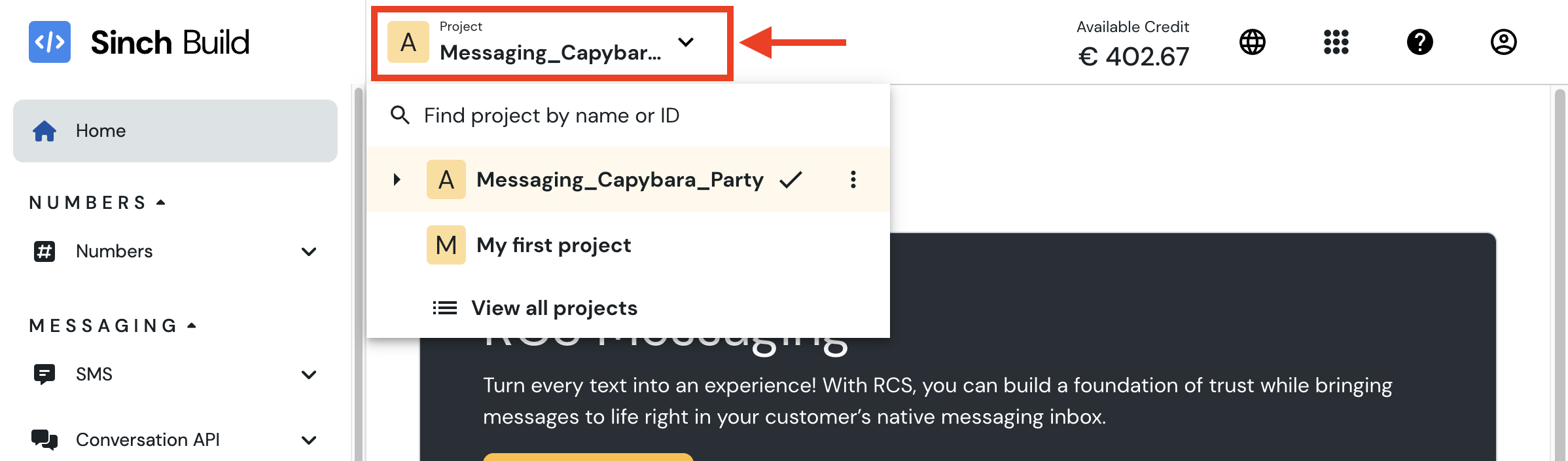
KEY_ID: Select or create a new access key in the Access keys section of the Sinch Build dashboard.KEY_SECRET: This is the secret associated with the Access Key you selected or created in the previous step. Be careful, the Access Key Secret is only shown once when you create the Access Key. If you lose it, you will need to create a new Access Key.CONVERSATION_APP_ID: This is the ID of the conversation app you want to use. You can find it in the Conversation API / Apps section of the Sinch Build dashboard. If you don't set it, you will have to specify it in the prompt.CONVERSATION_REGION: This is the region where your conversation app and templates are located. It can be us, eu, or br. If you don't set it, it defaults to us.DEFAULT_SMS_ORIGINATOR environment variable to the phone number that will be used as the sender for SMS messages. Depending on your country, this setting may be required.GEOCODING_API_KEY environment variable to your Google Geocoding API key if you want to use the location feature. This is needed to convert an address to a latitude/longitude pair.Verification API credentials: navigate to the Verification / Apps section of the Sinch Build dashboard and create a new app or select an existing one. You will need the following credentials:
APPLICATION_KEYAPPLICATION_SECRETVoice service, call, session, and batch tools use PROJECT_ID, KEY_ID, and KEY_SECRET from the project credentials above.
CALLING_LINE_IDENTIFICATION to an active Sinch number with Voice capability. It is used as the default origin for tts-callout and tts-batch-callout; callers may also provide the origin to either tool. If neither is set, calls are placed without caller ID.Mailgun API credentials: navigate to the Mailgun / Domains section of the Mailgun dashboard and create a new domain or select an existing one. You will need the following credentials:
MAILGUN_API_KEYMAILGUN_DOMAINMAILGUN_SENDER_ADDRESSThe Sinch MCP server is available as an NPM package to the executed. Here is how to set it up in the Claude Desktop configuration file (claude_desktop_config.json). Remember to fill in the environment variables with your own credentials:
{
  "mcpServers": {
    "sinch": {
      "command": "npx",
      "args": ["-y", "@sinch/mcp"],
      "env": {
        "PROJECT_ID": "",
        "KEY_ID": "",
        "KEY_SECRET": "",
        "CONVERSATION_APP_ID": "",
        "CONVERSATION_REGION": "",
        "DEFAULT_SMS_ORIGINATOR": "",
        "GEOCODING_API_KEY": "",
        "APPLICATION_KEY": "",
        "APPLICATION_SECRET": "",
        "CALLING_LINE_IDENTIFICATION": "",
        "MAILGUN_API_KEY": "",
        "MAILGUN_DOMAIN": "",
        "MAILGUN_SENDER_ADDRESS": ""
      }
    }
  }
}
To run the MCP server locally with Claude Desktop, you will need to clone the repository and build the MCP server. This option is useful for local development and testing.
git clone https://github.com/sinch/sinch-mcp-server.git
cd sinch-mcp-server
npm install
npm run build
Here is an example of how to configure the MCP server in the Claude Desktop configuration file (claude_desktop_config.json):
{
  "mcpServers": {
    "sinch": {
      "command": "node",
      "args": ["/your/path/to/sinch-mcp-server/dist/index.js"],
      "env": {
        "PROJECT_ID": "",
        "KEY_ID": "",
        "KEY_SECRET": "",
        "CONVERSATION_APP_ID": "",
        "CONVERSATION_REGION": "",
        "DEFAULT_SMS_ORIGINATOR": "",
        "GEOCODING_API_KEY": "",
        "APPLICATION_KEY": "",
        "APPLICATION_SECRET": "",
        "CALLING_LINE_IDENTIFICATION": "",
        "MAILGUN_API_KEY": "",
        "MAILGUN_DOMAIN": "",
        "MAILGUN_SENDER_ADDRESS": ""
      }
    }
  }
}
Too many tools mean bigger context, mean higher tokens usage and more confusion for the LLM to select the right tool to use.
You can filter the tools that are available in the MCP server by using the tags options. For example, if you want to only use the conversation tools, you can add the following options to the args array:
      "args": [
        "/your/path/to/sinch-mcp-server/dist/index.js",
        "--tags",
        "conversation"
      ],
You can combine multiple tags by separating them with commas. For example, if you want to use both conversation and verification tools, you can use the following command:
      "args": [
        "/your/path/to/sinch-mcp-server/dist/index.js",
        "--tags",
        "conversation,verification"
      ],
Available tags: conversation, rcs, whatsapp, email, verification, voice, numbers, notification, configuration, all.
If you want to use all the tools, you can omit the --tags option, or use the tag all:
      "args": [
        "/your/path/to/sinch-mcp-server/dist/index.js",
        "--tags",
        "all"
      ],
With this option, you can run the MCP server on a remote machine and connect to it using Server-Sent Events (SSE). This is useful if you want to run the MCP server on a cloud server or a dedicated machine. By default, Claude Desktop will connect to the MCP server using STDIO; we will use the supergateway library to connect to the MCP server using SSE.
cd sinch-mcp-server
npm install
npm run build
Copy the file .template.env and rename it .env. Then replace the placeholders with your own credentials and delete any key you don't need. Environment variables are parsed and typed at server startup via T3 Env; missing credentials only cause errors when you invoke a tool that requires them. The .env file should look like this ():
# Conversation / Numbers / Voice v2 API tools related environment variables
PROJECT_ID=
KEY_ID=
KEY_SECRET=
## Optional but recommended: the App ID holding your channels integration configuration. If not set it must be present in the prompt
CONVERSATION_APP_ID=
## Optional, defaults to "us". Other possible values are "eu" and "br"
CONVERSATION_REGION=
## Needed only if you want to send SMS messages: it is the number that will be used as the sender for SMS messages
DEFAULT_SMS_ORIGINATOR=
## Needed only if you want to send location messages: it converts an address to a latitude/longitude pair
GEOCODING_API_KEY=

# Verification tools related environment variables
APPLICATION_KEY=
APPLICATION_SECRET=

# Voice tools related environment variables
## Optional default active Sinch Voice number used by tts-callout and tts-batch-callout
CALLING_LINE_IDENTIFICATION=

# Mailgun tools related environment variables
MAILGUN_DOMAIN=
MAILGUN_API_KEY=
MAILGUN_SENDER_ADDRESS=
By default, this command will start the MCP with all the tools available. If you want to filter the tools that are available in the MCP server, you can use the --tags option. For example, if you want to only use the conversation tools, you can modify the command as follows:
# Original command
"start:sse": "tsc --project tsconfig.build.json && (npx -y supergateway --stdio \"node dist/index.js\" --port 8000 --baseUrl http://localhost:8000 --ssePath /sse --messagePath /message)"

# Modified command to only use conversation tools
"start:sse": "tsc --project tsconfig.build.json && (npx -y supergateway --stdio \"node dist/index.js --tag conversation\" --port 8000 --baseUrl http://localhost:8000 --ssePath /sse --messagePath /message)"
You can combine multiple tags by separating them with commas. For example, if you want to use both conversation and verification tools, you can use the following command:
"start:sse": "tsc --project tsconfig.build.json && (npx -y supergateway --stdio \"node dist/index.js --tag conversation,verification\" --port 8000 --baseUrl http://localhost:8000 --ssePath /sse --messagePath /message)"
You can then configure the MCP server in the Claude configuration file as follows:
{
  "mcpServers": {
    "sinch": {
      "command": "npx",
      "args": ["-y", "supergateway", "--sse", "http://localhost:8000/sse"]
    }
  }
}
(Replace the http://localhost:8000/sse with the URL of your MCP server if it is not running locally)
See CONTRIBUTING.md for contributor guidelines, including how to add new tools and pin GitHub Actions.
This project is licensed under the Apache License 2.0.
Claim this server with your GitHub account to request manual ownership verification.
Link to the catalog listing for Sinch MCP Server from your README. This badge does not certify ownership, compatibility or security.
[](https://awesome-mcp.com/servers/sinch)Public repository statistics could not be verified. Check the configured source address; unavailable counts are not zero.
来源、范围和时段分别列出;不相加,不代表安装人数、活跃用户或安全审核。
尚无已审核的包 / 镜像标识,暂不展示下载统计。
Alternative and complementary servers in the same category
An AI receptionist platform with an MCP server for accessing business calls, contacts and appointments from AI assistants.
Pidgeon provides an MCP server and an email inbox API that gives AI agents their own addresses for sending, awaiting, and replying to email.

A Telegram CLI with background sync that can run an optional MCP server for a personal account using MTProto, not the bot API.
