


Oleafly is a live collaborative LaTeX, Typst and Markdown editor for research that offers a local MCP server and an oleafly mcp stdio command so outside AI clients can use its project tools.
Repository stats unavailable
Productivity & Ops
A Model Context Protocol server for managing Tempo worklogs in JIRA, enabling worklog retrieval, creation, bulk operations, and management.
Tempo Filler MCP Server is cataloged as an MCP server attributed to tranzact. A Model Context Protocol server for managing Tempo worklogs in JIRA, enabling worklog retrieval, creation, bulk operations, and management. It is categorized under productivity work. See the capability inspector for recorded interfaces and their independent review status; consult upstream documentation for the current interface.
Installation configuration is not reviewed. No executable setup is offered for this entry; inspect the source repository before proceeding.
Catalog license label: ISC License. Check the source repository's current license and terms before using, modifying or distributing this software.
能力定义尚未审核。未核验的采集内容不会作为可信接口展示。
暂无可展示的已审核记录。这不表示上游不支持此能力。
暂无可展示的已审核记录。这不表示上游不支持此能力。
暂无可展示的已审核记录。这不表示上游不支持此能力。
Email delivery is not connected. This page does not collect email addresses or create subscriptions.
Browse the registry for current listings instead.
Reviews for Tempo Filler MCP Server are not available yet
Review publishing and storage are not connected. This page does not collect or publish ratings or comments, including after sign-in.
It manages Tempo worklogs in JIRA and enables retrieval, creation, bulk operations, and management of worklogs.
Yes, it supports bulk worklog creation using concurrent processing.
Yes, its schedule tool identifies working and non-working days so bulk operations can target working days only.
README.md · b9db692bd9f2 · 采集于 2026-11-13 08:11:49 UTC
保留上游原文,不做 AI 改写。为安全起见过滤脚本、表单和不安全链接。
当前显示最后一次成功采集的文档快照,请以来源页面为准。


A Model Context Protocol (MCP) server for managing Tempo worklogs in JIRA. This server enables AI assistants to interact with Tempo's time tracking system, allowing for worklog retrieval, creation, bulk operations, and management.
TempoFiller now supports MCP Apps - rendering rich visual interfaces directly in compatible AI chat clients like Claude Desktop. Instead of just text responses, you get interactive calendar and timesheet views!
Ask for your logged hours and see them in a familiar Tempo-style pivot table:
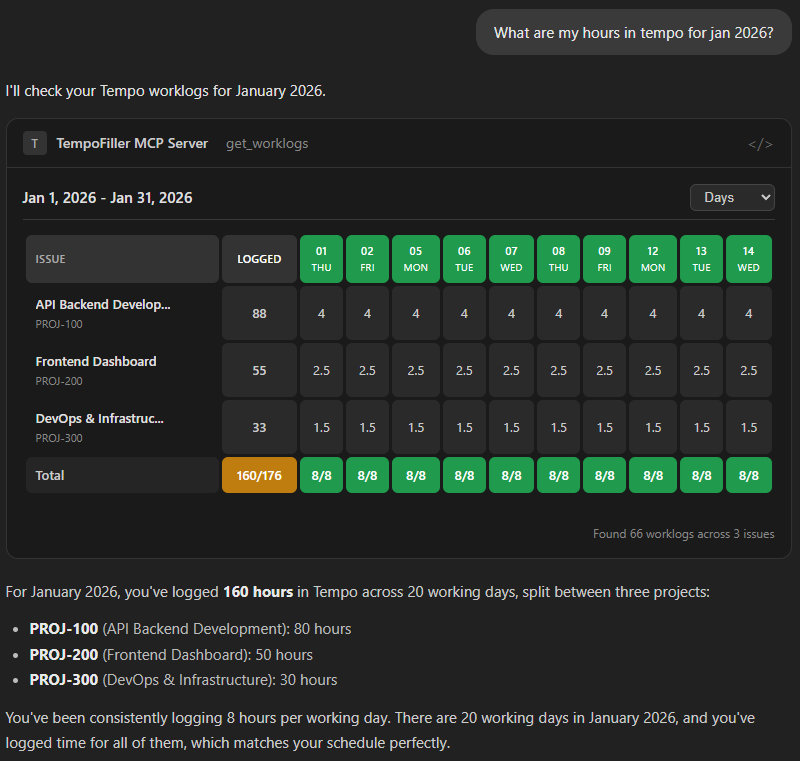
Features:
Check your work schedule with a visual calendar:
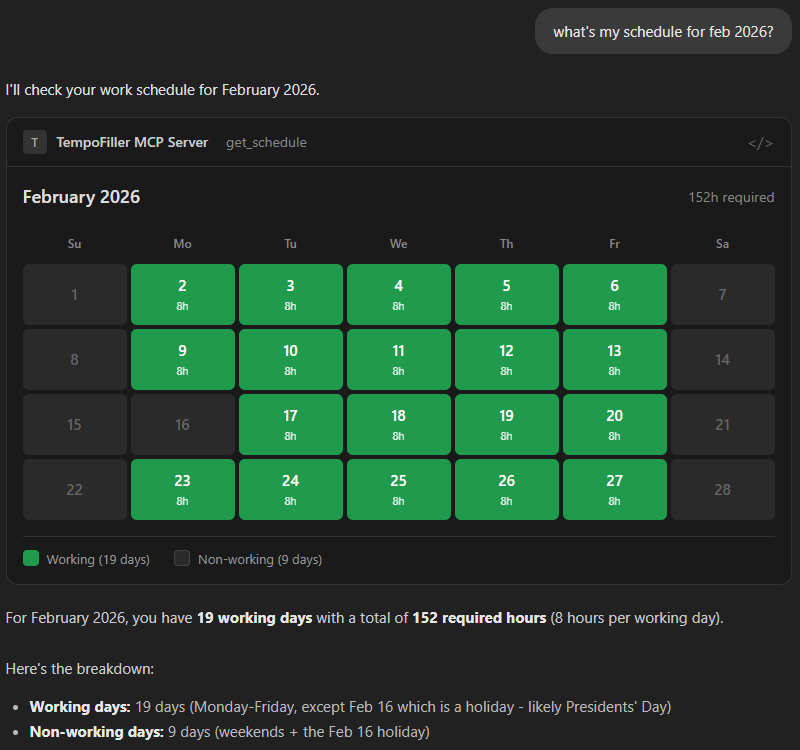
Features:
Note: Visual UIs render in MCP Apps-compatible hosts (Claude Desktop, VS Code). CLI hosts receive the same structured data, which the AI formats conversationally.
.dxt file).dxt file into the extensions panel to install
{
  "mcpServers": {
    "tempo-filler": {
      "command": "npx",
      "args": ["@tranzact/tempo-filler-mcp-server"],
      "env": {
        "TEMPO_BASE_URL": "https://your-jira-instance.com",
        "TEMPO_PAT": "your-personal-access-token"
      }
    }
  }
}
Here's an actual conversation showing how natural and powerful the interaction can be:
👤 User:
fill my october hours with the same project from september
🤖 AI Assistant:
I'll help you fill your October hours with the same project from September. Let me first check your September worklogs to understand the pattern, then fill October accordingly.
🔧 mcp_tempo-filler-_get_worklogs({
  "startDate": "2025-09-01",
  "endDate": "2025-09-30"
})
Perfect! I can see you worked on PROJ-1234 (Tempo MCP Server) for 200 hours in September. Now let me get your October work schedule to see which days need to be filled.
🔧 mcp_tempo-filler-_get_schedule({
  "startDate": "2025-10-01",
  "endDate": "2025-10-31"
})
Excellent! I now have all the information needed. Let me fill all 23 working days in October with the Tempo MCP Server project using 8 hours per working day.
🔧 mcp_tempo-filler-_bulk_post_worklogs({
  "billable": true,
  "worklogs": [
    {"issueKey": "PROJ-1234", "hours": 8, "date": "2025-10-01", "description": "Tempo MCP Server development"},
    {"issueKey": "PROJ-1234", "hours": 8, "date": "2025-10-02", "description": "Tempo MCP Server development"},
    // ... 21 more entries for all working days
  ]
})
✅ October Hours Filled Successfully
- Project: PROJ-1234 (Tempo MCP Server)
- Total Hours: 184 hours across 23 working days
- Hours per Day: 8 hours (matching your standard work schedule)
- Status: All entries created successfully with no failures
Tool Calls Made:
get_worklogs- Retrieved September pattern (PROJ-1234, 200h)get_schedule- Found 23 working days in October (184h capacity)bulk_post_worklogs- Created 23 entries in one operationYour October timesheet is now complete and matches the same project pattern you used in September!
🎯 What Happened Here:
get_worklogs → get_schedule → bulk_post_worklogs⏱️ Time Saved: This single natural language request triggered 3 MCP tool calls and replaced hours of manual timesheet entry!
This MCP server was built in just 3 hours using AI-powered development tools, demonstrating the power of modern AI-assisted coding:
Specification Phase
Implementation Phase
Refinement Phase
This project showcases how AI-powered development can dramatically accelerate the creation of robust, production-ready tools.
The easiest way to use the server is with npx - no installation required:
npx @tranzact/tempo-filler-mcp-server
Just configure your AI assistant to use npx @tranzact/tempo-filler-mcp-server as the command.
For development or customization:
Clone the repository:
git clone https://github.com/TRANZACT/tempo-filler-mcp-server
cd TempoFiller
Install dependencies and build:
npm install && npm run build
The server requires environment variables for authentication and configuration:
TEMPO_BASE_URL: Your JIRA instance URL (e.g., https://jira.company.com)TEMPO_PAT: Personal Access Token for authenticationTEMPO_DEFAULT_HOURS: Default hours per workday (default: 8)TEMPO_PATget_worklogs - Retrieve Time LogsRetrieve worklogs for a date range with optional filtering. In MCP Apps-compatible hosts, displays an interactive timesheet grid.
Parameters:
startDate (string): Start date in YYYY-MM-DD formatendDate (string, optional): End date, defaults to startDateissueKey (string, optional): Filter by specific issue keyVisual Output (MCP Apps):
Example Usage:
"Get my July hours"
→ Returns: Total: 184h (23 entries)
          • PROJ-1234: 184.0h (23 entries)

"Show me my worklogs for PROJ-1234 in July"
→ Filters results to specific issue
post_worklog - Log Single EntryCreate a new worklog entry for a specific issue and date.
Parameters:
issueKey (string): JIRA issue key (e.g., "PROJ-1234")hours (number): Hours worked (decimal, 0.1-24)startDate (string): Date in YYYY-MM-DD formatendDate (string, optional): End date for multi-day entriesbillable (boolean, optional): Whether time is billable (default: true)description (string, optional): Work descriptionExample Usage:
"Log 8 hours to PROJ-1234 for July 10th"
→ Returns: ✅ Worklog Created Successfully
          Issue: PROJ-1234 - Example Project Task
          Hours: 8h
          Date: 2025-07-10
          Worklog ID: 1211549
bulk_post_worklogs - Create Multiple EntriesCreate multiple worklog entries efficiently with concurrent processing.
Parameters:
worklogs (array): Array of worklog objects:
issueKey (string): JIRA issue keyhours (number): Hours workeddate (string): Date in YYYY-MM-DD formatdescription (string, optional): Work descriptionbillable (boolean, optional): Whether time is billable for all entriesExample Usage:
"Post 8 hours a day every weekday from July 11 to 15 on PROJ-1234"
→ Returns: ✅ Bulk Worklog Creation Started
          Processing 3 worklog entries...
          ✅ Successful: 3
          ❌ Failed: 0
          📊 Total Hours: 24

"Fill all weekdays in July with 8 hours on PROJ-1234"
→ Creates 23 entries for all weekdays in the month
delete_worklog - Remove EntryDelete an existing worklog entry by ID.
Parameters:
worklogId (string): Tempo worklog ID to deleteExample Usage:
"Delete worklog with ID 1211547"
→ Removes the specified worklog entry
get_schedule - Retrieve Work ScheduleRetrieve work schedule information showing working days, non-working days, and expected hours per day. In MCP Apps-compatible hosts, displays an interactive calendar view.
Parameters:
startDate (string): Start date in YYYY-MM-DD formatendDate (string, optional): End date, defaults to startDateVisual Output (MCP Apps):
Example Usage:
"What's my work schedule for October 2025?"
→ Returns: ## Work Schedule (2025-10-01 to 2025-10-31)

          **Period Summary:**
          - Total Days: 31
          - Working Days: 23
          - Non-Working Days: 8
          - Total Required Hours: 184h

"Show me working days this week"
→ Returns schedule for current week with working/non-working day breakdown
💡 Integration Tip: Use this tool before bulk worklog operations to identify working days and avoid logging time on weekends/holidays.
Based on successful implementation, here are practical scenarios:
# Using VS Code with GitHub Copilot:
User: "Log 8 hours on PROJ-1234 for today"
AI: ✅ Worklog Created Successfully
    Issue: PROJ-1234 - Example Project Task
    Hours: 8h
    Date: 2025-08-01
    Worklog ID: 1211550
    Time Spent: 1d
# RECOMMENDED: Check schedule first, then create entries:
User: "Check my October schedule, then fill all working days with 8 hours on PROJ-1234"
AI: ## Work Schedule (2025-10-01 to 2025-10-31)
    **Period Summary:**
    - Working Days: 23
    - Non-Working Days: 8
    - Total Required Hours: 184h

    ✅ Bulk Worklog Creation Started
    Processing 23 worklog entries (working days only)...
    ✅ Successful: 23
    ❌ Failed: 0
    📊 Total Hours: 184
# Direct bulk operation (may include non-working days):
User: "Fill all weekdays in July with 8 hours on PROJ-1234"
AI: ✅ Bulk Worklog Creation Started
    Processing 23 worklog entries...
    ✅ Successful: 23
    ❌ Failed: 0
    📊 Total Hours: 184
# Smart time planning workflow:
User: "What's my capacity this month and how should I distribute my time?"
AI: ## Work Schedule (2025-10-01 to 2025-10-31)
    - Working Days: 23
    - Total Required Hours: 184h
    - Average Daily Hours: 8h

    **💡 Next Steps - Schedule-Aware Time Logging:**
    - Total capacity is 184h across 23 working days
    - Example: "Fill all working days shown above with 8 hours on PROJ-1234"
# Monthly summary:
User: "Get my July hours"
AI: 📊 Total Hours: 184 hours (23 entries)

    Breakdown by issue:
    • PROJ-1234: 184.0h (23 entries)

    Daily pattern: 8 hours per weekday
    Completion: 100% (all weekdays filled)
src/
├── index.ts              # Main MCP server entry point (stdio transport)
├── http-server.ts        # HTTP transport server (development/testing)
├── tempo-client.ts       # Tempo API client with PAT auth
├── tools/                # Tool implementations
│   ├── get-worklogs.ts
│   ├── post-worklog.ts
│   ├── bulk-post.ts
│   ├── delete-worklog.ts
│   └── get-schedule.ts
├── types/                # TypeScript type definitions
│   ├── tempo.ts          # Tempo API types
│   ├── mcp.ts            # MCP validation schemas
│   ├── responses.ts      # JSON response types
│   └── index.ts
└── ui/                   # MCP Apps visual components
    ├── get-schedule/     # Calendar view
    │   ├── index.html
    │   ├── index.ts
    │   └── styles.css
    └── get-worklogs/     # Timesheet grid view
        ├── index.html
        ├── index.ts
        └── styles.css
npm run build: Compile TypeScript + build UI bundles + create MCP bundlenpm run build:ui: Build UI components only (Vite)npm run dev: Build and run the server (stdio)npm run dev:http: Build and run HTTP server (for MCP Apps testing)npm run typecheck: Type checking without compilationISC License - see package.json for details
Contributions are welcome! Please follow the existing code style and ensure all tools work correctly with real Tempo API endpoints.
Claim this server with your GitHub account to request manual ownership verification.
Link to the catalog listing for Tempo Filler MCP Server from your README. This badge does not certify ownership, compatibility or security.
[](https://awesome-mcp.com/servers/tempo-filler-mcp-server)Public repository statistics could not be verified. Check the configured source address; unavailable counts are not zero.
来源、范围和时段分别列出;不相加,不代表安装人数、活跃用户或安全审核。
尚无已审核的包 / 镜像标识,暂不展示下载统计。
Alternative and complementary servers in the same category
Oleafly is a live collaborative LaTeX, Typst and Markdown editor for research that offers a local MCP server and an oleafly mcp stdio command so outside AI clients can use its project tools.
Buddy is an Android app that offers its phone tools through a local MCP server to Claude Code, Codex, OpenCode, Antigravity, and Grok sessions.

Tuqui is a hosted MCP server that connects Odoo with Claude and ChatGPT so users can ask about sales, stock, customers and overdue invoices in plain language.
