
An AI receptionist platform with an MCP server for accessing business calls, contacts and appointments from AI assistants.
52
Communication
A hosted remote MCP server that connects an AI client to a real WhatsApp account as a linked device, exposing tools to read chats, send messages, manage contacts, groups and calls.
WhatsMCP: hosted WhatsApp MCP server is cataloged as an MCP server attributed to whatsmcp. A hosted remote MCP server that connects an AI client to a real WhatsApp account as a linked device, exposing tools to read chats, send messages, manage contacts, groups and calls. It is categorized under communication social. See the capability inspector for recorded interfaces and their independent review status; consult upstream documentation for the current interface.
Installation configuration is not reviewed. No executable setup is offered for this entry; inspect the source repository before proceeding.
Catalog license label: Not specified. Check the source repository's current license and terms before using, modifying or distributing this software.
能力定义尚未审核。未核验的采集内容不会作为可信接口展示。
暂无可展示的已审核记录。这不表示上游不支持此能力。
暂无可展示的已审核记录。这不表示上游不支持此能力。
暂无可展示的已审核记录。这不表示上游不支持此能力。
Email delivery is not connected. This page does not collect email addresses or create subscriptions.
Browse the registry for current listings instead.
Reviews for WhatsMCP: hosted WhatsApp MCP server are not available yet
Review publishing and storage are not connected. This page does not collect or publish ratings or comments, including after sign-in.
Clients can use OAuth, the recommended path, or present an API key in the Authorization or x-api-key header for clients that cannot sign in.
No; the server never pushes to the agent, so the agent polls with a cursor or subscribes to webhooks on paid plans.
Yes, a WhatsApp Business Cloud API number can be connected and driven through the same MCP tools and endpoint, adding Meta-approved templates.
README.md · 74f188282c03 · 采集于 2026-11-13 10:53:16 UTC
保留上游原文,不做 AI 改写。为安全起见过滤脚本、表单和不安全链接。
当前显示最后一次成功采集的文档快照,请以来源页面为准。
Give your agent a real WhatsApp account.
The hosted WhatsApp MCP server — a Model Context Protocol server for WhatsApp.
Link a number once, point any MCP client at one HTTPS endpoint — no SDK,
nothing to install, nothing to run locally.






Quick start · Connect your client · Tools · Polling · Webhooks · SIP · Agents · Security
Your agent can read chats, reply, look people up in the address book, react to and edit messages, manage groups, block and unblock contacts, fetch attachments and receive inbound messages by webhook.
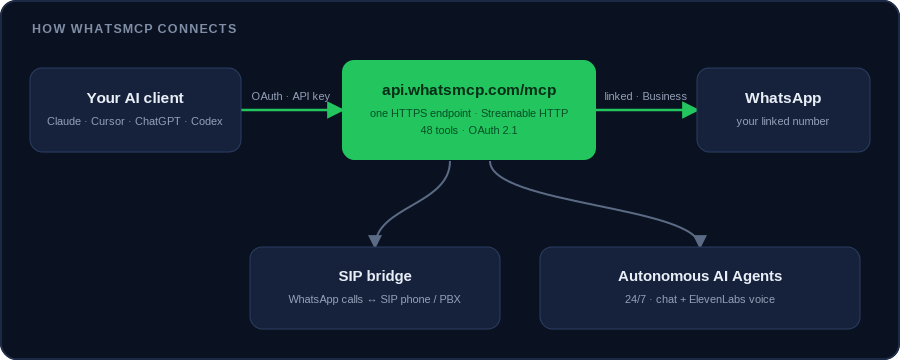
There is nothing to install and nothing to run locally — it is a remote MCP server over
Streamable HTTP. Your client talks to https://api.whatsmcp.com/mcp and signs in with
OAuth, or presents an API key.
The simple path is not the WhatsApp Business API. You link a normal WhatsApp account by scanning a QR code from the phone — exactly like WhatsApp Web — and your agent uses it as a linked device: no templates, no 24-hour session window, no message approval, no per-conversation billing. You can also connect a WhatsApp Business (Cloud API) number when you want Meta-reviewed templates — see Business numbers.
1. Create a workspace     →  https://console.whatsmcp.com/register
2. Link a WhatsApp number →  Console → Pair device (scan the QR with your phone)
3. Give your client       →  https://api.whatsmcp.com/mcp
                             …and sign in when it asks. No key to paste.
For Claude Code that is two commands:
claude mcp add --transport http wamcp https://api.whatsmcp.com/mcp
claude mcp login wamcp
Then ask your agent: “list my WhatsApp accounts and show me the last few messages.”
Clients that cannot sign in — curl, CI, anything without OAuth — take a key in a header
instead: mint one, then see Connect your
client.
Sign-up is self-serve and free — no card, no sales call.
| Create an account | https://console.whatsmcp.com/register |
| Sign in | https://console.whatsmcp.com/login |
| Product site | https://whatsmcp.com |
You give a name and an email address. We send a confirmation link; opening it is where you choose a password. Confirming creates your workspace on the free plan and drops you into a short setup wizard that walks the three steps that turn a bare account into a working integration: link a number, mint a key, and — optionally — point a webhook at your endpoint. It is derived from what you have actually done rather than a checklist you tick, so it disappears once you are set up and comes back if you unlink everything.
Everything lives in the console:
| Console page | What it is for |
|---|---|
| Fleet | Every linked number and whether it is connected |
| Pair device | Link a new WhatsApp number by QR |
| API keys | Mint and revoke keys; copy-paste connection examples |
| Connections | Clients you signed in with OAuth, and a revoke button per client |
| Webhooks | Inbound delivery endpoint and its recent attempts |
| Usage | Messages sent against your plan's caps |
| Help | The connection details for your workspace, and which tools your plan includes |
Per-number pages (Messages, Contacts, Calls) hang off each account in the same console.
WhatsMCP connects as a linked device, the same mechanism as WhatsApp Web. Your phone stays the primary device and can stay in your pocket afterwards.
From the console: open Pair device, then on the handset go to WhatsApp → Settings → Linked devices → Link a device and scan the code.
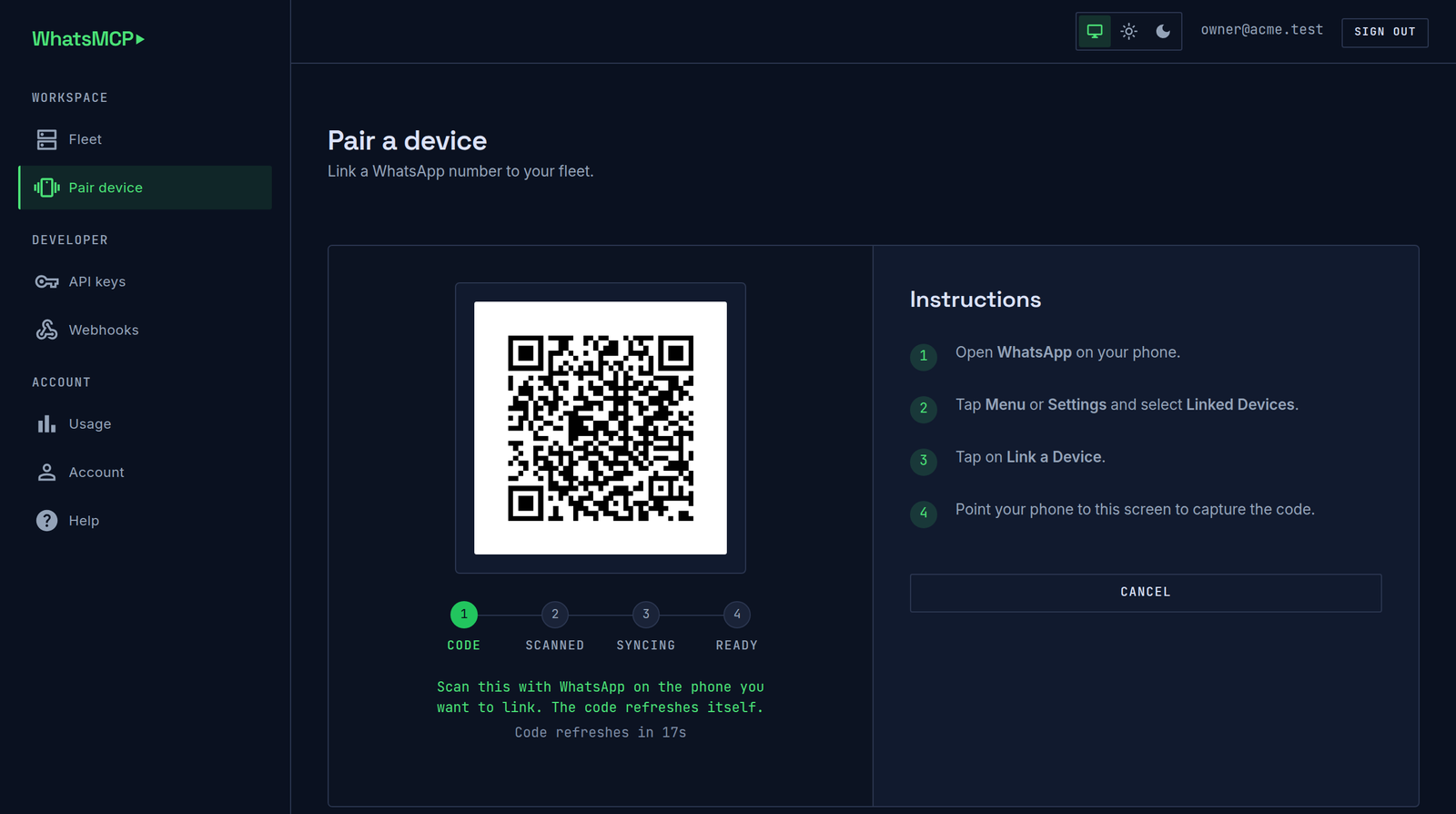
The code rotates roughly every 20 seconds and the page refreshes itself, so a stale QR never sits there failing to scan. The stepper underneath tracks the whole run: the handset accepts the code (scanned), the device logs in and pulls its history (syncing), and only then is the number ready to use.
From the agent, with the wa_pair_account tool:
// 1. start pairing — returns a QR as a base64 PNG for the user to scan
wa_pair_account()
→ { "pair_id": "…", "state": "qr", "qr_png_base64": "iVBORw0…", "instructions": "…" }

// 2. the code rotates about every 20 seconds — poll for the current one
wa_pair_status({ "pair_id": "…" })
→ { "state": "qr",     "qr_png_base64": "…" }     // show the new image
→ { "state": "paired", "instructions": "Linked. …" }  // done
Once state is paired the number appears in wa_list_accounts and is ready to use.
wa_unpair_account disconnects it again.
Optional. A client that can sign in with OAuth never needs one — skip to Connect your
client. Keys are for curl, for CI, and for clients that cannot do
OAuth.
Console → API keys → Create key.
Keys look like wamcp_live_XXXXXXXXXXXX_… and are shown exactly once — we store only a
hash, so a lost key is replaced, never recovered. Mint one key per client or per environment
and revoke individually.
The key is the workspace. Every tool is scoped to it: there is no tenant argument to pass and no way for one workspace to reach another's messages.
Any MCP client that speaks Streamable HTTP will work. There is one endpoint:
| Endpoint | https://api.whatsmcp.com/mcp |
There are two ways to prove who you are against it.
Per-client setup guides — Claude, ChatGPT, Codex, Cursor, Grok and Manus — live at whatsmcp.com/connect.
OAuth — recommended, and what every client below does by default. The client reads the server's own metadata, registers itself, and sends you to the console to approve it. Nothing is pasted anywhere: no key is created, none is stored in a config file, and you can revoke one client without touching the others from Console → Connections.
An API key — Authorization: Bearer <your key>, or x-api-key: <your key> for clients
that reserve Authorization for a token they manage themselves. Use it for curl, for CI,
and for clients that cannot do OAuth. See Create an API key.
claude mcp add --transport http wamcp https://api.whatsmcp.com/mcp
Then run /mcp inside Claude Code, pick Authenticate, and sign in in the browser window
it opens. claude mcp login wamcp does the same thing from the shell. claude mcp list
should then show wamcp connected.
With a key instead, and no sign-in step:
claude mcp add --transport http wamcp https://api.whatsmcp.com/mcp \
  --header "Authorization: Bearer YOUR_KEY"
Open Settings → Connectors → Add custom connector, put the endpoint in the URL field, leave Authentication on OAuth, and sign in when Claude asks. The dialog discovers the flow on its own.
The authentication type is fixed when the connector is added. A connector created with a header or an API key never switches itself to OAuth later — delete it and add it again.
To use a key here instead, set Authentication to None and add one entry under Additional request headers:
| Header name | x-api-key |
| Value | YOUR_KEY |
Paste the key on its own — no Bearer in front of it. Authorization is not offered in
that dialog: it is kept for the OAuth token Claude manages itself. Header values are stored
once and never shown again, so if the connector will not connect, replace the header rather
than trying to read it back — a wrong key and a missing one look identical from the outside.
If you edit the configuration file instead of using the dialog, it has no such restriction:
{
  "mcpServers": {
    "wamcp": {
      "type": "http",
      "url": "https://api.whatsmcp.com/mcp",
      "headers": {
        "Authorization": "Bearer YOUR_KEY"
      }
    }
  }
}
Turn on Developer mode under Settings → Security and login (availability depends on your ChatGPT plan), then go to Plugins, press +, and give it the endpoint.
OAuth is the only way in here. ChatGPT cannot present a custom API key to an MCP server, so the key path in this page does not apply to it — there is no header field to put one in. The sign-in flow is the whole configuration.
codex mcp add wamcp --url https://api.whatsmcp.com/mcp
codex mcp login wamcp
Or write the same server into ~/.codex/config.toml directly. auth defaults to "oauth":
[mcp_servers.wamcp]
url = "https://api.whatsmcp.com/mcp"
auth = "oauth"
To use a key instead, keep it in the environment rather than in the file:
[mcp_servers.wamcp]
url = "https://api.whatsmcp.com/mcp"
bearer_token_env_var = "WHATSMCP_API_KEY"
export WHATSMCP_API_KEY=wamcp_live_…
Codex sends that as Authorization: Bearer …. If you would rather set headers yourself, use
http_headers for static values and env_http_headers to pull them from the environment.
Add it under Settings → Tools & Integrations → New MCP Server, which opens your
mcp.json — ~/.cursor/mcp.json for every project, or a repo's .cursor/mcp.json to share
one with your team. The OAuth default needs nothing but the URL:
{
  "mcpServers": {
    "wamcp": {
      "url": "https://api.whatsmcp.com/mcp"
    }
  }
}
Reload Cursor; a browser tab opens for you to sign in, and wamcp then shows green with its
tools under Tools & Integrations. Native OAuth for remote servers needs Cursor 1.0 or
newer — if an older build will not pick the server up, add "type": "http" next to the
url.
To use a key instead, add a header to the same entry — no sign-in step:
{
  "mcpServers": {
    "wamcp": {
      "url": "https://api.whatsmcp.com/mcp",
      "headers": {
        "Authorization": "Bearer YOUR_KEY"
      }
    }
  }
}
Clients differ in where they keep configuration, but they all need the same thing: the
endpoint added as a remote HTTP (not stdio) server. A client that supports OAuth will
find the sign-in flow by itself once it has the URL. One that does not needs the key in
Authorization, or in x-api-key where it will not let you set Authorization.
If a client only offers "a command to run", it does not support remote servers — there is no local process to point it at.
Worth reading only if you are integrating a client of your own, or wondering what your agent just agreed to. Everything here is standard OAuth 2.1 — no custom handshake.
The server publishes two metadata documents, which is how a client bootstraps with nothing but the endpoint URL:
/.well-known/oauth-protected-resource | RFC 9728 — names the resource and points at its authorization server |
/.well-known/oauth-authorization-server | RFC 8414 — the endpoints, grants and scopes below |
A client registers itself either by Dynamic Client Registration (RFC 7591, at
/oauth/register) or by publishing a Client ID Metadata Document whose URL is its client
id — both are supported, and the vendors above use one or the other. Then it is an ordinary
authorization-code flow with PKCE (S256 only): you land on the consent page at
/console/oauth/authorize, approve, and the code is exchanged at /oauth/token.
Authorization codes are single-use, refresh tokens rotate on every use, and a retired refresh
token being replayed revokes the whole grant rather than issuing another. Tokens are bound to
this resource (RFC 8707) and revocable at /oauth/revoke (RFC 7009).
Seven scopes are advertised and recorded on each grant:
| Scope | Covers |
|---|---|
wa:accounts | Listing your numbers, plan and service version |
wa:read | Messages, chats, contacts, profiles, groups, calls, media |
wa:send | Sending, reacting, editing, group and blocklist changes |
wa:pair | Linking and unlinking numbers |
wa:webhooks | Registering and managing inbound delivery |
wa:egress:socks5, wa:egress:wireguard | Per-account egress configuration |
Scope is recorded, not enforced at the tool layer. Which tools a grant can actually reach is decided by your plan, exactly as it is for an API key. Treat the scope list as a description of what the connection is for, not as a sandbox.
Grants are listed and revocable at Console → Connections. Revoking one there disconnects that client and nothing else.
curl -s https://api.whatsmcp.com/mcp \
  -H "Authorization: Bearer YOUR_KEY" \
  -H "Content-Type: application/json" \
  -H "Accept: application/json, text/event-stream" \
  -d '{"jsonrpc":"2.0","id":1,"method":"tools/list","params":{}}'
Two things catch people out when driving the endpoint directly:
data: line per message.The endpoint is stateless (MCP 2026-07-28 removed protocol sessions), so it needs no
sticky routing and it is safe to call from anywhere. Called without a credential it answers
401 with a WWW-Authenticate header pointing at the protected-resource metadata, which is
what lets an OAuth-capable client start the flow on its own.
48 tools. Which ones appear in tools/list depends on your plan and the kind of number — a
tool your plan does not include, or that only applies to a Business (Cloud API) number, is
absent, not present-and-refusing. Console →
Help lists the set your workspace gets, marked
against what your plan includes.
Start with wa_list_accounts. Every other tool takes an account_id from it, and an
account is usable only while its state is connected.
| Tool | Does |
|---|---|
wa_list_accounts | Lists your linked numbers: account_id, phone, push_name, state (pairing, connected, disconnected, logged_out, locked) |
wa_pair_account | Starts linking a new number; returns a QR as a base64 PNG |
wa_pair_status | Polls a pairing; returns a fresh code while one is waiting |
wa_unpair_account | Disconnects a linked number |
wa_get_plan | Your plan, its limits, and usage so far against the message and account caps — call it to see why a send was refused, or how much headroom is left |
| Tool | Does |
|---|---|
wa_send_message | Sends text, an image, a document or audio from one of your numbers; on a Business number, also an approved template |
wa_list_messages | Reads messages across accounts, oldest first, paged by cursor |
wa_list_chats | Lists an account's conversations — direct chats, groups and channels — each with its JID, type and archive status; exclude_archived leaves archived ones out |
wa_get_chat | Recent messages for one account, no cursor — a one-off catch-up |
wa_get_message | Fetches one stored message by message_id or cursor — the one a webhook told you about, without paging |
wa_get_message_context | Reads a message with the few before and after it in the same conversation, for context |
wa_get_media | Downloads a received attachment by message_id (base64 + mime) |
wa_load_history | Asks the account's phone for older messages in one chat and stores them; read them back with wa_get_chat |
Each of these acts on a message that already exists, so each one takes the message_id that
wa_list_messages gave you.
| Tool | Does |
|---|---|
wa_react | Reacts with an emoji; an empty reaction removes one you sent |
wa_edit_message | Edits a message you sent — WhatsApp accepts an edit for about 20 minutes |
wa_delete_message | Deletes for everyone. WhatsApp has no true delete; this revokes the message, which every modern client honours |
wa_set_presence | Announces typing (composing/paused) to a chat, or sets an account available/unavailable. Fire-and-forget — there is no delivery confirmation |
| Tool | Does |
|---|---|
wa_list_contacts | The account's address book, paged |
wa_get_profile | Looks up who a number is on WhatsApp: whether it is registered, its public name, about text, picture, and a business's categories, contact details and hours |
wa_set_profile_photo | Changes (or removes) the profile photo of one of your own accounts — the picture every contact sees |
Unlike wa_list_contacts, wa_get_profile asks WhatsApp rather than reading the local store.
An empty about or picture means the peer has not shared it with this account, not that
they have none.
| Tool | Does |
|---|---|
wa_block_contact | Blocks or unblocks a contact — a blocked contact can no longer call or message this account |
wa_list_blocked | Everyone this account has blocked |
Both report who, not just a number: each entry carries the number, the name this account's address book has for them (absent for someone never saved on the phone) and the country the number belongs to. WhatsApp does not record when a contact was blocked, so no date is available.
| Tool | Does |
|---|---|
wa_list_groups | Groups an account has joined — JID, name, member count |
wa_list_channels | Channels an account follows — JID, name, subscriber count |
wa_join_group | Joins a group from an invite link |
wa_follow_channel | Follows a Channel from its link |
wa_leave_chat | Leaves a group or unfollows a channel |
wa_list_group_members | A group's members, each with JID, phone and admin flag |
wa_create_group | Creates a group; returns its JID and invite link |
wa_delete_group | Removes every other member, then leaves (WhatsApp has no true delete) |
Every one of these follows WhatsApp's own rules: a mutation that needs admin fails without it, rather than silently doing nothing.
| Tool | Does |
|---|---|
wa_update_participants | Adds members, or promotes/demotes admins (action = add, promote or demote), by phone number or JID |
wa_remove_participants | Removes members by phone number or JID |
wa_update_group | Changes the group's name, description, and whether only admins may change settings (locked) or post (announce) — any subset in one call |
wa_get_group_invite_link | Returns the invite link, or with reset revokes it and issues a new one |
| Tool | Does |
|---|---|
wa_list_calls | Call history, oldest first, paged — direction, peer, answered, seconds, reason, codec |
| Tool | Does |
|---|---|
wa_set_webhook | Registers an HTTPS endpoint for inbound messages; returns a signing secret shown once |
wa_get_webhook | Shows the endpoint, whether it is enabled, when it last succeeded |
wa_enable_webhook | Pauses or resumes delivery without changing the endpoint or its secret |
wa_delete_webhook | Stops delivery; messages remain readable through the tools |
Reach for wa_enable_webhook rather than deleting and recreating when you only want
deliveries to stop for a while: deleting issues a new secret, and everything verifying the
old one breaks.
An AI voice agent places and answers real WhatsApp calls from one of your numbers, driven by a preset — an agent, the line it calls from, and default variables.
| Tool | Does |
|---|---|
wa_ai_list_presets | Lists the workspace's voice-agent presets; only a ready one can call now |
wa_ai_call_start | Has an agent call a number using a preset; returns a call_ref and runs on its own |
wa_ai_call_get | Reads a call — status, and once ended the summary, collected data, transcript and a one-hour recording_url |
wa_ai_list_calls | Lists voice-agent calls, newest first — outbound and answered inbound |
wa_ai_call_hangup | Ends a live call (outbound, or an inbound one an agent answered) |
WhatsApp Business (Cloud API) numbers message outside the 24-hour window with templates Meta has approved.
| Tool | Does |
|---|---|
wa_create_template | Submits a template (MARKETING or UTILITY) for Meta's review |
wa_list_templates | Lists templates with each one's review status (APPROVED, PENDING, REJECTED) |
wa_delete_template | Deletes a template — one language, or every language of the name |
| Tool | Does |
|---|---|
wa_report | Sends a bug report, feature request or feedback to the WhatsMCP team — not a WhatsApp message |
Your agent should not have to make you be the address book. wa_list_contacts reads the contacts
synced from the phone the account is linked to, so an agent can turn “message Alice”
into a number on its own.
It reads the account's local contact store. Nothing here talks to WhatsApp: no lookups are performed against the network, and asking is free of any rate cost beyond your plan's ordinary request throttling.
wa_list_contacts — the whole address bookwa_list_contacts({ "account_id": "acct_…", "limit": 500 })
→ {
"contacts": [
{ "phone": "447700900111", "name": "Alice Perreira", "name_source": "saved",
"jid": "447700900111@s.whatsapp.net" },
{ "phone": "447700900222", "name": "Bakery", "name_source": "business", "jid": "…" },
{ "phone": "447700900333", "name": "dave", "name_source": "push", "jid": "…" }
],
"total": 482,
"next_cursor": "447700900333",
"has_more": true
}
| Field | Meaning |
|---|---|
phone | International form, digits only — pass this straight to wa_send_message. Empty for a LID-form contact whose number this account has never been told |
name | The best available display name |
name_source | saved — what the account owner wrote in their own address book · business — a verified business name · push — what the contact calls themselves, vouched for by nobody |
jid | WhatsApp's own identifier |
total | How many contacts matched before the page limit, so a model can tell a page from the whole book |
next_cursor / has_more | Page until has_more is false to read everything |
Paging is by cursor over a stable order (sorted by phone), so it never repeats or skips a row. Default page 500, maximum 2000.
note rather than letting an agent report
that a customer with 500 contacts has none.peer in
wa_list_messages.account_not_connected and a
retry-after, rather than returning an empty book that reads as "you know nobody".The server never pushes to your agent. Nothing can interrupt a model when a message arrives, so your agent reads on its own schedule — and a cursor is what makes that reliable.
wa_list_messages returns messages oldest-first, each with a cursor, plus a next_cursor
for the page and has_more. Pass a cursor back as after_cursor to get only what has
arrived since — no gaps, no duplicates, even for two messages in the same millisecond,
which a timestamp cannot promise.
after = 0
repeat:
    r = wa_list_messages(after_cursor = after)
    for m in r.messages:
        if m.direction == "inbound":
            handle(m)                 # e.g. reply with wa_send_message
    after = r.next_cursor             # advance — only newer rows next time
    if not r.has_more:
        sleep(a while)                # caught up; poll again later
Each row says who and where:
| Field | Meaning |
|---|---|
direction | inbound (received) or outbound (sent by you) |
peer | The other party's number. In a group or channel this is the individual sender, not the conversation |
chat | The conversation JID — …@g.us for a group, …@newsletter for a channel |
chat_kind | dm, group, channel or broadcast |
kind / text | The content kind and the body (only text carries a body — fetch the rest with wa_get_media) |
at, message_id | RFC3339 timestamp, and WhatsApp's id |
To reply: in a DM send to the peer's number; in a group or channel send to the
chat JID — sending to the individual peer would start a private chat instead.
In Claude Code, the
/loopcommand automates exactly this: it polls on a cadence, acts when the message appears, and stops. See running loops with/tasks.
For a one-off catch-up on a single account rather than a poll, wa_get_chat returns recent
messages without a cursor.
If you would rather not poll, wa_set_webhook delivers each inbound message to an HTTPS
endpoint as it arrives (paid plans).
{
  "event": "message.inbound",
  "delivery_id": "01JB…",
  "tenant_id": "01JA…",
  "account_id": "01J9…",
  "account_phone": "447700900000",
  "message_seq": 48210,
  "message_id": "3EB0…",
  "chat_jid": "447700900111@s.whatsapp.net",
  "peer": "447700900111",
  "kind": "text",
  "body": "are you open on Sunday?",
  "at": "2026-09-02T14:21:07Z"
}
account_phone is your own number that received the message — what a routing rule, a CRM
or a support queue is usually keyed on. message_seq is the same cursor wa_list_messages
uses, so a consumer that missed a delivery can reconcile instead of guessing.
Each request carries:
| Header | Value |
|---|---|
X-WAMCP-Signature | t=<unix>,v1=<hex hmac-sha256> |
X-WAMCP-Delivery | The delivery id, for idempotency |
X-WAMCP-Event | The event name, so you can route without parsing the body |
Verify the signature — recompute HMAC-SHA256(secret, "<unix>" + "." + <raw body>) and
compare in constant time, rejecting a stale timestamp:
import hashlib, hmac, time

def verify(secret: str, header: str, body: bytes, tolerance: int = 300) -> bool:
    parts = dict(p.split("=", 1) for p in header.split(","))
    ts, sig = parts["t"], parts["v1"]
    if abs(time.time() - int(ts)) > tolerance:
        return False
    mac = hmac.new(secret.encode(), f"{ts}.".encode() + body, hashlib.sha256)
    return hmac.compare_digest(mac.hexdigest(), sig)
Answer 2xx to acknowledge. One attempt is bounded at 10 seconds; a failure is retried with
exponential backoff up to 8 attempts, and answering 410 Gone stops delivery of that message
permanently — it is the endpoint saying it is never coming back. Recent attempts and their
outcomes are visible in Console → Webhooks.
wa_send_message({
  "account_id": "acct_…",
  "to": "447700900111",          // international form, digits only — or a …@g.us / …@newsletter JID
  "text": "on my way"
})
→ { "status": "sent", "message_id": "3EB0…", "request_id": "01JB…" }
Attachments ride the same tool. text becomes the caption where one applies:
| Argument | Limit | Notes |
|---|---|---|
image_base64 + image_mime | 5 MiB decoded | JPEG or PNG |
document_base64 + document_mime + document_filename | 20 MiB decoded | Any file; the filename is what the recipient sees |
audio_base64 + audio_mime (+ audio_seconds, audio_ptt) | 16 MiB decoded | audio_ptt: true sends a voice note. Audio has no caption |
Check the returned status. The three values mean different things:
status | Meaning |
|---|---|
sent | Delivered to WhatsApp; message_id is set |
queued | Accepted but not yet confirmed. It may still arrive — do not send it again. Reconcile it later in wa_list_messages by its request_id |
refused | Nothing was sent; refusal.reason says whether retrying helps |
An agent that treats queued as failure will send your customer the same message twice.
Listing groups and channels is part of the read surface. Joining, leaving, messaging and group management require the account to be opted into group and channel messaging on its bridge — ask us to switch it on for a number. Without it the account refuses these calls, and the refusal says so verbatim rather than failing generically.
Group management (wa_create_group, wa_update_participants, wa_remove_participants,
wa_update_group, delete) follows WhatsApp's own rules: mutations that need admin fail without it.
wa_delete_group removes every other member and then leaves, because WhatsApp has no true
delete.
Everything above drives WhatsApp from your own AI. WhatsMCP can also run an autonomous AI agent on the number itself — it works your WhatsApp around the clock, 24/7, answering messages and calls on your behalf, with no client attached and nothing left running on your side. You build one in Console → Agents.
Chat agent. It replies to WhatsApp messages from a knowledge base you give it — upload files, paste text, or write Q&A — and answers from those rather than inventing; with no knowledge it says it does not know instead of guessing. It runs on your own LLM key, so the model and its cost stay yours, and it hands over to a human when it should.
Actions — the agent does things, not just answers. Give an agent actions and it decides from the conversation when to use them, then acts on the result. Two kinds:
Actions are guard-railed: a write action runs at most once per turn, there are per-turn and per-chat limits, an action can't reach a private or internal address, and when the agent can't tell whether one worked it hands the chat to a person. Your plan caps how many actions an agent may have (20 by default).
Voice agent — powered by ElevenLabs. It places and answers WhatsApp
calls in a natural voice. You connect your ElevenLabs account with its API key and point
the line at one of your ElevenLabs Conversational AI agents; WhatsMCP bridges the WhatsApp
call to it, and every call leaves a summary, transcript, collected data and a recording. You
can also drive these from your own client with the wa_ai_* tools and presets.
Agents are a paid capability: your plan sets how many replies a month, how large a knowledge
base, and how many actions per agent — wa_get_plan and Console →
Agents show what yours allows.
Most numbers here are linked devices — a normal WhatsApp account paired by QR. You can also connect a WhatsApp Business (Cloud API) number, Meta's official API, and drive it through the same MCP tools and the same endpoint: listing, sending, reading, webhooks and the rest work unchanged.
What a Business number adds:
wa_create_template,
wa_list_templates and wa_delete_template, then send one through wa_send_message.A Business number is flagged as such in wa_list_accounts, and a tool or argument that only
applies to one kind of number says so when it refuses. Everything else in this document —
contacts, groups, calls, webhooks — works the same whichever kind you connect.
Beta. WhatsMCP bridges WhatsApp voice calls to SIP in both directions. A WhatsApp call
to your linked number rings a SIP phone or your PBX as an ordinary INVITE; an extension
that dials a WhatsApp number in E.164 reaches that person on WhatsApp, and the call shows
your number as the caller. This is not the Meta Business Calling API — no business
verification and no per-minute billing.
It is set up per number in Console → SIP, and there are two ways to connect.
We run the phone system: the number gets a SIP account on our server and you register any SIP phone, softphone or browser to it. The console shows the server, username and password (with Show, Copy and New password), and whether your phone and the WhatsApp bridge are each registered right now.
Pick the phone type for the line — the two cannot share one endpoint:
| Phone type | For | Connect with | Media |
|---|---|---|---|
| SIP phone | Desk phones, softphones, PBXes | The SIP server over TLS on port 5061 — plain UDP 5060 only for a phone that cannot do TLS | SRTP (SDES) — turn it on in your phone. Plain RTP if the phone does not offer it |
| Browser (WebRTC) | The dialer built into the console, or your own WebRTC client | The WebSocket URL the console shows (wss, port 8089) | DTLS-SRTP, which the browser does by itself |
With Browser selected the SIP page carries a dialer: sign the browser in to the line, dial a WhatsApp number or wait for one to call, and talk through the microphone — no hardware at all.
A hosted line holds one registration and one call at a time. A second device that signs in to the same line takes the registration from the first, so run one phone per line. Connection history on the line's page shows when your phone and the bridge registered, and when either one dropped.
The bridge registers outbound to your registrar as an ordinary SIP extension, so there is no inbound firewall rule to open for signalling. You give it:
| Field | |
|---|---|
| Registrar | host or host:port — the port defaults to 5060 over UDP, 5061 over TLS |
| Transport | UDP (what most PBXes accept out of the box) or TLS for encrypted signalling — your PBX must then present a publicly-issued certificate for that host. Call audio to your PBX is plain RTP for now |
| Username / password | The extension or trunk account on your PBX. The password is stored encrypted and never shown again |
| Extension to ring | Where incoming WhatsApp calls go — 101 by default, or caller / 9:caller to pass the caller's number into your dialplan |
The credentials are checked against your registrar before they are saved, and Test
connection dials it again on demand and tells you what answered. Extensions call out by
dialling the WhatsApp number in E.164 without the leading +.
WhatsApp chooses its own codec per call — Opus, or MLow, Meta's low-bitrate codec, on a constrained network — and may switch mid-call. The bridge decodes it and re-encodes for your side, so your PBX never has to know MLow exists:
| Your side | |
|---|---|
| G.722 | Offered first — wideband (16 kHz), the same bandwidth WhatsApp carries |
| G.711 µ-law (PCMU) | The fallback every SIP phone and PBX speaks — narrowband (8 kHz) |
| G.711 A-law (PCMA) | Accepted when your side prefers it |
Allow g722 on your trunk and calls stay wideband end to end; a phone that only speaks G.711
still works, at landline quality.
SIP calling is a voice plan, billed per line and separate from your messaging plan. It decides which directions a number may use — incoming only, or incoming and outgoing — and the SIP page states what your plan allows. A call in a direction the plan does not include is declined rather than half-connected. Prices are flat per line per month, with no per-minute charges: see whatsmcp.com/sip.
Every call, SIP or not, lands in the number's call history — direction, peer, whether it was
answered, duration, end reason and codec — in the console, and through the wa_list_calls
tool.
Hear it first. The SIP page has a live demo number: message it on WhatsApp and it calls you back.
Need a dedicated number that lives only on the trunk (no handset), or many lines? Talk to us.
Every workspace starts on the free plan, which is enough to link a number and drive it from an agent. Paid plans raise the caps and add capability:
| What a plan decides | |
|---|---|
| Accounts | How many WhatsApp numbers you can link at once |
| Messages | Send caps per hour and per 24 hours |
| History | How long stored message bodies are kept before they are purged — wa_list_messages reads back exactly as far as that window |
| Webhooks | Inbound delivery — a paid capability, and the gate on the four wa_*_webhook tools |
| Egress | Routing an account's bridge through your own WireGuard tunnel or SOCKS5 proxy |
A capability your plan does not include does not appear as a failing tool — the tool is
absent from tools/list entirely, so a model never proposes a call that was always going
to fail.
Ask the service rather than this page for the numbers: wa_get_plan returns your plan,
its limits and your usage so far, and Console →
Usage shows the same counters.
A tool that declines does not raise a protocol error — it returns a structured refusal, so a model can read it and decide what to do:
{
  "refused": true,
  "reason": "account_not_connected",
  "message": "this account's bridge is not currently connected, so its contacts cannot be read; it reconnects on its own",
  "retry_after_seconds": 30
}
reason | Meaning |
|---|---|
invalid_request | Bad or missing arguments, or an id that does not exist in your workspace |
account_not_connected | The number is offline. It reconnects on its own — retry |
account_locked | WhatsApp has locked this account; message carries the reason |
quota_exceeded | Your plan's send cap for the window |
plan_required | The capability is on a higher plan |
throttled | Too many requests, or the account did not answer in time — retry |
retry_after_seconds absent or 0 means retrying will not help.
At the transport level: an invalid or revoked credential gets 401 (never 500, so a client
does not retry a dead credential forever), and the endpoint is rate-limited per source
address.
wa_unpair_account.WhatsMCP is WhatsApp today. Telegram is next — the same MCP endpoint and the same style of tools, with a Telegram account connected much as a WhatsApp one is, so an agent already built against WhatsMCP reaches Telegram with little more than a new account linked. Want it early, or have a use case to help shape it? Tell us or watch the repo.
WhatsMCP is live and self-serve — the service described here runs in production and you can sign up for it today without talking to anyone.
This repository is the public documentation for that hosted service. The server's source is not published, and no licence is granted over the contents of this repository: it is public to read, not licensed for reuse or redistribution.
WhatsMCP is an unofficial integration. It is not affiliated with, authorised by, or endorsed by Meta or WhatsApp.
| Product site | https://whatsmcp.com |
| Documentation | https://whatsmcp.com/docs/mcp |
| Create an account | https://console.whatsmcp.com/register |
| Sign in | https://console.whatsmcp.com/login |
| Console | https://console.whatsmcp.com |
| Help (your workspace's own connection details) | https://console.whatsmcp.com/help |
| MCP endpoint | https://api.whatsmcp.com/mcp |
| Connect your AI client — Claude, ChatGPT, Codex, Cursor, Grok, Manus | https://whatsmcp.com/connect |
| Integrations — Pipedrive & CRM | https://whatsmcp.com/integrations |
| SIP ↔ WhatsApp voice bridge | https://whatsmcp.com/sip |
| Engineering blog | https://whatsmcp.com/blog |
| Model Context Protocol | https://modelcontextprotocol.io |
| Organisation on GitHub | https://github.com/whatsmcp |
| Privacy Policy | https://whatsmcp.com/privacy |
| Terms of Service | https://whatsmcp.com/terms |
| Contact / support | https://whatsmcp.com/contact |
Questions, a number that needs group messaging switched on, or a plan that does not fit — open an issue, use the contact link above, or write to us from the console.
WhatsMCP — one endpoint, one linked number, and your agent is on WhatsApp.
Claim this server with your GitHub account to request manual ownership verification.
Link to the catalog listing for WhatsMCP: hosted WhatsApp MCP server from your README. This badge does not certify ownership, compatibility or security.
[](https://awesome-mcp.com/servers/whatsmcp-715771)Public repository statistics could not be verified. Check the configured source address; unavailable counts are not zero.
来源、范围和时段分别列出;不相加,不代表安装人数、活跃用户或安全审核。
尚无已审核的包 / 镜像标识,暂不展示下载统计。
Alternative and complementary servers in the same category
An AI receptionist platform with an MCP server for accessing business calls, contacts and appointments from AI assistants.
Pidgeon provides an MCP server and an email inbox API that gives AI agents their own addresses for sending, awaiting, and replying to email.

A Telegram CLI with background sync that can run an optional MCP server for a personal account using MTProto, not the bot API.
